
Published August 16, 2026 · By Sumbat.T
Best Dictation Software for Windows in 2026 (Free and Paid)
Short Answer
Try the free built-in first: press Win+H and Windows Voice Typing appears. When its punctuation and one-app limits start costing you editing time, BlabbyAI is the best paid dictation software for Windows at $8.49/month, and Dragon Professional remains the specialist pick for medical or legal vocabulary and offline work.
Below: all 7 Windows options compared on price, coverage, and what they actually do to your text. Disclosure up front: we build BlabbyAI, so weigh our #1 accordingly. The other six entries are as straight as we can write them. Comparing across platforms instead? See the best dictation apps overall or the full dictation software guide.
Dictate in every Windows app
BlabbyAI: one Ctrl+Space shortcut, punctuation handled. 2,000 words a week free.
How we evaluated
Same yardstick for every tool: the speech engine and its accuracy ceiling, whether it works system-wide or in one app, what it does about punctuation and formatting, privacy policy, and the real price. Data comes from vendor documentation and pricing pages, public benchmarks like MLCommons, and aggregated user reviews. Prices were verified in August 2026. We build BlabbyAI and say so wherever it matters.
Dictation software for Windows at a glance
| Tool | Best for | Free plan | Paid price |
|---|---|---|---|
| BlabbyAI | Best overall for Windows | 60 credits/week (~2,000 words) | $8.49/mo unlimited |
| Windows Voice Typing | Best free built-in | Fully free | None |
| Windows Voice Access | Hands-free PC control | Fully free | None |
| Microsoft Word Dictate | Dictating inside Word | With Microsoft 365 | Part of 365 subscription |
| Dragon Professional | Medical/legal vocabulary, offline | No | ~$699 one-time |
| Wispr Flow | Cross-platform native apps | 14-day trial | $12 to $15/mo |
| SpeechTexter | Free online notepad | Fully free | None |
1. BlabbyAI: best dictation software for Windows overall
Best for: anyone who writes across several Windows programs and wants finished text instead of a raw transcript.
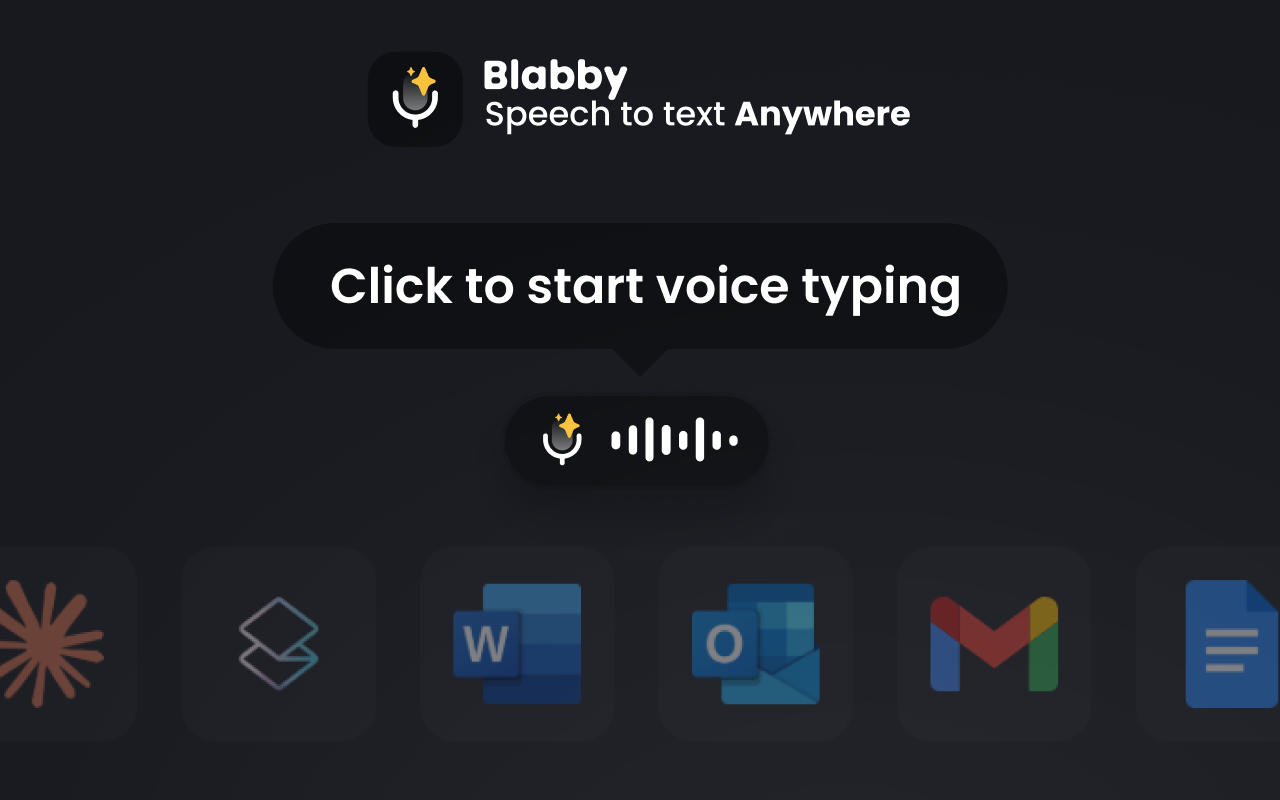
BlabbyAI is a native Windows app built on OpenAI's Whisper large v3 turbo. Press Ctrl+Space in any text field, talk, press again, and your words are typed where your cursor was, punctuated and cased from how you spoke them. The feature the built-ins cannot match is custom AI modes: one shortcut can transcribe, fix grammar, translate, or shape your speech into an email before it lands. It supports 90+ languages with auto-detect, learns your custom spellings for names and jargon, and keeps a local History of your audio on your own machine, so a failed transcription never loses your words.
- Pros: works in every Windows app; automatic punctuation; custom AI modes; 90+ languages; zero-data-retention transcription; free weekly tier with no card.
- Cons: needs an internet connection; free tier is capped weekly; Mac users get the Chrome extension, not a desktop app.
- Price: free to start (60 credits/week, roughly 2,000 words), $8.49/month for unlimited use.
Disclosure: BlabbyAI is our product. The one-line pitch: the same system-wide AI dictation as the $12 to $15 tools, at $8.49, with a free weekly tier to test on your own voice first.
What modes look like in a normal Windows day, concretely. An email mode that turns "hey sarah the report is going to be late friday at the earliest sorry about that" into a properly punctuated, paragraphed message before it lands in Outlook. A command instruction like "whenever I say new paragraph, insert an actual paragraph break" so you get the classic dictation commands without memorizing anyone's list, you define your own. A translate mode that lets you speak your native language into a field and have English arrive, grammar corrected, in one shortcut. Each mode is a plain-language instruction you write once; the speech you dictate is the input it reshapes, not a request it answers.

2. Windows Voice Typing (Win+H): best free built-in
Best for: occasional dictation with zero setup and zero cost.
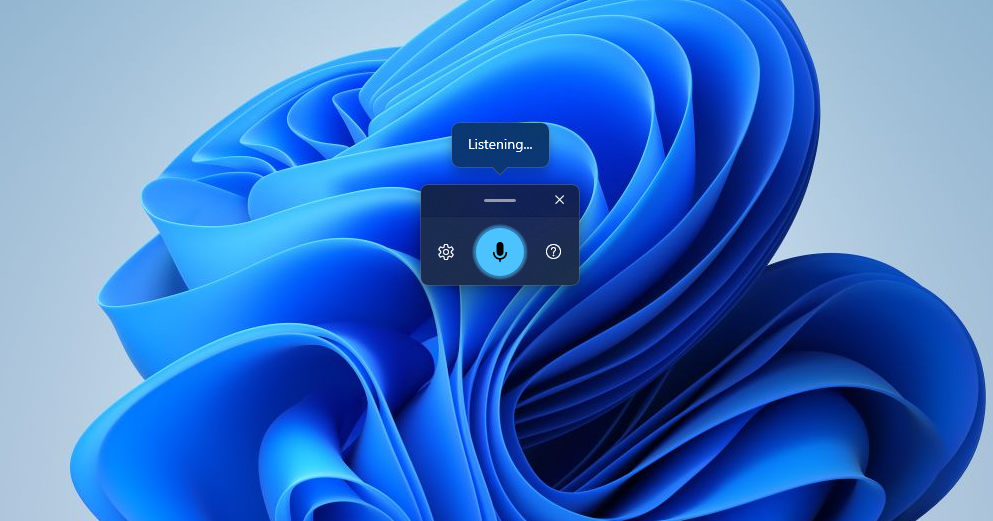
Already on your PC. Press Win+H in any text field on Windows 10 or 11 and a small toolbar starts listening. Accuracy is respectable for clean speech, and auto-punctuation exists once you find the setting (off by default, oddly). Where it falls short: punctuation quality degrades on longer passages, there are no formatting smarts, and it quietly stops when it loses connection. Fine for a search box or a quick message, tiring for a full document. Our Win+H guide covers every command and fix.
- Pros: free; preinstalled; works in any text field; decent baseline accuracy.
- Cons: weak punctuation; no formatting or cleanup; needs internet; no custom vocabulary.
- Price: free.
3. Windows Voice Access: hands-free control plus dictation
Best for: controlling the whole PC by voice, accessibility-first workflows.
Voice Access is the second built-in, added in Windows 11, and it does more than type: you can open apps, click buttons, and navigate by voice, with dictation included. If you need hands-free operation of the computer itself, this is the free tool that does it. As pure dictation software it shares Voice Typing's limits: serviceable accuracy, minimal punctuation intelligence, no text cleanup. Worth knowing it exists before paying anyone for basic hands-free control.
The distinction from Voice Typing confuses almost everyone at first, so here is the clean split: Voice Typing is a typewriter, Voice Access is a pair of hands. For users with RSI, carpal tunnel, or motor impairments, the pair-of-hands part is the point, and it pairs naturally with a stronger dictation tool doing the actual writing. That combination (Voice Access for control, an AI tool for text) is a setup we see repeatedly in accessibility workflows, and our carpal tunnel guide covers it in depth.
- Pros: free; full PC voice control, not just typing; works offline for commands.
- Cons: Windows 11 only; dictation quality is built-in grade; commands take learning.
- Price: free.
4. Microsoft Word Dictate: best inside Word

Best for: Microsoft 365 subscribers who write mostly in Word.
Click Dictate on Word's Home tab and you get genuinely good dictation: text appears as you speak, spoken commands handle punctuation and formatting, and accuracy is among the best of the built-ins. Two catches. It needs an active Microsoft 365 subscription and an internet connection, and it works only inside Word, so the moment you switch to email or a browser you are back to typing. Full walkthrough in our Word dictation guide, and we compare it against the alternatives in Microsoft Word dictation software.
- Pros: strong accuracy; live text display; spoken punctuation and formatting commands; included with 365.
- Cons: Word only; requires a 365 subscription and internet; no use outside documents.
- Price: included with Microsoft 365.
5. Dragon Professional: the specialist workhorse
Best for: medical, legal, and enterprise users who need custom vocabularies or fully offline dictation.
Dragon has been the professional's dictation software for decades, and in two niches it still is: specialist vocabulary (clinical terms, legal phrasing, trained custom words) and local processing with no cloud involved. It types system-wide, supports deep voice commands, and its accuracy after training is excellent. The price is the barrier: around $699 one-time for Professional, plus a real setup and training investment. For general writing, that money buys years of a modern AI tool. We break down versions and pricing in our Dragon guide.
- Pros: offline; specialist vocabularies; deep voice command system; system-wide.
- Cons: ~$699 one-time; dated interface; needs training time; Windows resource heavy.
- Price: around $699 one-time (Professional v16).
6. Wispr Flow: polished cross-platform alternative
Best for: people who dictate on Windows and Mac (or phone) and want one paid tool across all of them.
Wispr Flow does system-wide AI dictation with automatic cleanup, and it does it on Windows, Mac, and mobile with native apps. The output quality is strong and the polish is real. You pay for that reach: $12 to $15 a month depending on plan, with a 14-day trial and no free tier. If you live entirely on Windows, you can get the same class of dictation for less; if your day spans devices, Flow is the strongest option in this list. Our full comparison: Wispr Flow alternatives.
- Pros: native apps on every platform; strong AI cleanup; polished experience.
- Cons: $12 to $15/mo; no free tier; cloud processing only.
- Price: $12 to $15/month after a 14-day trial.
7. SpeechTexter: free browser notepad
Best for: quick free dictation into a web page you copy from afterwards.
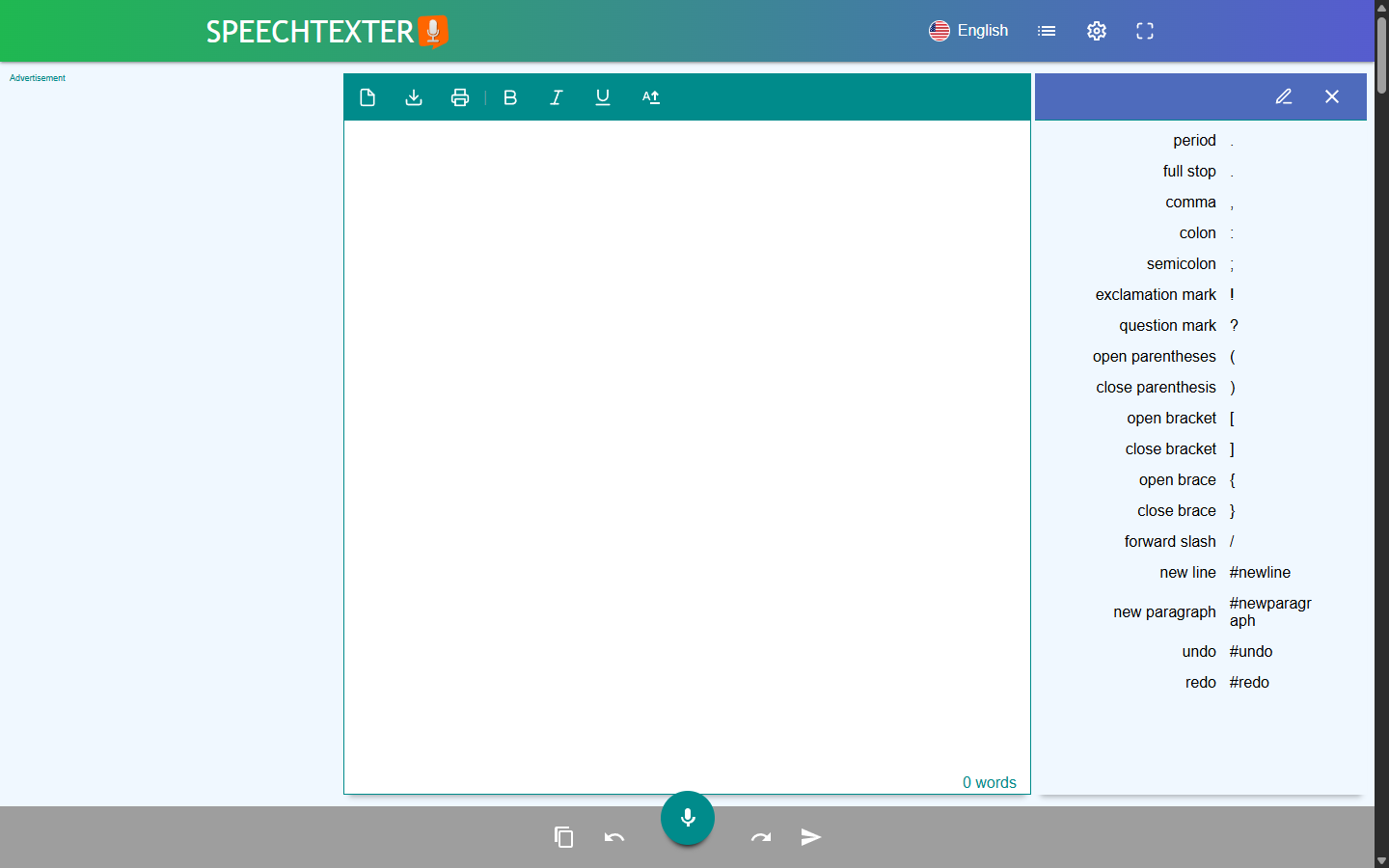
SpeechTexter is a free website: open it in Chrome, hit the mic, talk, and copy the result wherever it needs to go. It uses the browser's speech engine, supports custom voice commands for punctuation, and costs nothing. The workflow is the limit. Everything lands in the SpeechTexter page first, so every paragraph ends with a copy-paste trip. As a scratchpad it earns its place; as your main dictation software the copying gets old fast. More in SpeechTexter alternatives.
- Pros: completely free; nothing to install; custom punctuation commands.
- Cons: dictates only into its own page; browser engine accuracy; no formatting intelligence.
- Price: free.
How to choose dictation software for Windows
Most bad purchases in this category come from skipping one question: where do you actually type? Answer that first, then walk the five criteria below. Ten minutes of honest accounting beats a month of paying for the wrong tool.
- App coverage. Count the programs you write in during a normal day. If the answer is "Word and nothing else", Word Dictate covers you and you may already own it. Two or more programs, and only a system-wide tool (BlabbyAI, Win+H, Dragon) stops you from switching methods every time you switch windows. This single criterion eliminates half the market for most people.
- What happens to punctuation. The gap between built-in and AI dictation is not raw word accuracy anymore, it is everything around the words. Built-ins type what you say and leave commas mostly to you. AI tools infer punctuation from your tone and pacing, which is the difference between text you ship and text you edit. If you have ever abandoned dictation because "fixing it took longer than typing", this was probably why.
- Your vocabulary. Plain English works everywhere. Client names, drug names, legal terms, and project jargon need a tool that learns: BlabbyAI takes custom spellings, Dragon takes trained vocabularies, and the built-ins take neither. Dictate one test paragraph containing your five hardest words before paying anyone.
- Offline and privacy requirements. Dragon processes locally and is the only serious offline option on this list. Everything else transcribes in the cloud, so read the retention policy: BlabbyAI transcribes under zero data retention and keeps audio History on your machine only. If your employer forbids cloud audio, that decides the question for you.
- Real total cost. Free built-ins cost editing time. $8.49 to $15 a month buys AI cleanup. $699 one-time buys specialist vocabulary and offline processing. Match the spend to how many hours a week you dictate, not to the feature list.
Set up your Windows PC so any dictation software performs better
Reviews argue about engines, but a surprising share of "this software is inaccurate" complaints are microphone and environment problems. Whatever tool you pick, three fixes raise accuracy more than switching products ever will.
First, stop using the laptop's built-in microphone array from across the desk. Any headset or USB microphone positioned near your mouth feeds the engine a cleaner signal than a laptop mic fighting room echo, and every engine on this list improves with it. Second, check which device Windows is actually using: Settings, System, Sound, then the input dropdown. A shocking number of laptops default to a webcam microphone after an update. Third, dictate in sentences, not fragments. Engines that infer punctuation from tone (BlabbyAI, Word Dictate) read a complete spoken sentence far better than three restarts and a trailing "uh". Speak the thought, then stop.
If your vocabulary is specialized, spend five minutes teaching the tool before judging it: add custom spellings in BlabbyAI (Settings, Languages, Add Custom Spelling), or build a custom word list in Dragon. The built-ins cannot learn your terms, which is worth knowing before a week of correcting the same name.
Why bother? The speed math
People speak at roughly 130 to 150 words per minute. Most people type at around 40. That is a three-to-four-times gap on raw throughput, and it is why dictation keeps winning converts among people who write all day. The catch has always been cleanup: if you spend the saved time fixing punctuation, the math collapses. This is the honest case for AI dictation on Windows: the built-ins give you the raw speed, and the AI tier keeps the winnings by handing you text that needs little to no fixing. For a two-page document, that difference is not subtle. Draft an email by voice once and count the corrections; the tool that needed fewest just told you its value.
Dictation software for Windows by use case
The right pick shifts with the job, and we have written deeper guides for the big ones. Writers and authors drafting long-form get the most from AI cleanup and a system-wide shortcut; see dictation software for writers. Medical professionals live in the specialist-vocabulary end of the pool, where the Dragon-vs-modern-AI tradeoff is a genuine decision: medical dictation software walks through it. Lawyers have their own version of that call in dictation software for lawyers. Students mostly need free plus fast, covered in dictation software for students, and programmers should read voice dictation for programmers first, because voice-coding and dictating prose around code are different problems with different answers.
Tools we left off the main list, and why
- Willow Voice. A real product with strong AI dictation, but Mac-first. On a Windows-only roundup it loses its main argument; if you split time across platforms, compare it in our Willow comparison.
- Speechnotes. Similar deal to SpeechTexter: a free browser notepad on the browser's speech engine. Fine as a scratchpad, same copy-paste ceiling. Details in Speechnotes alternatives.
- Otter.ai. Excellent at what it does, but what it does is meeting transcription: recording a conversation and giving you a document afterwards. It does not type into your apps as you speak, so it is not dictation software, and including it here would mislead you.
- Google Docs voice typing. Free and decent, but it works only inside Google Docs in Chrome, which makes it a Docs feature rather than Windows dictation software. If Docs is your home, it deserves a look on its own terms.
The Windows dictation market in 2026, briefly
Three tiers have settled out. The free built-ins (Voice Typing, Voice Access, Word Dictate) are better than their reputation and cover casual use completely, which is why we keep recommending people start there. The AI tier ($8 to $15 a month: BlabbyAI, Wispr Flow, and a crowd of newer entrants) competes on what happens after transcription: punctuation, cleanup, formatting, custom vocabulary. That tier is where the real movement is, and it is why this list looks different from one written three years ago. And Dragon sits alone in the specialist tier, expensive and dated but still the only answer for trained clinical vocabularies and fully offline work. The practical consequence of the shake-out: raw accuracy stopped being the differentiator, because everyone's engine is good now. Judge tools by their output quality on your real work, not by the accuracy number on the landing page.
Free vs paid: an honest decision rule
Run the free built-in for one real week before spending anything. Not a demo sentence, a week of actual email and documents through Win+H. Two outcomes are common. Some people find it simply covers them: short messages, occasional notes, done, keep your money. The rest hit the same wall by Wednesday: the cleanup. Every dictated paragraph needs a punctuation pass, names come out mangled, and the editing time quietly eats the speed the dictation bought. That wall is precisely what the paid tier exists for, and it is why the AI tools cluster at $8 to $15 a month rather than free: inferring punctuation from tone, learning your vocabulary, and reshaping rough speech into finished text is the actual product, transcription is just the entry ticket. If week one leaves you editing, the upgrade pays for itself; if it does not, you have your answer at zero cost. BlabbyAI's weekly free tier exists for exactly this test, no card attached.
Common Windows dictation problems, and the fixes
- Win+H opens, then types nothing. Usually the wrong input device. Settings, System, Sound, and check the input dropdown; laptops love to switch to a webcam mic after updates. Voice Typing also needs an internet connection, so a dropped VPN or offline stretch silently kills it.
- No punctuation in the built-ins. Not a defect, a default. Open the Voice Typing toolbar's gear icon and switch auto-punctuation on. It ships off, which explains a lot of first-try abandonment.
- The Dictate button is greyed out in Word. You are signed out of Microsoft 365, on a perpetual-license Word, or your organization disabled the feature. Win+H works regardless, since it comes from Windows rather than Word.
- Another app is holding the microphone. A meeting app left running with an open mic can block or degrade dictation input. Close the call, or pick a different input device for dictation.
- Accuracy dropped out of nowhere. Before blaming the software: new background noise, a moved microphone, or a changed default device explain most sudden drops. Test with a headset in a quiet room to separate engine problems from input problems.
Which dictation software should you pick?
- You dictate occasionally: Win+H. Free, already installed, good enough.
- You write daily across apps: BlabbyAI. AI punctuation and modes, $8.49/mo, free tier to test.
- You only ever write in Word: Word Dictate, already in your 365 subscription.
- You need medical/legal vocabulary or offline: Dragon Professional.
- You need Mac and phone covered too: Wispr Flow.
Frequently asked questions
Does Windows 11 have built-in dictation software?
Yes, two tools. Voice Typing (press Win+H in any text field) handles plain dictation, and Voice Access adds voice control of the whole PC on top of dictation. Both are free and preinstalled. They cover casual use well; the paid tools below exist because the built-ins do not clean up punctuation, formatting, or grammar the way AI dictation does.
What is the best dictation software for Windows 11?
BlabbyAI, if you dictate regularly: it works in every app with one Ctrl+Space shortcut, punctuates from your tone, and costs $8.49/month after a free weekly tier. If you dictate a few sentences a month, the built-in Win+H voice typing is free and good enough.
What is the best free dictation software?
On Windows, press Win+H: Voice Typing is free, preinstalled, and works in any text field. SpeechTexter is a decent free browser notepad. BlabbyAI is free to start too: 60 credits a week, roughly 2,000 words, no credit card, with AI accuracy the built-ins cannot match.
What is the best voice typing app for PC?
For a PC used across many programs, pick a system-wide tool: BlabbyAI (AI accuracy, custom modes, $8.49/mo), Windows Voice Typing (free built-in), or Dragon Professional (specialist vocabularies, around $699). Word Dictate is excellent but only works inside Word.
Is there a dictation feature in Windows?
Yes. Press Win+H on Windows 10 or 11 and a small microphone toolbar appears; speak, and your words are typed into whatever field your cursor is in. It needs an internet connection, and auto-punctuation has to be switched on in its settings.
How do I turn on dictation in Windows 11?
Click into any text field and press Win+H. The voice typing toolbar opens and starts listening. To get punctuation added automatically, open the toolbar settings (gear icon) and enable auto-punctuation. Our Win+H guide covers every command and the common fixes.
Do I need Dragon for dictation on Windows?
Only in two cases: you need medical or legal vocabulary out of the box, or you must dictate fully offline. Dragon Professional costs around $699 one-time and still earns its keep there. For everyday writing, modern AI dictation matches its accuracy at consumer prices without voice training.
Can dictation software work in every Windows app?
System-wide tools can. BlabbyAI, Windows Voice Typing, and Dragon all type into whatever text field has your cursor, so the same shortcut works in Word, Outlook, Teams, Chrome, Notion, or an IDE. App-bound tools like Word Dictate and browser notepads like SpeechTexter only work in their own window.
Is there free dictation software for Windows 10?
Yes, and it is already installed: Voice Typing works on Windows 10 with the same Win+H shortcut as Windows 11 (Voice Access is the one that needs Windows 11). SpeechTexter and Speechnotes run free in any browser on Windows 10, and BlabbyAI supports Windows 10 with its free weekly tier.
What is the difference between Voice Typing and Voice Access?
Voice Typing (Win+H) only types: it turns speech into text in whatever field you clicked. Voice Access controls the whole computer: opening apps, clicking buttons, and navigating by voice, with dictation included. If you just want to write, Voice Typing is the simpler tool; if you need hands-free operation of Windows itself, Voice Access is the one built for it.
Does dictation software work in Chrome and other browsers?
System-wide tools do: BlabbyAI, Win+H, and Dragon type into any browser text field, from Gmail to a CMS editor, because the browser is just another Windows app to them. Browser-bound tools work the other way around: SpeechTexter and Google Docs voice typing live inside specific web pages and go nowhere else.
Can I dictate offline on Windows?
Dragon is the practical offline option: it processes speech locally, no connection needed. The built-in Voice Typing and the AI tools (BlabbyAI, Wispr Flow) transcribe in the cloud, because the large models behind their accuracy do not fit on a laptop. If offline is a hard requirement, that single constraint makes the decision for you.
Try the #1 pick free
BlabbyAI: system-wide AI dictation for Windows. 2,000 words a week free, no card.
Sources
- Microsoft, Dictate your documents in Word (retrieved 2026-08-16).
- MLCommons speech accuracy benchmark results for Whisper, 2025 (word accuracy 97.93% on clean audio).
- Nuance Dragon Professional pricing, nuance.com/dragon (retrieved 2026-08-13).
- Wispr Flow pricing, wisprflow.ai (retrieved 2026-08-13).
- SpeechTexter, speechtexter.com (retrieved 2026-08-13).