
Published June 3, 2026 · By Sumbat.T
Voice to Text Software: Speech to Text Tools Compared in 2026
Key Takeaways
- The real split is where the software can type, not how well it hears you. Windows Voice Typing and Google Docs voice typing are free and stop at one app; BlabbyAI ($8.49/mo) types into any text field and punctuates for you.
- It is about 3x faster than typing (Stanford, 2016), and the best engines hit up to 97.93% word accuracy (MLCommons, 2025).
- Built-in tools (Windows Voice Typing, Google Docs voice typing) are free but basic. Dedicated AI tools add accuracy, punctuation, and cross-app support.
- Our pick is BlabbyAI: Whisper v3 Turbo, 90+ languages, a native Windows app, an Android app, and a Chrome extension that works on any OS. Free tier, then $8.49/month.
Our pick



BlabbyAI: speak once, get finished text
Press Ctrl+Space anywhere on Windows, or click the Chrome extension on any OS, and talk. Punctuated, formatted text lands where your cursor already is. 60 credits a week free with no card, $8.49/month unlimited.
Most of us can speak far faster than we can type, yet the keyboard is still where almost all of our writing happens. Voice to text software closes that gap. It listens to your voice and writes the words for you, and the latest AI-powered tools do it accurately enough that the output needs little or no cleanup. This guide explains how the software works, the main types available, what separates a good tool from a frustrating one, and how to choose the right one for how you actually work.
What Is Voice to Text Software?
Voice to text software converts spoken words into written text in real time. You talk into a microphone, the software recognizes the speech, and the words appear in your document, email, or chat box. The terms voice to text, speech to text, and dictation software all describe the same core idea, and people use them interchangeably.
The category has changed a lot. Early dictation tools simply matched sounds to words and left punctuation and formatting to you. Today's tools run on large AI speech models that understand context, so they add commas and periods, capitalize sentences, and can even reshape casual speech into a polished email. That shift, from raw transcription to intelligent output, is the single biggest reason dictation finally feels faster than typing for everyday writing.
Quick definition: voice to text software is any tool that transcribes your spoken words into editable text. AI voice to text software goes a step further, adding punctuation, grammar, and formatting automatically.
How Does Voice to Text Software Work?
Under the hood, voice to text software runs your audio through a speech recognition model that maps sound to words, then through a layer that cleans up the result. The quality of that model is what decides whether you get usable text or a mess you have to retype. Here is the basic pipeline:
- Capture. Your microphone records the audio. Better microphones and quieter rooms produce cleaner input and higher accuracy.
- Recognition. A speech model converts the audio into words. Modern models like OpenAI's Whisper are trained on huge, diverse datasets, so they handle accents and natural speech far better than older systems.
- Formatting. An AI layer adds punctuation, capitalization, and sometimes full reformatting based on context. This is what removes the need to say "comma" or "period" out loud.
- Insertion. The finished text drops into your active field, the document, email, or chat box you are working in.
The accuracy ceiling comes down to the model. In MLCommons' 2025 benchmark, Whisper reached 97.93% word accuracy on clean LibriSpeech audio (MLCommons, 2025). Your own results will vary with microphone quality, accent, and background noise, but a tool built on a strong model gives you the highest possible starting point.
The Main Types of Voice to Text Software
Not all voice to text tools work the same way. They fall into four broad groups, and which one fits depends on where you do most of your writing.
1. Built-in operating system tools
Windows has Voice Typing (press Win+H), and macOS has Dictation. They are free and always available, which makes them a fine entry point. The trade-off is that they are basic: accuracy is middling, punctuation often has to be spoken, and they are not built around AI formatting. For occasional use they work; for daily writing most people outgrow them. See our guide to voice typing on Windows 11.
2. App-specific dictation
Some apps ship their own voice typing. Google Docs has Tools > Voice typing, and Microsoft Word has a Dictate button. These are convenient inside that one app, but they only work there, and they inherit that app's quirks. Google Docs voice typing, for instance, only runs in certain browsers and breaks on .docx files (see our Google Docs guide).
3. Browser extensions
A dictation extension adds voice typing to every text field in your browser, not just one site. Because it runs inside Chrome, it works the same on Windows, Mac, Linux, and ChromeOS, which makes it the most portable option. If most of your writing is web-based, this is often the sweet spot. Read more on choosing a voice to text Chrome extension.
4. System-wide desktop apps
A desktop dictation app types your speech into any program on your computer, browser tabs, Word, code editors, chat clients, on a single shortcut. This is the most flexible option for power users who write across many apps. BlabbyAI's Windows app is built for exactly this, and many people pair it with the browser extension for full coverage.
Why Use Voice to Text Software?
The headline reason is speed. A Stanford study found that speaking is roughly three times faster than typing for text entry (Stanford, 2016). But speed is only part of it. The real benefits stack up:
- Faster writing. The average person types around 40 words a minute (Words per minute, Wikipedia) but speaks about 150 (VirtualSpeech, 2025). Dictation captures thoughts at the speed you think them.
- Less physical strain. Voice dictation takes load off the keyboard, which matters for anyone managing carpal tunnel or wrist pain.
- Lower friction for getting started. Talking through a first draft is easier than facing a blank page, which helps if you tend to stall or procrastinate.
- Multitasking. You can dictate while pacing, while referencing notes, or while your hands are busy elsewhere.
- Accessibility. For people who find typing difficult or painful, voice input is not a convenience, it is what makes writing possible.
How to Choose Voice to Text Software
Most tools can capture rough speech. The differences that actually affect your day come down to a short checklist. Weigh these before you commit:
- The speech model. This sets your accuracy ceiling. Tools built on modern models like Whisper v3 Turbo outperform older browser and OS speech engines by a wide margin.
- Automatic punctuation. If you have to dictate every comma and period, you lose most of the speed advantage. Insist on this.
- Where it works. One app, the browser, or your whole computer. Match this to where you write most.
- Speed. Transcription that lags by several seconds undercuts the point. Look for near-instant output.
- Languages. If you write in more than one language, check for multilingual support and auto-detect.
- Privacy. Confirm whether your audio is stored after transcription. Reputable tools process and discard it.
- Price. Many tools have a free tier. Decide whether you need the paid features (higher usage, advanced AI formatting) before paying.
Built-In Tools vs Dedicated AI Software
The most common question is whether the free tools already on your computer are good enough, or whether a dedicated tool is worth it. Here is the honest comparison:
| Factor | Built-in (Win+H, Google Docs) | Dedicated AI (BlabbyAI) |
|---|---|---|
| Punctuation | Often spoken manually | Added automatically |
| Accuracy | Older speech engines | Whisper v3 Turbo (large-v3 family, 97.93% benchmark) |
| Where it works | One app or OS field | Any app (desktop) or any site (extension) |
| AI formatting | None | Custom modes (email, grammar, translate) |
| Price | Free | Free tier, then $8.49/month (Windows) |
The rule of thumb: if you dictate occasionally and do not mind speaking your punctuation, the built-in tools are fine. If you write for hours, across multiple apps, or want clean output without editing, a dedicated AI tool pays for itself in saved time.
How the Main Voice to Text Tools Compare
A handful of tools come up again and again. Each is built for a different user, so the right choice depends on your platform and how much you dictate. Here is a neutral overview of where each one fits:
| Tool | Price | Best for | Trade-off |
|---|---|---|---|
 BlabbyAI BlabbyAI | Free tier, $8.49/mo | System-wide Windows dictation, an Android app and a Chrome extension that runs on any OS, with AI formatting through custom modes | Cloud-based, so it needs an internet connection |
 Windows Voice Typing Windows Voice Typing | Free | Occasional dictation on a PC with nothing to install, opened with Win+H | Older engine, punctuation usually spoken by hand, Windows text fields only |
 Wispr Flow Wispr Flow | $15/mo, $12 annual | Dictation across a wide device lineup, including Mac, iOS and Android | Roughly double the monthly price of comparable Windows tools |
 Dragon Dragon | ~$699 one-time | Legal, medical and other fields that need deep custom vocabularies and voice commands | Expensive up front, heavier install, steeper setup |
 Otter.ai Otter.ai | Free tier, ~$8.33/mo annual | Recording and summarising meetings, with speaker labels | Built for transcribing recordings, not for typing into the app you are in |
 Apple Dictation Apple Dictation | Free | On-device dictation for anyone already inside the Apple ecosystem | macOS and iOS only, no Windows version |
This is the short version. For a full ranking of the options, see our guide to the best voice typing software, and if you are weighing one tool in particular, our breakdown of the best Wispr Flow alternative goes deeper on price and features.
What "Accurate" Actually Means
Every vendor claims high accuracy, and the number on the marketing page is close to meaningless on its own. Accuracy in speech recognition is normally reported as word error rate (WER): the share of words the engine gets wrong, counting substitutions, deletions and insertions. A 3% WER means three words in every hundred come out wrong. Lower is better, and the figure only means something when you know what audio produced it.
That last part is where marketing numbers fall apart. An engine tested on studio-clean read speech will post a far better score than the same engine handling a real person on a laptop microphone in an open-plan office. When MLCommons benchmarked Whisper large-v3 in 2025 it reached 97.93% word accuracy, roughly a 2% error rate, on clean audio. That is the ceiling, not the promise.
The three things that move accuracy more than the engine
- Your microphone. A headset or earbuds sitting close to your mouth beats a laptop's built-in array by a wide margin, because the array is picking up the whole room.
- Background noise. A café, a fan, or a second conversation degrades every engine on the market. Quiet is worth more than any feature.
- Jargon and proper nouns. Names, drug names, case citations and internal product names are what a general engine misses. This is the specific gap that vocabulary customisation and AI post-processing close.
There is also a difference between raw transcription accuracy and usable output. An engine can transcribe every word correctly and still hand you a wall of lowercase text with no punctuation, which you then spend two minutes fixing. That is why the AI layer matters more than the last decimal point of WER: BlabbyAI runs Whisper v3 Turbo for the transcription and then applies punctuation, capitalisation and formatting before the text reaches your cursor, so what you get is finished rather than raw.
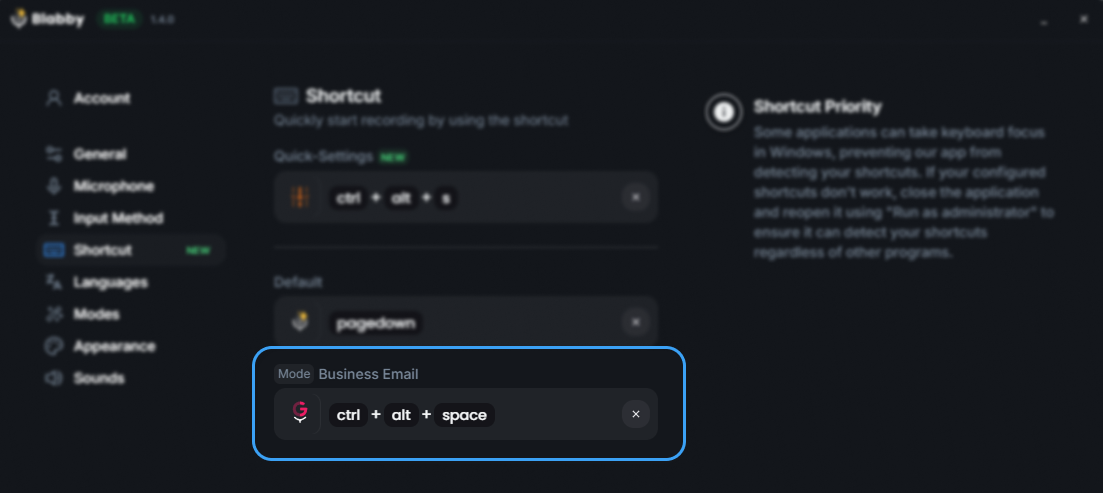
One shortcut starts the recording anywhere on Windows, and the finished text is typed into whatever field the cursor is already in. Source: BlabbyAI.
What Voice to Text Software Costs in 2026
Pricing in this category splits into three bands, and knowing which band you actually need saves a lot of money.
Free
$0
Windows Voice Typing, Google Docs voice typing, Apple Dictation, and free tiers like BlabbyAI's 60 credits a week. Enough for occasional dictation, weak on punctuation and cross-app use.
Subscription
$8 to $15/mo
Where almost every modern AI dictation tool sits. BlabbyAI is at the bottom of this band at $8.49/month, Wispr Flow at the top at $15. This is the band most people actually want.
Perpetual licence
$699+
Dragon Professional and the specialised medical and legal editions. Bought once, aimed at custom vocabularies and voice commands rather than everyday typing.
The useful way to read that middle band is per hour of writing. At $8.49 a month, a tool that saves you twenty minutes a day pays for itself several times over in the first week, and the gap between the bottom and the top of the band is around $78 a year for what is, for everyday dictation, very similar output. Unless you specifically need the wider device lineup or the deep vocabulary customisation, the bottom of the band is the rational place to start, and the free tiers mean you can test the claim before paying anything.
Where People Actually Use It
Dictation is often pitched as a tool for writing long documents, which is the use case fewest people have. In practice the wins are smaller and far more frequent: the messages, replies and notes that fill a working day.
Email and chat
The highest-volume case by far. A long reply that takes four minutes to type takes about ninety seconds to say. Because a desktop dictation tool types into whatever field has the cursor, it works the same in Gmail, Outlook, Slack and Teams.
Notes and documents
Meeting notes, briefs and first drafts, where getting the thought down matters more than the phrasing. Works in Notion, Word, Google Docs and Todoist alike.
Prompting AI assistants
A fast-growing case. Prompts are long, conversational and throwaway, which is exactly the shape speech is good at. Speaking a prompt into ChatGPT or Claude is markedly faster than typing it.
Accessibility and RSI
For anyone with repetitive strain injury, limited hand mobility, dyslexia or ADHD, dictation is not a speed optimisation, it is what makes writing on a computer sustainable at all.
The pattern across all four is the same: the value comes from the tool being available everywhere rather than living inside one app. A dictation feature built into a single editor only helps while you are in that editor. A system-wide tool, or a browser extension that covers every site, follows you across the twenty different places you type in a day, which is where the time actually goes.
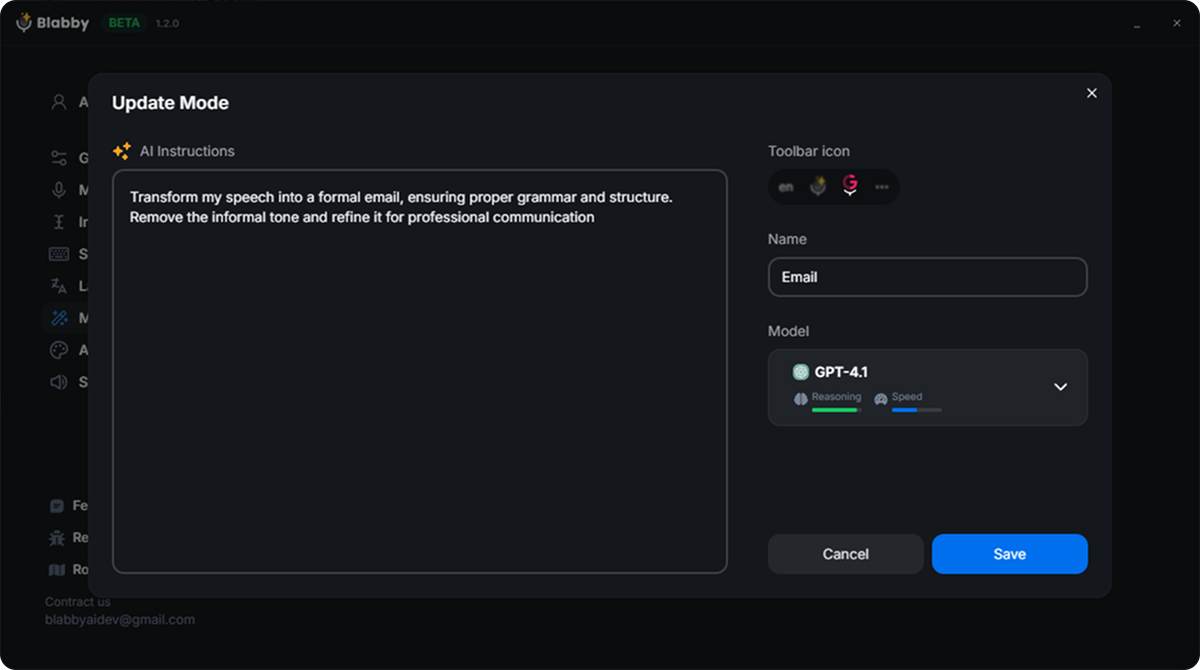
Custom modes are a free-form instruction applied to what you said: clean up grammar, rewrite as a formal email, or translate, without changing how you speak. Source: BlabbyAI.
Choosing by Platform
Platform narrows the field faster than any other criterion, because a desktop dictation app and a browser extension solve the problem in genuinely different ways.
On Windows
Windows gives you the most choice, and it is the only platform where a dictation tool can genuinely type into everything: desktop applications, browser tabs, IDEs, and internal line-of-business software alike. Win+H is already there and costs nothing, so it is worth trying first to find out whether you like dictating at all. Its limits show up quickly though, mostly in punctuation you have to speak by hand and an engine that predates the current generation. A dedicated desktop app like BlabbyAI for Windows replaces that with a modern engine, automatic punctuation and a history of what you dictated, on the same one-shortcut workflow.
In the browser, on any operating system
A Chrome extension is the better answer for a large group of people, and not as a fallback. If you work on a Mac or a Chromebook, if your work laptop is managed and you cannot install desktop software, or if almost everything you type already happens in a browser tab, an extension covers the real surface area of your day. The BlabbyAI Chrome extension runs on Windows, macOS and Chrome OS, needs no download beyond the extension itself, and works in any text field on any site: Gmail, Google Docs, Notion, Linear, Salesforce, an internal admin panel. It uses the same engine and the same custom modes as the desktop app.
The quick rule. If you type in desktop applications as well as the browser and you are on Windows, take the desktop app. If you live in browser tabs, or you are on macOS or Chrome OS, take the extension. If you are on Windows and unsure, install both: one account covers them and the free tier costs nothing to test.
Our Pick: BlabbyAI
Measured against the checklist above, our recommendation is BlabbyAI. It runs on OpenAI's Whisper v3 Turbo, adds punctuation and grammar automatically, and returns text in roughly 200-600ms. It comes in three forms that cover almost every writing scenario: a native Windows desktop app that types into any program, an Android app that types into any app on your phone, and a Chrome extension that works on any operating system through the browser.
What lifts it above basic dictation is the AI layer. Custom modes let you turn casual speech into a polished email, fix grammar while keeping your tone, or translate as you speak. It supports 90+ languages with auto-detect and works across 20,000+ sites and apps. The free tier gives every account 60 credits a week, about 2,000 words, with no credit card, and unlimited Windows use starts at $8.49/month.
For specific workflows, we have deeper guides on voice typing in Gmail, voice typing in Google Docs, and dictation for people with ADHD.
Write at the Speed You Talk
Dictate into any app or website with BlabbyAI, on Whisper v3 Turbo with automatic punctuation. Start free, no credit card.
Frequently Asked Questions
What is voice to text software?
Voice to text software, also called speech to text or dictation software, converts spoken words into written text in real time. You speak into a microphone and the tool transcribes your speech into whatever field or document you are working in. Modern versions use AI models to add punctuation, fix grammar, and format the output automatically.
What is the best voice to text software?
The best tool depends on where you write. For system-wide dictation on Windows plus a browser extension that works anywhere, BlabbyAI is our pick: it runs on OpenAI Whisper v3 Turbo, from the Whisper large-v3 family, adds punctuation automatically, supports 90+ languages, and starts free. Dragon, Apple Dictation, and Windows Voice Typing are common alternatives with narrower scope.
Is voice to text software accurate?
Modern AI-based tools are very accurate in good conditions. Whisper large-v3 reached 97.93% word accuracy on clean audio in MLCommons’ 2025 benchmark. Real-world accuracy depends on your microphone, accent, and background noise, but a Whisper-based engine sets a high ceiling that older speech APIs cannot match.
Is there free voice to text software?
Yes. Windows Voice Typing (Win+H) and Google Docs Voice typing are free but basic. Among AI tools, BlabbyAI has a free tier of 60 credits a week, roughly 2,000 words, with no credit card. Free built-in options are fine for occasional use; dedicated tools add punctuation, accuracy, and cross-app support.
How much faster is voice to text than typing?
Speaking is about three times faster than typing for most people. A Stanford study measured roughly 3x faster text entry by voice versus keyboard. With a tool that adds punctuation automatically, you capture that speed without stopping to dictate commas and periods, so the real-world gain holds up.
Does voice to text software work offline?
Some lightweight, OS-built-in tools do limited on-device recognition, but the most accurate AI tools, including BlabbyAI, process speech in the cloud and need an internet connection. Cloud processing is what enables high accuracy and instant AI formatting. For most users, the accuracy trade-off favors the cloud-based approach.
What is the best speech to text software for Windows?
Windows Voice Typing (Win+H) is the best free option and is already installed, so try it first. For everyday writing, a dedicated app is a clear step up: BlabbyAI runs system-wide on Windows, types into any application including desktop software and browser tabs, adds punctuation and capitalisation automatically, and keeps a history of what you dictated. It starts free at 60 credits a week, then $8.49/month unlimited. Dragon remains the choice where deep custom vocabularies and voice commands matter, at roughly $699 one-time.
How much does voice to text software cost?
Three bands. Free covers the built-in tools (Windows Voice Typing, Google Docs voice typing, Apple Dictation) and free tiers such as BlabbyAI’s 60 credits a week with no card. Subscriptions run about $8 to $15 a month and cover nearly every modern AI dictation tool, with BlabbyAI at $8.49 and Wispr Flow at $15. Perpetual licences start around $699 for Dragon Professional. Most people are well served by the middle band, and every tool in it has a free tier you can test first.
Do I need to install anything to use voice to text?
No. A Chrome extension needs no desktop install and works on Windows, macOS and Chrome OS, which makes it the practical option on a managed work laptop or a Chromebook where you cannot install software. The BlabbyAI Chrome extension runs in any text field on any site, using the same engine as the desktop app. A desktop app is only necessary if you also want to dictate into programs that are not in a browser.
What is a good word error rate for speech to text?
Under about 5% is good, and under 3% is excellent, but the number only means something alongside the audio it was measured on. Whisper large-v3 reached 97.93% word accuracy, roughly a 2% error rate, on clean audio in MLCommons’ 2025 benchmark. Real-world results depend far more on your microphone, background noise, and whether you use jargon and proper nouns than on which top-tier engine you picked.
Conclusion
Voice to text software has crossed the line from a clunky accessibility aid to a genuine productivity tool. The built-in options on Windows and in Google Docs are a free place to start, but the gap between them and a dedicated AI tool, on accuracy, punctuation, and where they work, is wide and growing. If you write enough that speed matters, pick a tool built on a strong speech model with automatic formatting. BlabbyAI is our pick on those terms, free to start on Windows, on Android, or in Chrome. Speak, and let the software do the typing.
Sources
- MLCommons, "Whisper: An MLPerf Inference Benchmark for ASR," September 2025, mlcommons.org (retrieved 2026-06-03).
- Stanford HCI, "Speech Is 3x Faster than Typing for English and Mandarin Text Entry on Mobile Devices," hci.stanford.edu (retrieved 2026-06-03).
- Wikipedia, "Words per minute," en.wikipedia.org (retrieved 2026-06-03).
- VirtualSpeech, "Average Speaking Rate and Words per Minute," virtualspeech.com (retrieved 2026-06-03).