
March 7, 2025
Voice typing: what it is, how it works, and the best tools in 2026

Quick answer
Voice typing converts your spoken words into text in real time. Modern AI tools reach 95-99% accuracy and add punctuation automatically, no need to say "comma" or "period" aloud.
Best option for clean output: BlabbyAI gives you auto punctuation, grammar correction, and Custom Modes that let you define how the output is formatted. Free to start.
Most people type at around 40 words per minute. Speaking runs closer to 150. That gap has always existed, but for years the tools were too unreliable, too rigid, or too expensive to close it in a practical way. That has changed.
Voice typing in 2026 is accurate, fast, and works in the apps you already use. The harder question is no longer "does it work" but "which tool actually gives you clean output without a round of cleanup after every recording." This guide covers both: what voice typing is, how modern tools handle the full workflow, and what to look for when picking the right option.
What is voice typing, and how does it differ from speech-to-text?
Voice typing, speech-to-text, and dictation software all refer to the same core thing: you speak, the tool converts your words into text. The terms get used interchangeably in most articles, and for most users the distinction does not matter much.
That said, there is a subtle difference worth knowing:
- Voice typing usually refers to real-time transcription as you speak, inserting text into a field while you talk.
- Speech-to-text is the broader umbrella. It includes voice typing but also covers batch transcription, audio file conversion, and meeting tools.
- Dictation software often implies a more structured workflow, where someone speaks into a recording and the result is formatted into a document.
If you want to compose emails, write documents, or fill in text fields without using a keyboard, voice typing is the term that most closely fits. That is the focus here.
How voice typing works in 2026
Earlier voice typing tools were built on rule-based acoustic models. They required training on your voice, struggled with accents and background noise, and fell apart with anything outside their trained vocabulary. Modern tools use deep learning models trained on enormous audio datasets, which means they generalize well without needing you to read paragraphs into a microphone first.
The result is accuracy in the 95 to 99% range for most speakers in a quiet environment. That is genuinely usable for professional work.
The punctuation problem
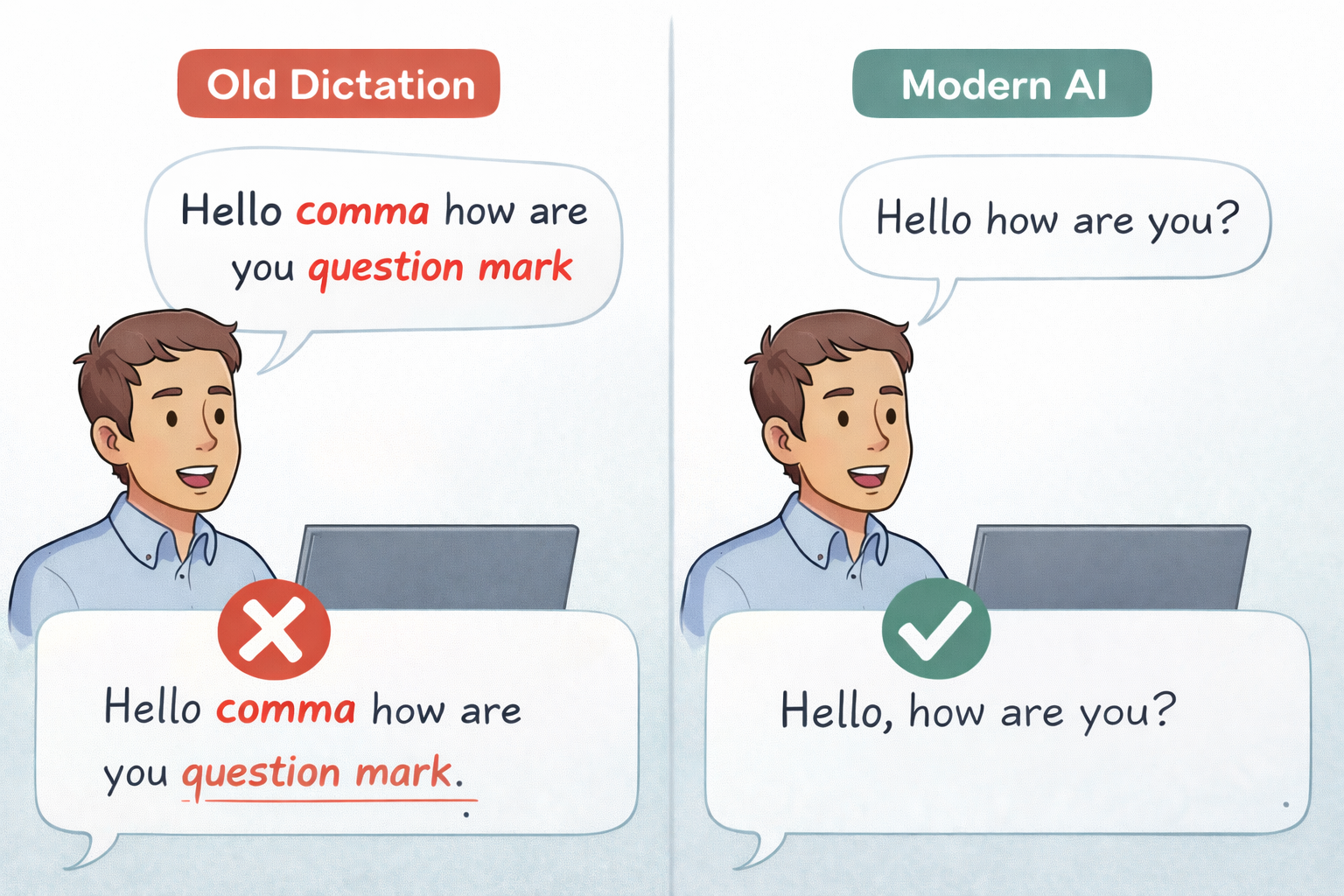
One of the biggest friction points with older tools was punctuation. To get a period, you said "period." To get a comma, you said "comma." That broke the natural flow of speaking completely.
Modern AI transcription solves this by inferring punctuation from context. A rising intonation gets a question mark. A natural sentence break gets a period. You speak normally, and the tool figures out where the punctuation goes.
This is worth checking for explicitly when comparing options. Some tools still expect verbal punctuation commands. Others add punctuation automatically. The experience between the two is very different.
What happens after transcription
Here is where most voice typing comparisons miss the real picture. Getting words on screen accurately is only part of the job. The other part is whether the output is usable without editing.
Spoken language and written language are not the same. When you talk, you backtrack, restart sentences, use filler words, and skip formalities. A raw transcription of natural speech often needs cleanup before it is ready to send or publish.
Tools handle this in different ways:
- Some do nothing. You get the raw transcription, and cleanup is your job.
- Some apply fixed post-processing. Grammar gets smoothed out, filler words get removed, but you cannot change the behavior.
- Some let you define the processing yourself. You write the instructions, and the tool follows them.
That last category is where the most meaningful differentiation lives right now. If you always want your dictation cleaned up as a formal email, you can define that. If you want it left as rough notes, you can define that too. The output matches your workflow, not a generic default.
BlabbyAI's Custom Modes work this way. After transcription, you apply a mode you write yourself: a grammar correction mode, an email formatting mode, a translation mode. You define the rules. The AI follows them. That is a different value proposition than tools that process your speech through a hidden set of defaults you cannot change.
The best voice typing tools in 2026
BlabbyAI: best for users who want control over the output
BlabbyAI is available as a Chrome extension, a native Windows app, an Android app, and a Linux app. The Chrome extension works in any browser text field. The Android app adds a floating mic to any text field on your phone. The Windows app works across native desktop applications, not just inside a browser, which matters for Outlook, Word, and other Windows tools.
The core differentiator is Custom Modes. After transcription, you apply post-processing instructions you write yourself. Built-in modes like Grammar Correction and Email are available from the start. More specific modes, a mode for clinical notes, legal correspondence, or any repeating workflow, can be created in minutes.
- Auto punctuation based on context and tone
- 90+ languages with automatic language detection
- Custom spelling for names, jargon, and domain-specific terms
- Transcription history with search and replay (Windows app)
- 200-600ms processing speed after stopping speech
Pricing: a free plan with 60 credits every week and no credit card. Unlimited dictation is $8.49/month, or $84.90/year.
Download BlabbyAI for Windows or add BlabbyAI to Chrome, it's free.
Wispr Flow: best for cross-platform coverage
Wispr Flow works on Mac, Windows, iOS, and Android. It removes filler words automatically, adapts tone based on context, and syncs your personal dictionary across all devices. The main limitation is transparency: the processing happens behind the scenes through fixed defaults you cannot change. If the output does not match what you need, there is no way to adjust the rules.
- Cross-platform on Mac, Windows, iOS, and Android
- 100+ languages with automatic detection and code-switching
- Filler word removal and automatic grammar correction
- Tone adaptation based on the app you are writing in (professional in email, casual in chat)
- Personal dictionary that learns your vocabulary and syncs across devices
- No custom output rules: behavior is fixed, you cannot rewrite the processing logic
Google Docs Voice Typing: best free browser option
Built into Google Docs, this is the easiest starting point if you are already in the Google ecosystem. It supports 100+ languages, works reliably in Docs, and costs nothing. The limitations are significant though: it does not work outside Google products, voice commands require English, and there is no post-processing. What you say is what you get. For basic drafting inside Docs it is hard to beat for free. For anything beyond that, it starts to feel narrow. See how BlabbyAI compares for voice typing in Google Docs.
Microsoft 365 Dictation: best built-in option for Windows Office users
If you have a Microsoft 365 subscription, dictation is included in Word, Outlook, PowerPoint, and other Office apps. It handles auto-punctuation and supports over 50 languages. On Copilot+ PCs, Microsoft also offers Fluid Dictation, which adds real-time grammar correction and filler word removal. The hard limitation is scope: it only works inside Microsoft apps. Switch to Slack, Notion, a browser tab, or any non-Microsoft tool and dictation stops being available.
Dragon NaturallySpeaking: best for enterprise and specialty vocabulary
Dragon has been the professional dictation standard for decades. It handles specialized medical and legal vocabulary well, works offline, and supports deep voice command customization. For organizations with strict data handling requirements or complex formatting workflows it is still the strongest option. The tradeoff is cost and setup complexity. Dragon requires significant onboarding, voice training, and comes at a much higher price point than modern AI tools. If you are evaluating Dragon for a professional workflow, it is worth checking whether a lighter tool with custom vocabulary and Custom Modes covers your needs at a fraction of the cost.
Tool comparison
| Tool | Platform | Price | Auto punctuation | Custom output rules | Best for |
|---|---|---|---|---|---|
| BlabbyAI | Windows, Android, Chrome, Linux | Free / $8.49/mo | ✅ Yes | ✅ Yes (Custom Modes) | Defined output control |
| Wispr Flow | Mac, Windows, iOS, Android | Free / ~$12/mo | ✅ Yes | ❌ Hidden defaults | Cross-platform coverage |
| Google Docs Voice Typing | Browser (Google only) | Free | ⚠️ Partial | ❌ No | Free, simple Docs drafting |
| Microsoft 365 Dictation | Windows/Mac Office apps | Included with M365 | ✅ Yes | ❌ No | Office-only workflows |
| Dragon NaturallySpeaking | Windows, Mac | High / enterprise | ✅ Yes | ⚠️ Trained commands | Medical, legal, enterprise |
Voice typing on Windows: what the built-in tool gets right (and wrong)
Windows has a built-in voice typing tool accessible with Win+H. It works in most text fields, requires no account or subscription, and turns on in seconds. For quick notes or occasional use, it is a reasonable starting point.
Where it starts to fall short:
- Punctuation commands required: Windows Voice Typing includes some auto-punctuation but coverage is inconsistent. Many users report unexpected capitalization and stray commas, and some apps still require saying punctuation aloud.
- No grammar correction or reformatting: what you say is what you get. There is no way to turn casual dictation into a polished email or structured note.
- Inconsistent native app support: Win+H works in Notepad, Word, and most browser fields, but behavior varies across apps and Windows versions. Some productivity tools block it entirely.
- No post-processing: there is no way to apply a rewrite or formatting pass after transcription.
For users who want to dictate professionally across Windows applications, including Outlook, Word, Notepad, and tools that are not browser-based, BlabbyAI for Windows covers what the built-in tool leaves out. It runs as a native app, works across the same apps Win+H targets, and adds auto punctuation, grammar correction, Custom Modes, and transcription history.
For a step-by-step walkthrough of the built-in tool, see how to use voice typing on Windows 11.
Voice typing for specific workflows
Writing and content creation
Voice typing is well-suited to first drafts. The constraint is that raw dictation sounds like talking, not writing. Sentences are longer and looser. You backtrack. You repeat yourself.
The useful upgrade is a mode that runs after transcription and tightens the prose. A grammar correction mode removes false starts and smooths phrasing. A rewrite mode can shift the register from conversational to something more structured. The draft is still yours, but the cleanup step happens before the text hits the page instead of after. For writers who want to explore that workflow, dictation software for writers covers how BlabbyAI fits into a writing process specifically.
Email: Gmail and Outlook
Email is one of the most natural dictation use cases because the structure is predictable and the output has a clear end state. Consider what a raw email dictation looks like versus a finished one. If you say: "I need to send an email to Sarah about the meeting uh it's tomorrow at two pm not three like I said before," a raw transcription gives you exactly that. An email formatting mode gives you: "Hi Sarah, just a heads up, our meeting is tomorrow at 2 PM, not 3 PM."
BlabbyAI works in Gmail via the Chrome extension and in Outlook via the Windows app. The Chrome extension adds a small recording bubble next to any active text field in the browser. In Outlook on Windows, the native app handles dictation directly.
RSI, carpal tunnel, and typing strain
Reducing keyboard use is a genuine benefit of voice typing for people dealing with repetitive strain injury (RSI), carpal tunnel syndrome, or other conditions that make heavy typing painful.
The practical consideration is output quality. If voice typing saves you the typing but then requires 10 minutes of cleanup editing, you have shifted the strain rather than reduced it. Tools that produce cleaner output by default, or that let you define cleanup rules, reduce the editing pass and make the workflow more genuinely sustainable. If typing pain is your starting point, voice typing with post-processing is the combination worth prioritizing.
Chrome extension and browser workflows
The speech-to-text Chrome extension approach covers any text field in the browser: Gmail, Google Docs, Notion, Slack, ChatGPT, and most web-based tools. The extension shows a small bubble beside the active field, and recording starts with a click or Ctrl+Space. For users who do most of their work in browser tabs, it is often the lowest-friction entry point: there is nothing to configure beyond installing the extension.
Common voice typing problems, and how to fix them
Accuracy drops in noisy environments. Background noise is the most common culprit. Traffic, HVAC systems, nearby conversations, and low-quality microphones all reduce accuracy. A decent headset or USB microphone makes a measurable difference. Most tools work best with consistent, close-range audio input.
Punctuation is wrong or missing. If a tool requires you to say "period" or "comma" aloud, it will break your speaking flow. The fix is switching to a tool with context-aware auto-punctuation. This is a non-negotiable feature for any regular voice typing workflow.
Specialty vocabulary is not recognized. Medical terms, legal phrases, product names, and personal names often trip up standard transcription models. The practical solutions are custom vocabulary lists (BlabbyAI supports custom spelling) or a domain-specific model like Dragon's medical vocabulary.
The raw transcription needs too much cleanup. This is the most common reason people try voice typing and stop. The tool transcribes accurately, but the output still needs significant editing before it is usable. The solution is post-processing. A grammar correction mode or rewrite mode that runs after transcription reduces the editing burden substantially. If you are spending significant time fixing dictated text, that is the problem to solve.
Frequently asked questions
Is voice typing accurate enough for professional use?
Yes, for most speakers in a quiet environment. Modern AI tools reach 95 to 99% accuracy, which is usable for drafting, email, notes, and documentation. Accuracy drops with background noise, strong accents, and highly specialized vocabulary, but those are addressable with microphone choice and custom vocabulary lists.
What is the best free voice typing software?
For browser use, Google Docs Voice Typing and BlabbyAI's free Chrome extension are both solid starting points. For Windows desktop use, the built-in Win+H voice typing is free and requires no installation. BlabbyAI's free plan covers limited transcription across Chrome, Windows, and Linux, and the Android app is free during the beta.
Does voice typing work in Windows apps outside the browser?
The built-in Windows voice typing (Win+H) works in many native apps with inconsistent coverage depending on the app and Windows version. BlabbyAI's Windows app is designed specifically for native app coverage and works across applications that accept standard text input.
How is BlabbyAI different from Google Voice Typing?
Google Voice Typing works inside Google products. BlabbyAI works in browser text fields via Chrome extension, in native Windows and Linux applications via desktop app, and in any app on your phone via the Android app. BlabbyAI also adds auto punctuation, Custom Modes for post-processing, 90+ languages with auto-detect, and custom spelling. Google Voice Typing is better for quick in-Docs use; BlabbyAI is better for users who work across multiple apps and want more control over the output.
Can voice typing fix grammar automatically?
Some tools do. BlabbyAI includes a built-in Grammar Correction mode that you can apply after transcription. Microsoft's Fluid Dictation (Copilot+ PCs) also includes real-time grammar correction. Most basic tools, including Google Docs Voice Typing and Windows Voice Typing, do not.
Conclusion
Voice typing in 2026 works. The technology has crossed from unreliable novelty into a tool that professionals can build into their daily workflow. The gap between typing at 40 WPM and speaking at 130 to 160 WPM is real, and the tools available today can close it without the voice training and setup friction that made older dictation software frustrating.
The thing most tool comparisons miss is what happens after transcription. Getting words on screen is only the first step. Getting output that does not need significant cleanup is what makes the workflow actually save time. The best voice typing tool is not the fastest transcriber: it is the one that gives you text you can use.
If you want to try voice typing with that full workflow, Download BlabbyAI for Windows or add BlabbyAI to Chrome for free. The Windows app covers native desktop applications. The Android app covers any text field on your phone. The Chrome extension covers every browser text field. All three are free to start.