
December 27, 2025
How to Use Voice Typing on Windows 11
Quick Answer
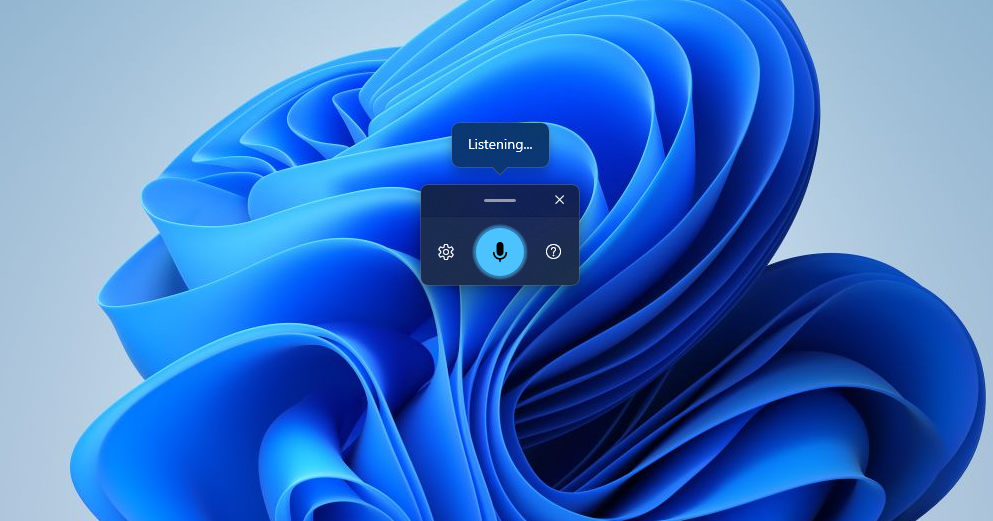
Windows 11: Press Windows Key + H, then speak. The catch: Windows gives you no way to change that shortcut, it needs an internet connection because recognition runs on Azure, and the grammar cleanup everyone talks about (Fluid dictation) only runs on Copilot+ PCs in English. BlabbyAI punctuates for you and lets you pick your own trigger key.
Windows 10: Windows Key + H works here too. Microsoft's voice typing page lists Windows 10 alongside Windows 11. Windows Key + Ctrl + S is a different feature, Windows Speech Recognition, which Microsoft replaced with Voice Access on Windows 11 22H2 and later in September 2024.
Best for a quick sentence with no setup: Windows voice typing (Win+H). It is already installed on every Windows 10 and 11 PC and costs nothing, but it needs the internet and supports 46 languages.
Best for controlling the PC by voice: Windows Voice Access. It is the Windows 11 22H2+ replacement for Windows Speech Recognition and it is the only built-in option with a custom vocabulary, added by saying "add to vocabulary".
Best for punctuation and formatting on any Windows PC: BlabbyAI. It punctuates without Copilot+ hardware, supports over 90 languages, remaps the trigger key, and is free to start at $8.49/month for unlimited.
Best for dictating inside a browser with nothing to install: the BlabbyAI Chrome extension. It types into Google Docs, Gmail and any other web text field, which matters on a managed work laptop where you cannot install desktop software.
Below: why Win+H does nothing on some laptops, the microphone settings that actually change accuracy, the full list of what Windows dictation can and cannot do, and how BlabbyAI for Windows handles the parts it cannot.
Voice typing on Windows lets you dictate text instead of typing. Whether you're writing emails, documents, or messages, Windows built-in voice typing can speed up your workflow, but it has significant limitations.
In this guide, I'll show you exactly how to use voice typing on both Windows 11 and Windows 10, including keyboard shortcuts, troubleshooting tips, and a better alternative that adds automatic punctuation. If you want the full picture of speech to text across every app, or a comparison of dictation software, we have dedicated guides for both.
How to Use Voice Typing on Windows 11
Windows 11 includes a modern voice typing feature that's built into the operating system. Here's how to use it:
Step 1: Activate Voice Typing
- Click into any text field (Notepad, Word, browser, email, etc.)
- Press Windows Key + H on your keyboard
- A microphone toolbar appears at the top of your screen
- The microphone icon turns blue when listening
Step 2: Start Dictating
Once the microphone is active:
- Speak naturally at a normal pace
- Your words appear in the text field as you speak
- Say punctuation out loud: "comma", "period", "question mark", "exclamation point"
- Click the microphone icon or press Windows Key + H again to stop
Voice Commands for Windows 11
Windows 11 voice typing supports these voice commands:
| Say This | Result |
|---|---|
| "Delete that" | Deletes the last phrase |
| "New line" | Moves to a new line |
| "New paragraph" | Creates a new paragraph |
| "Go to start" | Moves cursor to beginning |
| "Go to end" | Moves cursor to end |
| "Comma", "Period", "Question mark" | Inserts punctuation |
How to Use Voice Typing on Windows 10
Windows 10 has the same voice typing as Windows 11, on the same shortcut. Microsoft's own voice typing page lists Windows 10 alongside Windows 11, and there is no setup step before you use it.
Step 1: Click into the text field you want to fill
- Open the app you want to type into: Word, Chrome, Notepad, anything with a text field
- Click into the field so the text cursor is blinking inside it
- Check a microphone is connected and set as the input device
- You do not need to switch anything on in Settings first, which is the step most Windows 10 guides still tell you to take
Step 2: Start Dictating
- Press Windows Key + H to start listening
- A microphone bar appears on screen
- Click into any text field
- Speak clearly and say punctuation commands out loud
- Say "Stop listening" to pause dictation
Voice Typing Keyboard Shortcuts on Windows
The voice typing shortcut is Windows Key + H, on Windows 11 and Windows 10 alike. It is a toggle: press once to start listening, press the same keys again to stop. If it appears to do nothing, the cursor is not in a text field, which is the single most common cause.
One thing that surprises people: these shortcuts are not customisable. Windows does not expose a way to remap Win+H, so if it collides with a shortcut in another app, your options are to change the other app or to use a different dictation tool. BlabbyAI uses Ctrl+Space as its global shortcut, and because it runs as a desktop app rather than a per-app feature, that one key behaves identically everywhere: Word, Outlook, Chrome, Microsoft Teams, or a code editor. You can also assign separate shortcuts to individual Custom Modes from the Shortcuts tab, so a different key can trigger dictation that arrives already grammar-corrected or translated.
| Action | Windows 11 | Windows 10 | BlabbyAI |
|---|---|---|---|
| Start / stop dictation | Windows Key + H | Windows Key + H | Ctrl + Space |
| Works the same in every app | Varies by app | Varies by app | Yes |
| Punctuation | Say it out loud | Say it out loud | Automatic |
| Open Settings | Windows Key + I | Windows Key + I | Tray icon → Settings |
Can You Change the Voice Typing Shortcut?
Not in Windows itself. There is no setting anywhere in Windows 11 or Windows 10 that remaps Win+H, and no registry key that Microsoft documents for it. This is the single most common thing people go looking for and do not find, so it is worth stating plainly rather than sending you back into Settings to hunt.
There are three real options, and they are quite different in effort:
- Change the other app instead. If Win+H is being swallowed by something else, it is usually a launcher or a window manager holding a global hook. Rebinding that app is far easier than working around Windows.
- Remap at the keyboard layer. Microsoft's own PowerToys has a Keyboard Manager that can map an unused key to the Win+H combination. It works, but it adds a background utility and it cannot change what Win+H itself does.
- Use a dictation app that owns its own shortcut. This is the only option that actually gives you a key you choose.
BlabbyAI takes the third route. Its default is Ctrl+Space, and you can change it to whatever you like from the Shortcuts tab. Because it runs as a desktop app rather than a feature bolted onto the text box, the key you pick behaves the same everywhere: Word, a browser, Slack, a terminal, an IDE. You can also give individual Custom Modes their own separate shortcuts, so one key produces plain dictation and another produces the same speech already rewritten as a formal email.
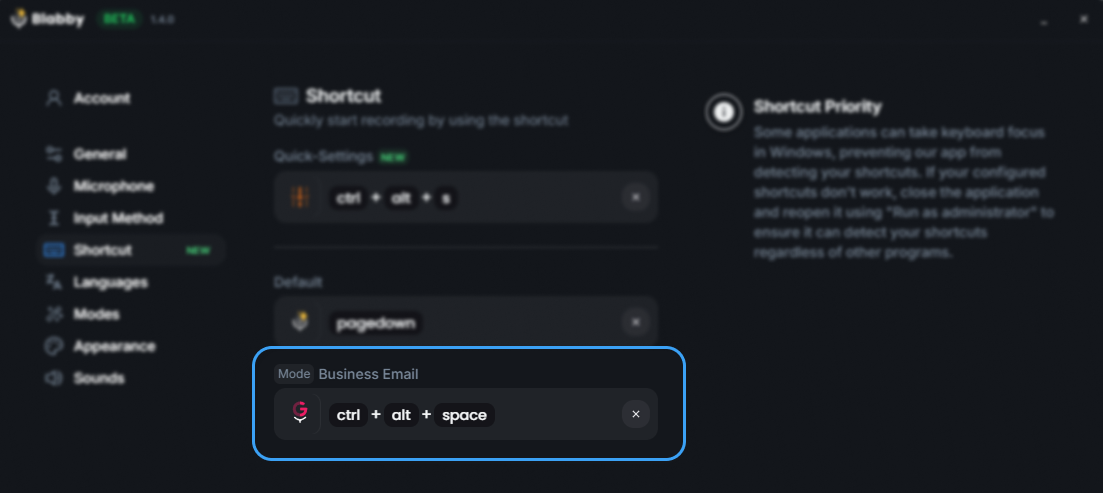
BlabbyAI's Shortcuts tab. Unlike Win+H, the trigger key is yours to set, and each Custom Mode can have its own.
The Shortcut on a Laptop
The shortcut is identical on a laptop: Windows Key + H on Windows 11. There is no separate laptop key combination, and you do not need the Fn key. If nothing happens when you press it, the cause is almost always one of three things, in this order:
- The cursor is not in a text field. Voice typing needs somewhere to put the words. Click into the document or box first, then press the shortcut.
- Microphone access is off. Open Settings → Privacy & security → Microphone and make sure both microphone access and desktop app access are on.
- A hardware mic mute is engaged. Many laptops have a function-key mic toggle (often F4 or F8) with its own indicator light. Windows will show the toolbar but never hear you.
Laptop microphones are also the single biggest cause of poor accuracy. The built-in array sits near the fans and picks up keyboard noise, so if your dictation is coming out garbled on a laptop but fine on a desktop, the microphone is the variable to change before anything else.
Where the Windows Key Is on Your Laptop
Most of the confusion around the laptop shortcut is not about voice typing at all. It is about finding the Windows key. On a compact laptop keyboard it is usually the key immediately to the left of the spacebar, between Ctrl and Alt, marked with the four-pane Windows logo rather than the word "Windows". You press it together with H, the same way you would press Shift together with a letter. You do not press them one after the other, and you do not need the Fn key.
| Laptop type | Where to find the key |
|---|---|
| Most Windows laptops | Bottom row, left of the spacebar, between Ctrl and Alt |
| Some compact and gaming keyboards | Right of the spacebar instead, or disabled entirely in "gaming mode" to stop accidental presses mid-game |
| A Mac keyboard running Windows | The Command key acts as the Windows key, so the shortcut is Command + H |
| An external keyboard | Same position, though some keyboards ship with the key locked by a Fn + Windows toggle |
That last row catches people out more than any other. Gaming laptops from ASUS, MSI and Lenovo commonly ship with a "Windows key lock" that is on by default in their bundled control software, because a stray Windows key press minimises a full-screen game. If Win+H does nothing on a gaming laptop and nothing else on this page has helped, open the manufacturer utility (Armoury Crate, MSI Center, Lenovo Vantage) and check whether the Windows key is disabled there.
Why Dictation Is Worse on Battery
There is a laptop-specific failure that looks like an accuracy problem and is not. Windows voice typing sends audio to Microsoft's servers for processing, so it depends on a stable connection and on the machine staying awake. On battery saver, Windows throttles background network activity and can suspend the microphone stream between phrases. The symptom is distinctive: the first sentence transcribes correctly, then later sentences arrive truncated or drop entirely, and the toolbar stays open the whole time as though nothing is wrong.
If dictation degrades after the first few sentences
Plug the laptop in, or set the power mode to Balanced under Settings, System, Power and battery. If the problem disappears on mains power, it was throttling rather than your microphone or your accent, and no amount of speaking more clearly would have fixed it.
This is also the clearest practical difference between the built-in tool and a dedicated dictation app on a laptop. BlabbyAI records the whole phrase locally and transcribes it in one pass, so a brief network stall delays the text rather than swallowing it, and battery saver does not quietly change the result you get.
What Setup Do You Need for Accurate Dictation?
Less than most people expect. Dictation accuracy is dominated by one variable, and it is not the software: it is how far the microphone sits from your mouth, and what else is in the room. A mid-priced headset beats an expensive desktop condenser sitting a metre away, because distance and room reflections do more damage than any difference in capsule quality.
| What you dictate with | Realistic result |
|---|---|
| Laptop's built-in microphone array | Fine in a quiet room, degrades quickly with fan noise, keyboard clatter or anyone else talking |
| Wired earbuds with an inline mic | A large step up for very little money, because the mic sits close to your mouth and away from the fans |
| USB headset | The reliable choice for dictating all day, and what most people who dictate for hours settle on |
| Bluetooth earbuds | Workable, but the mic profile is usually much lower quality than the same earbuds' playback, so accuracy varies |
Beyond the microphone, three things matter and the rest is folklore. Speak in complete phrases rather than word by word, because speech recognition uses surrounding context to choose between similar sounding words and single words give it nothing to work with. Keep a steady pace instead of slowing down artificially, since exaggerated speech is further from the recorded speech these models were trained on, not closer to it. And check which microphone Windows is actually using under Settings, System, Sound, because a docked laptop will often default to a webcam or monitor microphone across the room.
What no microphone can fix is punctuation. Windows voice typing will transcribe your words accurately and still hand you a wall of text, because it only inserts punctuation when you say the marks out loud. That is a limit of the feature rather than your setup, and it is the main reason people who dictate seriously move to a dedicated tool. BlabbyAI runs on Whisper large v3 turbo and punctuates and capitalises automatically, so the same recording arrives as finished sentences.
Troubleshooting Windows Voice Typing
Microphone Not Working?
- Check Windows microphone permissions: Settings → Privacy → Microphone
- Ensure your microphone is set as the default recording device
- Test your microphone in Settings → System → Sound → Input
- Restart your computer and try again
Voice Typing Not Activating?
- Make sure your Windows is updated to the latest version
- Check the input language: voice typing follows your active input language, not your Windows display language, so switch it with Windows Key + Spacebar
- Install language packs: Settings → Time & Language → Language
- Ensure you're clicking into an editable text field first
Poor Accuracy?
- Use a quality external microphone instead of laptop built-in mic
- Reduce background noise (close windows, turn off fans)
- Speak clearly at a normal conversational pace
- Do not go looking for a voice training tutorial: Win+H processes your audio in the cloud and has none to train
- Position microphone 6-12 inches from your mouth
Not Working in Specific Apps?
- Some apps (like certain games or secure applications) block voice typing
- Try voice typing in Notepad first to verify it works
- Browser-based apps may require microphone permissions in the browser
- Consider using BlabbyAI Windows app for better dictation in all apps
Dictate anywhere on Windows




Your own shortcut, and punctuation you never say out loud
BlabbyAI types into any Windows app on a key you choose. Free to start, 60 credits a week, no card.
Win+H vs Voice Access: Windows Has Two Dictation Tools, Not One
Almost every roundup treats Windows dictation as one feature. It is two, they behave differently, and picking the wrong one is the most common reason people conclude that Windows dictation is broken.
You can see the confusion in Google's own results. Search speech to text windows 11 and one of the top results is a Microsoft page titled "Dictate text using Speech Recognition" whose own header reads Applies To: Windows 7. It tells you to click Start, then All Programs, then Accessories, then Ease of Access. Those menus do not exist in Windows 11.
| Voice typing (Win+H) | Voice Access | BlabbyAI | |
|---|---|---|---|
| What it is for | Dictating text into a field | Controlling the whole PC by voice | Dictating text into any field |
| Windows versions | Windows 10 and 11 | Windows 11 22H2 and later | Windows 10 and 11 |
| Works offline | No, runs on Azure Speech services | Yes, after downloading the language | No |
| Custom vocabulary | No | Yes, say "add to vocabulary" | Yes, through custom modes |
| Grammar cleanup | Copilot+ PCs only, English only | No | Yes, on any Windows PC |
| Languages | 46 | English locales at launch | Over 90 |
| Change the shortcut | No | No | Yes |
| Price | Free, built in | Free, built in | Free tier, $8.49/month unlimited |
Windows figures read from Microsoft support documentation on 2026-09-09.
The row that decides it for most people is custom vocabulary. If you dictate names, medical terms, product codes or anything else a general model has never seen, Win+H will keep getting them wrong and gives you nowhere to teach it. Voice Access can learn them but is built for driving the interface rather than writing prose. BlabbyAI handles it through custom vocabulary in a mode, which is a plain instruction rather than a word list you maintain by hand.
How To Change The Voice Typing Language (And Why It Looks Stuck)
This is the most common Windows dictation question with the least useful answers online, because most guides repeat a claim that is not true: that your dictation language has to match the language Windows is displayed in. It does not. Microsoft's own page states you can use a voice typing language different from the one you chose for Windows.
What trips people up is that the language is not set anywhere in the voice typing flyout. There is no language dropdown in it. Voice typing follows your active input language, so you change it the same way you would change your keyboard:
- Add the language first if it is not installed: Settings → Time & Language → Language & region → Add a language. The optional speech features Windows offers during install are not required for voice typing to work.
- Switch to it with Windows Key + Spacebar, or the language switcher in the corner of the taskbar.
- Then press Windows Key + H. Voice typing picks up whichever input language is now active.
Windows 11 voice typing supports 46 languages, counted from Microsoft's published list on 2026-09-09. That includes six English variants and separate entries for Brazilian and European Portuguese, Mexican and Spain Spanish, and three Chinese variants, so the number of distinct languages is smaller than 46 in practice.
If you switch languages often, the two-step dance is the real cost: every switch means changing your keyboard input as well, which also changes where the punctuation keys are. BlabbyAI keeps its language picker separate from the Windows input language and supports over 90 languages, so you can dictate Spanish on an English system without touching your keyboard layout.
Fluid Dictation: The Grammar Fix That Needs A Copilot+ PC
Microsoft added a feature called Fluid dictation to voice typing. It corrects grammar, punctuation and filler words as you speak, so you stop saying "comma" out loud and stop editing out every "um". If you have read that Windows dictation now cleans up your speech, this is the feature being described.
Three conditions are attached, and Microsoft states all three on its own page:
- Copilot+ PCs only. It is not a Windows 11 feature, it is a feature of a hardware class. A Windows 11 laptop bought before Copilot+ existed does not get it.
- English locales only. Dictate in any of the other 45 supported languages and you are back to raw transcription.
- A model has to download first. It runs on an on-device small language model, Phi Silica. Until that download finishes the option sits greyed out in voice typing settings, which is why some people conclude their PC does not have the feature when it simply has not finished fetching it. Progress shows under Settings, Windows Update.
Fluid dictation is genuinely good, and it is the right answer if you own a Copilot+ PC and write in English. The reason it does not close the gap is that it is the narrowest slice of the Windows install base, on the narrowest slice of the languages Windows already supports. BlabbyAI for Windows does the same cleanup on hardware you already own, in over 90 languages, and lets you change the trigger key while it is at it.
There is one more difference worth knowing. Fluid dictation rewrites toward correct English. It does not rewrite toward a format. BlabbyAI's custom modes are a free-form instruction, so the same sentence can come out as a bug report, a Slack message or a set of bullet points depending on which mode is active. Saying "new paragraph" can be made to insert one rather than typing the words.
Limitations of Windows Voice Typing
While Windows voice typing is free and built-in, it has significant limitations:
- Automatic Punctuation Is Off By Default: It exists, but you have to find it behind the gear icon in the voice typing flyout, and it inserts punctuation from your pauses rather than from the meaning of the sentence
- Needs An Internet Connection: Microsoft states recognition runs on Azure Speech services, so Win+H stops producing text when you go offline
- Grammar Correction Is Hardware Locked: Fluid dictation fixes grammar and filler words as you speak, but only on Copilot+ PCs and only in English locales
- Limited Web Support: Doesn't work reliably in all web applications
- No Custom Formatting: Cannot transform casual speech into professional text
- 46 Languages: Counted from Microsoft's own list on 2026-09-09, against over 90 in BlabbyAI
If you need professional dictation with automatic punctuation and grammar, consider BlabbyAI.
Better Alternative: BlabbyAI
BlabbyAI is a native Windows app that brings professional AI-powered dictation to Windows with features that Windows voice typing lacks:
- Automatic Punctuation & Grammar: Speak naturally, AI adds commas, periods, and proper capitalization automatically
- Custom Formatting Modes: Transform casual speech into professional emails, summaries, or any format you need
- Works Everywhere: Any Windows application including Word, Excel, Gmail, Slack, Microsoft Teams, Notion, and more
- 90+ Languages: Dictate in any language with auto-detect
- Lightning Fast: 200-600ms transcription using OpenAI's Whisper large v3 turbo
- Custom Spelling: Add company names, technical terms, and industry jargon
Comparison: Windows Voice Typing vs BlabbyAI
| Feature | Windows 11 | BlabbyAI |
|---|---|---|
| Automatic Punctuation | No | Yes |
| Grammar Correction | No | Yes |
| Custom Formatting | No | Unlimited modes |
| Works in All Apps | Limited | Yes |
| Multi-Language | Limited | 90+ languages |
| Speed | Fast | 200-600ms |
| Price | Free | Free + Premium |
Download BlabbyAI for Windows. Install the native Windows app in under 2 minutes and experience AI-powered dictation with automatic punctuation in any application.
Tips for Effective Voice Typing on Windows
- Invest in a Quality Microphone: USB microphones or headsets provide significantly better accuracy than built-in laptop mics
- Find a Quiet Environment: Background noise drastically reduces accuracy
- Speak Naturally: Don't over-enunciate; use your normal conversational tone
- Practice Punctuation Commands: Memorize "comma", "period", "new line", "new paragraph"
- Review Before Sending: Always proofread dictated text for errors
Frequently Asked Questions
Does Windows voice typing require internet?
Yes. Microsoft states that voice typing uses online speech recognition powered by Azure Speech services, and that you need to be connected to the internet for it to work. Drop the connection and Win+H stops producing text.
Can I use voice typing in Microsoft Word?
Yes. Press Windows Key + H, on Windows 11 and Windows 10 alike, then click into your Word document and start speaking. Microsoft Word also has its own built-in Dictate feature in the Home ribbon.
How accurate is Windows voice typing?
Windows voice typing is reasonably accurate in quiet environments with clear speech, and automatic punctuation is available from the gear icon in the voice typing flyout. Grammar correction is a separate matter: Microsoft added Fluid dictation, which fixes grammar and filler words as you speak, but it runs only on Copilot+ PCs and only in English locales. On any other Windows 11 machine you still get raw transcription.
What languages does Windows voice typing support?
Windows voice typing supports 46 languages on Windows 11, counted from Microsoft support documentation on 2026-09-09. The voice typing language does not have to match your Windows display language: Microsoft states you can use a different one, and you switch it with the language switcher or Windows Key + Spacebarrather than in the voice typing menu.
What is the difference between Win+H and Voice Access?
They are two separate Windows features. Win+H is voice typing, for dictating text into a field, and it works on Windows 10 and 11 but needs an internet connection. Voice Access is for controlling the whole PC by voice, arrived on Windows 11 22H2 and later, works offline once the language is downloaded, and is the only built-in option with a custom vocabulary, which you add by saying "add to vocabulary". Voice Access replaced Windows Speech Recognition in September 2024.
How do I change the voice typing language in Windows 11?
There is no language setting inside the voice typing flyout. Voice typing follows your active input language, so add the language under Settings → Time & Language → Language & region → Add a language, switch to it with Windows Key + Spacebar or the taskbar language switcher, then press Windows Key + H. Your dictation language does not have to match your Windows display language.
Why is Fluid dictation greyed out on my PC?
Either your PC is not a Copilot+ PC, or the on-device model has not finished downloading. Fluid dictation runs on Phi Silica, a small language model Windows fetches in the background the first time you launch voice typing, and the option stays dimmed until that completes. You can check progress under Settings → Windows Update. Fluid dictation is also limited to English locales.
Can I use voice typing in Chrome browser?
Yes, but it's inconsistent. Windows voice typing works in some browser text fields but not all web applications. For reliable voice typing in any application, including voice typing in Google Docs, Gmail, and other web apps, use BlabbyAI for Windows instead.
What is the keyboard shortcut for voice typing on Windows?
Windows Key + H, and Microsoft lists it for Windows 10 as well as Windows 11, so there is nothing to switch on first. Windows Key + Ctrl + S is a different feature, the legacy Windows Speech Recognition. BlabbyAI uses Ctrl+Space by default and works the same way in every Windows application, so you do not have to remember a different shortcut per app.
Is there a better alternative to Windows voice typing?
Yes. BlabbyAI for Windows is a native Windows app that adds automatic punctuation, grammar correction, and custom formatting modes. Unlike Windows voice typing, you don't need to say "comma" or "period", AI handles punctuation intelligently based on context. There is also a BlabbyAI Android app that adds a floating mic to any text field on your phone, free during the beta.
Can I change the Windows voice typing shortcut?
No. Windows does not expose any way to remap Win+H, in Windows 11 or Windows 10. You can map another key onto the combination with Microsoft PowerToys Keyboard Manager, or use a dictation app that owns its own shortcut. BlabbyAI defaults to Ctrl+Space and lets you set the trigger key yourself, with separate shortcuts for individual Custom Modes.
Why does Win+H do nothing on my laptop?
The three usual causes, in order: the cursor is not in a text field, microphone access is turned off under Settings, Privacy and security, Microphone, or a hardware mic mute is engaged on a function key. On gaming laptops there is a fourth: the utility from your laptop maker, such as Armoury Crate, MSI Center or Lenovo Vantage, may have the Windows key disabled to prevent accidental presses during games.
Why does dictation get worse after the first few sentences on a laptop?
This is usually battery saver rather than your microphone. Windows voice typing streams audio to Microsoft servers, and on battery saver Windows throttles background network activity and can suspend the microphone between phrases. Plug the laptop in or set the power mode to Balanced. If the problem disappears on mains power, throttling was the cause.
What microphone do I need for accurate dictation?
Distance matters more than price. A wired headset or even inline earbud microphone beats an expensive desktop microphone sitting a metre away, because room reflections and fan noise do more damage than capsule quality. Check which device Windows is actually using under Settings, System, Sound, since a docked laptop often defaults to a webcam microphone across the room.
Conclusion
Windows voice typing is a useful built-in feature for basic dictation on Windows 11 and Windows 10. Press Windows Key + H on either version to start dictating.
However, if you need professional dictation with automatic punctuation, grammar correction, and custom formatting for emails and documents, download BlabbyAI for Windows.
Quick recap:
- Windows 11: Press Windows Key + H to activate voice typing
- Windows 10: the same Windows Key + H, with no setup step
- Say punctuation commands out loud ("comma", "period")
- For automatic punctuation and grammar, use BlabbyAI
Start dictating today and experience faster, more efficient writing on Windows.