
October 30, 2025
Gmail Dictation Setup: Modes, Shortcuts, and Email Formatting
Quick Answer
To use dictation in Gmail with BlabbyAI: install the Windows app (or the Chrome extension if you are not on Windows) → click any Gmail text field → press your shortcut → speak naturally → your text appears with automatic punctuation. The Windows app dictates into Gmail and every other app on your PC; the extension covers Gmail in the browser.
Unlike built-in tools: BlabbyAI adds punctuation and grammar automatically, no voice commands needed. Works on all Gmail interfaces (classic and new).
Email is where most people first notice how much of their day goes into typing the same few sentence shapes. If you are tired of retyping the same responses, or your hands need a break, dictation gets the draft down in the time it takes to say it.
This guide covers the setup end of Gmail dictation: getting it running, the shortcuts worth learning, and the custom modes that turn a spoken draft into a formatted email. If you just want the short version of how dictation in Gmail works, our voice to email software overview covers it in a page.
Why Use Dictation in Gmail?
Dictation transforms how you handle email communication:
- 3x Faster Email Writing: Speak 150+ words per minute vs typing 40-60 WPM
- Smart Punctuation: AI automatically adds commas, periods, and proper capitalization
- Reduced Typing Fatigue: Perfect for people with carpal tunnel or RSI
- Professional Formatting: Custom modes transform casual speech into polished emails
- Multitask Effectively: Dictate emails while reviewing documents or notes
- Universal Compatibility: Works on any Gmail interface, plus 1000+ other websites
How to Set Up BlabbyAI for Gmail
Setting up BlabbyAI takes less than 2 minutes. Here's how:
Step 1: Install the Chrome Extension

- Visit the BlabbyAI Chrome Extension page
- Click "Add to Chrome"
- Confirm by clicking "Add extension"
- The extension icon will appear in your Chrome toolbar
Step 2: Complete Initial Setup
- The onboarding wizard will launch automatically
- Click "Allow" when prompted for microphone access
- BlabbyAI will automatically detect your preferred language
- You're ready to start! Open Gmail to try it out
💡 Pro Tip: Pin the BlabbyAI extension to your toolbar for quick access to settings and shortcuts.
Using BlabbyAI in Gmail: Basic Dictation
Once installed, BlabbyAI works seamlessly in any Gmail text field. Here's the step-by-step process:
Step-by-Step: Dictating Your First Email
- Open Gmail and click "Compose", "Reply", or "Forward"
- Click into any text field (subject line or email body)
- Look for the • dot bubble that appears to the left of the text field
- Hover over the bubble to reveal the BlabbyAI toolbar with 3 buttons:
- Left button: Language picker
- Middle button: Microphone (start/stop)
- Right button: Menu (settings)
- Click the microphone button (or press Ctrl+Space)
- The toolbar outline turns red: this means it's recording
- Speak naturally: no need to say punctuation
- Click the stop button (or press Ctrl+Space again) when finished
- Your text appears with automatic punctuation and capitalization!
How Smart Punctuation Works
BlabbyAI uses OpenAI's Whisper large v3 turbo model to understand your speech context and automatically add appropriate punctuation:
| You Say | BlabbyAI Writes |
|---|---|
| "Can we meet tomorrow" | Can we meet tomorrow? |
| "Thanks for your help" | Thanks for your help. |
| "This is amazing" (excited tone) | This is amazing! |
| "LEAVE ME ALONE" (yelling) | LEAVE ME ALONE! |
| "I need the report by Monday however I can wait" | I need the report by Monday, however, I can wait. |
The AI understands context, tone, and intent, so your emails look professional without manual editing.
Custom Modes: Format Emails with AI
This is where BlabbyAI becomes truly powerful. Custom modes let you instruct AI to format your speech in specific ways, turning casual dictation into professional emails, summaries, or any other format you need.
What Are Custom Modes?
Think of custom modes like having ChatGPT instantly process your speech without copy-pasting. You speak casually, and AI transforms it into your desired format.
Example: You say "hey john can we push the meeting i got something came up" → AI formats it as a professional email: "Hi John, Could we reschedule the meeting? Something has come up. Please let me know what works for you."
Using Pre-Built Modes
BlabbyAI comes with three pre-built modes to get you started:
- "Email" Mode: Formats speech into professional business emails
- "Grammar Correction" Mode: Fixes errors while keeping your original style
- "Translate to English" Mode: Translates your speech to English
How to use a pre-built mode:
- Go to BlabbyAI Settings → Modes
- Find the mode you want (e.g., "Email")
- Go to Shortcuts tab
- Assign a keyboard shortcut (e.g., Ctrl+Alt+E for Email mode)
- In Gmail, press your shortcut to activate the mode
- Notice the toolbar changes to your mode's color (not red)
- Speak naturally, and watch AI format it professionally
Tutorial: Create a "Professional Business Email" Mode
Let's create a custom mode step-by-step. This mode will transform casual speech into polished business emails.
Step 1: Open Mode Creator
- Click the BlabbyAI extension icon in Chrome toolbar
- Go to Settings → Modes
- Click "Create Mode" button
- A popup appears with 4 sections
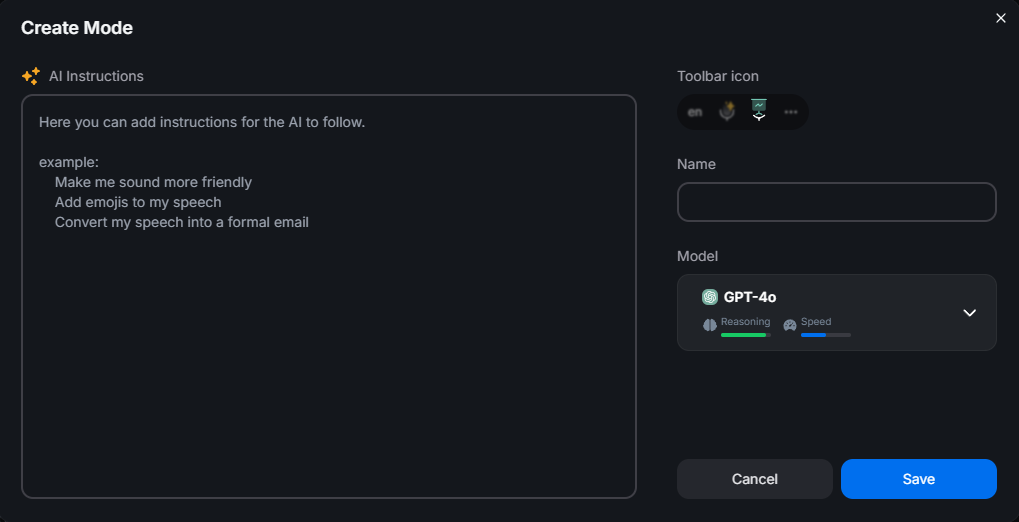
Step 2: Write AI Instructions
In the "AI Instructions" field, tell the AI exactly how to format your speech. Here's what to enter:
💡 Pro Tip: Be specific with your instructions. The more detailed you are, the better the AI understands what you want.
Step 3: Name Your Mode
In the "Mode Name" field, enter:
Step 4: Choose Icon & Color (Optional)
BlabbyAI automatically selects an icon and color for your mode (e.g., blue briefcase icon). You can customize these if you want to personalize your modes, but it's not required.
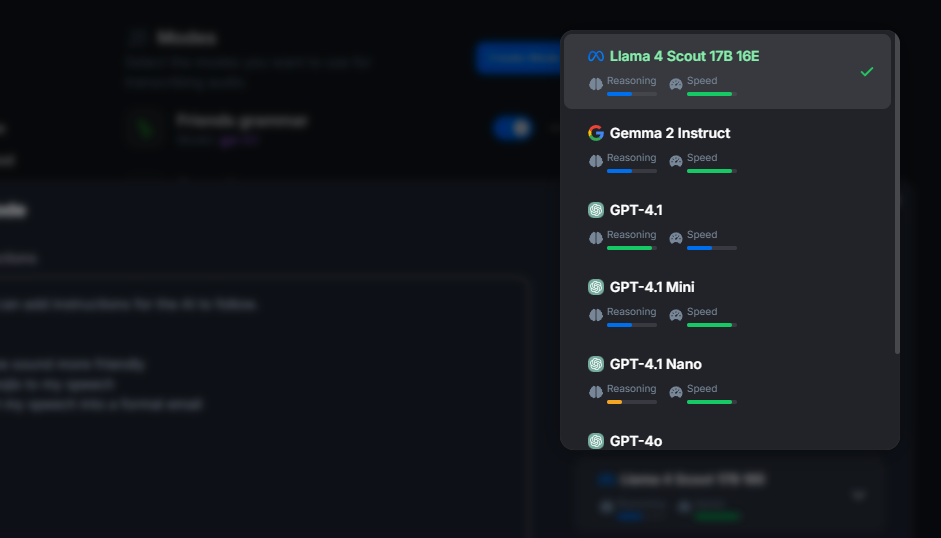
Step 5: Select AI Model
Use the Model Picker to choose which AI will process your speech:
- OpenAI Models (GPT-4.1, GPT-4o): Best for professional formatting
- Google AI Models (Gemini): Good balance of speed and quality
- Meta AI Models (Llama): Fast and efficient
Recommendation: Choose GPT-4.1 for best results with business emails.
Step 6: Save and Assign Shortcut
- Click "Save" button
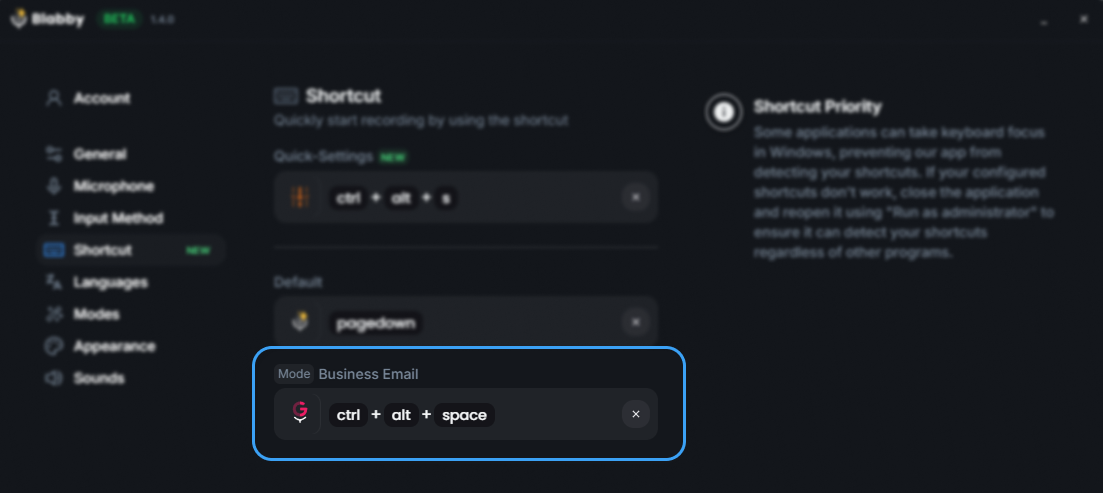
- Navigate to Shortcuts tab in Settings
- Find your new mode (with icon and name)
- Click the shortcut field and press your desired key combination (e.g., Ctrl+Alt+Space)
- The shortcut is saved automatically
Step 7: Use Your Custom Mode in Gmail
Now it's time to test your new mode! Here's how:
- Open Gmail and click Compose
- Click into the email body text field
- Press Ctrl+Alt+P (your assigned shortcut) to activate the mode
- Notice the toolbar outline changes to your mode's color (e.g., blue instead of red)
- Speak casually: "hey sarah the report will be late because of the data issues"
- Click stop (or press Ctrl+Space)
- Watch the magic happen!
Result Example
What you said:
"hey sarah the report will be late because of the data issues"
What appears in Gmail:
Dear Sarah,
I wanted to inform you that the report will be delayed due to some data issues we're currently addressing. I apologize for any inconvenience this may cause.
Best regards
More Custom Mode Ideas for Gmail
Here are more custom mode ideas you can create for different email scenarios:
1. Quick Reply Mode
AI Instructions:
"Convert this into a brief, friendly email reply. Keep it under 2 sentences. Be warm but professional."
Example:
You say: "yeah that works see you then"
AI writes: "That works perfectly for me! Looking forward to seeing you then."
2. Meeting Request Mode
AI Instructions:
"Format this as a professional meeting request email. Include greeting, purpose, proposed time, and polite closing. Ask for confirmation."
Use case:
Perfect for scheduling calls, meetings, or interviews quickly
3. Grammar Correction Only Mode
AI Instructions:
"Fix any grammar, spelling, and punctuation errors. Keep the original tone and style. Don't add or remove content. Don't make it more formal."
Use case:
When you want to keep your casual tone but ensure it's error-free
Advanced Features for Gmail
Multi-Language Support
BlabbyAI supports dictation in over 90+ languages. Perfect for multilingual business communication.
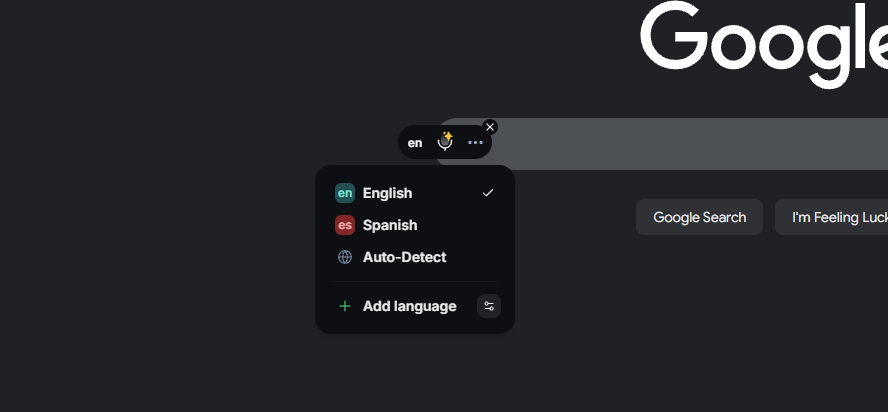
- Click the language picker (left button in toolbar)
- Select your preferred language or choose "Auto-detect"
- Auto-detect works best for longer sentences (5+ words)
- For short replies, manually select the language for best accuracy
Custom Spelling for Gmail
Add custom spellings for names, company terms, or industry jargon that BlabbyAI might not recognize.
- Go to Settings → Languages
- Select the specific language
- Click "Add Custom Spelling"
- Enter the correct spelling (e.g., "BlabbyAI", client names, product names)
- AI will now match this spelling when you speak it
Gmail Use Cases:
- Client names with unique spellings
- Company-specific terminology
- Product names and brands
- Technical terms in your industry
Tips for Best Results
- 💡 Speak Naturally: Don't over-enunciate or pause awkwardly. The AI handles punctuation automatically.
- 💡 Use a Good Microphone: A USB microphone or headset provides better accuracy than built-in laptop mics.
- 💡 Find a Quiet Space: Background noise reduces accuracy. Close windows and turn off fans.
- 💡 Practice Mode Switching: Get comfortable with keyboard shortcuts to switch between modes quickly.
- 💡 Create Mode Library: Build a collection of modes for different email scenarios you encounter regularly.
- 💡 Quick Review Before Sending: Always do a quick scan, especially for important emails.
- 💡 Add Custom Spellings Proactively: Add client names and technical terms as you encounter them.
Troubleshooting Common Issues
Microphone Not Working?
- ✅ Check Chrome microphone permissions (Settings → Privacy and security → Site settings → Microphone)
- ✅ Verify your microphone is connected and selected as input device
- ✅ Try refreshing the Gmail page
- ✅ Check if other apps are using your microphone
Mode Not Activating?
- ✅ Verify you assigned a keyboard shortcut to the mode
- ✅ Check if another Chrome extension is using the same shortcut
- ✅ Make sure you're pressing the correct key combination
- ✅ Look for the toolbar color change to confirm mode is active
Poor Accuracy?
- ✅ Reduce background noise
- ✅ Position microphone 6-12 inches from your mouth
- ✅ Speak at normal conversational pace (not too fast or slow)
- ✅ Check that you've selected the correct language
- ✅ Add custom spellings for frequently used terms
Language Detection Problems?
- ✅ For short phrases (under 5 words), manually select the language
- ✅ Auto-detect works best with longer sentences
- ✅ Set your preferred language in Settings for consistent use
Frequently Asked Questions
1. Does BlabbyAI work on all Gmail interfaces?
Yes! BlabbyAI works on both the classic Gmail interface and the new Gmail redesign. It appears as a • dot bubble next to any text field, compose, reply, forward, subject lines, and even Gmail chat.
2. Is my data private?
Yes! Your voice data is processed securely and is not stored after transcription. All communication is encrypted, and we adhere to strict privacy standards to protect your information. Learn more about our data handling practices in our Privacy Policy.
3. Can I use this on mobile Gmail?
BlabbyAI is currently available as a Chrome extension (desktop/laptop only). Mobile support is limited by Chrome extension restrictions on mobile devices. However, you can use your phone's built-in keyboard voice input as an alternative.
4. How fast is the transcription?
BlabbyAI transcribes your speech in 200-600ms using OpenAI's Whisper large v3 turbo model. This is significantly faster than most dictation tools. Custom modes add 1-3 seconds for AI processing depending on the model you selected.
5. Can I create unlimited custom modes?
Yes! You can create as many custom modes as you need. Build a personal library for different email types, clients, or communication styles.
6. Does it work offline?
No. BlabbyAI requires an internet connection because speech transcription and AI processing happen in the cloud. This ensures the highest accuracy and fastest processing times.
7. Can I use BlabbyAI on websites other than Gmail?
Absolutely! BlabbyAI works on any text field on any website, including Google Docs, Slack, Discord, Microsoft Teams, Outlook, Notion, WordPress, and 20,000+ other sites. The • dot bubble appears wherever you click a text field.
8. What languages are supported?
BlabbyAI supports over 90 languages including English, Spanish, French, German, Chinese, Japanese, Arabic, Portuguese, Russian, Italian, and many more. Use the language picker or enable auto-detect for multilingual dictation.
9. How accurate is BlabbyAI compared to Gmail's built-in tools?
BlabbyAI uses OpenAI's Whisper large v3 turbo model, which is significantly more accurate than basic speech recognition. The biggest difference is automatic punctuation and grammar: Gmail requires you to say "comma" and "period" out loud, while BlabbyAI adds them intelligently based on context.
10. Is there a free version?
BlabbyAI offers both free and premium tiers. The free tier includes basic voice typing with smart punctuation. Premium features include unlimited custom modes, advanced AI models, and priority support. Check the pricing page for details.
Start Dictation in Gmail Today
Dictation with BlabbyAI transforms email productivity. Instead of spending hours typing emails, you can speak naturally and let AI handle the formatting, punctuation, and grammar automatically.
Key Takeaways:
- ✅ BlabbyAI works seamlessly in all Gmail interfaces
- ✅ Smart punctuation and grammar added automatically
- ✅ Custom modes transform casual speech into professional emails
- ✅ 3x faster than typing (150+ words per minute)
- ✅ Create unlimited custom modes for any email scenario
- ✅ Works on 1000+ websites beyond Gmail
Whether you spend your morning clearing an inbox, manage client communications, or just want your hands off the keyboard for a while, BlabbyAI's dictation and custom modes turn the drafting part into something you can talk through.
Ready to stop typing and start speaking? Install BlabbyAI and experience AI-driven dictation in Gmail today.