
Published August 15, 2026 · By Sumbat.T
How to Dictate Text That Comes Out Already Formatted
Short Answer
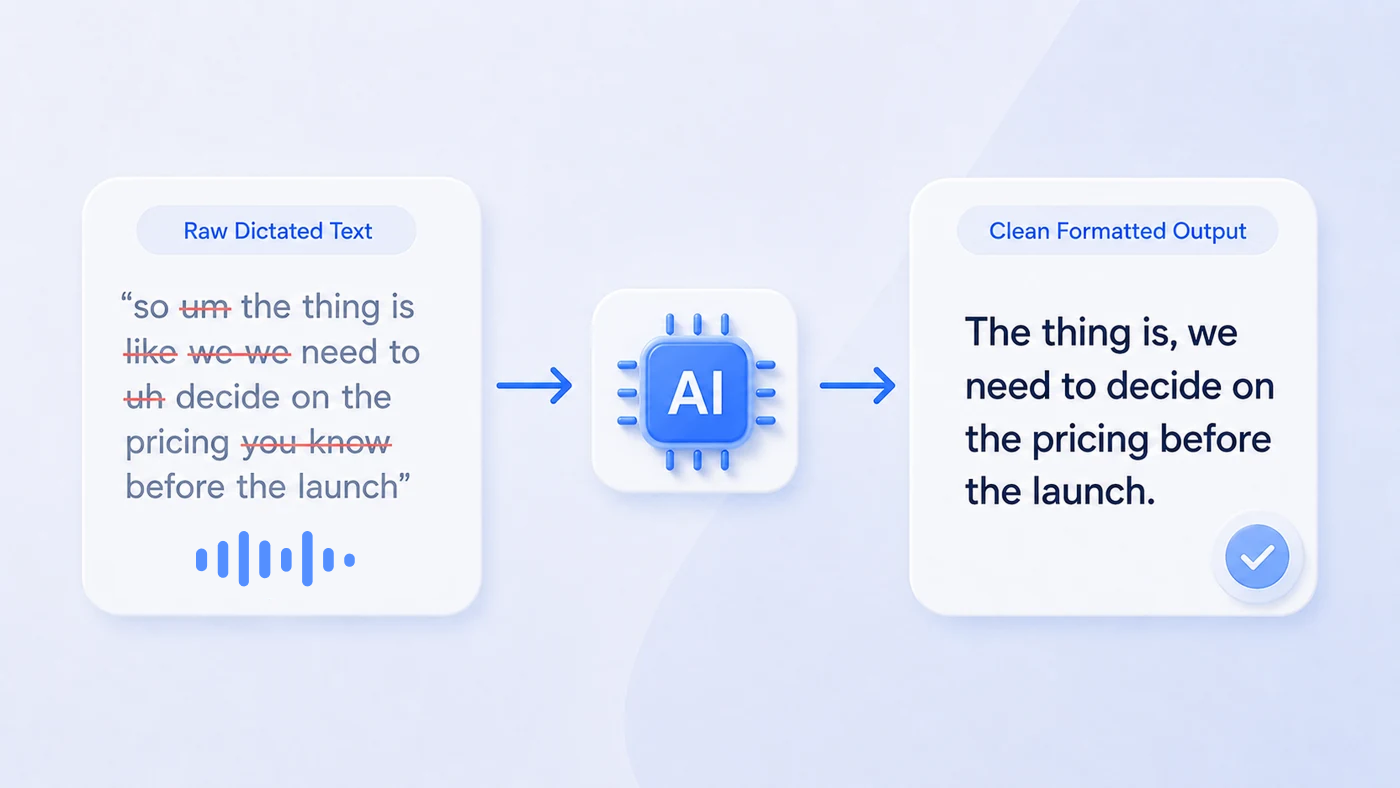
Yes, you can dictate text that arrives already punctuated and formatted. Punctuation and casing come from the speech model itself. Structure comes from a custom mode: a written AI instruction that reshapes your transcript before it is typed into the field. You write the instruction once ("turn this into a blog draft", "make this a professional email", "translate to English"), bind it to a keyboard shortcut, and every recording in that mode comes out finished. BlabbyAI supports custom modes and is free to try: 60 credits a week, roughly 2,000 words, no card required.
We build BlabbyAI, a dictation app for Windows. Custom modes were our answer to a problem we had ourselves: dictation that was accurate but never finished.
Why raw dictation still needs cleanup
Accuracy is no longer the bottleneck. Speak a paragraph into any Whisper-class tool and you will get your words back, with commas and question marks in sensible places. OpenAI's Whisper reached 97.93 percent word accuracy on clean audio in MLCommons' 2025 benchmark (MLCommons).
The problem is that accurate is not the same as finished. What comes back is exactly what you said, including the "um", the restart halfway through the sentence, the point you made twice, and the fact that spoken English runs in long unbroken chains rather than paragraphs. So you dictate for thirty seconds and then spend two minutes editing. That is the moment most people quietly stop using dictation.
A custom mode closes that gap by adding a second step between the transcript and the text field.
How a custom mode works
A mode is a secondary processing step on your speech, run by an AI model. Think of it as copying your transcript into ChatGPT, telling it what to do, then pasting the result back where you were typing, except it all happens automatically from one shortcut.
The full path a recording takes:
01
You speak
Shortcut held, any app
02
Transcribed
Punctuation and casing
03
Mode runs
Your instruction applied
04
Typed out
Into the focused field
Creating one takes about a minute. In BlabbyAI: Settings, then Modes, then Create Mode. The popup has four parts.
- AI instructions. Plain English, for example "fix any grammar errors in my speech". This is the part that does the work.
- Name and icon, for example "Grammar Correction".
- Model picker. OpenAI, Google, or Meta models.
- Save, then open the Shortcuts tab and assign a key to the mode.
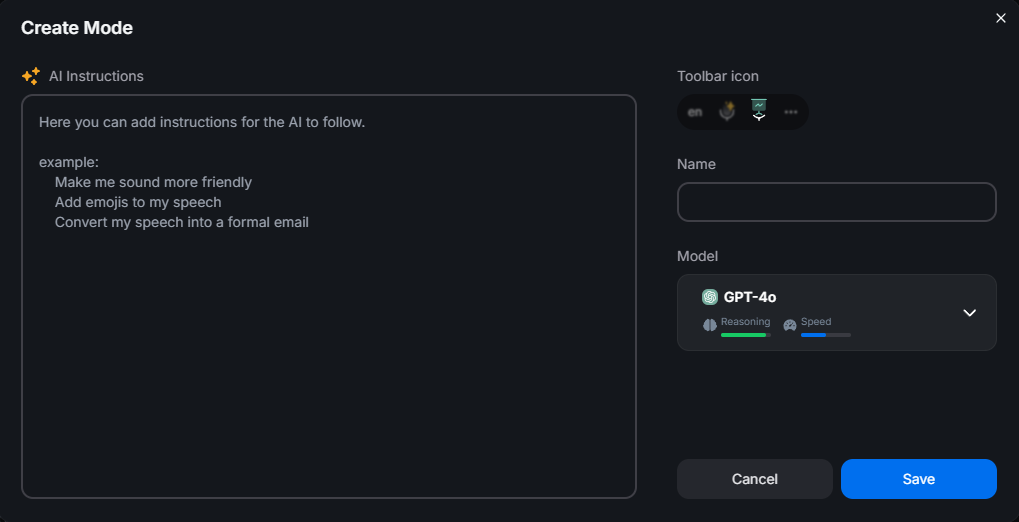
The whole mode is one instruction field, a name, and a model. That is the entire configuration surface.
BlabbyAI ships with Grammar Correction, Translate to English, and Email already built. The recipes below are the ones you write yourself.
Eight mode recipes you can copy
Each of these is a complete instruction. Paste it into the AI instructions field, give the mode a name, bind a shortcut, and it is ready. The before and after examples show real spoken input and what lands in the text field.
Read this before you write your first mode
Your speech is the raw material, not a request. The instruction is fixed in advance, and what you say is what it operates on. If you have a blog mode active and say "write two paragraphs about our pricing change", you will not get two paragraphs about your pricing change. You will get that exact sentence, reformatted. To write about the pricing change, you say the things you actually want to say about it, and the mode shapes them. Modes rewrite what you said. They do not answer it.
RECIPE 01
Blog draft
Speak a rough idea, get a structured draft instead of a wall of text.
Paste into the AI instructions field
>
Turn my speech into a clean blog draft. Break it into short paragraphs, keep my voice and word choices, and remove filler words and false starts. Only reorganize what I actually said. Never add facts, examples, or sentences I did not speak.
What you say
so um speaking is just way quicker than typing for most people but the thing is the raw text comes out messy and uh you end up editing for longer than it took to say it and that that is why people quit after a week
What gets typed
Speaking is much quicker than typing for most people. The problem is that the raw text comes out messy, and you end up editing for longer than it took to say it. That is why people quit after a week.
RECIPE 02
Your own spoken commands
Say "new paragraph" or "scratch that" and have it happen instead of being typed out.
Paste into the AI instructions field
>
Treat certain phrases as formatting commands, not text. When I say "new paragraph", insert a paragraph break. When I say "bullet point", start a new bullet. When I say "in quotes", put the phrase that follows inside quotation marks. When I say "scratch that", delete the sentence I just said. Never write the command words themselves.
What you say
here are the three priorities new paragraph bullet point ship the windows build bullet point fix the shortcut bug scratch that fix the crash on startup
What gets typed
Here are the three priorities: • Ship the Windows build • Fix the crash on startup
RECIPE 03
Bullet lists and numbered steps
Talk through a list out loud, get it formatted as an actual list.
Paste into the AI instructions field
>
Format whatever I say as a bulleted list. One bullet per distinct point. Keep each bullet under fifteen words. If I describe a sequence of steps, use a numbered list instead.
What you say
we need to book the venue then send the invites and I guess confirm catering and someone should do the run of show
What gets typed
1. Book the venue 2. Send the invites 3. Confirm catering 4. Prepare the run of show
RECIPE 04
Professional email
Ramble the gist, get a properly structured message.
Paste into the AI instructions field
>
Rewrite my speech as a professional email. Add a greeting and sign off with "Best regards," followed by my name, Daniel. Keep it concise and polite, remove filler words, and fix any grammar. Do not invent details I did not mention.
What you say
hey sarah um the report is gonna be late like maybe wednesday because the data came in wrong and uh sorry about that
What gets typed
Hi Sarah, The report will be delayed until Wednesday. The source data came through incorrectly, so I need extra time to correct it. Apologies for the inconvenience. Best regards, Daniel
RECIPE 05
Speak one language, type another
Think in your native language, write in another one.
Paste into the AI instructions field
>
Translate everything I say into English. Preserve my original meaning and level of formality, do not make it more casual or more formal than I said it, and fix any grammar so the result reads naturally.
What you say
necesito enviar el informe antes del viernes por favor
What gets typed
I need to send the report before Friday, please.
RECIPE 06
Cleanup
Keep exactly what you said, minus the "um", the restarts, and the changes of mind. This is the mode we use most.
Paste into the AI instructions field
>
Clean up the following dictated text. Rules: - Remove filler words like "um", "uh", "ah", "like" when they add no meaning. - Remove all em dashes. - Remove false starts, repeated phrases, self-corrections, and abandoned thoughts. - If I change my mind mid-sentence, keep only the final intended meaning. - Preserve the original meaning and intent. - Keep my tone and wording as close to the original as possible. - Do not add new information. - Do not rewrite unnecessarily. - If I say a specific emoji (eg coffee emoji, smiley emoji etc), replace it with the actual emoji (example: coffee emoji -> ☕, smiley emoji -> 🙂 and so on) - Return only the cleaned-up text.
What you say
ok so um lets push the release to thursday no actually friday is better because uh QA needs the the extra day and like we still have two blockers open ill bring coffee emoji for whoever fixes them first smiley emoji
What gets typed
Ok, so let’s push the release to Friday, because QA needs the extra day and we still have two blockers open. I’ll bring ☕ for whoever fixes them first 🙂
RECIPE 07
Rewrite the tone
Same content, different register.
Paste into the AI instructions field
>
Rewrite what I say to sound professional and concise. Keep every fact and request intact, cut hedging and repetition, and aim for roughly half the length without losing meaning.
What you say
I was just kind of wondering if maybe you could possibly take a look at the pull request when you get a chance, no rush at all really
What gets typed
Could you review the pull request when you have a moment?
RECIPE 08
Fixed template
Fill the same structure every time: standup, support reply, clinical note.
Paste into the AI instructions field
>
Format my speech into a daily standup update with exactly three headings: Yesterday, Today, Blockers. Sort what I said under the right heading and do not add anything I did not say. If I did not mention a heading, leave it empty.
What you say
yesterday I finished the auth refactor today I am starting on the billing screens nothing blocking me
What gets typed
Yesterday: Finished the auth refactor Today: Starting on the billing screens Blockers: None
The biggest time saver is chaining several of these in one instruction. "Translate to English, fix the grammar, and format it as a professional email" is a single mode and a single shortcut, replacing three manual steps.
Dictate anywhere




Build your own modes in about a minute
System-wide AI dictation for Windows. 2,000 words a week free, no credit card.
Spoken commands: define your own vocabulary
Traditional dictation software ships a fixed list of spoken commands. You learn their words, and if the command you want is not on the list, you are out of luck.
Modes invert that. The AI receives the literal transcript, including any words you spoke as commands, so you can simply describe what those words should do. Say "new paragraph" and the transcript contains the phrase "new paragraph". Your instruction tells the model to insert a break instead of writing it out.
That means you can invent commands that suit your own work:
"scratch that"deletes the sentence you just said."next point"starts a new line instead of continuing the sentence."in quotes"puts the phrase that follows inside quotation marks."sign off"appends your standard email signature.
The trade-off is worth naming: a fixed command list is predictable, while an instruction is interpreted, so an unusual phrasing can occasionally be read as text rather than as a command. Being specific in the instruction ("never write the command words themselves") makes it reliable in practice.
Getting brand names and technical terms right
Spelling is a separate feature from modes, and worth setting up early if you write about specific products, people, or technical terms. Custom Spelling lives in Settings, Languages, pick a language, then Add Custom Spelling.
You type the spelling exactly as you want it written, and the model matches it while transcribing in that language. It handles unusual colleague names, product names, technical vocabulary, and British versus American spellings such as "colour" against "color". A mode instruction can enforce spellings too, but Custom Spelling does it at the transcription stage, which is more reliable.
Does this work in Notion, Teams, Todoist, Slack, and Word?
Yes, in all of them, and there is nothing to set up. Dictation types into whatever text field has your cursor, so anywhere you can type, you can dictate. There is no per-app integration to connect and no list of supported apps to check against.
This is worth understanding precisely, because it also defines the limit. If you want a task in Todoist, you open Todoist, click the task field, and speak. What you do not get is the app creating that task for you from somewhere else: this is a dictation tool, so it writes text and stops there. It does not click buttons, press Enter, submit forms, or drive other applications.
In practice, working everywhere by default tends to beat deep integration with a handful of apps, because the same shortcut and the same modes follow you across every program you use.
Setting up your keyboard shortcut
The global shortcut is what makes dictation feel fast, because you never leave the field you are writing in. In BlabbyAI the default is Ctrl+Space: press to start, press again to stop. It works anywhere in Windows regardless of which app is focused.
Each mode gets its own shortcut in the Shortcuts tab. That is the part worth planning: one key for plain dictation, one for your email mode, one for your blog mode. Pressing a mode shortcut puts the toolbar into that mode, so switching between formats is a single keypress rather than a trip into settings.
What modes cannot do
Worth knowing before you build a workflow around them:
One recording at a time
Processing happens after you stop recording, not live word by word as you speak. You will not watch text reformat itself mid-sentence.
Text output only
No clicking, no pressing Enter, no submitting forms, no controlling other apps.
No memory between recordings
Each recording is processed on its own, so a mode cannot refer back to what you dictated five minutes ago.
Output quality tracks the model
A more capable model handles complex instructions better than a fast lightweight one.
The free tier is capped
60 credits a week, roughly 2,000 words. Heavy daily dictation will need the $8.49 per month plan.
Frequently asked questions
What setup do I need for accurate voice dictation?
Three things: a decent microphone (a headset beats a laptop array mic), a dictation app running a modern speech model, and a global keyboard shortcut so you can start recording without leaving the field you are writing in. BlabbyAI runs Whisper large v3 turbo, binds to Ctrl+Space by default, and needs no voice training or accent setup before your first sentence.
Can I dictate text that is already formatted for a blog post?
Yes. Punctuation and casing come from the speech model itself. To get structure, paragraph breaks, headings, and a consistent style, you add a custom mode: an AI instruction that reshapes the transcript before it is typed into the field. Write the instruction once, bind it to a shortcut, and every recording in that mode comes out as a formatted draft.
Does it support commands like "new paragraph" and "comma"?
Yes, and you define them yourself. Most dictation tools ship a fixed list of spoken commands. With a custom mode you write your own, because the AI receives the literal transcript including the words you spoke as commands. An instruction like "whenever I say new paragraph, insert a paragraph break instead of writing those words" turns that phrase into a real command.
Can I speak one language and have it typed in another?
Yes. A mode can transcribe your speech and translate it in the same pass, so you can speak Spanish and have polished English appear in the text field. You can combine it with other instructions, for example translate to English, fix any grammar, and keep the original level of formality, all in one shortcut.
Can it write my emails if my hands hurt or I cannot type?
Yes, that is one of the most common uses. Put your cursor in the email body, press your shortcut, and speak normally. An email mode cleans up filler words, fixes grammar, and shapes what you said into a properly structured message, so you are not editing afterwards with hands that already hurt.
Will it spell brand names and technical terms correctly?
Yes, through Custom Spelling, which is a separate feature from modes. In Settings, Languages, pick a language and add the spelling exactly as you want it written: a product name, a colleague name, a technical term, or British versus American spellings. The model then matches it while transcribing in that language.
Does dictation work in Notion, Teams, Todoist, Slack, and Word?
Yes, in all of them, with no integration or setup. BlabbyAI types into whatever text field has your cursor, so anywhere you can type, you can dictate. There is no per-app connection to configure and no list of supported apps to check.
Is there a free version?
Yes. Every BlabbyAI account includes 60 free credits per week, roughly 2,000 words of dictation, with no credit card required. Custom modes are part of the product rather than a separate paid add-on. Unlimited use is $8.49 per month.
Related reading
- Dictation software: how the current options compare
- Best dictation apps in 2026 (free and paid)
- Dragon dictation pain points, and how custom modes fix them
- Medical dictation software: fixing pain points with custom AI modes
Stop editing what you just dictated
BlabbyAI: system-wide AI dictation on Windows, with custom modes. 2,000 words a week free, no card.
Recipe summary
| Mode | Use it when |
|---|---|
| Blog draft | Speak a rough idea, get a structured draft instead of a wall of text. |
| Your own spoken commands | Say "new paragraph" or "scratch that" and have it happen instead of being typed out. |
| Bullet lists and numbered steps | Talk through a list out loud, get it formatted as an actual list. |
| Professional email | Ramble the gist, get a properly structured message. |
| Speak one language, type another | Think in your native language, write in another one. |
| Cleanup | Keep exactly what you said, minus the "um", the restarts, and the changes of mind. This is the mode we use most. |
| Rewrite the tone | Same content, different register. |
| Fixed template | Fill the same structure every time: standup, support reply, clinical note. |