
Published August 16, 2026 · By Sumbat.T
Microsoft Word Dictation Software in 2026: Your Real Options
Short Answer
If you already pay for Microsoft 365, start with the built-in Dictate button on Word's Home tab: it is good, and you own it. If you do not have 365, or you want dictation that also works in email, browsers, and everything else, BlabbyAI types into any Word version (and any other app) for $8.49/month with a free tier. Dragon remains the pick for medical and legal vocabulary.
Below: what Dictate actually does, its four real limits, and the alternatives compared. We build BlabbyAI, so read that entry knowing who wrote it. For the broader market, see our full dictation software guide.
Word dictation options at a glance
| Tool | Works in | Needs Microsoft 365 | Price |
|---|---|---|---|
| Microsoft Word Dictate | Word only | Yes | Included with 365 |
| BlabbyAI | Every app, any Word version | No | Free tier, then $8.49/mo |
| Windows Voice Typing | Every app, any Word version | No | Free |
| Dragon Professional | Every app, deep Word commands | No | ~$699 one-time |
| Wispr Flow | Every app, plus Mac and mobile | No | $12 to $15/mo |
1. Word Dictate: the built-in, and it is genuinely good

Best for: Microsoft 365 subscribers whose writing happens inside Word.
Click the Dictate microphone on the Home tab and talk. Text appears as you speak, and spoken commands handle the mechanics: "new line", "comma", "bold that". Wirecutter's 2026 review measured it at roughly 97% accuracy, which matches our experience for clean speech in a quiet room. It supports multiple languages and needs nothing extra installed. If you have 365, try it before paying anyone. The step-by-step setup, commands list, and fixes live in our guide to dictating in Word.
The four real limits, and they are structural, not bugs:
- It needs a Microsoft 365 subscription. Perpetual licenses (Word 2019, 2021) do not include Dictate.
- It only exists inside Word. Switch to Outlook, Chrome, or Teams and you are typing again.
- It transcribes, it does not clean up. Rambling speech lands as rambling text; there is no AI pass to strip filler or restructure.
- It needs an internet connection. No offline mode.
Using Dictate well: the 60-second version
Open a document, make sure you are signed in to Microsoft 365, and click the Dictate microphone on the Home tab. When the icon shows it is listening, talk in complete sentences. Punctuation can be spoken ("period", "comma", "question mark", "new line", "new paragraph") or, in the Dictate settings gear, switched to automatic so the engine places it for you. Formatting commands work too: saying "bold that" applies bold to your last phrase. When something comes out wrong, keep talking and fix it after; stopping to correct every third word is the habit that makes people quit dictation. The full command list lives in Microsoft's documentation, and our Word dictation guide walks every step with screenshots.
Two settings worth changing on day one: turn on auto-punctuation (Dictate gear icon) so your sentences arrive finished, and check your language if you dictate in anything besides English, since Dictate supports a long list but only transcribes the one you have selected. If the button is greyed out or missing, you are usually either signed out of 365 or on a perpetual-license Word, which brings us to the alternatives.
The spoken commands worth memorizing
You need fewer than you think. Punctuation: "period", "comma", "question mark", "exclamation mark", plus "new line" and "new paragraph" for structure. Editing: "delete that" removes your last utterance, which covers most mistakes without touching the keyboard. Formatting: "bold that", "italicize that", and their relatives act on the phrase you just said. Say them as part of your speaking flow rather than as separate announcements and they land more reliably. Everything beyond these lives in Microsoft's command reference, but this handful carries a full document. Worth noting: if you use a tool with custom modes instead, you write your own command vocabulary as plain instructions, so "when I say scratch that, delete the sentence I just said" becomes a command because you declared it, not because a product manager shipped it.
2. BlabbyAI: dictation in Word and everywhere else
Best for: people who write in Word AND in email, chat, and browsers, or who use Word without a 365 subscription.
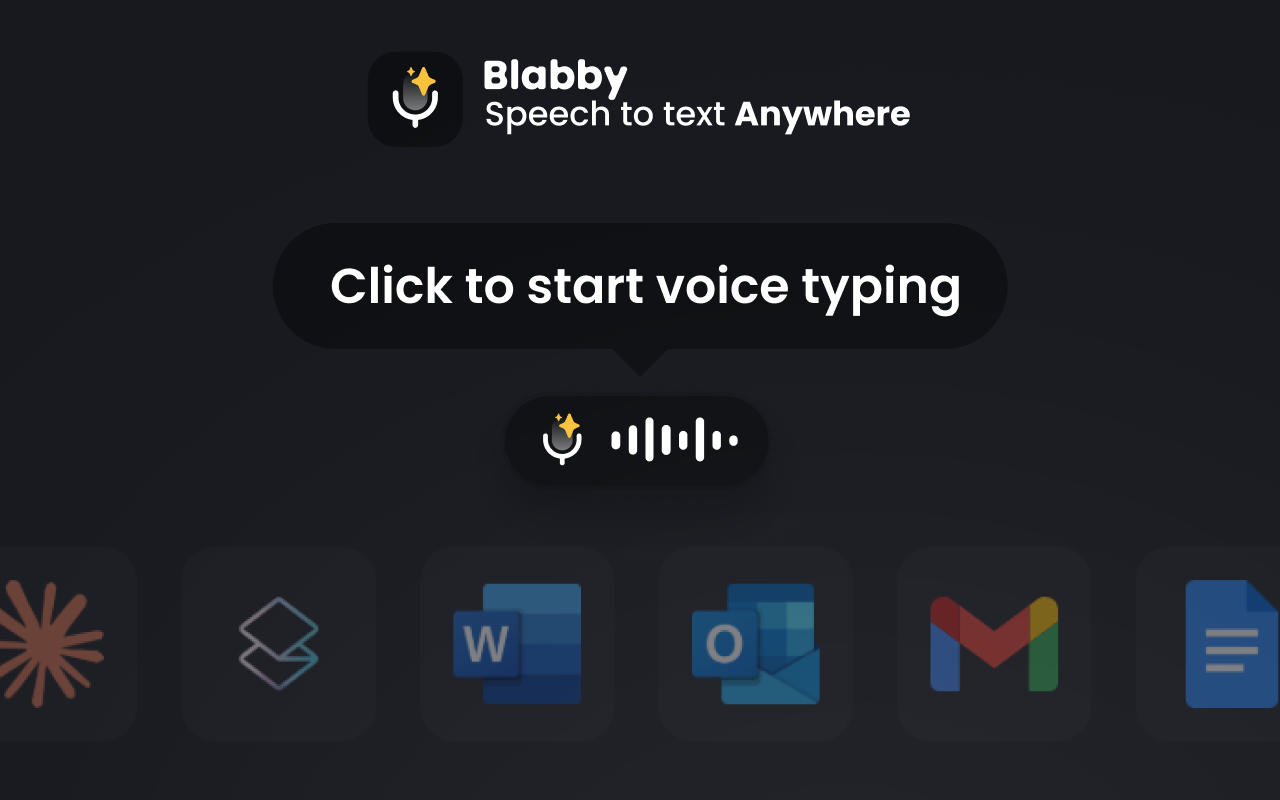
BlabbyAI is a native Windows app running OpenAI's Whisper large v3 turbo. Put your cursor in a Word document, press Ctrl+Space, speak, and punctuated text is typed exactly where the cursor was. Because it treats Word as just another text field, it works in every Word version ever shipped, subscription or not, and the same shortcut follows you into Outlook, Notion, Teams, or your browser. Its custom AI modes go where Dictate cannot: fix grammar as you go, translate your speech into English, strip filler words, or shape a spoken draft into clean paragraphs before it lands in the document.
- Pros: works in any Word version and every other app; AI punctuation and cleanup modes; 90+ languages; custom spellings; local audio History.
- Cons: needs internet; free tier capped weekly.
- Price: free to start (60 credits/week, roughly 2,000 words), $8.49/month unlimited.
Disclosure: BlabbyAI is our product, which is why it sits at #2 in our own list only behind the free tool you may already own.
What modes mean for Word work specifically. A grammar-correction mode turns a spoken rough draft into clean prose as it lands in the document, so "I go over the quarterly numbers yesterday and they was better than expected" arrives as a corrected sentence. A report-format mode can shape rambling dictation into ordered paragraphs. A translate mode lets you think aloud in your native language and watch English land on the page, grammar included, in the same shortcut. And spoken commands are yours to define: write "whenever I say new paragraph, insert a paragraph break" into the mode instructions and the classic Dictate commands exist in BlabbyAI too, on your terms. The mechanic to remember: your speech is the input the mode reshapes. Speak your actual sentences, and the mode formats them; it does not write content you did not say.

3. Windows Voice Typing: free dictation into any Word version
Best for: free dictation into Word without a 365 subscription.
Press Win+H with your cursor in a document and Windows itself does the dictating, no Word feature required. Accuracy is decent, punctuation is weaker than Dictate's, and there are no cleanup smarts, but the price is zero and it works in Word 2016, 2019, 2021, or any other program. If your Dictate button is missing because you are not on 365, this is the built-in answer. Commands and fixes: the Win+H guide.

4. Dragon Professional: deep Word integration for specialists
Best for: medical and legal professionals dictating long documents with specialist vocabulary.
Dragon integrates with Word: it types into documents, and its voice commands go deeper than anyone's, covering navigation, correction, and formatting of the document by voice alone. Add trained custom vocabularies and offline processing and you have the tool clinics and law firms still buy. Specialist editions exist for exactly those buyers: legal and medical variants ship with their fields' vocabularies built in, sold as desktop licenses and cloud subscriptions. The cost is around $699 one-time for Professional plus setup and training hours, which only makes sense when the specialist features earn money. Versions and pricing: our Dragon breakdown.

5. Wispr Flow: the cross-platform option
Best for: dictating into Word on Windows today and a Mac tomorrow.
Wispr Flow does system-wide AI dictation with automatic cleanup, and Word is one of the many places it types. Native apps on Windows, Mac, and mobile make it the pick when your writing spans devices. It runs $12 to $15 a month with a 14-day trial and no free tier, which is the main argument against it if your work lives on one Windows machine. Full comparison: Wispr Flow alternatives.
Dictating into Word 2019 or 2021 (no subscription)
A lot of people bought Word once, own it outright, and have no intention of renting it monthly. Fair. The bad news is that Dictate is a subscription feature, so those versions have no built-in dictation of their own. The good news is that it does not matter, because dictation can come from outside the app. Press Win+H and Windows types into your Word 2019 document exactly as it would into Notepad. Install BlabbyAI and Ctrl+Space does the same with AI punctuation, custom modes, and your own vocabulary. The document cannot tell the difference; text arriving at the cursor is text arriving at the cursor.
Practical difference between the two: Win+H is free and basic, so expect to add punctuation and clean up longer passages yourself. BlabbyAI hands you finished sentences and can reshape rambly dictation into clean prose on the way in, at $8.49/month after the free tier. For a chapter a week, the cleanup difference is the whole decision; for one letter a month, take free.
Word dictation vs Word transcription: different jobs
Word actually has two voice features, and mixing them up wastes time. Dictate is live: you speak, text appears at the cursor, you are writing. Transcribe (in Word for the web, also a 365 feature) takes a finished recording, an interview or a meeting you taped, and turns the whole file into a text document with speakers separated. If you want to write a report by voice, that is dictation. If you recorded a conversation and want it on paper, that is transcription. BlabbyAI is dictation-only by design, so for uploading audio files, Word's own Transcribe or a dedicated transcription tool is the right reach; we compare those in free transcription software.
Accuracy in practice: what actually moves it
On paper the engines cluster tightly: Wirecutter measured Word Dictate around 97%, and Whisper-class models (the engine under BlabbyAI) benchmarked at 97.93% on clean audio in MLCommons' 2025 round. In practice your numbers swing far more on inputs than on engine choice. A headset microphone near your mouth beats a laptop array across the desk, every time, on every engine. A quiet room beats a cafe. Complete spoken sentences beat fragments, because punctuation inference feeds on your phrasing and pauses. And specialized vocabulary is where tools separate: Dictate cannot learn your terms, while BlabbyAI's custom spellings and Dragon's trained vocabularies exist precisely for the client names and drug names that generic engines mangle. If your test paragraph contains your five hardest words, ten minutes tells you more than any review.
Who dictates in Word, and what they should pick
Writers and authors drafting books and long-form in Word get the most from speaking at 130 to 150 words per minute against a typing speed around 40; the cleanup quality decides whether that speed survives editing, which is the case for AI dictation made in dictation software for writers. Medical and legal professionals writing letters and briefs in Word carry specialist vocabulary that decides the tool; see medical dictation software and dictation software for lawyers. Students writing essays should start free and only pay when volume justifies it, the theme of dictation software for students. And anyone whose writing spills beyond Word into email and chat should read the full Windows dictation roundup, because a Word-only tool stops paying rent the moment you hit reply in Outlook.
Also considered
- Windows Voice Access. The Windows 11 accessibility tool that controls the whole PC by voice, dictation included. If hands-free operation of Windows itself is the need, it belongs on your shortlist; as pure Word dictation it offers nothing over Win+H.
- SpeechTexter and the browser notepads. Free dictation into a web page, then copy into Word. Workable in a pinch, but a paste step on every paragraph is a workflow tax you will stop paying within a week.
- Google Docs voice typing. The free option if you are willing to draft in Docs and export to Word afterwards. Two apps to do one job, which is exactly the friction dictation is supposed to remove.
Dictate beyond Word: the rest of Microsoft 365
The same Dictate feature shows up across the Microsoft 365 apps, so the skills transfer: Outlook for spoken email drafts, OneNote for notes, PowerPoint for speaker notes. The catch stays constant too: each of them is an island, and the feature never follows you into Chrome, Slack, or anything outside the Office family. That boundary is the honest dividing line in this whole comparison. If your writing lives inside Microsoft 365, the built-in covers you end-to-end. The moment a normal day includes a browser text box or a chat app, a system-wide tool stops being a luxury, because switching dictation methods per app is exactly the kind of friction that makes people give up on voice input entirely.
Dictating in Word in other languages
Dictate supports a long list of languages, with the constraint that you pick one in its settings and it transcribes that one. Switch languages, switch the setting. BlabbyAI takes a different approach: 90+ languages with automatic detection, so you can dictate in whatever language you think in without touching a setting, and custom spellings teach it names and terms in any of them. The combination move is the interesting one for multilingual writers: a translate mode means you can speak your native language and have polished English arrive in the Word document, grammar corrected, in a single shortcut. For anyone drafting English documents from a non-English head, that one workflow is worth more than any accuracy decimal.
Privacy: where your audio goes
All three modern options process speech in the cloud: Dictate needs its internet connection because Microsoft's servers do the transcription, and the same is true of BlabbyAI and Wispr Flow. The differences are in policy and residue. BlabbyAI transcribes under a zero-data-retention policy and keeps its History (your audio recordings) strictly on your own machine, never on a server, which also means a failed transcription is recoverable instead of gone. Dragon is the outlier for the strictest environments: processing happens locally, nothing leaves the computer, and that is a real reason it survives in clinics and firms with hard rules about audio. If your organization has a policy about voice data, check it before picking a tool, not after.
When Word dictation misbehaves
- Commands come out as words. You say "new paragraph" and Word types the words instead. Usually pacing: say the command as its own beat rather than gluing it to the sentence. If it persists, check that your Dictate language matches the language you are speaking, since commands only register in the selected language.
- No punctuation appears. Auto-punctuation lives behind the Dictate gear icon and ships off for some languages. Turn it on, or speak punctuation explicitly.
- Dictation cuts out mid-sentence. Dictate stops when the connection hiccups or after long silence. A wired network or steadier Wi-Fi fixes the first; keeping a speaking rhythm fixes the second.
- Wrong microphone. Word uses the Windows default input. Settings, System, Sound, and set the device you actually speak into; a forgotten webcam mic across the room explains many "Dictate is inaccurate" verdicts.
- Everything fails and you need the document done. Win+H bypasses Word's feature entirely, and BlabbyAI's local History means a recording survives even when transcription fails mid-way, so you can re-run it instead of re-dictating.
A realistic Word dictation workflow
The people who stick with dictation almost all converge on the same shape. Draft by voice in complete sentences without stopping to fix anything; momentum is the entire point, and every mid-sentence correction costs more than the error did. Then do one editing pass with whatever mix of voice commands and keyboard feels natural, because surgical edits are where the keyboard still wins. Speaking runs 130 to 150 words a minute against a typing average around 40, so even with an editing pass the draft arrives in a fraction of the time. Where AI dictation changes the shape: the editing pass shrinks, sometimes to nothing, because punctuation and cleanup happened on the way in. Where it does not: no tool dictates a well-organized document out of a disorganized head. An outline of three bullet points before you start talking does more for the final document than any engine upgrade.
Word on the web counts too
Dictate also lives in Word for the web, the browser version, behind the same Home-tab microphone while signed in to Microsoft 365. For people who float between machines it is the lowest-friction way to dictate a document from any computer with a browser. And because the browser version is just a text field on a web page, the system-wide tools work there as well: Win+H types into word-on-the-web exactly as it types into desktop Word, and so does BlabbyAI. Wherever a cursor blinks, the outside-in tools follow it, which is the theme this whole comparison keeps returning to.
Four questions before you commit
- Do I already pay for 365? If yes, Dictate first, always. Free trumps everything until its limits bite.
- How much of my writing happens outside Word? More than a fifth, and a Word-only tool guarantees you keep two writing methods alive forever.
- Does my vocabulary need teaching? Names, jargon, and clinical or legal terms rule out the built-ins, which cannot learn.
- Is there a compliance rule about audio? If audio cannot leave the machine, Dragon is the shortlist. If cloud is fine but retention matters, check policies: BlabbyAI transcribes under zero data retention.
What a year of Word dictation actually costs
Dictate adds nothing if you already pay for Microsoft 365, which is its strongest argument. Win+H adds nothing, period. BlabbyAI runs about $102 a year at $8.49/month, and you can stay on the free weekly tier indefinitely if 2,000 words a week covers you. Wispr Flow lands between $144 and $180 a year. Dragon Professional is around $699 up front, which equals roughly seven years of BlabbyAI; the calculation only favors Dragon when its specialist vocabulary or offline processing is a hard requirement rather than a nice-to-have. Price the editing time too: a tool that saves ten minutes of cleanup a day repays a $102 year in the first month of regular use.
The decision in three questions
- Do you have Microsoft 365 and write only in Word? Use Dictate. Done, and free.
- No 365, or you write outside Word too? BlabbyAI (AI cleanup, $8.49/mo, free tier) or Win+H (free, basic).
- Medical or legal vocabulary, offline requirement? Dragon Professional, and budget the setup time.
Choosing for a whole Windows machine rather than just Word? The field is wider: the best dictation software for Windows.
Frequently asked questions
Does Microsoft Word have dictation software?
Yes. Word for Microsoft 365 includes Dictate: click the microphone on the Home tab, speak, and text appears as you talk, with spoken commands for punctuation and formatting. It needs an active 365 subscription and an internet connection, and it only works inside Word.
Is there a dictation app that works with Microsoft Word?
Any system-wide dictation tool types into Word, because Word is just another text field to it. BlabbyAI (Ctrl+Space, AI punctuation, $8.49/mo after a free tier), Windows Voice Typing (Win+H, free), and Dragon Professional (~$699, specialist vocabularies) all dictate straight into a Word document, including old perpetual-license versions of Word.
How do I turn on voice typing in Word?
Two ways. Inside Word for Microsoft 365: Home tab, click Dictate, start talking. From Windows itself: click into your document and press Win+H, which works in any Word version. Our step-by-step guide to dictating in Word covers both, with the commands that add punctuation.
Can I dictate in Word without Microsoft 365?
Yes. Dictate is the only option locked behind a 365 subscription. Windows Voice Typing (Win+H) types into any Word version for free, and BlabbyAI does the same with better punctuation, AI cleanup modes, and custom vocabulary. Both treat your Word window like any other text field.
Does Windows 11 have built-in dictation software?
Yes: Voice Typing (Win+H) and Voice Access. Both are free, and both dictate into Word among every other app. For Word specifically, the built-in Dictate feature has better spoken commands, but Win+H is the one that still works when your 365 subscription lapses.
Is Word dictation accurate?
Word Dictate is one of the stronger built-ins: Wirecutter's 2026 review measured it at roughly 97% accuracy with text displayed in real time. AI tools built on Whisper-class models score slightly higher on clean audio (97.93% in MLCommons' 2025 benchmark) and handle punctuation with less fixing afterwards.
Is Microsoft Word dictation software free?
Dictate comes with a paid Microsoft 365 subscription, so it is included rather than free. Genuinely free ways to dictate into Word: Windows Voice Typing (Win+H) works in any Word version at no cost, and BlabbyAI has a free weekly tier (60 credits, roughly 2,000 words) with no card required.
Why is the Dictate button missing from my Word?
Three usual causes: you are on a perpetual-license Word (2019 or 2021), which does not include Dictate; you are signed out of your Microsoft 365 account; or your organization disabled it. The immediate workaround in every case is Win+H, which dictates into the document regardless of what the ribbon offers.
Can I dictate in Word for the web?
Yes. Word for the web has the same Dictate button on the Home tab while you are signed in to Microsoft 365. System-wide tools work there too: Win+H and BlabbyAI both type into the browser version of Word the same way they type into the desktop app.
Dictate into Word, no 365 needed
BlabbyAI works in every Word version and every other app. 2,000 words a week free.
Sources
- Microsoft, Dictate your documents in Word (retrieved 2026-08-16).
- Wirecutter, The Best Dictation Software of 2026 (retrieved 2026-08-16).
- MLCommons speech accuracy benchmark results for Whisper, 2025 (word accuracy 97.93% on clean audio).
- Zapier, The 9 best dictation and speech-to-text software in 2026 (Word file transcription; retrieved 2026-08-16).
- Nuance Dragon Professional pricing, nuance.com/dragon (retrieved 2026-08-13).
- Wispr Flow pricing, wisprflow.ai (retrieved 2026-08-13).