
Updated August 30, 2026 · By Sumbat.T
Windows Speech Recognition in 2026: What Replaced It

The short answer
- Windows Speech Recognition was replaced by voice access. Microsoft's own documentation states that on Windows 11 22H2 and later, WSR was replaced by voice access starting in September 2024. Older versions of Windows keep WSR.
- There are now three built-in tools, not one. Voice access (Win + Ctrl + S) controls the whole PC and runs offline. Voice typing (Win + H) just dictates, and is cloud based. They get recommended interchangeably and they are not interchangeable.
- Your trained speech profile does not carry over. Voice access uses newer on-device models and has no training step, so the profile you built by reading passages aloud to WSR is gone and cannot be imported.
- If you want dictation that formats and corrects as you speak, that is the gap the built-ins leave open. BlabbyAI runs on Whisper large v3 turbo, types into any Windows text field on Ctrl + Space, and lets you define your own spoken commands. Free tier, no card.
What actually happened to Windows Speech Recognition
For close to two decades, Windows Speech Recognition was the answer to the question of how you use a Windows PC without a keyboard. It shipped with Windows Vista in 2007, survived every release since, and built up a genuinely devoted user base: people with repetitive strain injuries, people with motor disabilities, writers who preferred talking to typing, and a long tail of users who had spent years training it to understand them specifically.
Then Microsoft retired it. The wording in Microsoft's own support documentation is precise and worth quoting exactly, because almost every secondhand account of this change gets some part of it wrong:
Microsoft support documentation
"On Windows 11 22H2 and later, Windows Speech Recognition (WSR) will be replaced by voice access starting in September 2024. Older versions of Windows will continue to have WSR available."
Two things in that sentence explain most of the confusion you will find in forum threads. The first is the version boundary: this only applies to Windows 11 22H2 and later. If you are running Windows 10, WSR is still on your machine, still works, and will keep working. That is why you will find one person insisting the feature is dead and another insisting they used it this morning, both of them correct.
The second is the word "replaced". Voice access is not a renamed WSR. It is a different application, built on different speech technology, with a different command vocabulary and a different setup process. Things you knew how to do stopped working in ways that felt arbitrary, and the most valuable thing many long-term users owned, their trained speech profile, simply did not come with them.

The Win+H voice typing bar on Windows 11. This is the feature most people find first, and it is not the WSR replacement. Source: Windows 11 desktop.
Three built-in tools, constantly confused for each other
The single biggest source of frustration here is that Windows now has three separate speech features with overlapping names, and search results treat them as synonyms. They are not. Knowing which one you are being told to use saves an enormous amount of time.
Voice access is the successor
Opens on Win + Ctrl + S. Controls the whole computer, not just text: opening apps, clicking buttons, navigating by voice. Runs its recognition on your device, so it keeps working with no internet connection once the language model is downloaded. This is what replaced WSR.
Voice typing is a different thing entirely
Opens on Win + H. Does one job: turns speech into text in the field your cursor is in. No setup, no toggle to enable, no model download. Processes in the cloud, so it stops working offline. Most people looking for "Windows dictation" want this one.
The practical rule: if you want to write with your voice, press Win + H and start talking. If you cannot use a keyboard or a mouse at all and need to drive the whole machine, set up voice access. The two are solving different problems and the advice that treats them as one feature is the reason so many people conclude Windows dictation is broken when it is simply the wrong tool for what they wanted.
If the built-ins keep falling short






Dictation that arrives already formatted
BlabbyAI types into any Windows text field on Ctrl+Space, with punctuation, casing and paragraph breaks handled for you. 60 credits a week to try it, no card and no account setup.
Every Windows speech option, side by side
Here is the whole field in one table, including where the built-ins stop and paid tools begin.
| Tool | Status | Shortcut | Offline | Price | Best for |
|---|---|---|---|---|---|
 Windows Speech Recognition (WSR) Windows Speech Recognition (WSR) | Replaced on Windows 11 22H2+ | Windows + Ctrl + S (Windows 10) | Yes | Free, built in | Windows 10 machines, where it still ships |
| Voice access | Current, the WSR successor | Windows + Ctrl + S (Windows 11) | Yes, after model download | Free, built in | Hands-free control of the whole PC |
| Voice typing (Win+H) | Current, separate feature | Windows + H | No, cloud based | Free, built in | Quick dictation with zero setup |
 BlabbyAI BlabbyAI | Current | Ctrl + Space | No, cloud based | Free tier, $8.49/mo unlimited | Formatted, corrected text in any app |
Voice access: setting up the replacement
If you were a WSR user and you want the closest thing to what you had, this is it. Setup takes a few minutes and has one step that surprises people.
- Press Win + U to open Settings, then go to Accessibility and then Speech. You can also just type "voice access" into the Start menu.
- Turn the voice access toggle on.
- Windows downloads a speech model for your language. This step needs an internet connection, even though the recognition itself runs locally afterwards. This is the step that catches people out, because the feature is advertised as working offline and the first run does not.
- Pick your microphone and finish the short setup.
- Say "voice access wake up" to start listening, or click the microphone on the floating bar.
Worth knowing
Voice access is a Windows 11 feature from version 22H2 onward. If your Settings has no voice access toggle under Accessibility and Speech, your build is older than the feature, and Windows Update is the fix rather than any setting.
Which commands survived, and which did not
If you had the old command list in muscle memory, most of it still works. The table below maps the jobs people actually did in WSR onto what voice access expects. The differences are smaller than the upheaval suggests, with two significant exceptions at the bottom.
| What you want to do | Windows Speech Recognition | Voice access |
|---|---|---|
| Start listening | "Start listening" | "Voice access wake up" |
| Fix the last thing you said | "Correct that" | "Correct that" |
| Delete the last phrase | "Delete that" | "Delete that" |
| Select a word | "Select [word]" | "Select [word]" |
| Click an on-screen button | "Click [name]" | "Click [name]", or "show numbers" then a number |
| Open an application | "Open [app]" | "Open [app]" |
| Train the system to your voice | Speech profile wizard | No training step, and no profile |
| Add a command you invented yourself | Not supported | Not supported |
The last two rows are the ones that matter. Losing the speech profile is the change long-time users feel most sharply, and it is worth being clear about why it is not the loss it appears to be: voice access does not need one. The old profile-based approach existed because speech models of that era genuinely could not handle an arbitrary voice without adaptation. Modern models are trained on vastly more varied speech, so they arrive already able to understand most people. You lost the training, but you also lost the need for it.
The final row is the one nobody talks about, and it is the real ceiling on both tools. In WSR and in voice access alike, the command vocabulary is fixed. Microsoft decides what the phrases are. If the thing you naturally say is not on the list, it does not get obeyed, it gets typed into your document as text. Anyone who has watched "new paragraph" appear as the literal words "new paragraph" in the middle of a sentence knows exactly how this feels.
Where the built-in tools stop
Both built-in tools transcribe. Neither of them writes. That distinction sounds like hair-splitting until you have dictated a few hundred words and gone back to read them: the text is broadly what you said, in one long undifferentiated run, with filler words intact, the false starts preserved, and the paragraph breaks you assumed would be inferred simply absent. Getting from that to something you would send takes a pass of manual cleanup that eats most of the time dictation was supposed to save.
This is the gap dedicated dictation tools exist to fill, and it is where BlabbyAI sits. It runs on Whisper large v3 turbo, which handles punctuation, casing and sentence structure as part of transcription rather than as an afterthought. You press Ctrl + Space anywhere in Windows, speak, press it again, and the text lands in whatever field your cursor was in. Word, Outlook, Teams, Chrome, an IDE, a hospital EHR, anything with a text field.

The BlabbyAI toolbar sits above the Windows taskbar and tucks away when not in use. Recording starts on Ctrl+Space from anywhere in Windows.
The fixed-vocabulary problem, solved differently
Remember the last row of the command table: neither WSR nor voice access lets you add a command of your own. BlabbyAI takes the opposite approach, and it is the most useful thing to understand about it if you are coming from years of built-in Windows dictation.
A mode is an instruction you write in plain English that runs over your speech after it is transcribed. Because the instruction is free-form and the AI receives your full literal transcript, spoken commands become something you define rather than something you look up. You write the rule once and it applies to every recording after that.
Define your own spoken commands
"Whenever I say ‘new paragraph’, insert an actual paragraph break instead of writing those words." The phrase you already say becomes the command, rather than you learning Microsoft's.
Strip the things you did not mean to say
"Remove filler words and false starts, and turn rambling into clean ordered prose." The cleanup pass that the built-ins leave entirely to you.
Speak one language, type another
Say it in Spanish, have grammar-corrected English land in the field. Translation and cleanup happen in the same pass, on one shortcut.
Teach it words it keeps missing
Custom spelling handles the colleague's surname, the drug name, the internal project codename, the framework nobody outside your team has heard of.
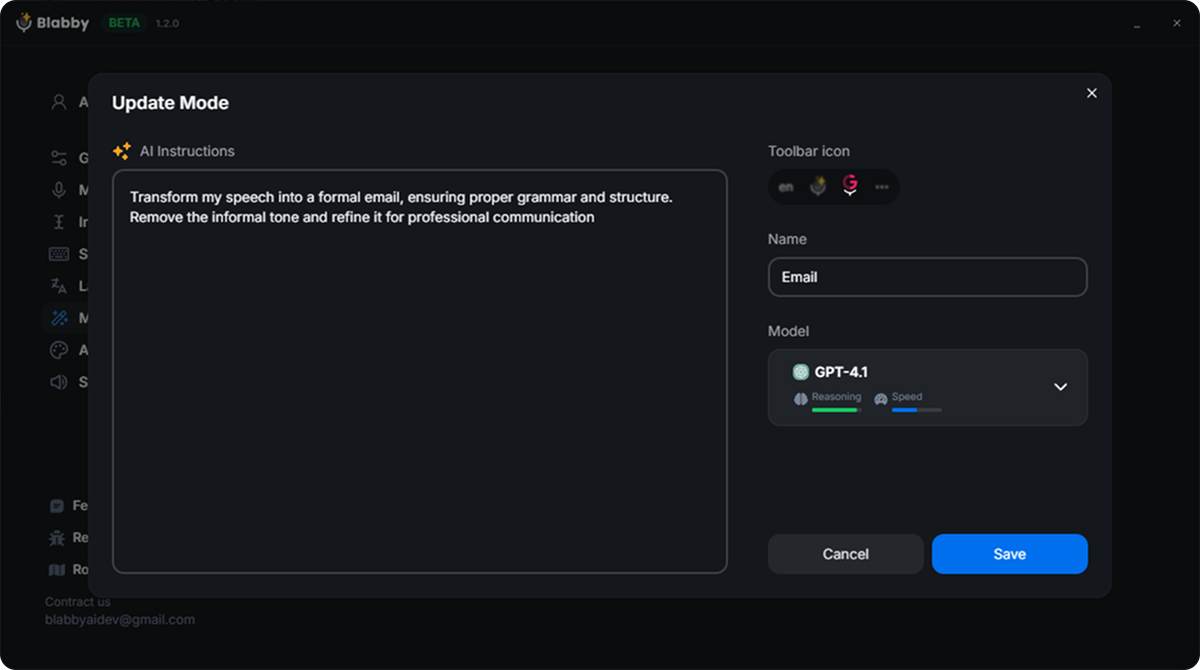
A mode is a plain-English instruction plus a keyboard shortcut. This is where you write the rules the built-in command lists never let you add.
How modes actually work
Your speech is the input, not a prompt. A mode reshapes what you said, it does not answer it. Say the actual sentence and the mode formats, corrects or translates it. It processes one recording at a time, after you stop speaking, and it types text into the focused field rather than clicking buttons or submitting forms.
The offline question, answered honestly
This is the one area where the built-in tools have a real and unmatched advantage, and it deserves saying plainly. Voice access runs on-device speech recognition and works with no internet connection at all, once the language model has been downloaded. WSR did the same. If you dictate on a plane, on a train through tunnels, in a facility with no network, or on a machine that is deliberately kept off the internet, the built-in tool is the one that works.
Cloud-based tools, and that includes Win+H voice typing as well as BlabbyAI and every other AI dictation app, need a connection for every recording. The reason is unavoidable: the models that produce properly punctuated, formatted, corrected text are far too large to run comfortably on a laptop. You are trading offline capability for output quality, and which side of that trade you want depends entirely on where you work.
Choose the built-in tool when
You need dictation with no connection, you need to control the whole PC hands-free, you are on a machine where you cannot install software, or you need something that costs nothing and is already there.
Choose a dedicated app when
You are online anyway, and the thing costing you time is not capturing the words but fixing them afterwards: the punctuation, the formatting, the filler, the names it never gets right.
When none of it works: the usual causes
A large share of "Windows speech recognition is broken" reports come down to a handful of repeat offenders. Work through these before concluding the feature is at fault.
- Nothing has focus. Win + H only opens when Windows has a text field to type into. Click into the document first, then press it. This is far and away the most common cause of "the shortcut does nothing".
- The wrong microphone is default. Settings, then System, then Sound. A headset that is connected but not selected behaves exactly like a broken feature.
- Microphone access is blocked. Settings, then Privacy and security, then Microphone. Check both the global toggle and the per-app list.
- Your build predates the feature. Voice access needs Windows 11 22H2 or later. No toggle under Accessibility and Speech means Windows Update, not troubleshooting.
- A remote session is eating the shortcut. Remote desktop and virtual machine clients intercept Windows key combinations. Dictate on the host, or use a tool with a shortcut that is not Win-prefixed.
- The app draws its own text fields. Some older desktop software does not report focus to Windows the way the shortcut expects, so nothing appears even with everything configured correctly.
If you are stuck on the last two, a tool that runs its own shortcut and types at the keyboard level sidesteps both, because it does not depend on Windows reporting focus in any particular way. Our voice typing not working guide goes through the full diagnostic sequence.
If you cannot install anything on your machine
A specific and very common situation: a managed work laptop where IT blocks executable installs, a Chromebook, or a machine you do not administer. The built-in Windows tools are the obvious answer because they are already there, but if you have hit their ceiling and cannot install a desktop app, there is a third route.
The BlabbyAI Chrome extension installs from the Chrome Web Store with no executable and no admin rights. It puts a small bubble next to whatever text field you click into, and it works anywhere the browser goes: Gmail, Google Docs, Notion, Salesforce, Jira, a web-based EHR, any internal tool your company runs in a tab. It does not have History, which is a Windows-app feature, but the dictation and the custom modes are the same.
It is also the answer for anyone reading this on a Mac or a Chromebook, where the Windows tools this article is about do not exist at all.
One thing the desktop app does that nothing built in does
Worth knowing if you dictate anything you cannot afford to lose. The BlabbyAI Windows app saves your audio to disk the instant a recording stops, before transcription even begins. If the transcription fails, the network drops mid-send, or you realise afterwards that you wanted a different mode applied, the recording is still on your machine and you can replay it or run it through again.
Neither WSR nor voice access nor Win+H keeps anything. If a transcription goes wrong with the built-in tools, the words are simply gone and you say them again. History holds 500 entries by default, lives entirely on your own machine, and never touches a server.
Frequently asked questions
What is Windows Speech Recognition now called?
On Windows 11 version 22H2 and later it is called voice access. Microsoft states that "on Windows 11 22H2 and later, Windows Speech Recognition (WSR) will be replaced by voice access starting in September 2024", and that older versions of Windows continue to have WSR available. The naming causes real confusion because voice access is not a straight rename: it is a different application, built on newer on-device speech models, with a different command vocabulary and a different way of being launched. If you are on Windows 10, WSR is still there and still opens on Windows key + Ctrl + S. If you are on a current Windows 11 machine, that shortcut now opens voice access instead, and some of the muscle memory you built over the years will not carry across.
Is Windows Speech Recognition gone in Windows 11?
On Windows 11 22H2 and later, yes, it has been replaced by voice access. On Windows 10 and on older Windows 11 builds it is still present and still works. This is why you will find people online insisting both that it is gone and that it is still on their machine: both are true, on different versions. What actually disappeared for most users is the classic desktop application with the training wizard, the speech profile you trained by reading passages aloud, and the older command set. Voice access carries forward the same broad idea, controlling the PC and dictating by voice, but it is a new implementation rather than a continuation of the old one.
How do I turn on speech recognition in Windows 11?
For voice access, open Settings with Windows key + U, go to Accessibility and then Speech, and turn on the voice access toggle. Windows will download a speech model for your language the first time, which needs an internet connection even though the recognition itself then runs on your device. You can also type "voice access" into the Start menu. For plain dictation without any of the voice control features, you do not need to turn anything on at all: press Windows key + H in any text field and the voice typing bar appears immediately. Win+H is the one most people actually want, and it is the fastest route from wanting to dictate to dictating.
What is the difference between voice access and Win+H voice typing?
Win+H voice typing does one job: it turns speech into text in the field your cursor is in. Voice access does that too, and adds control of the computer itself, so you can say "open Chrome", "click Save", or "show numbers" to interact with on-screen buttons. Voice access runs its recognition on your device and works without an internet connection once set up, while Win+H voice typing processes in the cloud. If you only want to write with your voice, Win+H is simpler and needs no setup. If you cannot use a keyboard or mouse at all, voice access is the one built for that, and it is the direct successor to what Windows Speech Recognition was doing.
Does Windows Speech Recognition still work offline?
The old WSR ran entirely locally, and that was one of its genuine strengths. Its replacement keeps that property: Microsoft describes voice access as using on-device speech recognition that works even without the internet, once the language model has been downloaded. Win+H voice typing is the opposite: it sends audio to Microsoft servers, so it stops working on a plane or on a dead hotel connection. This matters more than people expect, because the three tools are constantly recommended interchangeably, and only two of them will work when your connection drops. If offline dictation is the requirement, voice access is the built-in answer.
Why does Windows key + H do nothing on my PC?
The usual causes, in the order worth checking: no text field has focus, because Win+H only opens when Windows has somewhere to type; the microphone is not set as the default input device or is blocked under Settings, Privacy and security, Microphone; your Windows build is older than the feature; or a remote desktop or virtual machine session is intercepting the shortcut. It is also worth knowing that Win+H behaves differently depending on where you press it. Some applications that draw their own text fields, particularly older desktop software and some remote sessions, do not report focus to Windows in the way the shortcut expects, so nothing appears even though everything is configured correctly.
What are the Windows Speech Recognition commands?
The classic WSR vocabulary was a fixed list published by Microsoft, covering dictation corrections ("correct that", "delete that"), selection ("select word", "select paragraph"), navigation ("go to end of sentence"), and control ("open Word", "switch to Excel", "start listening"). Voice access carries much of this forward with its own list, including "show numbers" and "click" for interacting with on-screen elements. The important limitation in both cases is that the vocabulary is fixed: you use the commands Microsoft shipped, and if the phrase you naturally say is not on the list, it gets typed as text instead of being obeyed. Tools where you write your own command phrases work differently, and BlabbyAI is one of them.
Is voice access more accurate than Windows Speech Recognition was?
For most people, yes, noticeably. The old WSR was built on speech technology that predates the modern transformer models, and it expected you to train it by reading passages aloud to build a personal speech profile. Voice access uses newer on-device models and needs no training step at all. That said, on-device models are constrained by what can run on a laptop CPU, so they still trail the large cloud models used by dedicated dictation apps, particularly on proper nouns, technical vocabulary and accented speech. If your experience of Windows dictation is that it is roughly right but you spend time fixing names and jargon, that gap is the reason, and it is what the paid tools compete on.
What is the best speech recognition software for Windows 11?
It depends on what you are trying to do. If you need to control the whole computer by voice for accessibility reasons, voice access is built into Windows, is free, works offline, and is the right starting point. If you mainly want to write faster, the built-in tools do plain transcription and stop there, which is why dedicated dictation apps exist: they add punctuation and formatting intelligence, a rewriting pass, and vocabulary you define yourself. BlabbyAI runs on Whisper large v3 turbo, works system-wide in any Windows text field on Ctrl+Space, and is free to start with 60 credits a week. There is also an Android app for your phone, free during the beta, and a Chrome extension for locked-down work laptops where installing an executable is not permitted.
Can I still use my old speech profile from Windows Speech Recognition?
No. The speech profile you built by training WSR does not transfer to voice access, because voice access is a different application using different speech models that do not require or use a trained profile. For long-time WSR users this is the most frustrating part of the change: years of training a system to your voice, and the replacement neither needs nor accepts it. The good news is that it genuinely does not need it. Modern speech models are trained on enormous and varied speech data, so they handle most accents and speaking styles out of the box far better than the old profile-based approach did after weeks of correction.
The bottom line
Windows Speech Recognition is gone from current Windows 11 and voice access took its place in September 2024. If you are on Windows 10 it is still there. If you are on Windows 11 and you want the successor, it is Win + Ctrl + S after enabling it in Accessibility settings, and it is better than what it replaced at the thing it does: hands-free control of the machine, offline, free.
If what you actually wanted was to write faster, press Win + H instead and skip the setup entirely. And if you have been round that loop already and the problem is not capturing words but cleaning them up afterwards, BlabbyAI is $8.49 a month with a free tier that refills weekly, and it is the only option here where you write the command vocabulary yourself. On a locked-down laptop or a Chromebook, the Chrome extension installs where an executable will not.
For more on the built-in shortcut specifically, our Win+H voice typing guide covers it in depth, and best dictation software for Windows compares the paid options with real prices. If a specific shortcut has stopped responding, voice typing shortcut keys lists what each one does.
Dictate a real day of your own work
60 credits every week, no card and no account setup. Try it in the apps you actually use and see how much of the cleanup disappears.