
Updated August 27, 2026 · By Sumbat.T
Speech to Text on Chromebook: the Built-in Way, and the Better Way

The short answer
- Turn it on: Settings, then Accessibility, then Keyboard and text input, then switch on Dictation. Click into any text field and press Search + D. It is off by default, which is why the shortcut does nothing until you flip the toggle.
- It is free and it is fine for short things. A search box, a chat reply, a quick note. It types what you said, literally, and you speak the punctuation out loud.
- Where it runs out is real writing. It keeps your filler words, it will not fix a sentence you started badly, and it cannot turn three loose thoughts into a clean paragraph.
- If you want that, you want an AI layer. BlabbyAI is a Chrome extension, so it installs and runs on a Chromebook, and it types into any text field in the browser: Docs, Gmail, Sheets, a CMS, a web form. You write the instruction that shapes your speech. Free to start (60 credits weekly, no card), $8.49/month unlimited.
Runs on a Chromebook


Dictation that edits as you speak
A Chrome extension, so there is nothing to install on Chrome OS. Types into Docs, Gmail, Sheets and any web form. Free to start.
How to turn on speech to text on a Chromebook
ChromeOS ships with dictation switched off. That one fact explains almost every "Search + D does nothing on my Chromebook" post on the internet: the shortcut is real, but it is inert until you enable the feature. Four steps, once, and it stays on.
- Click the time in the bottom-right corner, then the gear icon to open Settings. (Keyboard route: press Alt + Shift + S, then choose Settings.)
- Select Accessibility in the left-hand menu.
- Open Keyboard and text input.
- Switch on Dictation, sometimes labelled "Enable dictation (speak to type)".
Now click into any text field and press Search + D. The Search key is the magnifying glass sitting where Caps Lock lives on a standard keyboard; on some Chromebooks the same key is called Launcher, and the shortcut is written Launcher + D. A microphone icon appears next to the clock while it listens. Press the shortcut again, click the icon, or simply stop talking for a few seconds, and it closes.
The first time you use it, ChromeOS may download a speech model for your language. On many recent Chromebooks that model then runs on the device, which means dictation keeps working with no network connection. Older or cheaper hardware falls back to recognising speech on Google's servers and needs to be online. Accessibility settings will tell you which of the two your machine is doing.
Speak your punctuation. The built-in dictation does not infer where a comma belongs. Say the words "comma", "period", "question mark", "new line" out loud and it writes the mark instead of the word. Forget, and you get one long unbroken sentence. This is the habit that decides whether people keep using Chromebook dictation or quietly go back to typing.
The other built-in option: Google Docs Voice typing
There are two separate free dictation features on a Chromebook and they are easy to confuse, because both are made by Google and both put words on the screen when you talk.
ChromeOS dictation
Lives in the operating system. Search + D. Works in every text field on the machine: a Docs document, a Gmail reply, the address bar, a web form, an Android app if your Chromebook runs them. Enable it once in Accessibility settings.
Docs Voice typing
Lives inside Google Docs. Tools, then Voice typing, or Ctrl + Shift + S. Nothing to enable, but it only works in a Docs tab. Close Docs and it is gone.
Docs Voice typing has a slightly richer command set inside a document, including formatting instructions like "bold that" and "new paragraph". The catch is the boundary: those commands exist only in Docs. The moment you move to Gmail, a spreadsheet comment, Slack in a browser tab, or your company's ticketing system, you are back to the system dictation and its shorter list. If you want a deeper walkthrough of the Docs side specifically, we have one at speech to text in Google Docs, and a troubleshooting guide at Google Docs voice typing not working.
Learning two different dictation methods with two different command vocabularies, and remembering which one applies to the tab you are looking at, is the actual daily cost of the free options. A browser extension sidesteps it: one shortcut, same behaviour in every tab.
Chrome extension
One dictation shortcut that works in every tab
BlabbyAI installs from the Chrome Web Store and types into any text field the browser renders. Docs, Gmail, Sheets, your CMS. Free to start, no card required.
Where the built-in dictation stops being enough
Worth saying plainly: for short bursts the free ChromeOS dictation is good, and you should try it before you install anything. Recognition accuracy on modern Chromebooks is strong, it is genuinely free, and the on-device model is a real privacy advantage over anything that sends audio to a server.
The wall is not accuracy. It is that a transcriber writes down speech, and writing is not speech. Four specific limits, in the order people hit them:
It writes exactly what you said
Every "um", every false start, every time you began a sentence and changed direction halfway through. The built-in dictation is a transcriber, not an editor, so the cleanup is your job afterwards. For a quick search box that is the correct behaviour. For a paragraph of real writing it means you dictate for one minute and then edit for three.
You have to say the punctuation out loud
Speaking "comma" and "period" aloud is a learnable habit, but it fights the way you actually think a sentence, and it is the single most common reason people try Chromebook dictation once and go back to the keyboard. Miss a few and you get a run-on line to break up by hand.
One language at a time
The dictation language is a setting, not something the system works out. If you write in two languages during a normal day, you are going back into Accessibility settings to switch, every time, which is enough friction that most bilingual users stop bothering.
It cannot change the shape of what you said
You cannot speak three loose thoughts and get back a tidy paragraph, and you cannot dictate a scrappy note and have it come out as a polite email. The words land in the order you said them. Anything past that is editing you do yourself.
Every one of those is the same underlying gap. The built-in tool transcribes; it does not edit. If your dictation is going straight into something someone else reads, the editing has to happen somewhere, and right now that somewhere is you.
Why most "best dictation software" lists are useless on a Chromebook
If you have already searched for a better option, you have probably noticed something frustrating. Roundups of the best dictation tools are dominated by desktop software: Dragon, and a long tail of Mac-only apps. None of them install on ChromeOS. A Chromebook does not run Windows .exe files or macOS .dmg packages, so a shortlist built for those platforms is not a shortlist for you at all.
On ChromeOS the field narrows to three real routes, and it is worth knowing them before you spend an evening comparing tools you cannot install:
- The built-in dictation, covered above. Free, no install, limited to literal transcription.
- A Chrome extension. Installs from the Chrome Web Store, runs inside the browser, and on a Chromebook the browser is where essentially all your work already happens. This is the route that gets you an AI layer.
- An Android app from Google Play, if your Chromebook supports Android apps. Workable, but most are built for a phone screen and dictate into their own window rather than into the field you are actually typing in, so you end up copying and pasting.
This is why BlabbyAI works here. BlabbyAI ships a Windows desktop app, an Android app for your phone, and a Chrome extension. On a Chromebook the extension is the whole product: it installs from the Chrome Web Store like any other extension, and it types into whatever text field your cursor is in, in any tab. You are not getting a cut-down version of something meant for another operating system.
Chromebook dictation options compared
The three options you can realistically use on a Chromebook today, against the things that actually differ. Prices checked August 2026.
| Feature | ChromeOS dictation | Docs Voice typing | BlabbyAI extension |
|---|---|---|---|
| Cost | Free, part of ChromeOS | Free with a Google account | Free tier (60 credits weekly, no card), $8.49/mo unlimited |
| Where it types | Any text field on the machine | Inside Google Docs only | Any text field in Chrome |
| Punctuation | You speak it out loud ("comma", "period") | You speak it out loud | Added automatically from the sense of the sentence |
| Cleans up filler words | No, transcribes them literally | No | Yes, with a custom mode you write |
| Rewrites tone or format | No | No | Yes: bullets, email, formal, concise, your instruction |
| Translate while dictating | No, one language at a time | No | Yes, speak one language and type another in one pass |
| Language switching | Manual, in Settings | Manual, in the Docs panel | Automatic detection across 90+ languages |
| Works offline | Yes on supported hardware, with an on-device model | No | No, processing runs in the cloud |
| Setup | One toggle in Accessibility settings | None, it is a Docs menu item | Install from the Chrome Web Store |
The honest reading of that table: if your dictation is short and disposable, the free built-in option wins and costs nothing. If what you dictate gets read by other people, the rows about cleanup, formatting and language are the ones that decide your day, and those are the rows where the built-in tools are all "no".
Custom modes: the part that changes how dictation feels
The reason an AI dictation tool feels different from a transcriber is not better recognition. It is that your speech gets a second pass before it lands in the text field. In BlabbyAI that second pass is called a mode, and the important detail is that you write the instruction. It is a free-form prompt, not a preset you choose from a vendor's list.
Mechanically: you speak, the audio is transcribed, the transcript plus your instruction goes to an AI model, and the result is typed into your focused field. One shortcut, and the editing you would have done by hand has already happened.
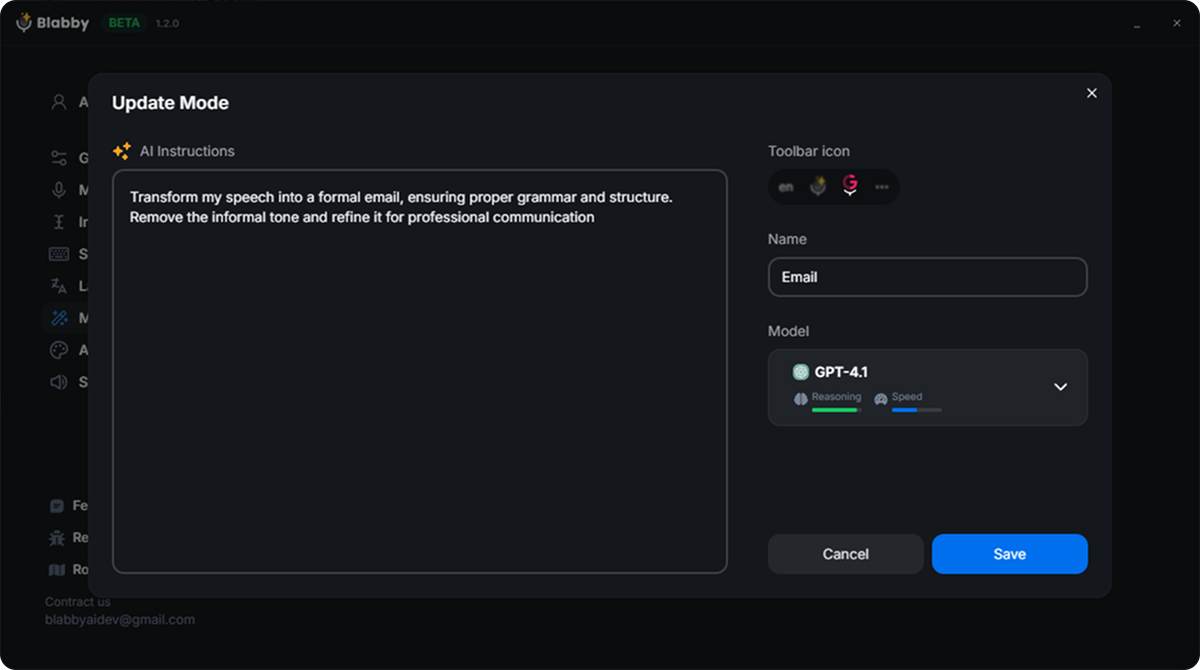
Four modes that cover most of what people actually want on a Chromebook:
Clean up
"Remove filler words and false starts, fix grammar, and add correct punctuation. Do not change my meaning or add anything I did not say."
The default for everyday writing. Speak the way you talk and get back something you would be happy to send.
"Rewrite what I said as a short, polite email. Keep every fact I stated. Do not invent details."
Dictate the blunt version of the message into Gmail and let the mode handle the manners.
Bullet points
"Turn what I said into a bulleted list, one bullet per distinct point, shortest sensible wording."
Talking through meeting notes into a Google Doc or a Notion page in the browser.
Spoken commands
"When I say "new paragraph", insert a real paragraph break instead of writing those words. When I say "bullet point", start a new list item."
Recreates the classic dictation command vocabulary, except you choose the words.
That fourth one deserves a note, because it is the answer to the punctuation complaint that sends people away from Chromebook dictation. BlabbyAI has no fixed list of spoken commands. Instead, the AI receives your full literal transcript, including any words you spoke as commands, so you can define your own vocabulary in the instruction. Tell it that "new paragraph" means a line break and it will do that, every time, in every tab. You get the classic dictation command experience with words you chose.
One thing to be clear about: a mode rewrites what you said, it does not answer it. If you say "write me a paragraph about our new pricing", you get that sentence reformatted, not a paragraph about pricing. You speak the actual content and the mode shapes it. It is a filter on your words, not a voice assistant.
Chromebooks, students, and accessibility
Chromebooks are the default machine in an enormous number of schools, which shapes who is searching for this. A large share of Chromebook dictation users are students writing essays, and people who use dictation because typing is painful or slow rather than because it is faster.
Both groups run into the same thing, from opposite directions. A student dictating an essay does not want a transcript of themselves thinking out loud; they want prose. Someone dictating because their hands hurt cannot fix a run-on paragraph by hand afterwards, because the hand-fixing is exactly the part they were avoiding. In both cases a transcriber solves the first half of the problem and leaves the second half in place.
That is the argument for the cleanup layer being a genuine accessibility feature rather than a luxury. If you are in this situation, our guides on dictating when typing hurts and dictation software for students go into more depth. BlabbyAI's free tier is 60 credits a week with no card, which is enough to find out whether the cleanup actually helps your writing before anyone spends money.
On managed Chromebooks: if your Chromebook is supplied by a school or an employer, extension installs may be restricted to a list the administrator controls. The built-in dictation is usually still available, since it is an accessibility feature. If the Chrome Web Store is blocked on your device, adding any extension is a conversation with whoever manages the fleet.
When Chromebook dictation stops working
Almost every failure is one of five things, and they are quick to rule out in this order.
Search + D does nothing at all
Dictation is still switched off. Settings, Accessibility, Keyboard and text input, turn on Dictation. This is the cause the overwhelming majority of the time, because it is off by default.
The microphone icon appears but no text arrives
Your cursor is not in an editable field. Dictation types into a focused text input, so click directly into the document, the message box or the form field first, then start. The same is true of extension-based dictation like BlabbyAI: the cursor decides where the text lands.
It worked yesterday and now it does not
Check whether the site has microphone permission, and check that no other tab or app is holding the microphone. Only one thing can use it at a time. Closing the other tab usually frees it.
Words appear in the wrong language
The dictation language is a manual setting. Go back into Accessibility settings and change it. ChromeOS will not detect that you switched languages mid-sentence.
Recognition is poor in a noisy room
Built-in laptop microphones pick up the whole room. A basic wired headset makes a larger difference to accuracy than any software setting, on any dictation tool.
If none of those fix it, our general voice typing not working guide covers the deeper cases, and voice typing shortcut keys lists the equivalent hotkey on every platform if you move between machines.
How to choose, in one paragraph
Start with the free built-in dictation, because it costs nothing and takes thirty seconds to enable. Use it for a few days on the things you would normally type. If you find you are dictating and then spending longer editing than you saved, or you are speaking the punctuation and hating it, or you keep switching languages in Settings, that is the signal that a transcriber is not what you needed. At that point BlabbyAI is a Chrome extension you can add in a minute, with 60 free credits a week and no card, and the test is simple: dictate the same paragraph both ways and look at which one you would actually send.
One last note if you use more than one machine. BlabbyAI also has a Windows desktop app, which works system-wide rather than only in the browser: a global Ctrl+Space shortcut that types into Word, Outlook, an IDE, anything with a text field. Same modes, same custom spellings. If your Chromebook is your second machine, the two products cover both. If the Chromebook is the only one, the extension is the whole product and it is not a lesser version of anything. On your phone, the BlabbyAI Android app adds a small floating mic to any text field and is free during the beta.
Dictate on your Chromebook with the cleanup built in
BlabbyAI's Chrome extension types into any text field in the browser and rewrites your speech the way you tell it to. 60 free credits weekly, no card. $8.49/month unlimited.
Frequently asked questions
How do I turn on speech to text on a Chromebook?
Open Settings, choose Accessibility, then Keyboard and text input, and turn on Dictation. Once it is on, click into any text field and press Search + D (the Search key is the magnifying glass where Caps Lock sits on a normal keyboard; on some Chromebooks it is called the Launcher key). A microphone icon appears near the clock and your speech is typed into the focused field. Press Search + D again, or stay silent for a few seconds, to stop. A Chrome extension such as BlabbyAI is the other route, and it needs no ChromeOS setting turned on.
What is the keyboard shortcut for dictation on a Chromebook?
Search + D, sometimes written as Launcher + D. It only works after you have enabled Dictation in Settings under Accessibility, Keyboard and text input. If the shortcut does nothing, dictation is almost certainly still switched off, because ChromeOS ships with it disabled by default. Extensions bring their own shortcut instead: BlabbyAI uses one that works in any tab.
What is the best speech to text app for a Chromebook?
For plain, free dictation with no setup beyond a toggle, the built-in ChromeOS dictation is genuinely good and you should try it first. If you want your speech cleaned up rather than transcribed literally, so that filler words disappear, grammar is corrected, or a rambling thought comes out as a tidy paragraph, you need a tool with an AI layer on top. BlabbyAI is a Chrome extension that does this in any text field in the browser, is free to start with 60 credits per week and no card, and is $8.49 per month for unlimited use.
Does Chromebook dictation work offline?
On many recent Chromebooks, yes. ChromeOS can download an on-device speech model for supported languages, and when it is present dictation keeps working without a network connection. Older or lower-specification Chromebooks fall back to server-based recognition and need to be online. You can see which mode your machine is using in Settings under Accessibility, where ChromeOS tells you whether speech is being recognised on the device.
Can I use speech to text in Google Docs on a Chromebook?
Two separate ways, and they behave differently. Google Docs has its own Voice typing feature under Tools, which only works inside Docs in a Chrome tab. The ChromeOS system dictation, on Search + D, works in Docs and everywhere else on the machine. A Chrome extension such as BlabbyAI works in any text field the browser renders, so the same shortcut covers Docs, Gmail, Sheets comments, a CMS, or a web form, without you learning a different method per app.
Why can I not install a desktop dictation app on my Chromebook?
ChromeOS does not run Windows .exe or macOS .dmg software, so the desktop dictation apps that dominate most "best dictation software" lists cannot be installed on a Chromebook at all. That is the single biggest thing to know before you spend time on a shortlist. On ChromeOS your realistic options are the built-in dictation, a Chrome extension, or an Android app from Google Play if your Chromebook supports it. BlabbyAI covers the extension route, which is why it works on a Chromebook when a Windows-only tool cannot.
Does Chromebook dictation add punctuation automatically?
Only partly, and this is the most common complaint. The built-in dictation expects you to speak punctuation out loud, saying "comma" or "period" where you want the mark to appear, and it will not restructure a sentence you spoke badly. If you forget, you get a long run-on line to fix by hand. A tool with an AI cleanup layer handles punctuation, casing and sentence breaks from the sense of what you said, so you can speak normally and not narrate the commas. BlabbyAI punctuates automatically too, and its custom modes can reshape the text beyond punctuation.
Is speech to text on a Chromebook free?
The built-in ChromeOS dictation is completely free and included with the operating system, with no account and no limit. Third-party tools vary. BlabbyAI has a free tier of 60 credits per week, roughly 2,000 words of transcription, with no card required, then $8.49 per month for unlimited use. So you can compare the built-in dictation against an AI tool on your own writing without paying anything.
Will dictation work on a school or work managed Chromebook?
The built-in dictation is part of ChromeOS accessibility and is usually available, though an administrator can disable it by policy. Extensions are the part that varies: many managed Chromebooks restrict installs to an allowlist the administrator controls. If the Chrome Web Store is blocked on your device, the built-in dictation is your route, and adding an extension such as BlabbyAI is a request to whoever manages the fleet.
Can I dictate in a language other than English on a Chromebook?
Yes. ChromeOS dictation has a language setting you change in Accessibility settings, though you pick one language at a time and switching means going back into settings. BlabbyAI supports 90 or more languages with automatic detection, so it works out which language you are speaking without you setting it first, and a custom mode can translate as part of the same pass, letting you speak one language and have polished text appear in another.