
Published August 24, 2026 · Updated August 24, 2026 · By Sumbat.T
Voice Typing Not Working? 11 Fixes, In The Order That Solves It
Microsoft official troubleshooting page for this problem is four items long. It covers your microphone and your language, and it stops there. The three settings that actually fix most cases, online speech recognition, group policy, and blocked update services, are not mentioned on it anywhere. That gap is why you are still reading guides.
The short answer
Windows voice typing fails for three reasons far more often than any other: your cursor is not in a text box when you press Win + H, Online speech recognition is switched off under Settings, Privacy and security, Speech, or a group policy is blocking speech services entirely. Check those three first, in that order. They take about ninety seconds together and they resolve the majority of cases.
The reason it breaks so easily is that Windows voice typing is not really running on your PC. Microsoft states it uses online speech recognition, which is powered by Azure Speech services, so it depends on your connection, on Microsoft servers, and on a privacy toggle that both Windows updates and IT policies can flip without telling you.
If you would rather stop maintaining someone else’s speech stack, a dedicated dictation app sidesteps all three failure modes. BlabbyAI is a Windows app that runs on Whisper large v3 turbo, uses a shortcut you pick yourself instead of a fixed Win + H, and types into anything with a text field. Free tier is 60 credits a week, about 2,000 words, no card. Paid is $8.49 a month.
Find your exact symptom first
“Voice typing not working” describes at least nine different faults with nine different fixes, and most guides treat them as one. Match your symptom below and jump straight to the fix that applies. Working through eleven steps in order when your error message already names the cause is wasted time.
| What you are seeing | Usual cause | Go to |
|---|---|---|
| Nothing at all happens when I press Win+H | Cursor is not in a text box, or the Windows key itself is off | Fix 1 |
| The toolbar opens but the mic button does nothing | Online speech recognition is off, or update services are blocked | Fix 4 and Fix 9 |
| "Voice typing is not available. Speech services are managed by your organization" | A group policy is disabling online speech recognition | Fix 5 |
| "Voice typing needs access to your microphone" | Microphone privacy permission is off | Fix 3 |
| "Voice typing isn’t available in the current language" | Your active input language is not one of the 45 supported | Fix 6 |
| It listens but no text appears in the box | Mic input level too low, or the target app lost focus | Fix 2 and Fix 7 |
| The words come out wrong or garbled | Wrong input language selected, or background noise | Fix 6 and Fix 8 |
| It worked yesterday and broke with no changes | Azure Speech outage, or a build-related glitch | Fix 10 |
| The launcher will not stay switched on | A known, unfixed Windows bug | Fix 11 |
What Microsoft’s own troubleshooter leaves out
It is worth seeing the official page in full, because its brevity is the single most useful fact in this article. Microsoft’s dedicated “Voice typing isn’t working in Windows” support page contains exactly four sections: check that the right microphone is selected, two error messages with their fixes, what to do when no text appears, and what to do when the words come out wrong. That is the entire document.
Nowhere on it does the phrase online speech recognition appear. Nor group policy. Nor anything about the Windows services voice typing quietly depends on. Those three are responsible for a large share of the reports on Microsoft’s own Q&A forum, which means the company’s troubleshooter and the company’s support threads do not agree with each other. If you have already run through the official list and nothing changed, you were not doing it wrong. The list is incomplete.
Before anything else, a thirty-second test. Open Notepad, click inside it, and press Win + H. Notepad is the cleanest possible target: no web app intercepting keystrokes, no browser permissions, no ribbon. If voice typing works in Notepad but not in the app you were using, the fault is in that app’s focus handling, not in Windows, and Fix 7 is your section. If it fails in Notepad too, the fault is system-wide and Fixes 1 through 6 apply.
Fix 1: Put your cursor in a text box, and check the Windows key itself
This sounds too obvious to be the answer and it is the answer surprisingly often. Microsoft’s requirement is explicit: to use voice typing you need an internet connection, a working microphone, and your cursor in a text box. Pressed on the desktop, on a File Explorer window, or on a PDF viewer, the shortcut does nothing visible. It has nowhere to write. That looks identical to a broken feature.
The second half of this fix is the one nobody checks. Plenty of laptops and most gaming keyboards can disable the Windows key in hardware, usually to stop you dropping out of a game mid-match. With it off, every Windows shortcut fails silently and the machine gives you no indication why. On a Microsoft Q&A thread where a user could not get Win + H to work in Word, the resolution turned out to be exactly this. In their words: “The problem was that my Windows key was turned off. All I needed to do was press FN + Windows key.”
- Test the key on its own: press Win by itself. If the Start menu does not open, the key is disabled and no dictation shortcut can work.
- Try Fn + Win to toggle it back. Some keyboards use a dedicated lock key or a vendor utility instead.
- Then retest Win + H with your cursor blinking inside Notepad.
Fix 2: Select the right microphone, and check its input level
This is Microsoft’s first official step, and it earns its place because Windows does not always pick the device you expect. Plugging in a headset, joining a call, or waking from sleep can all reassign the default input to something that is not near your mouth.
- Select Start, then Settings > System.
- Select Sound > Input and choose the device you actually speak into.
- Speak at a normal volume and watch the input level bar. If it barely moves, raise the input level on that device. Voice typing that hears nothing behaves like voice typing that is broken.
- If you are on a built-in laptop mic and the words keep coming out garbled, try a headset. Microsoft recommends this twice on its own troubleshooting page, which tells you how often built-in arrays are the culprit.
Fix 3: Turn on microphone access in privacy settings
If you see the message “Voice typing needs access to your microphone. You’ll need to turn this on in settings to use speech to text”, this is your fix and you can stop here. Microsoft’s instruction is one line: select Start > Settings > Privacy & security > Microphone, and make sure Microphone access is turned on.
Worth knowing: this is a separate switch from the device selection in Fix 2. A correctly selected, perfectly working microphone with privacy access denied produces silence and an error, and people routinely fix one while leaving the other. Scroll down that same page and confirm the per-app list has not blocked anything either.
Fix 4: Turn Online speech recognition back on
This is the single most common real fix, and it is absent from Microsoft’s troubleshooting page. Windows voice typing runs on Azure Speech services. This toggle is what grants it permission to talk to them. Off, the toolbar still opens and the microphone button simply does not respond, which is exactly the symptom people describe as “Win+H does nothing.”
- Windows 11: select Start > Settings > Privacy & security > Speech, then turn Online speech recognition on.
- Windows 10: the equivalent lives at Settings > Privacy > Speech, inking & typing, where you turn speech services on.
Two things flip this switch without asking. Feature updates sometimes reset it as part of a privacy default, which is why voice typing “breaks after an update” so reliably. And privacy cleanup utilities, the kind that promise to stop Windows sending telemetry to Microsoft, almost always turn it off, because from their point of view it is a service that uploads your voice. It is: that is how it works. Turning it off is a legitimate privacy choice, but it costs you voice typing completely, and no cleanup tool warns you of that trade.
Dictation that does not depend on Windows






One shortcut, any app, no privacy toggle to hunt for
BlabbyAI runs as its own Windows app on Whisper large v3 turbo. It does not use the Windows speech stack, so the toggles and policies on this page cannot switch it off. 2,000 words a week free, no card.
Fix 5: Clear the group policy blocking speech services
If your error reads “Voice typing is not available. Speech services are managed by your organization”, this section is the whole answer, and it is the best-documented problem on this page. The cause is a Windows policy called AllowInputPersonalization. Microsoft’s own documentation describes it plainly: if the policy is disabled, speech services are disabled and users cannot enable them through Settings. You can toggle Fix 4 all day and it will not hold.
First work out whether your machine is genuinely managed. Open Settings > Accounts and look for Your organization under your information. If an organization is named there, your IT administrator controls this, frequently through Intune, and the fix is a support ticket rather than a registry edit. Reversing a policy your employer set is their call, not yours.
The interesting case is the other one: this error appears constantly on personal machines with no organization attached at all, left behind by a stale local policy or a registry key some optimization script set years ago. On your own unmanaged PC, in the Local Group Policy Editor, the path is Computer Configuration > Administrative Templates > Control Panel > Regional and Language Options, and the entry is “Allow users to enable online speech recognition services”. Set it to Enabled or Not Configured.
Then reboot, and do not skip this. A Microsoft Q&A thread titled “Solution: Win+H Voice Typing Is Not Available Bug” exists specifically because the error persists even after you enable or set not configured group policy item. The documented resolution is the policy change plus a restart, and a Microsoft support specialist confirmed that combination as the fix. Change the policy, see it still failing, and conclude the policy was not the problem, and you will walk away one reboot short of a working feature.
Fix 6: Match your input language to a supported one
The mechanic here trips up almost everyone, because it is not the setting you would guess. Voice typing follows your input language, not your Windows display language. Microsoft is direct about it: to switch voice typing languages, you need to change the input language you use. So a machine displaying English while an unsupported keyboard layout is active will refuse to dictate, and nothing in the display settings hints at why.
Press Win + Space to cycle input languages, or use the language switcher in the corner of your taskbar. Windows 11 supports voice typing in 45 languages and regional variants. That is a real limit, not a formality: English has separate entries for the United States, United Kingdom, Australia, Canada, India and New Zealand, and picking the wrong regional variant is a common cause of accuracy that is bad rather than absent.
To add one: Start > Settings > Time & language > Language & region, find Preferred languages, then Add a language.
Ignore the advice to install Enhanced Speech Recognition. It circulates widely as a fix, and Microsoft’s documentation contradicts it: the optional language features, speech recognition included, “aren’t required for voice typing to work.” Installing them is harmless, but if it is your only step you have not addressed the actual cause. Treat it as a community workaround, not a requirement.
Fix 7: When it works in Notepad but not in your actual app
If the Notepad test at the top of this article passed, Windows is fine and you have an application-level problem. Microsoft publishes nothing about voice typing failing in specific apps, which is not reassuring when it is failing in yours, so here is what is actually going on.
Voice typing writes into whatever holds keyboard focus at the moment you speak. Anything that steals focus in between breaks the chain. Web apps that render their own editors, remote desktop sessions, virtual machines, and windows that were opened at a different privilege level to the one you are typing from all interrupt it differently. The behaviour looks like a dictation failure and is really a focus failure.
- Click directly into the target field, then press the shortcut. Do not press the shortcut and then click, which is the natural order and the wrong one.
- Inside a remote desktop or VM, the shortcut is usually being captured by whichever machine owns the keyboard. Run dictation on the machine with the microphone attached.
- In a browser, test a plain text field on a simple page before blaming Windows. A rich text editor intercepting keystrokes is a different problem from a broken speech service.
Fix 8: It hears you, but the words are wrong
This is a different fault from the rest of the page and deserves saying plainly: nothing is broken. Voice typing is running, reaching Azure, and returning its honest best guess. Microsoft’s advice amounts to moving somewhere quieter, confirming the right language with Win + Space, and switching from a built-in microphone to a headset.
All three help at the margins. What none of them address is that accuracy is a property of the model doing the recognition, and on Windows you do not get to choose it. If your dictation is legible but consistently wrong on names, technical terms, or the vocabulary of your actual job, you have hit the ceiling of the built-in feature rather than a misconfiguration. That is the point where the fix stops being a setting.
Fix 9: The toolbar opens, the mic button does nothing, everything looks correct
This is the most maddening version of the problem and it has a cause that appears in almost no guide. The symptom, as one user documented it on Super User: pressing Win + H opened the voice typing toolbar, but the mic button did nothing when clicked. It was not greyed out. It simply did not respond, while Voice Access and the legacy Speech Recognition both still worked, ruling the microphone out entirely.
They had already tried everything reasonable: all microphone and privacy settings confirmed on, language packs present and reinstalled, sfc /scannow, DISM, re-registering system apps, and reinstalling the Windows Feature Experience Pack. None of it changed anything.
The cause was blocked Windows Update services. They had previously used a utility to stop Windows updating, which disabled wuauserv, dosvc, UsoSvc and InstallService. Re-enabling those services restored voice typing immediately, with no reboot required.
In their own summary: even if it seems unrelated, blocking update services like UsoSvc or InstallService may silently break Win+H voice typing. Worth weighing honestly: this is one user’s report on a thinly-voted thread, not an established Microsoft pattern. But if you have ever run a tool to stop Windows updating, it costs you two minutes to check, and no other guide will suggest it.
Fix 10: When the problem is not on your machine at all
Some failures are simply not yours to fix, and recognising one early saves an afternoon. The error “Something happened and we couldn’t enter your voice typing text. Wait a bit, then try again” is the clearest example. Microsoft publishes no explanation of what it means and no fix for it.
The useful signal is in how it arrives. On the Microsoft Q&A thread reporting it, the original poster described it as intermittent, unaffected by reboots or updates, and appearing whether or not they said anything. Two other users then confirmed the identical problem starting in the same week. One wrote: “I have the same problem! It just started this week.” Several strangers’ machines breaking simultaneously is the signature of a service-side fault, not of three misconfigured PCs.
The diagnostic that settles it: try a dictation tool that does not use the Windows speech stack. If that works and Win + H does not, your microphone, drivers and permissions are all provably fine, and you are waiting on Microsoft. Knowing that is worth something on its own, because it stops you reinstalling audio drivers for a problem no driver caused.
Fix 11: The voice typing launcher that will not stay on
The launcher is the small floating control that is supposed to appear whenever you click into a text box, so you can start dictating without the shortcut. Microsoft documents it as one of five settings behind the gear icon in the voice typing flyout, alongside automatic punctuation, profanity filtering, default microphone, and wait time before acting.
It has a long-running bug where the toggle does not persist. As one report on Microsoft Q&A puts it: “The launcher toggles don’t stay on. Keep having to toggle it on.” The usual suggested reset is to turn the launcher off, disable Online speech recognition, restart, then re-enable both. It works for some people and not others. Another user in the same thread reported having checked every permission, toggled everything, and deleted and reinstalled their audio drivers, with the launcher still refusing to stay up.
One correction worth carrying, because the wrong instruction is everywhere: manage this from the gear icon in the voice typing flyout, which is where Microsoft actually documents it. Guides that send you to Settings > Time & Language > Typing are repeating a forum answer, and users report no such switch exists there. There is no published fix for the underlying bug. If you rely on the launcher rather than the shortcut, that is worth knowing before you spend another evening on it.
Why this keeps happening, and what you can do about it permanently
Step back from the eleven fixes and a pattern is obvious. Almost every one of them is about permission rather than about speech. A privacy toggle, a group policy, a microphone consent screen, a set of background services, an input language binding. Windows voice typing is a thin client for a Microsoft cloud service, and the long chain of consent between your keypress and Azure is what keeps snapping.
That is also why it breaks again. Fixing it today does not stop the next feature update resetting a privacy default, or the next cleanup utility deciding that a service which uploads your voice is telemetry. If you dictate occasionally, that is an annoyance. If you dictate daily, or you dictate because typing hurts, a feature that fails silently every few months is not a tool you can depend on.
A dedicated dictation app removes the whole chain. It brings its own shortcut, its own microphone handling and its own speech model, so the Windows speech stack is simply not in the path. Here is how the options compare on the things that actually broke above.
| Tool | Shortcut | Blocked by speech policy | Works offline | Price |
|---|---|---|---|---|
| BlabbyAI | Ctrl + Space, remappable | No | No | Free tier, $8.49/mo |
| Windows voice typing | Win + H, fixed | Yes | No | Included in Windows |
| Windows Speech Recognition (legacy) | Win + Ctrl + S | No | Yes | Included in Windows |
| Voice Access | No global dictation hotkey | Partly | Yes, after download | Included in Windows |
| Google Docs voice typing | Ctrl + Shift + S | No | No | Free, Docs in Chrome only |
Two honest notes on that table. Legacy Windows Speech Recognition is the only genuinely offline option and it survives the policy problem, which is why it kept working for the Super User poster in Fix 9. Its accuracy is well behind anything modern, but as a diagnostic it is useful and as an emergency fallback it is free. And Google Docs voice typing only exists inside Google Docs in Chrome, so it solves nothing for the other twenty apps you type into.
What changes with a dedicated app
BlabbyAI runs on Whisper large v3 turbo, which is where the accuracy difference in Fix 8 comes from, and it types into whatever text field has your cursor. Teams, Notion, Slack, Word, an IDE, a browser form. There is no integration to configure, because there is nothing to integrate with: it types where you can type.
The specific frustration this page is about, a fixed shortcut you cannot change and cannot diagnose, is also worth addressing directly. Windows gives you Win + H and no setting to remap it. Blabby defaults to Ctrl + Space and lets you set whatever combination you want, per mode.
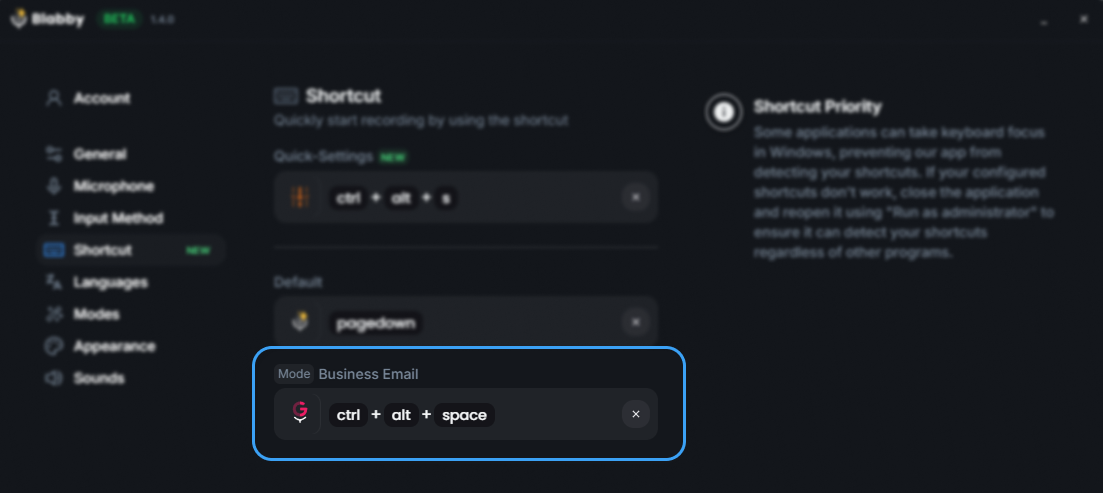
Those per-mode shortcuts do more than start a recording. A mode is a free-form AI instruction applied to whatever you just said, so one shortcut can dictate a plain sentence and another can clean up grammar, strip filler words, translate as it goes, or format the result as an email, all before the text lands in the field. Say “i go shopping yesterday” with grammar correction active and “I went shopping yesterday” is what gets typed.
Being straight about the limits: Blabby still needs an internet connection, so the offline column in that table is a genuine point for legacy Speech Recognition and not for us. It dictates rather than controls your PC, so it will not click buttons or submit forms. And it is Windows and Chrome only. What it does remove is every failure mode from Fixes 4, 5, 9 and 11, because none of those settings govern it.
If you want the wider picture rather than a fix, we have a full breakdown of speech to text on Windows, a guide to every voice typing shortcut key, and a comparison of dictation software options. If your problem is specifically inside Google Docs, that has its own troubleshooting guide.
Frequently asked questions
Why is my voice typing not working?
On Windows the three most common causes, in order, are that your cursor is not in a text box when you press Windows key + H, that Online speech recognition is switched off under Settings then Privacy and security then Speech, and that a group policy is blocking speech services. Windows voice typing also runs on Azure Speech services rather than on your PC, so it stops working entirely without an internet connection. Microsoft official troubleshooting page covers the microphone and the language but does not mention online speech recognition or group policy at all, which is why so many people work through it and still have nothing.
Why did my voice to text suddenly stop working?
A sudden stop with no configuration change on your side usually points at something outside your PC. Windows voice typing depends on Azure Speech services, so an outage or a bad build takes it down while every local setting still looks correct. Multiple users on Microsoft own Q&A forum reported the "Something happened and we couldn’t enter your voice typing text" error starting within the same week of each other, which is the signature of a service-side problem rather than a broken machine. Check whether a different dictation tool still works: if it does, your microphone and permissions are fine and the fault is in the Windows speech service.
What do I do when Windows key + H does nothing?
Work through it in this order. Put your cursor in a real text box first, because voice typing has nowhere to write otherwise and a shortcut pressed on the desktop looks exactly like a broken shortcut. Then check that your Windows key is actually on, since some laptops and gaming keyboards disable it in hardware and Fn plus the Windows key toggles it back. Then open Settings, Privacy and security, Speech and confirm Online speech recognition is on. Those three account for most cases where the shortcut appears dead.
What does "Speech services are managed by your organization" mean?
It means the AllowInputPersonalization policy is set to disabled on your machine. Microsoft documents this policy: when it is disabled, speech services are turned off and users cannot enable them through Settings. On a work laptop your IT administrator controls it, often through Intune. On a personal machine it is usually a leftover local group policy or registry value, and it can appear even with no organization attached to your account. The fix is to set "Allow users to enable online speech recognition services" back to Enabled or Not Configured, and then reboot. The reboot is not optional: users report the error persisting until they restart.
Does Windows voice typing work offline?
No. Microsoft states that voice typing uses online speech recognition powered by Azure Speech services, and that you need to be connected to the internet to use it. That applies to Windows 10 dictation too. If your connection is down or heavily filtered, voice typing fails no matter how well your microphone works. On Copilot+ PCs the newer fluid dictation feature does some processing on-device with small language models, but the transcription itself still goes to Azure.
How do I fix voice typing not working in Windows 11 after an update?
First rule out the ordinary causes: cursor in a text box, microphone permissions, Online speech recognition on. If those are all correct, check whether you have ever used a tool to block Windows Update. One Super User report documented voice typing failing with the toolbar visible but the mic button unresponsive, traced to Windows Update services being blocked by third-party software. Re-enabling wuauserv, dosvc, UsoSvc and InstallService restored it immediately with no reboot. That cause appears in almost no mainstream guide.
Why does voice typing keep turning itself off?
The voice typing launcher, the small floating control that appears when you click into a text box, has a long-running bug where its toggle does not persist. Users on Microsoft Q&A report having to switch it back on repeatedly, and the usual suggested reset of toggling it off, disabling and re-enabling Online speech recognition, and restarting does not work for everyone. There is no published fix. Manage the setting from the gear icon in the voice typing flyout, which is the location Microsoft actually documents.
Is there an alternative to Windows voice typing that does not break?
A third-party dictation app removes most of the failure modes above, because it does not depend on the Windows speech stack, the voice typing launcher, or any group policy governing online speech recognition. BlabbyAI runs as its own Windows app on the Whisper large v3 turbo model with a shortcut you choose yourself rather than a fixed Win+H you cannot remap, and it types into any app with a text field. It still needs an internet connection, since the transcription happens server-side. The free tier is 60 credits a week, roughly 2,000 words, with no card required.
Sources
- The official four-item checklist, both error messages, and the microphone and language guidance: Voice typing isn’t working in Windows, Microsoft Support.
- Azure Speech services, the internet requirement, the 45 supported languages, input-language switching, Win+Alt+H, and the voice typing launcher setting: Use voice typing to talk instead of type on your PC, Microsoft Support.
- The Online speech recognition toggle path and what the service does with voice data: Speech, voice activation, inking, typing, and privacy, Microsoft Support.
- The AllowInputPersonalization policy, its Group Policy location, and its effect on speech services: Policy CSP - Privacy, Microsoft Learn.
- The group policy fix requiring a reboot, confirmed by a Microsoft support specialist: Solution: Win+H Voice Typing Is Not Available Bug, Microsoft Q&A.
- The unresponsive mic button traced to blocked Windows Update services: Windows 11 Voice Typing (Win + H) stopped working, Super User, May 2025.
- The “Something happened” error and the three independent reports of it: Something happened and we couldn’t enter your voice typing text, Microsoft Q&A, March 2025.
- The voice typing launcher that will not stay enabled: Windows voice typing doesn’t stay on, Microsoft Q&A, March 2025.
Stop troubleshooting a feature you do not control
BlabbyAI: Windows dictation on Whisper large v3 turbo, with a shortcut you pick. 2,000 words a week free, no card.