
Published August 23, 2026 · Updated August 23, 2026 · By Sumbat.T
Voice Typing Shortcut Keys: Every Dictation Hotkey That Actually Works
Most people looking for a voice typing shortcut want one line of text. Here it is, and then here is everything the one line leaves out: the shortcuts that differ per app, the one Microsoft never documented, and the reason yours might be doing nothing at all.
The short answer
Windows 11 and Windows 10, any app
Google Docs in Chrome
Microsoft Word for Mac
Microsoft Word for Windows
none published
The voice typing shortcut key on Windows 11 and Windows 10 is Windows key + H, and it works in any text field in any app. Put your cursor in a text field before you press it. Voice typing has nowhere to write otherwise, and a shortcut pressed on an empty desktop looks exactly like a broken shortcut.
Win + H starts Microsoft's own dictation, which needs an internet connection and stops at the words you said. BlabbyAI puts the same system-wide dictation on a shortcut you choose yourself (Ctrl + Space by default, remappable to any combination), and cleans up the punctuation and filler as it types. Free tier, no card, $8.49 a month for unlimited.
Every voice typing shortcut key, in one table
Dictation shortcuts come from two different places, and confusing the two is where most of the frustration starts. Some belong to the operating system and work everywhere. Others belong to a single application and only work while that application has focus. The table below separates them.
| Where | Shortcut | Scope | Needs internet |
|---|---|---|---|
| Windows 11 voice typing | Win + H | System-wide | Yes |
| Windows 10 voice typing | Win + H | System-wide | Yes |
| Windows voice typing menu | Win + Alt + H | System-wide | Yes |
| Windows voice typing, switch dictation language | Win + Spacebar | System-wide | Yes |
| Windows Speech Recognition (legacy) | Win + Ctrl + S | System-wide | No |
| Google Docs voice typing | Ctrl + Shift + S | Google Docs in Chrome only | Yes |
| Google Docs on Mac | Cmd + Shift + S | Google Docs in Chrome only | Yes |
| Word for Mac Dictate | Option + F1 | Word only | Yes |
| Word for Windows Dictate | Not documented | Word only | Yes |
| macOS system dictation | Press Fn twice | System-wide | Varies |
| BlabbyAI | Ctrl + Space (remappable) | System-wide | Yes |
The pattern worth noticing: every shortcut with system-wide scope saves you from learning the other rows. If you only ever memorise one combination, make it a system-wide one, because the per-app shortcuts stop working the moment you switch windows.
The Windows voice typing shortcut: Win + H
Hold the Windows logo key and press H. A small microphone toolbar appears near the top of the screen, and whatever you say is typed into the field your cursor is sitting in. Press the same combination again, or say stop listening, to end the session. The same shortcut works in Windows 10 and Windows 11, and it behaves identically on a desktop and a laptop, because it belongs to the operating system rather than to the keyboard.
Two details about Win+H are worth knowing, and both are documented by Microsoft rather than folklore.
It runs in the cloud
Voice typing is powered by Azure Speech services, so it needs a live internet connection. This is why it works perfectly at your desk and fails on a train. It is not a bug in your microphone.
There is a second shortcut
Win + Alt + H moves keyboard focus into the voice typing menu itself, so you can reach the settings gear without touching a mouse. Almost no guide mentions it.
That second shortcut matters more than its obscurity suggests. A large share of the people who dictate do so because using a mouse and keyboard hurts, whether from repetitive strain, arthritis, or a temporary injury like a wrist in a cast. A dictation feature you can only configure by clicking is a dictation feature that fails the people who need it most. Win+Alt+H is the fix, and it is worth committing to memory alongside Win+H itself.
Turning on auto-punctuation
By default, Windows voice typing expects you to say your punctuation out loud: comma, period, question mark. Most people find this exhausting within about five minutes. Press Win+H, click the gear icon on the toolbar (or reach it with Win+Alt+H), and switch on automatic punctuation. Windows will then infer punctuation from your phrasing and intonation instead of waiting for you to dictate it.
It is worth turning on before you judge whether dictation suits you at all, because saying every comma aloud is the single biggest reason people try voice typing once and never come back to it.
The Word shortcut that does not exist (and what to use instead)
Search for a dictation shortcut in Microsoft Word and you will find confident, contradictory answers. Some pages tell you it is Alt + backtick. Others say Alt + apostrophe. A few offer Alt + Shift + F10. Google's own AI summary for this question currently repeats two of these at once.
Here is what Microsoft actually publishes. On the official Dictate your documents in Word support page, one keyboard shortcut is documented: Option + F1, and it is for Mac. For Word on Windows, Microsoft documents the ribbon button under Home then Dictate, and no keyboard shortcut at all.
Why this matters practically: an undocumented shortcut is one Microsoft has never promised to keep. The Alt-based combinations that circulate online are keyboard accelerators that happen to land on the Dictate button in certain Word builds and certain keyboard layouts. On a UK layout, or in a different Word version, the same keys do something else entirely.
If you dictate in Word on Windows, use Win + H. It is documented, it is stable across versions, and it does not care which application is in front of you.
There is one meaningful difference between the two routes. Word's own Dictate feature requires an active Microsoft 365 subscription, which Microsoft states plainly in its requirements. Windows voice typing does not, because it ships with the operating system. If your Dictate button is greyed out or missing from the ribbon entirely, an expired or absent 365 licence is the first thing to check, not your microphone.
Dictate anywhere





One shortcut, every app, no ribbon hunting
BlabbyAI types into whatever text field has your cursor. Free to start, no credit card.
Google Docs: Ctrl + Shift + S, with a catch
In Google Docs, press Ctrl + Shift + S on Windows or Cmd + Shift + S on a Mac and the voice typing microphone panel appears. You can also reach it through Tools then Voice typing. Click the microphone, and Docs transcribes into the document.
The catch is narrower than most people expect. Google Docs voice typing works in Chrome, and only in Chrome. It is not available in Firefox or Safari, and it does not work in the Google Docs mobile apps, where you use your phone keyboard's own microphone instead. It also stops at the document boundary: the shortcut does nothing in Gmail, nothing in Google Sheets, and nothing in a comment box on the very same page.
This is the clearest illustration of why per-app shortcuts get tiring. A writer drafting in Docs, replying in Gmail, and updating a row in Sheets needs three different mental models for the same action, and two of them do not exist. A system-wide shortcut collapses all three into one habit. For a deeper walkthrough of the Docs route specifically, including its punctuation commands, see our Google Docs speech to text guide.
Is the laptop shortcut different?
No, and this is one of the most common searches we see. The shortcut key for voice typing on a laptop is the same Win + H as on a desktop, because the combination is registered by Windows rather than by the keyboard hardware. A fourteen inch laptop and a full-size mechanical keyboard behave identically here.
One laptop-specific quirk does exist, and it is the Fn key. Compact laptop keyboards frequently map the function row to media controls by default, so F1 through F12 need Fn held down to register as actual function keys. This never affects Win+H, which uses no function key. It does affect Word for Mac, where Option+F1 may need to become Option+Fn+F1 on a MacBook. If the Mac shortcut appears dead, that is the first thing to try.
The apps with no dictation shortcut at all
Word and Google Docs are the lucky ones. Most of the places people actually write have no dictation shortcut, no Dictate button, and no voice feature of any kind. Microsoft Teams has no dictation hotkey in the desktop app. Outlook has no dictation shortcut on Windows. Slack, Notion, Todoist, Jira, and essentially every browser form are the same.
This is worth stating plainly because the search results imply otherwise. Look for an Outlook dictation shortcut and you will find pages describing one, usually by quietly redirecting you to Win+H or to Word's Dictate button inside a reading pane. There is no Outlook-specific key combination to learn.
The practical consequence is that a system-wide shortcut is not merely more convenient in these apps. It is the only option. Win+H works in a Teams message box, an Outlook compose window, a Slack thread, and a Jira ticket, for the same reason it works anywhere: Windows does not care which application owns the text field. The same is true of any dictation app that types into the focused field rather than integrating per application.
We have written up the specifics for the ones people ask about most: dictation in Microsoft Teams, speech to text in Outlook, dictation for Gmail, and dictation inside Chrome. The shortcut answer is the same in all four, which is rather the point.
Your shortcut does nothing: five things to check
A dictation shortcut that silently does nothing is the most common complaint about voice typing, and it is worth saying clearly that the problem is almost never the key combination itself. Work through these in order.
- Your cursor is not in a text field. Voice typing needs somewhere to put words. Click into a document, a search box, or a message field first. Pressing Win+H while looking at the desktop produces no visible response at all, which reads exactly like a broken feature.
- Online speech recognition is off. Open Settings, then Privacy & security, then Speech, and turn on online speech recognition. Voice typing depends on it, and it is off by default on plenty of machines. Microsoft's own support forum gives this as the standard fix for a Win+H that does nothing.
- The app is running as administrator. This is the subtle one. If your editor was launched with elevated privileges and the speech service was not, Windows will not let the two talk to each other, and your keystroke vanishes. Close the app and reopen it normally, or run both at the same privilege level.
- Another program has claimed the key. Global shortcuts are first come, first served. Screen recorders, streaming overlays, launcher utilities, and game clients all register system-wide hotkeys, and whichever registered first wins. Quit your background utilities one at a time and retest.
- There is no internet connection. Windows voice typing sends audio to Azure and cannot function offline. If you genuinely need offline dictation, Win + Ctrl + S opens the legacy Windows Speech Recognition, which runs locally at noticeably lower accuracy.
If you have worked through all five and the shortcut still does nothing, the fault is usually the third one. Elevated-privilege conflicts produce no error message anywhere in the interface, which is what makes them so hard to diagnose.
Can you change the voice typing shortcut?
Not in Windows. There is no setting for remapping Win+H, no supported registry key, and no official tooling. The same applies to Google Docs, where Ctrl+Shift+S is fixed. If Win+H collides with a shortcut you already rely on, or if the two-handed reach is awkward because of how you type, the built-in tools offer no way out.
This is a real accessibility gap rather than a preference. A combination requiring two distant keys is a poor fit for anyone dictating one-handed, and those are exactly the people most likely to be dictating in the first place. The only genuine fix is a dictation app that owns its own shortcut and lets you set it.
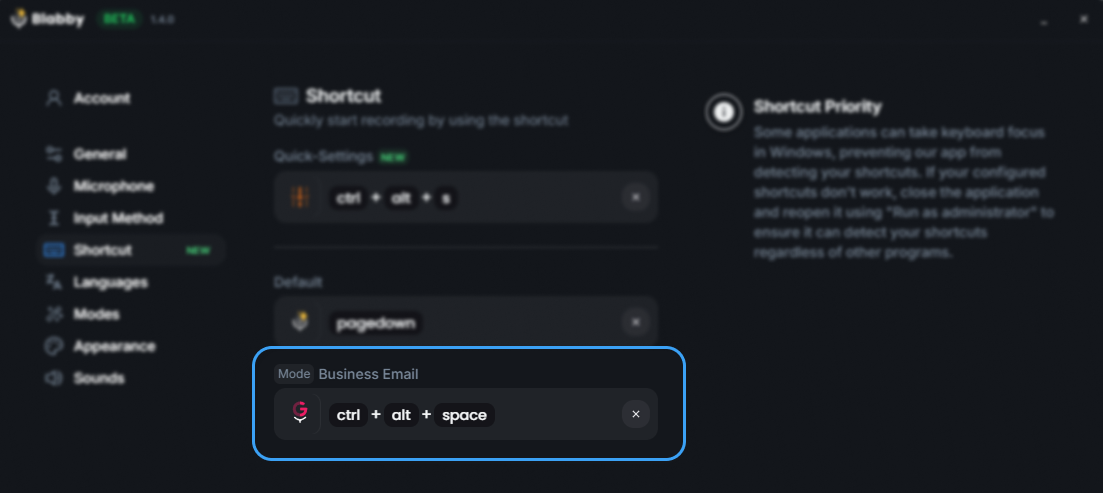
BlabbyAI uses Ctrl + Space by default: press once to start recording, press again to stop, and the transcribed text lands in whatever field your cursor was in. It works the same way in Word, Teams, Notion, Slack, an IDE, an EHR text box, or a browser form, because it types into the focused field rather than integrating with any particular application. The combination is changeable in Settings under Shortcut, and it can be a single key if that suits your hands better.
The screenshot above shows the part that has no equivalent in the built-in tools: a second shortcut bound to a specific mode. Modes are free-form AI instructions applied to what you just said, so you can put a cleanup pass, a translation, or an email format on its own key. Press one shortcut for raw dictation and another for dictation that arrives already formatted.
Note the panel on the right of that screen, headed Shortcut Priority. It exists because of the fourth troubleshooting item above: applications can take keyboard focus in Windows and swallow a global hotkey. Any dictation tool has to deal with this, built-in ones included, and the difference is whether the tool tells you so.
Spoken commands: the shortcuts you say instead of press
Once dictation is running, your hands are off the keyboard, which makes a keyboard shortcut the wrong tool for the next action. Windows voice typing accepts a set of spoken commands instead. These are the ones worth memorising.
| Say this | What happens |
|---|---|
| Stop listening | Ends the dictation session |
| Delete that | Removes the last thing you said |
| Scratch that | Same as delete that |
| Select that | Selects the last phrase you dictated |
| Undo that | Reverses the last change |
| Press Enter | Sends an Enter keystroke |
| Press Backspace | Sends a Backspace keystroke |
| New line | Starts a new line |
Microsoft's full command list runs considerably longer and covers punctuation in more than fifty languages, but the eight above account for nearly everything people use day to day. The important limitation is that the list is fixed. If a command you want is not on it, there is no way to add one.
That fixed list is the difference between the built-in tools and an AI dictation app. Because a BlabbyAI mode is a free-form instruction, and because the model receives your full transcript including any words you spoke as commands, you define your own vocabulary. An instruction like whenever I say new paragraph, insert an actual paragraph break instead of writing those words gives you a command Windows does not offer. The same technique covers bullet point, bold this, or any phrasing you would naturally reach for.
When the shortcut stops being the problem
A shortcut only saves the second or two it takes to find a button. The real cost of dictation shows up afterwards, in the editing. If you dictate three paragraphs and then spend four minutes fixing capitalisation, adding paragraph breaks, and repairing a proper noun the recogniser has never seen, you have not saved any time at all. You have moved the work from your fingers to your eyes.
This is where the built-in tools and modern dictation apps genuinely diverge, and it has nothing to do with hotkeys. Three things decide whether dictation is faster than typing for you:
- Whether it handles names and jargon. A recogniser that mangles your colleagues' names, your product names, or your field's terminology every single time creates more editing than it saves. Custom spelling entries fix this permanently; a fixed cloud model does not.
- Whether it punctuates and formats without being told. Saying comma out loud a hundred times a day is not dictation, it is a different kind of typing. Auto-punctuation is the minimum; arriving as a formatted email or a clean bulleted list is the actual goal.
- Whether it works in the app you are already in. A tool that only works in one editor means you keep two habits instead of one, and the second habit never quite sticks.
If you want a broader comparison of the tools that handle those three things well, our guide to the best dictation apps covers the full field, and the dictation software overview is the shorter version. For the built-in Windows route in more depth, including Windows 10 setup, see our Windows voice typing guide.
Making the shortcut a habit
Knowing the key is the easy part. The reason most people learn Win+H, use it twice, and then forget it entirely is that dictation competes with a typing habit built over decades. A shortcut you have to remember to use loses that competition every time.
Two things reliably change the outcome. The first is picking one recurring piece of writing and dictating only that for a week, rather than trying to dictate everything at once. Long Slack replies, first drafts, and meeting notes work well because they are low-stakes and repetitive. The habit attaches to a situation instead of to a general intention.
The second is fixing the friction that makes you abandon it. If every dictated paragraph needs punctuation repairs, turn on auto-punctuation before you decide dictation is not for you. If the recogniser mangles the same five proper nouns daily, add them as custom spellings once rather than correcting them forever. If the shortcut is physically awkward, change it, which means using a tool that lets you. Each of these is a five-minute fix that people usually skip, and each one is a common reason dictation quietly gets dropped.
Frequently asked questions
What is the shortcut key for voice typing?
On Windows 10 and Windows 11 the shortcut key for voice typing is Windows key + H. Put your cursor in any text field first, then press it. In Google Docs on Chrome the shortcut is Ctrl+Shift+S. In Microsoft Word for Mac it is Option+F1. Microsoft does not document a keyboard shortcut for the Dictate button in Word for Windows, so on Windows you use Windows key + H inside Word as well.
What is the shortcut key for voice typing in a laptop?
It is the same as on a desktop, because the shortcut belongs to the operating system rather than the hardware. On a Windows laptop press Windows key + H. The only laptop-specific problem is the Fn key: on compact keyboards the F-keys often need Fn held down, which matters for Mac shortcuts like Option+F1 but not for Windows key + H.
Why does Windows key + H do nothing when I press it?
The three usual causes are that your cursor is not in a text field, that online speech recognition is turned off in Settings under Privacy and security then Speech, or that the app you are typing into is running as administrator while the speech service is not. Voice typing also needs an internet connection and a working microphone, because it runs on Azure Speech services rather than locally.
Is there a keyboard shortcut for Dictate in Microsoft Word?
On Mac, yes: Option+F1 starts Dictate, and Microsoft documents it. On Windows, Microsoft publishes no keyboard shortcut for the Dictate button, despite what many articles claim. Third-party pages list Alt+backtick or Alt+apostrophe, which are not official and do not work reliably across Word versions. On Windows the dependable answer is Windows key + H, which works in Word and in every other app.
Can I change the Windows voice typing shortcut?
Windows does not let you remap Windows key + H. There is no setting for it and no supported registry change. If you need a different key, or a single key rather than a combination, you need a third-party dictation app that owns its own shortcut. BlabbyAI uses Ctrl+Space by default and lets you set the combination you want in Settings under Shortcut.
What is Windows key + Alt + H for?
It moves keyboard focus into the voice typing menu itself, so you can reach the settings gear and the microphone button without a mouse. Microsoft documents it alongside Windows key + H. It is the shortcut most guides leave out, and it is the one that matters if you are using dictation because typing is painful.
How do I switch the language Windows voice typing writes in?
Press Windows key + Spacebar on a hardware keyboard. Microsoft documents it on the same support page as Windows key + H, and it cycles the input language that voice typing dictates in, so it is the shortcut to reach for when dictation is producing the right sounds in the wrong language. It changes the whole keyboard input language, not just dictation, so it also affects what you type by hand.
Does voice typing work offline?
Windows voice typing does not. It sends audio to Azure Speech services, so it needs a live internet connection and it stops working on a plane or a bad hotel connection. Windows Speech Recognition, the older feature that Windows key + Ctrl + S opens, does run locally, but it is a legacy tool with noticeably weaker accuracy.
What is the fastest way to start dictating in any app?
Use a single system-wide shortcut that does not change per app. That is what Windows key + H gives you for free, and what a dedicated dictation app gives you with better accuracy and formatting. The slow path is the one most people take by accident: hunting for a Dictate button in a ribbon that hides in a different place in every application.
Sources
- Windows key + H, Windows key + Alt + H, voice commands, auto-punctuation, and the Azure Speech and internet requirement: Use voice typing to talk instead of type on your PC, Microsoft Support.
- Option + F1 for Mac, the Microsoft 365 requirement, and the absence of a documented Windows shortcut for Dictate: Dictate your documents in Word, Microsoft Support.
- Online speech recognition as the standard fix for an unresponsive Win+H: Microsoft Learn Q&A, December 2025.
Tired of a shortcut you cannot change?
BlabbyAI: system-wide AI dictation on Windows with a shortcut you pick. 2,000 words a week free, no card.