
Published July 26, 2026 · By Sumbat.T
How to Use Voice Typing on a Laptop (Win+H Shortcut)
Quick Answer
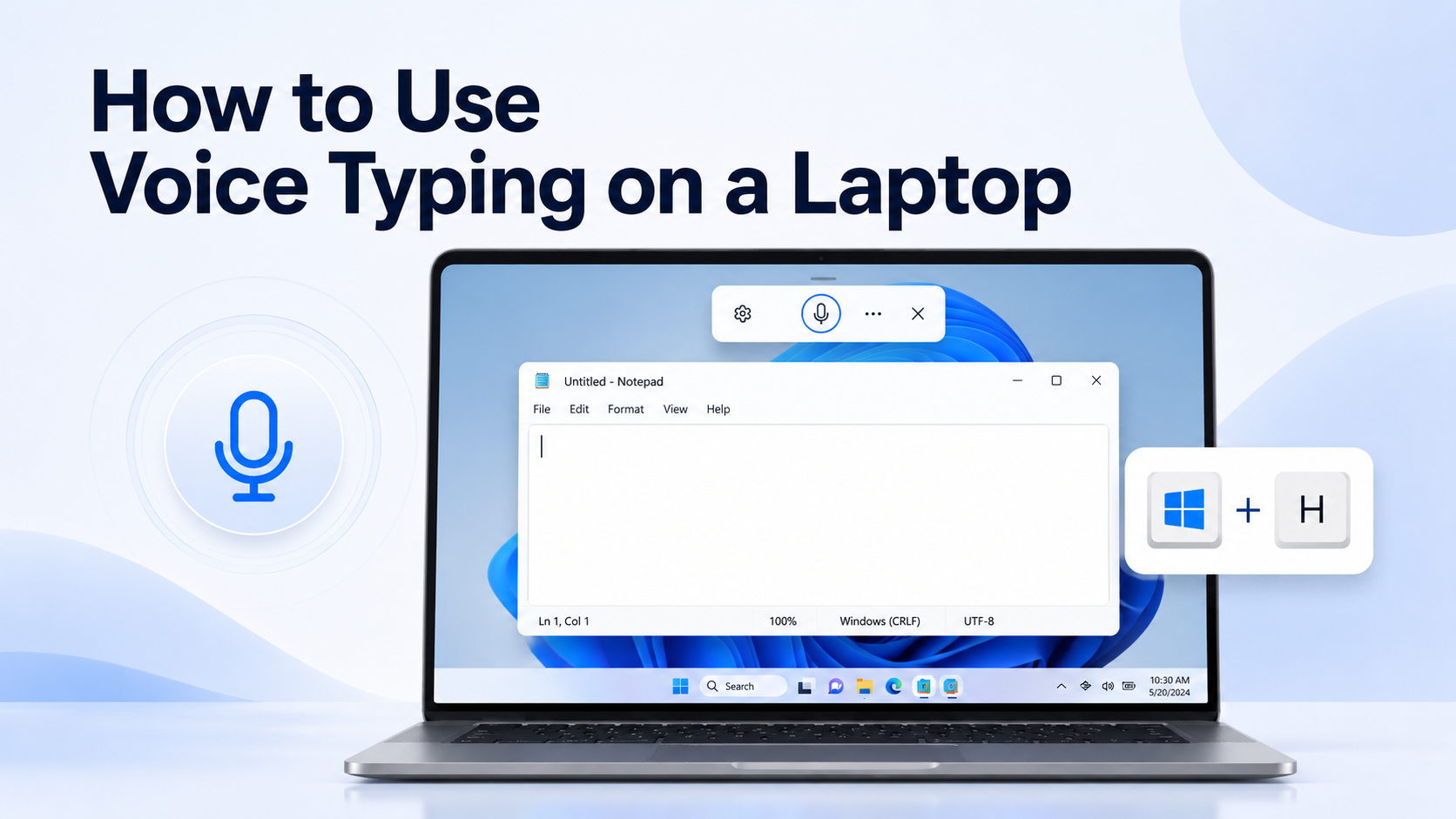
On a Windows laptop, click into any text box, then press Windows key + H. Speak, and Windows inserts the words where your cursor is. Stop with "Stop listening" or the mic button on the toolbar.
Same shortcut on Windows 10 and Windows 11. You need internet, a working mic, and the cursor in a text field. For Google Docs, use Tools → Voice typing instead of relying only on Win+H.
Better for daily use: BlabbyAI works in every app with automatic punctuation and AI cleanup, so you do not have to say "comma" or fight flaky browser fields. Free to start.
Most people search for "voice typing on a laptop" because they want one shortcut that works at a cafe table, on a work notebook, or on a home PC. They do not want a tour of every Microsoft accessibility product. This guide stays laptop-first: the shortcut, mic setup, languages, Word and Chrome, troubleshooting, and a clear line between built-in Windows tools.
A laptop is also where voice typing fails in more interesting ways than a desktop. You switch docks, Bluetooth headsets, hotel Wi‑Fi, and privacy keys that mute the mic with one Fn tap. The shortcut is simple. The environment around the shortcut is not. Treat the first half of this article as setup insurance so Win+H works the second time, not only the first.
For a deeper Windows-only walkthrough of commands and settings, see our Windows voice typing guide. Below is the practical laptop path. This article targets Windows notebooks because that is what most "voice typing on a laptop" searches mean in practice. Mac and Chromebook get a short note later so you are not sent down the wrong shortcut path.
Key Takeaways
- Win + H starts voice typing on Windows 10 and Windows 11 after you click a text box.
- Voice typing uses online speech recognition. No internet means no Win+H dictation.
- Turn on Automatic punctuation in the Win+H gear menu. It is easy to miss.
- Voice Access (Windows 11 22H2+) is different: it can work offline after a model download and can control the whole PC by voice.
- Built-in is enough for drafts. If you dictate all day across every app, you will feel the gaps fast.
Skip the old Win+H grind
BlabbyAI is modern AI dictation for Windows, Android and Chrome. On your laptop: automatic punctuation, custom words, and clean text in every app. Free weekly credits.
What's in This Guide
- Who this guide is for
- How to start voice typing on a laptop
- A five-minute first session
- Microphone and privacy setup
- Useful voice commands and punctuation
- Languages and switching with Win+Space
- Word, Chrome, and Google Docs
- Daily laptop workflows (email, docs, chat)
- Voice typing vs Voice Access vs old Speech Recognition
- Quick note for Mac and Chromebook
- Laptop tips that improve accuracy
- Troubleshooting when Win+H fails
- Common mistakes
- When built-in is not enough
- FAQ
Who This Guide Is For
Use this page if you are on a Windows laptop and you want to dictate instead of typing for email, school work, notes, or chat. It is also for people who already tried Win+H once, got weird results, and assumed the feature was broken. Usually it is a mic permission, an offline network, the wrong input language, or a web app that does not accept system dictation cleanly.
Skip or skim the upgrade section if free built-in dictation already covers your volume. Read it if you dictate for an hour or more a day, hop between five apps, or spend as much time fixing names and punctuation as you saved by speaking.
How to Start Voice Typing on a Laptop
This is the path that matches what Microsoft documents for modern Windows voice typing. It applies whether your laptop is Windows 10 or Windows 11.
Step 1: Click into a text box
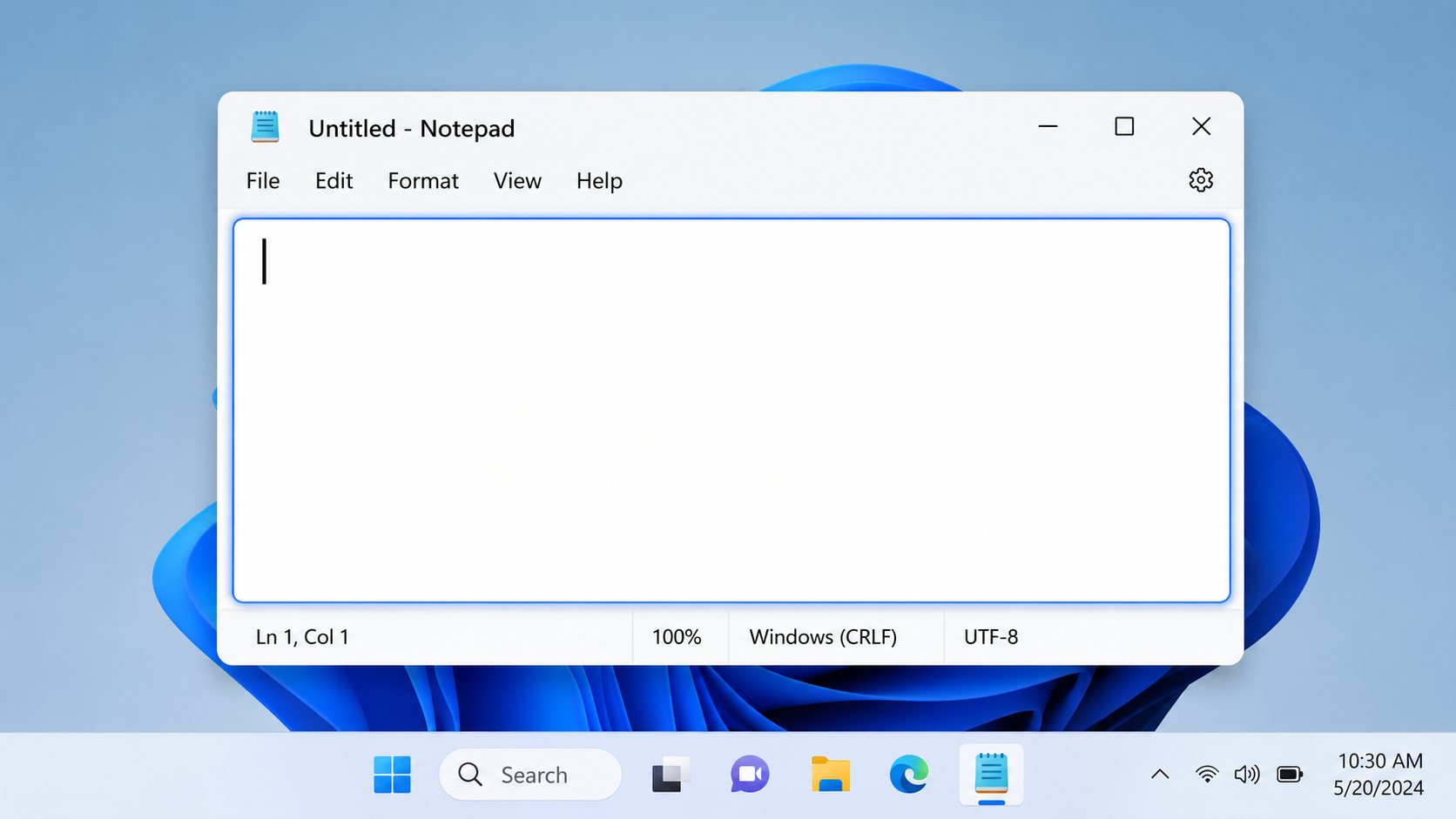
Open Notepad, Word, Outlook, Slack, a browser search box, or any field that accepts typing. Put the cursor where you want the words to land. If nothing is focused, Win+H will remind you to select a text box first.
Step 2: Press Windows key + H
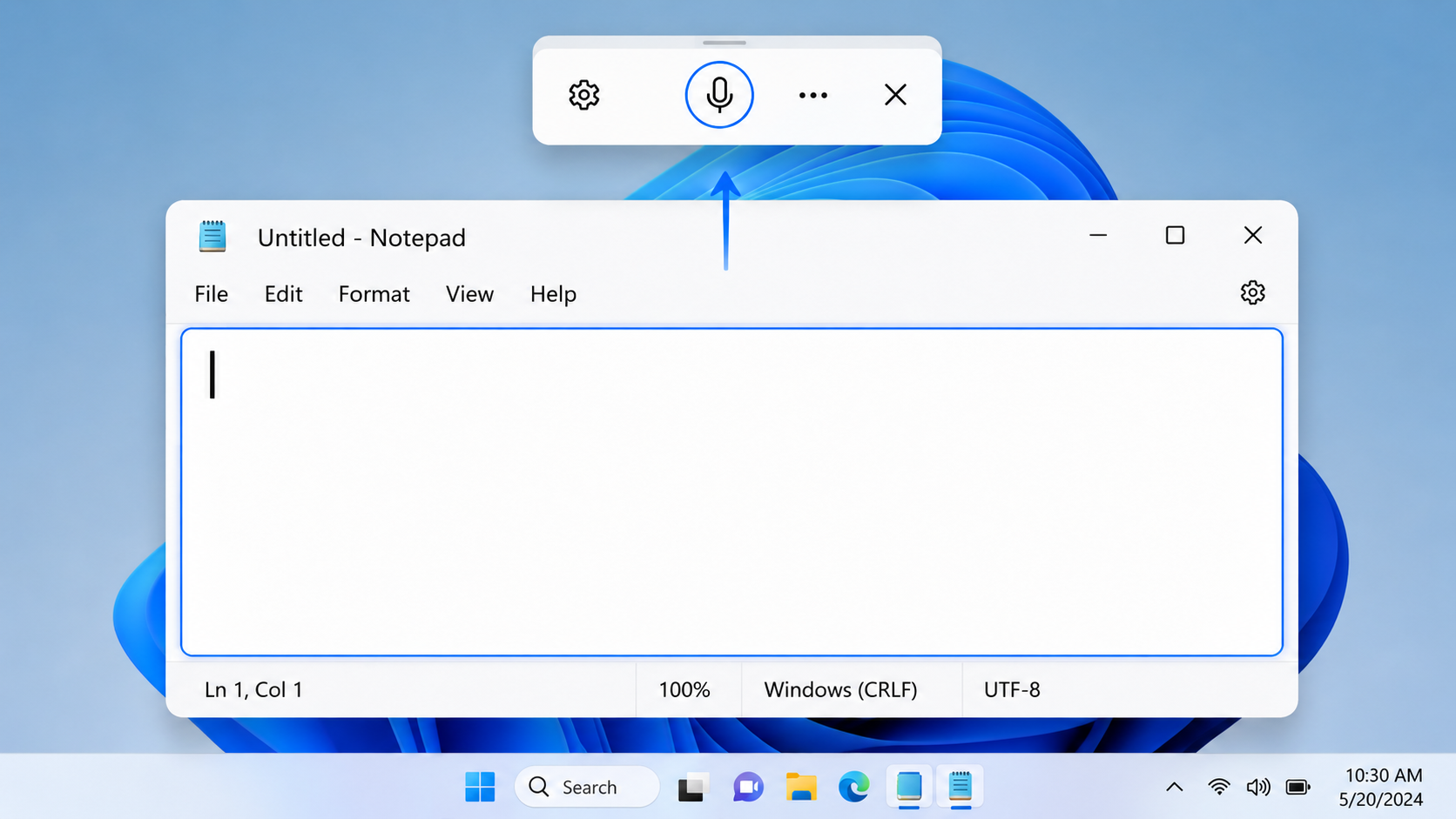
Hold the Windows key and tap H. A small voice typing toolbar appears near the top of the screen with a microphone button.
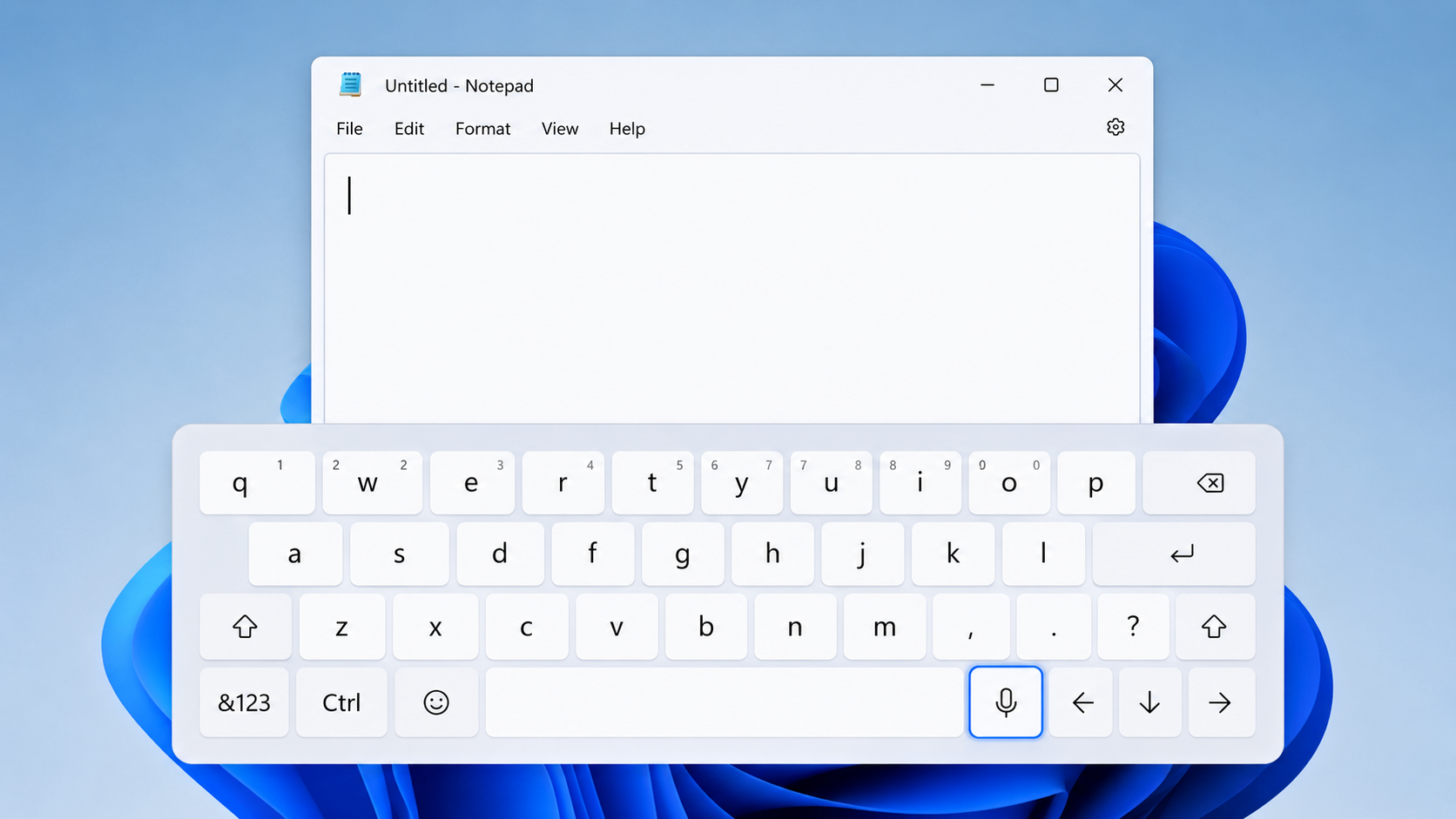
On a tablet-style laptop using the on-screen keyboard, tap the mic icon next to the Spacebar instead of using a hardware shortcut. To move focus into the voice typing menu itself with the keyboard, Microsoft documents Windows key + Alt + H.
Step 3: Speak clearly, then stop
Speak at a normal pace. Words appear in the active field. When you are done, say "Stop listening" (other stop phrases also work, such as "Stop dictation" or "Pause voice typing"), or click the mic on the toolbar.
Voice typing depends on an internet connection because Windows sends audio to Microsoft's online speech service (Azure Speech). A flaky cafe Wi‑Fi connection is one of the most common "it stopped working" causes on laptops.
| Action | Shortcut or control |
|---|---|
| Start voice typing | Windows key + H |
| Touch keyboard mic | Mic button next to Spacebar |
| Navigate the voice typing UI | Windows key + Alt + H |
| Stop listening | Say "Stop listening" or tap the mic |
| Open settings on the flyout | Gear icon on the toolbar |
A Five-Minute First Session (Do This Once)
If you only remember one practice block, make it this one. It proves the stack works before you try dictating a real client email under time pressure.
- Open Notepad so you are not fighting a fancy web editor.
- Press Win+H. Confirm the toolbar appears and the mic icon shows listening.
- Say a full paragraph out loud, including one name and one number: something like "Please send the report to Maria by Friday at three period".
- Open the gear. Enable Automatic punctuation if it is off. Dictate the same idea again without saying "period".
- Say "Delete that" once so you trust the edit commands.
- Stop listening, then try the same flow in Word or Outlook. If Notepad works and Outlook fails, the problem is the app field, not your mic.
That isolation trick saves hours. Most laptop dictation complaints are really "this web app will not accept system text insertion" or "Bluetooth flipped my default mic," not "Windows forgot how to listen."
Microphone and Privacy Setup on a Laptop
Built-in laptop mics work for quiet rooms. They struggle with fans, keyboard clatter, open offices, and wind near a window. A cheap USB headset usually beats the array mic under the bezel. Before you blame Windows, confirm permissions.
Allow the microphone
- Open Settings → Privacy & security → Microphone.
- Turn on microphone access for the device.
- Turn on Let desktop apps access your microphone so Win+H and desktop programs can hear you, not only Store apps.
Turn on online speech recognition
Go to Settings → Privacy & security → Speech and enable Online speech recognition. Without this, modern voice typing cannot run, because recognition happens in the cloud rather than fully on your laptop.
Pick the right microphone
Press Win+H, open the gear, and set the default microphone if you see the option. You can also choose the input device under Windows Sound settings. Docking stations and Bluetooth headsets often steal the default input without you noticing.
Quick check: open the Voice Recorder app or any sound settings meter and speak. If the level bar does not move, Win+H will not save you.
What leaves your laptop when you dictate
Voice typing is convenient and cloud-backed. Microsoft's privacy docs explain that online speech recognition processes your voice data to return text. That is fine for many drafts. It is a reason to pause before you dictate passwords, one-time codes, private medical details you would not put in an email, or confidential client material your workplace forbids sending to cloud services.
If your requirement is "audio must stay on this machine," Win+H is the wrong tool. On Windows 11 22H2+, evaluate Voice Access after the on-device model download, or a workplace-approved offline dictation product. Do not assume a laptop with a mute LED is the same as offline speech processing.
BlabbyAI is cloud dictation too, but with a zero data retention policy for transcription, and its History feature stores your audio on your own machine, never on our servers. If your workplace bans cloud processing entirely, stick to the offline options above.
Voice Commands and Punctuation That Actually Help
Microsoft publishes language-specific command lists. For English (United States), these are the everyday ones worth memorizing:
| What you want | What to say |
|---|---|
| Stop dictation | Stop listening / Stop dictation / Pause voice typing |
| Delete last phrase | Delete that / Scratch that / Erase that |
| Select last phrase | Select that |
| Enter / Tab / Space | Press Enter / Tab / Insert Space |
| Undo | Undo that / Revert |
Punctuation: say it, or turn on auto
You can insert marks by speaking them: period, comma, question mark, exclamation point, and similar. For letters and some symbols, Microsoft also documents saying "start spelling" first.
Better for long drafts: open the Win+H gear and enable Automatic punctuation. Windows then inserts punctuation from your phrasing. Many people never find this toggle and assume built-in dictation always forces you to say "comma" out loud.
On Copilot+ PCs, Microsoft also offers Fluid Dictation: on-device small language models that clean grammar, punctuation, and filler words while you speak. It is limited to supported English locales, defaults on when available, and turns off for password or PIN fields. Do not expect Fluid Dictation on a typical older work laptop.
Dictation Language on a Laptop
Voice typing follows your input language, not only the Windows display language. If your UI is English but the taskbar keyboard is set to Spanish, dictation will behave like Spanish.
- Go to Settings → Time & language → Language & region.
- Select Add a language, install the language you need, and make sure a keyboard is available.
- Switch with the taskbar language indicator or Windows key + Space, then press Win+H again.
Windows 11 voice typing supports a long list of locales in Microsoft docs (English variants, German, French, Spanish, Japanese, Korean, and many more). If a language is missing from the switcher, install it under Language & region first.
Bilingual tip: dictate one language at a time. Switching mid-sentence between English and another language usually produces a mess of near-homophones. Finish the English block, hit Win+Space, then continue. If you constantly mix languages in the same paragraph, you will prefer a tool with stronger multilingual handling or separate hotkeys per language workflow.
This is also where BlabbyAI pulls ahead on a laptop: it supports 90+ languages with automatic detection, so you can change languages mid-session without touching Win+Space. Its Translate mode goes further: speak in your native language and the English version lands in the text field already cleaned up.
Voice Typing in Word, Chrome, and Google Docs
On a laptop you rarely dictate into Notepad all day. You dictate into Word, browser tabs, Docs, and chat tools. Each surface behaves a bit differently.
Microsoft Word
Two different features get mixed up:
- Windows voice typing (Win+H) works inside Word like any other text field. No Microsoft 365 required for this path.
- Home → Dictate is Microsoft's in-app Dictate experience. Microsoft documents it as a Microsoft 365 feature. Perpetual Word 2016 / 2019 / 2021 licenses often lack that button even though Win+H still works.
If someone tells you "enable Dictate in Word 2016," they usually mean either an older Office add-in story or they are confusing Win+H with the ribbon. For a dedicated Word walkthrough, see how to dictate in Word.
Chrome and other browsers
Win+H can work in simple web text boxes. It is inconsistent in heavily customized editors (some rich-text composers, some web apps that intercept keys). When the page steals focus or ignores system dictation, you need either the site's own voice tool or a browser extension / desktop dictation app that injects text more reliably.
Google Docs voice typing
Docs does not depend on Win+H. In a supported browser (Chrome, Edge, or Safari per Google):
- Open the document and go to Tools → Voice typing.
- Click the microphone and allow mic access.
- Speak. Say punctuation out loud ("period", "comma", and so on). Stop by clicking the mic or saying "Stop listening".
Google notes that voice commands for editing (select, bold, and similar) work when the account and document language are English. Punctuation-by-voice still works more broadly. Full Docs guide: speech to text in Google Docs.
Daily Laptop Workflows: Email, Docs, and Chat
Shortcuts only stick when they map to real moments in your day. Here is a simple laptop playbook that uses Win+H where it is strong and switches tools where it is weak.
Email replies
Open the reply box first. Press Win+H. Dictate the full reply in one pass, including the greeting and sign-off if you want. Stop listening, then edit with the keyboard for names and tone. Voice is fastest for the first draft; typing is still better for the last 10% of polish.
In Gmail in Chrome, Win+H sometimes works and sometimes fights the composer. If the cursor is in the message body and nothing appears, click the body again and retry, or use a browser dictation extension for that tab. For a Gmail-specific path, see dictation in Gmail.
Long documents
For Word on the laptop, Win+H is usually enough for brain-dump sections: meeting notes, first-pass chapters, status updates. Dictate a section, stop, skim, then dictate the next section. Stopping between sections reduces the damage when recognition drifts on a noisy train.
For Google Docs, prefer Tools → Voice typing for long sessions. It is built for the Docs editor and keeps the mic UI attached to the document instead of the Windows flyout. You can still use Win+H for comments or other fields on the same laptop.
Chat and AI prompts
Slack, Teams, Discord, and ChatGPT boxes are where laptop users feel the difference between "system dictation exists" and "system dictation is reliable." Click the message box, press Win+H, speak a short prompt or message, stop, send. Keep messages shorter than document drafts. Chat UIs often steal focus when a notification lands mid-sentence.
If you dictate AI prompts all day, automatic cleanup matters more than raw recognition. Filler words and missing punctuation turn into worse model answers. Built-in auto punctuation helps. Dedicated AI dictation tools help more when you want the prompt rewritten into a cleaner instruction before it lands in the box.
Win+H keeps failing in browser fields?
BlabbyAI dictates into any Windows app or Chrome tab with automatic punctuation and AI cleanup. Free weekly credits to try.
Voice Typing vs Voice Access vs Old Speech Recognition
Laptops ship with overlapping names. Mixing them up is how bad blog posts still teach the wrong shortcut for Windows 10.
| Feature | How you start it | Best for | Offline? |
|---|---|---|---|
| Voice typing | Win + H | Dictating into a text field | No (online) |
| Voice Access | Settings → Accessibility → Speech | Hands-free PC control + dictation | Yes, after model download (Win11 22H2+) |
| Windows Speech Recognition (legacy) | Older Speech Recognition UI (often Win+Ctrl+S) | Legacy accessibility workflows | Local-oriented, but deprecated |
Do not teach Win + Ctrl + S as "Windows 10 voice typing." That combination belongs to the older Windows Speech Recognition stack. Modern voice typing on Windows 10 and Windows 11 is Win+H.
Voice Access needs a one-time speech model download, then can work offline. If Voice Access is already running, pressing Win+H may tell you to use Voice Access for typing instead. Pick one workflow rather than fighting both.
Voice Access also includes vocabulary tools that voice typing does not emphasize. If you need custom words for names or jargon inside the Microsoft stack, Voice Access is the built-in place to look. If you want custom spellings plus AI rewrite modes across every app, that is where third-party dictation tools start to matter.
Quick Note if Your "Laptop" Is a Mac or Chromebook
Search results blur platforms, so a short correction helps:
- Windows laptop: Win+H for system voice typing, as covered above.
- Mac: Apple dictation uses different shortcuts and settings (commonly a double-press of the Dictation / microphone control depending on macOS version). Win+H does nothing useful on macOS. Do not follow Windows steps on a MacBook.
- Chromebook: there is no Win+H. Use Chrome OS dictation / accessibility speech tools, Google Docs voice typing in the browser, or a Chrome extension. If you only have a Chromebook and need dictation in web apps, start with our full guide to speech to text on a Chromebook or a voice to text Chrome extension.
The rest of this page assumes Windows unless noted. That matches the query intent behind most laptop voice typing searches that also mention PC shortcuts.
Laptop Tips That Improve Accuracy
- Sit closer to the mic or use a headset. Built-in mics pick up fan noise and keyboard hits.
- Pause briefly between sentences when auto punctuation is on. Rushing one long breath into a paragraph invites mushy punctuation.
- Mute notifications during long dictation. Overlay toasts can steal focus from the text field.
- Docked vs undocked: after you unplug a dock or Bluetooth headset, re-check the default mic in the Win+H gear.
- Battery saver and weak Wi‑Fi: online recognition stalls when the network drops. Voice Access is the Microsoft option if you truly need offline after setup.
Troubleshooting: Win+H Not Working on a Laptop
Nothing happens when I press Win+H
- Click a text field first. No cursor, no voice typing.
- Confirm you are not in a secure password field where dictation is limited or disabled.
- Check whether another utility remapped Win+H.
- Restart Windows Explorer or reboot once after a Windows update. Voice typing UI bugs show up after patch days more often than people expect.
Toolbar appears but it does not hear me
- Privacy → Microphone: access on, desktop apps allowed.
- Privacy → Speech: Online speech recognition on.
- Sound settings: correct input device selected and not muted.
- Physically mute switches on headsets and laptop privacy keys (mic-off function keys) are easy to miss.
It hears me but the words are wrong
- Switch to the correct input language (Win + Space).
- Reduce background noise or move to a headset.
- Speak punctuation or enable Automatic punctuation.
- Technical terms, surnames, and product names will keep failing without a custom vocabulary tool. Built-in voice typing is weak here.
Windows tells me to use Voice Access instead
If Voice Access is already active, Win+H may defer to it. Turn Voice Access off from Accessibility → Speech if you specifically want the lighter Win+H flyout, or lean into Voice Access if you want full voice control.
Still stuck after the basics
Work through this order before you reinstall anything:
- Test in Notepad with the built-in mic, then again with a headset. If only one device works, fix Sound defaults.
- Try a different network (phone hotspot for two minutes). If recognition suddenly works, the hotel or office Wi‑Fi was blocking or throttling the speech endpoint.
- Create a quick local Windows user profile and test Win+H there. If it works on the fresh profile, a policy or third-party overlay on your main account is interfering.
- Check whether your company manages the laptop with Intune or similar and has disabled online speech. IT policy beats any blog tip.
- If Win+H works in Notepad but fails in one web app every time, stop blaming Windows. Use that app's native voice tool, an extension, or a desktop dictation app that types into the focused field more aggressively.
Common Mistakes (and the Fix)
| Mistake | Why it breaks | Fix |
|---|---|---|
| Teaching Win+Ctrl+S as Win10 voice typing | That is legacy Speech Recognition | Use Win+H on Win10 and Win11 |
| Pressing Win+H with no cursor | Voice typing needs a text field | Click the box first |
| Assuming offline Win+H | Voice typing is online speech | Use Voice Access for offline after download |
| Leaving auto punctuation off | Gear toggle is easy to miss | Enable Automatic punctuation |
| Expecting Word Dictate without M365 | Ribbon Dictate is a Microsoft 365 feature | Use Win+H, or upgrade Microsoft 365 |
| Treating Docs and Win+H as the same tool | Different engines and UIs | Tools → Voice typing inside Docs |
| Ignoring input language | Dictation follows keyboard language | Win+Space, then dictate again |
| Running Voice Access and Win+H together | Windows may force Voice Access for typing | Use one workflow at a time |
If you learned Windows 10 dictation from an older blog that still centers Win+Ctrl+S, update your muscle memory. Microsoft's current voice typing documentation is clear: Windows key + H is the modern entry point on both Windows 10 and Windows 11.
When Built-In Laptop Voice Typing Is Not Enough
Win+H is the right default for occasional dictation. Keep using it if you draft a few emails a week in Word or Notepad and you are fine editing afterward.
You will feel the ceiling when:
- Dictation fails or feels flaky in Chrome web apps and chat boxes.
- You are tired of saying punctuation or cleaning filler words by hand.
- Names, medical or legal terms, and team jargon never stick.
- You want different tones for email vs Slack vs notes without a separate rewrite step.
- You need a workflow that works the same way in every Windows app, not only in Microsoft's happy path.
That is the gap BlabbyAI for Windows is built for: tap a hotkey, speak, get cleaned text in the focused field. It is live dictation (not upload-a-file transcription), with automatic punctuation, custom spellings, and AI modes for tone. There is also an Android app for dictating on your phone, and a Chrome extension path if your day lives in the browser or you are on a locked-down laptop that cannot install desktop software. Free weekly credits to start; paid plans from $8.49/month.
A practical split many people land on: keep Win+H for quick Notepad and Word dumps when you are offline-capable with Voice Access nearby, and use BlabbyAI for the all-day path across Outlook, Slack, Docs in Chrome, and AI chat boxes where cleanup and consistency matter more than "free with Windows." You do not have to delete the built-in tool. You graduate from it for the heavy sessions.
If your pain is RSI or carpal tunnel rather than raw speed, voice is still only one part of the toolkit. Combine dictation with shorter typing bursts and breaks. We cover that angle in typing with carpal tunnel.
| Need | Stick with Win+H | Consider BlabbyAI |
|---|---|---|
| Occasional drafts in Word / Notepad | Yes | Optional |
| Every app, including stubborn web fields | Hit or miss | Yes |
| Auto punctuation / cleanup without saying marks | Gear toggle; still limited | Core workflow |
| Custom vocabulary | Weak / Voice Access side path | Yes |
| Offline dictation | No (use Voice Access) | Cloud dictation (needs net) |
| Price | Free with Windows | Free credits, then from $8.49/mo |
Ready to dictate in every app?
Install BlabbyAI on Windows or Chrome, use free weekly credits, and keep Win+H for the days you only need a quick draft.
FAQ: Voice Typing on a Laptop
What is the voice typing shortcut on a Windows laptop?
Press Windows key + H after clicking into a text box. A microphone toolbar appears and Windows starts listening. On a touch keyboard, tap the mic button next to the Spacebar instead. Third-party dictation apps set their own shortcut: BlabbyAI uses Ctrl+Space by default and it is reassignable.
Does Win+H work on Windows 10 and Windows 11?
Yes. Microsoft documents Windows key + H as the voice typing shortcut on both Windows 10 and Windows 11. You need an internet connection, a working microphone, and the cursor in a text field.
Is Windows voice typing free?
Yes. Voice typing is built into Windows and does not require a paid Microsoft 365 subscription. It does require online speech recognition, so your audio is processed in the cloud while you dictate. BlabbyAI also has a free tier, 60 credits a week with no card, if you want automatic punctuation and cleanup that Win+H does not do.
Does laptop voice typing work offline?
Standard voice typing (Win+H) needs internet every time. On Windows 11 version 22H2 and later, Voice Access can work offline after you download the speech model once. Voice Access is a separate feature under Settings → Accessibility → Speech.
Why does Windows say I need to select a text box?
Voice typing only starts when the cursor is in a field that accepts text. Click into Notepad, Word, an email body, or a chat box first, then press Win+H. The same rule applies to any field-level dictation tool, BlabbyAI included: the cursor decides where the text goes.
Can I use voice typing in Google Docs on a laptop?
Yes, but Docs uses its own tool, not Win+H. In Chrome, Edge, or Safari, open Tools → Voice typing, then click the microphone. You can still use Win+H in some browser fields, but Docs voice typing is more reliable inside the document. A Chrome extension such as BlabbyAI avoids the split entirely, since it works in the Docs tab and every other tab with one shortcut.
Does Microsoft Word Dictate work without Microsoft 365?
The Dictate button on the Home ribbon is a Microsoft 365 feature. If you have Word 2016, 2019, or 2021 without a Microsoft 365 subscription, you may not see Dictate. You can still press Win+H for system-wide Windows voice typing inside Word, or use a dictation app like BlabbyAI, which does not depend on your Office licence.
How do I turn on automatic punctuation?
Open voice typing with Win+H, click the gear on the toolbar, and enable Automatic punctuation. It is often off by default. Fluid Dictation on Copilot+ PCs is a separate on-device feature that also cleans grammar and filler words, and it requires that hardware. BlabbyAI punctuates automatically on any Windows PC, and its custom modes handle the cleanup.
Win+H is not working. What should I check?
Confirm the cursor is in a text box, your mic works in Settings → Privacy & security → Microphone, Online speech recognition is on under Privacy & security → Speech, and you are connected to the internet. If Voice Access is already running, Windows may ask you to dictate with Voice Access instead.
When should I switch from Windows voice typing to BlabbyAI?
Stay with Win+H for occasional drafts in Notepad or Word. Switch when you need dictation in every app (including stubborn browser fields), automatic cleanup without saying punctuation, custom spellings for names and jargon, or AI rewrite modes for email and chat.
Related Guides
- How to use voice typing on Windows
- Speech to text in Google Docs
- How to dictate in Word
- How to use speech to text at work
- Best voice typing software
Sources
- Microsoft Support, Use voice typing to talk instead of type on your PC, support.microsoft.com. Retrieved 2026-07-26.
- Microsoft Support, Voice access frequently asked questions, support.microsoft.com. Retrieved 2026-07-26.
- Microsoft Support, Speech, voice activation, inking, typing, and privacy, support.microsoft.com. Retrieved 2026-07-26.
- Google Docs Editors Help, Type with your voice, support.google.com. Retrieved 2026-07-26.
- Microsoft Support, Dictate your documents in Word, support.microsoft.com. Retrieved 2026-07-26.