
Published July 25, 2026 · By Sumbat.T
How to Use Speech-to-Text at Work: A 5-Step Workflow That Saves 30 Minutes a Day
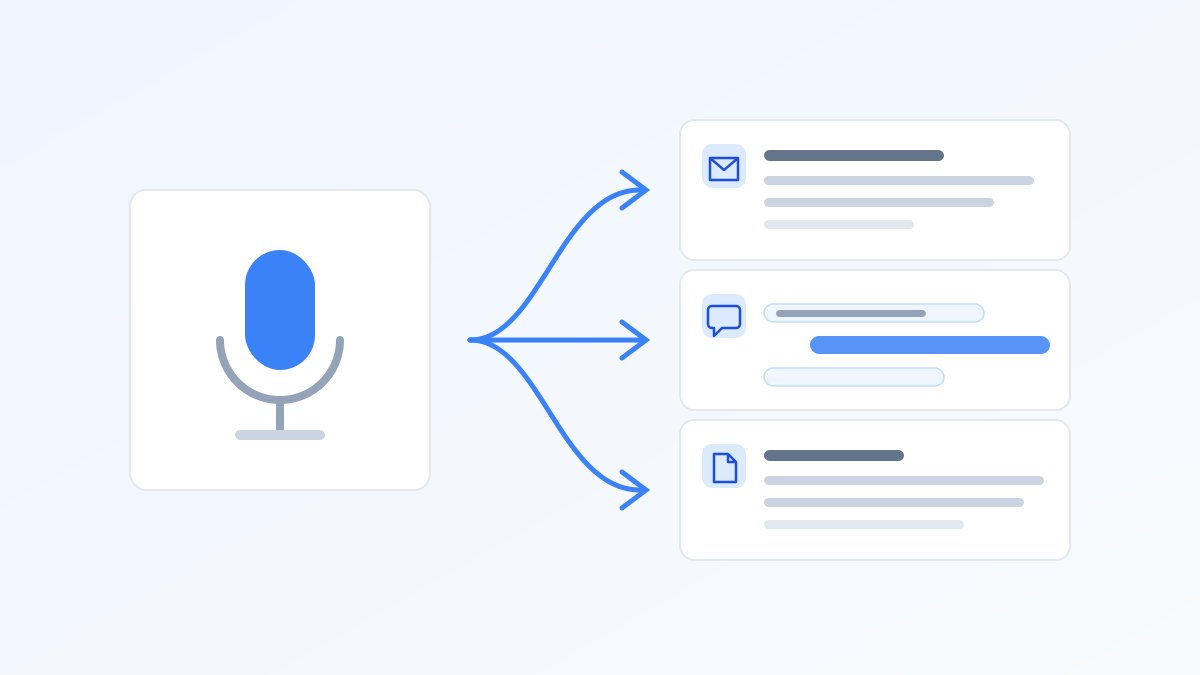
To use speech to text productively, stop treating it as a novelty and wire it into the text you already produce every day: emails, chat replies, meeting recaps, first drafts, and AI prompts. The math is simple. Microsoft's telemetry shows about 60% of the workday goes to communication, and nearly all of it is typed. And the words-per-minute averages compiled on Wikipedia put typing at about 40 wpm while natural speech runs around 150. This guide builds the workflow step by step, including a fair look at where the free Windows option is enough and where it tops out.
Key Takeaways
- Target the 60%. Communication (email, chat, docs) eats most of the workday; speaking it instead of typing it attacks the biggest block, not a marginal one.
- Speaking is ~3x faster than typing (Stanford, 2016), and modern AI engines add the punctuation automatically, so the speed survives contact with reality.
- Win+H is a free start with a low ceiling: its auto-punctuation is off by default and basic, nothing gets cleaned up afterward, and there is no way to customize what happens to your words.
- Custom modes are the real multiplier: speak a rambled thought, get back a grammar-fixed message, a formatted email, or an English translation, in one shortcut.
- Build it as a habit, not an event: one shortcut (Ctrl+Space), attached to the same few daily moments, repeated until reaching for it is automatic.
Turn talk into finished text
BlabbyAI dictates into any app on Windows, Android or Chrome, with AI modes that fix grammar and format as you go. Free to start.
The Productivity Math, In Plain Numbers
Microsoft's Work Trend Index puts the average employee at 117 emails and 153 chat messages a day, with roughly 60% of working time spent communicating and only 40% creating. Nearly all of that communication is typed at the average typing speed of about 40 words per minute.
Now the swap: a Stanford-affiliated study measured speech input at 3x typing speed with a 20.4% lower error rate on mobile input tasks. If you produce 1,500 words of email and chat a day (a modest estimate against those message counts), that is roughly 37 minutes of typing versus about 12 minutes of speaking. Half an hour a day, every day, from one habit change. That is the whole pitch; the rest of this guide is implementation.
Step 1: Try the Free Built-In Option, and Learn Its Ceiling
Windows ships with voice typing: press Win+H in any text field and talk. It costs nothing and proves the concept, and for a one-line search box entry it is fine. We have a full guide to it in voice typing on Windows.
Then you try to use it for a real workday and the ceiling appears. To be fair to it: Windows 11 does include an auto-punctuation toggle in the voice typing settings, though it ships turned off and many users never find it. Even switched on, it covers basic commas and periods and not much else. The harder limits sit elsewhere: whatever the recognizer mishears stays misheard, since there is no AI pass to fix grammar, casing, or a name it mangled. It cannot do anything with your words except type them, no reformatting, no translation, no custom vocabulary. And in a noisy room or with a strong accent, accuracy degrades noticeably.
One clarification, because Windows now ships two different voice features: everything above describes Win+H voice typing. Voice Access is a separate accessibility feature with on-device recognition and its own newer capabilities (including vocabulary and AI-assisted corrections), aimed at controlling the whole PC by voice. The comparisons in this article are strictly about Win+H voice typing, the feature people actually reach for when they want to dictate text.
Use Win+H for a day anyway. It teaches you the habit of reaching for your voice, and it makes very clear what you need from a real tool.
Step 2: Upgrade the Engine
The gap between built-in recognition and a modern AI engine is not subtle. BlabbyAI, on Windows, on Android and in Chrome, runs on OpenAI's Whisper family (Whisper v3 Turbo). In MLCommons' 2025 benchmark, the flagship Whisper large-v3 model scored 97.93% word accuracy on clean audio, and the engine class as a whole handles 90+ languages with auto-detect and punctuates from context and delivery: questions get question marks, sentences end where your voice ends them, and fewer recognition errors reach the page in the first place. That single upgrade is what makes dictation viable for full workdays instead of one-line bursts; our voice to text software guide covers the landscape.
Step 3: Wire Speech to Text Into Five Daily Moments
Do not try to dictate everything. Attach voice to these five recurring moments, where text volume is high and precision demands are low:
- Email replies. Read the thread, press the shortcut, talk through your answer, send after a 10-second scan. Works with dictation in Gmail, speech to text in Outlook, anywhere.
- Chat replies in Slack and Microsoft Teams. The 153 daily messages are the death-by-a-thousand-cuts of typing time; speaking them is nearly instant.
- Meeting recaps. The moment a call ends, dictate decisions, owners, and deadlines while they are fresh. Two minutes of talking beats ten minutes of reconstructing it later.
- First drafts. Reports, proposals, blog posts, Word documents: speak the ugly first version at 150 words per minute, then edit with the keyboard. Drafting and editing are different jobs; give each its best tool.
- AI prompts. Prompts are conversation, and speaking them produces richer context than the abbreviated fragments people type into ChatGPT. Dictation lands in any focused field, including AI chat boxes.
Step 4: Multiply It With Custom Modes
This is where dictation goes from faster typing to something typing cannot do at all. In BlabbyAI, a custom mode is an AI instruction you write yourself that runs on your speech after transcription, using models like ChatGPT, Gemini, or Llama. Speak once, and the result comes back already processed:
- Grammar Correction mode: say "I go shopping yesterday" and "I went shopping yesterday" lands in the field.
- Email mode: ramble your point for 30 seconds, receive a structured, professional email ready to send.
- Translate mode: speak in your native language, get polished English in the text field. For non-native speakers this collapses two slow jobs (composing and translating) into one breath.
- Your own modes: "summarize this as three bullets," "rewrite casually," "format as a Jira ticket", whatever instruction you would give ChatGPT, made automatic and bound to a shortcut.
The analogy: it is like copying your speech into ChatGPT, telling it what to fix, and pasting the result back, except the whole round trip happens automatically in one shortcut. Other dictation tools bake their AI instructions in behind the scenes; modes hand you the controls.
Step 5: Tune It, Then Make It a Habit
- Teach it your vocabulary. Add custom spellings for names, brand terms, and jargon once, and they come out right forever.
- Speak in complete phrases rather than word... by... word; the engine uses context to punctuate and disambiguate.
- Do not self-edit mid-sentence. Say the whole thought, then fix in review, or let a Grammar Correction mode fix it for you.
- A basic headset beats a laptop mic in any shared space, and it solves the open-office privacy hesitation.
- Anchor the habit to triggers: every email reply, every post-meeting minute, every prompt. How long it takes to feel automatic varies by person; the trigger-anchoring is what makes it stick.

Windows Voice Typing vs BlabbyAI at a Glance
| Capability | Win+H voice typing | BlabbyAI |
|---|---|---|
| Punctuation | Basic auto-punctuation toggle, off by default | Automatic, from context and delivery |
| Engine | General-purpose recognizer | Whisper v3 Turbo; the flagship Whisper large-v3 scored 97.93% on clean audio (MLCommons benchmark) |
| AI processing of your words | None | Custom modes: grammar, email, translate, your own |
| Languages | Limited set, manual switching | 90+ with auto-detect |
| Custom vocabulary | No | Custom spelling per language |
| Recording history | No | Local history with re-transcribe (Windows app) |
| Price | Free | Free tier; $8.49/mo at the current discount |
Honest verdict: Win+H is genuinely fine for short bursts, and it is the right choice on locked-down machines where you cannot install software. A dedicated tool earns its price only when your daily text volume is high enough that the AI cleanup and custom modes save real minutes. If you write a paragraph a day, stick with the free option.
Where Voice Input Is the Wrong Tool
For balance, the cases where this whole workflow does not apply, BlabbyAI included:
- Precision work: editing existing text, writing code, working in spreadsheets. The keyboard wins and will keep winning.
- Shared spaces where you cannot talk. A headset solves the audio quality problem, not the social one.
- Offline work: AI dictation tools, BlabbyAI included, process speech in the cloud and need an internet connection, and Win+H voice typing generally does too. The offline option on Windows is Voice Access, a separate accessibility feature with on-device recognition.
- The adjustment period: dictating drafts feels slower and awkward at first, and many people quit before it clicks. Budget for the learning curve.
Frequently Asked Questions
Is speech to text really faster than typing?
Yes, by a wide margin. A Stanford-affiliated study measured speech input at 3x the speed of typing with a 20.4% lower error rate. Most people type around 40 words per minute and speak around 150. The catch is cleanup: raw dictation needs punctuation and formatting fixes, which is why an AI tool that handles those automatically keeps most of the 3x gain.
How do I use speech to text on Windows?
Press Win+H in any text field and Windows voice typing starts listening. It is free and built in, and it even has an auto-punctuation toggle in its settings (off by default). For a full workday it is still limited: punctuation is basic, recognition mistakes stay in the text with no AI cleanup pass, there is no custom vocabulary, and accuracy drops in noise, which is where a dedicated AI dictation app takes over.
Why is Windows built-in speech to text so inaccurate?
Windows voice typing uses a general-purpose recognition service tuned for short bursts. Its auto-punctuation option (off by default) handles basic commas and periods but nothing more, and there is no AI pass to fix grammar, casing, or formatting afterward, so every recognition mistake lands in your document as-is. Whisper-based tools punctuate from context, and the flagship Whisper large-v3 scored 97.93% word accuracy on clean audio in the MLCommons benchmark, which is most of the practical difference.
Can I use speech to text with ChatGPT and other AI tools?
Yes, and it is one of the best use cases. Prompts are conversational by nature, so speaking them is faster and produces more detailed context than typing. A system-wide dictation tool types your speech into any focused text field, including ChatGPT, Claude, or Gemini in the browser, no copy-paste involved.
What are custom modes and why do they matter for productivity?
A custom mode is an AI instruction that runs on your speech after transcription. Example: a Grammar Correction mode fixes errors automatically, an Email mode turns a rambled thought into a professional message, a Translate mode converts your native language into polished English. One shortcut does the whole chain: speak, transcribe, process, and the finished text lands in your field.
Does speech to text work in every app?
System-wide tools do. BlabbyAI types into whatever text field is focused when you press Ctrl+Space: Gmail, Slack, Word, Notion, your CRM, a code editor comment, a browser form. On Android, its floating mic does the same in any app on your phone. Browser-only extensions and app-specific features (like dictation in Word or Google Docs) stop working the moment you leave that app.
How do I get good accuracy with my accent or technical vocabulary?
Two things help. First, engine quality: Whisper-class models handle accents far better than older recognition services and support 90+ languages with auto-detect. Second, custom spelling: teaching the tool your names, brand terms, and jargon so they come out right every time. A decent microphone and speaking in complete phrases close the rest of the gap.
What should I dictate and what should I still type?
Dictate anything longer than a sentence where words flow naturally: emails, messages, meeting recaps, document first drafts, AI prompts, and notes. Keep typing for precision editing, code, spreadsheets, and situations where you cannot speak. Most people land on a hybrid: voice for the first draft, keyboard for the polish.
Half an hour a day is waiting
One shortcut, any app, automatic punctuation, and custom AI modes. Built Windows-first, free to start.
Sources
- Microsoft Work Trend Index, "Breaking Down the Infinite Workday," June 2025, microsoft.com (retrieved 2026-07-25).
- Ruan et al., "Speech Is 3x Faster than Typing," Stanford/UW/Baidu, 2016, news.stanford.edu (retrieved 2026-07-25).
- MLCommons, MLPerf Inference v5.1 Whisper benchmark, September 2025, mlcommons.org (retrieved 2026-07-25).
- Wikipedia, "Words per minute," en.wikipedia.org (retrieved 2026-07-25).