
Published August 16, 2026 · By Sumbat.T
Otter AI Speech to Text: 2026 Review, Limits, Alternatives
Short Answer
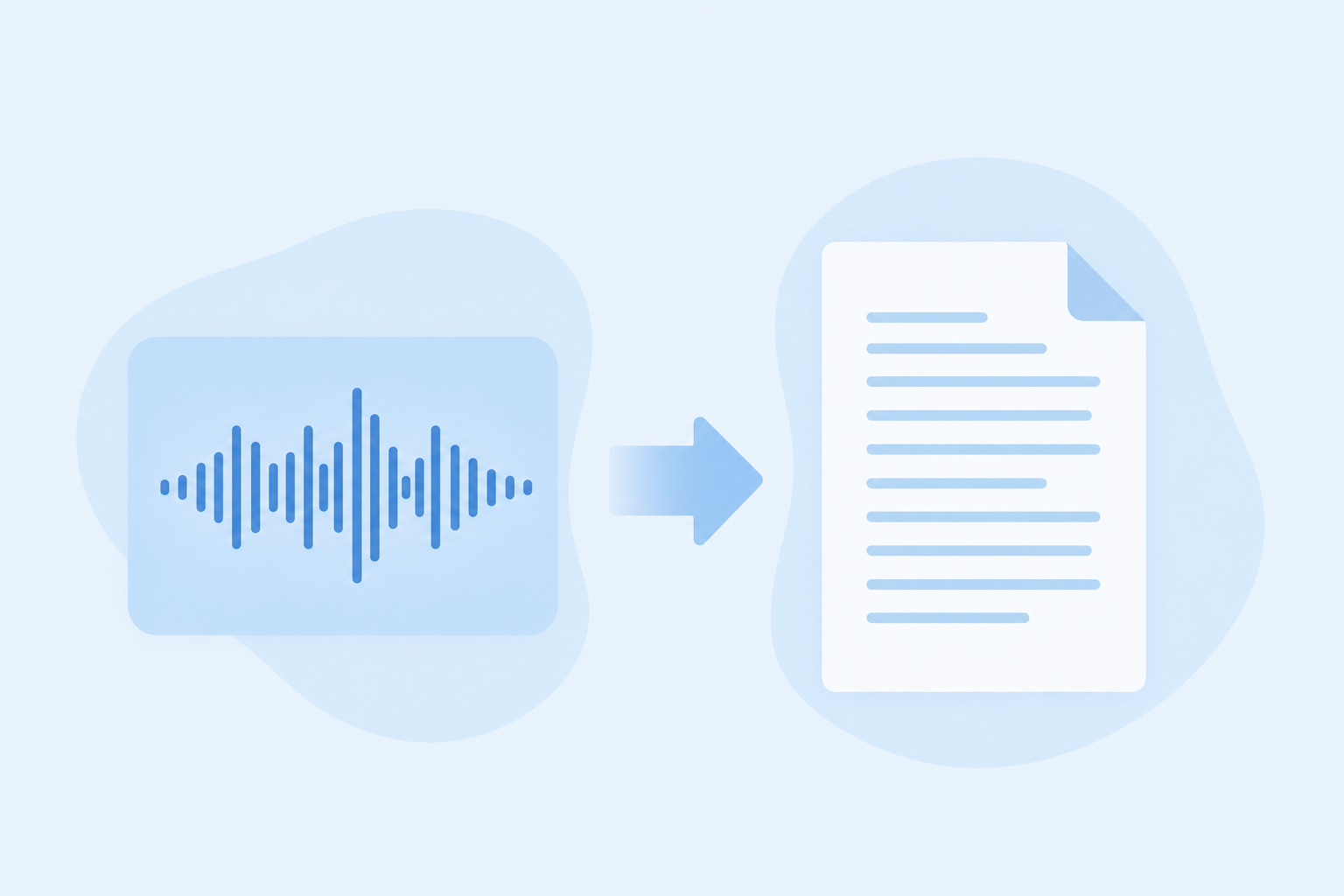
Otter AI's speech to text is transcription: it records meetings and audio files and hands you a transcript document afterwards, and it is genuinely good at that job. What it does not do is dictation: it cannot type your words into Word, Gmail, or any other app as you speak. If transcribing meetings is the goal, Otter deserves its shortlist spot. If speaking your writing into your apps is the goal, you want a dictation tool instead.
Below: what Otter actually does, real pricing, its honest accuracy picture, and the right alternative for each job. Disclosure: we build BlabbyAI, a Windows dictation tool, so we compete with Otter only on the dictation half of this story. The full market view lives in our dictation software guide.
What Otter AI speech to text actually is
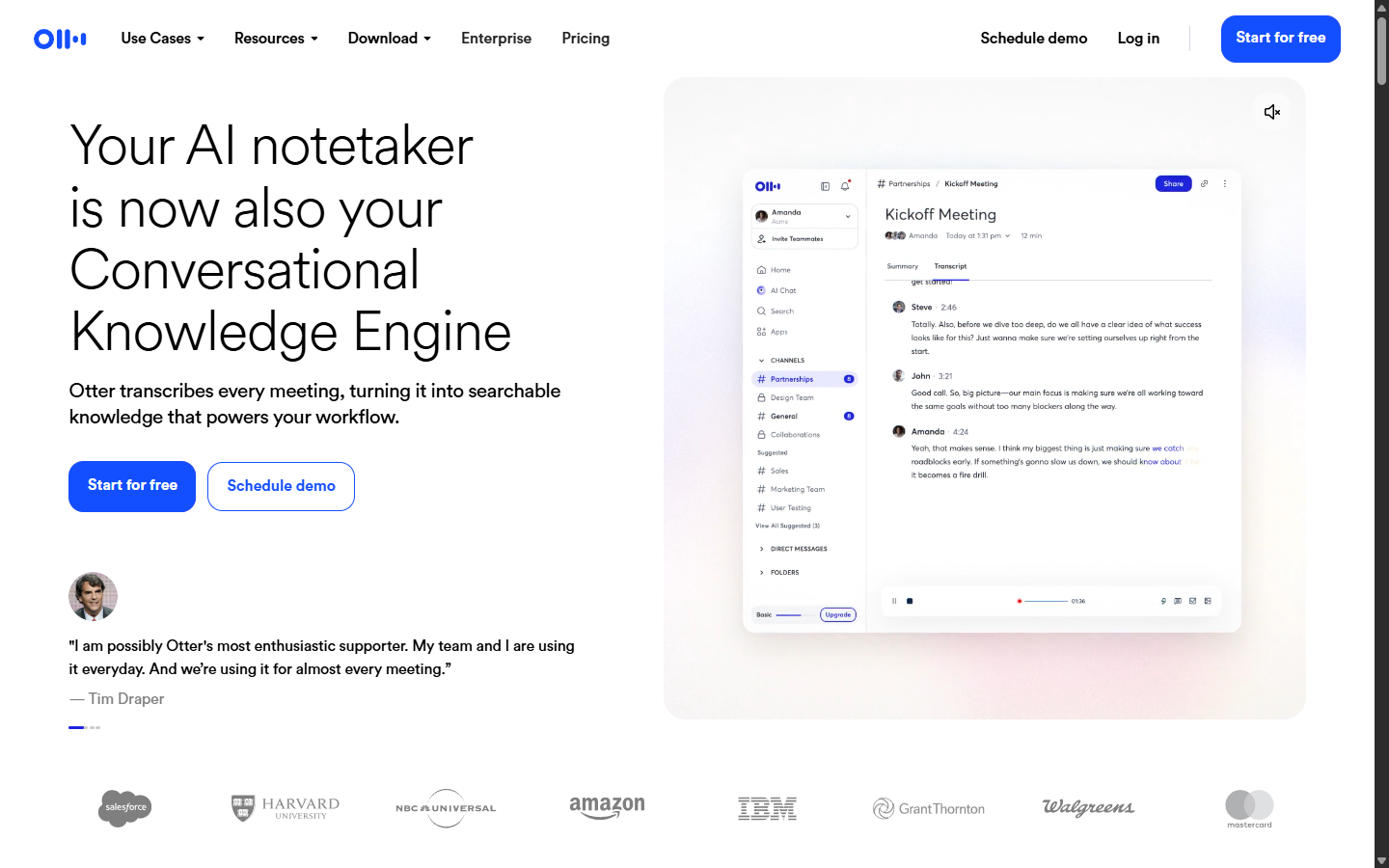
Otter is a meeting transcription service. It listens to speech, live or recorded, and produces a searchable transcript with speakers identified, timestamps attached, and an AI summary on top. The pieces that matter:
- Live transcription. Start recording in the app and text builds in real time, which works for meetings, lectures, interviews, and voice notes.
- OtterPilot. Connect your calendar and Otter's agent joins your Zoom, Google Meet, and Microsoft Teams calls by itself, records them, and delivers notes afterwards. This auto-join loop is the feature teams actually buy it for.
- File uploads. Drop in an MP3, WAV, M4A, or MP4 and get the transcript back. This is the "I recorded an interview on my phone" path.
- Speaker identification and summaries. Transcripts come back with who-said-what labels, automated summaries, and action items extracted.
- AI chat over transcripts. You can ask questions against your transcript library ("what did we decide about the launch date?") and get answers grounded in the recordings.
It runs on the web, iOS, and Android. Notice what is missing from that list: nothing in it types text into another application. Every workflow ends with a transcript inside Otter that you export, share, or copy.
How Otter's speech to text works under the hood
Otter is entirely cloud-based and fully automated: audio streams to its servers, an AI model transcribes it, and no humans are in the loop, per its own help documentation. That architecture explains most of its behavior. Real-time transcription works because the stream processes as it arrives. An internet connection is non-negotiable, because nothing runs on your device. And accuracy improves when the audio reaching the cloud is cleaner, which is why the same account produces great transcripts from a quiet one-on-one and rough ones from a echoey all-hands. The model also continually improves server-side, so complaints and praise from two years ago describe a different product than today's.
Getting better transcripts out of it
Every transcription tool is hostage to its input audio, so the highest-leverage fixes are physical. For in-person recording, put the phone or microphone near the people talking, not in the middle of a large table; distance is the single biggest accuracy killer. For online meetings, OtterPilot capturing the call audio directly beats recording your laptop's speakers through a microphone by a wide margin. Encourage one-voice-at-a-time in meetings you know you will transcribe, since overlapping speech is where every engine breaks down. For uploads, feed it the highest-quality file you have rather than a compressed re-export. And do the small cleanup early: correcting speaker labels and key names at the top of a transcript pays off across summaries and search, because those features build on the transcript text.
Privacy and consent, before you record
Two separate issues here, and both deserve a minute before your first recorded meeting. Data handling: recordings and transcripts are stored in your cloud account, processing happens on Otter's servers, and there is no offline mode; if your employer restricts where meeting audio can live, check the policy first. Consent: recording a conversation is regulated, and some US states plus many countries require all parties to agree. An auto-joining bot that announces itself helps, but the legal obligation is yours, not the software's. None of this is specific to Otter, it applies to every meeting recorder, but "the tool joined automatically" has surprised enough meeting participants that saying it out loud at the top of a call is both polite and protective.
Who should not pick Otter
- People who want to write by voice. The mismatch case this article keeps returning to: if the goal is speaking text into documents and email, a transcription account solves nothing. You will dictate into Otter's notepad and copy-paste forever.
- Anyone with an offline requirement. Cloud-only processing rules it out for air-gapped or restricted environments; locally-processing tools like Dragon exist for exactly that.
- Single-speaker heavy users on a budget. If you are transcribing your own voice memos in volume, the per-minute caps of the plans price the wrong thing for you; flat-rate or per-file tools come out cheaper. Our transcription roundups cover the math.
- Teams that only need occasional file conversion. A Microsoft 365 subscription already includes Word's Transcribe for uploads; adding a second subscription for two files a month is spend without a job.
What Otter costs in 2026
The free Basic plan is real: no time limit on the account, but a monthly cap of around 300 transcription minutes with a per-conversation limit, plus the automated summaries. For someone with a weekly meeting to transcribe, that can genuinely be enough, which is more than most "free" tiers can say. Paid plans start around $8.33 per user per month billed annually for Pro and run to roughly $20 per user per month for Business, mostly buying bigger monthly caps, longer conversations, and better export and admin controls. Two honest notes on the pricing model: it is per-minute-of-audio in disguise (the caps are the product), and it is per user, so team costs scale linearly. Check the current numbers on Otter's pricing page before deciding; caps have moved before.
Accuracy, honestly
Otter's own documentation describes transcription accuracy generally reaching 85 to 90%. Meanwhile Whisper-class engines benchmark at 97.93% word accuracy on clean audio in MLCommons' 2025 results. Read those two numbers carefully before concluding anything, because they measure different problems. Otter's number covers meeting audio: several people, cross-talk, laptop microphones from across a conference table, background noise. That is close to the hardest input speech recognition faces. The benchmark number covers clean, single-speaker audio, which is roughly what dictation looks like: one person, close microphone, deliberate speech.
The practical takeaways: expect to fix names, jargon, and overlapping speech in meeting transcripts from any tool, Otter included; a 90%-accurate transcript still means one wrong word in ten, so treat transcripts as source material rather than finished text. And if your actual use case is one person speaking into a good microphone, you are in the easy regime, where modern dictation tools deliver near-finished text. Which brings us to the distinction this whole article turns on.
Transcription vs dictation: the difference that decides your purchase
Both categories get marketed as "speech to text", which is exactly why people buy the wrong one. The difference is where the text ends up and when. Transcription (Otter's job) happens after the fact: audio goes in, a document comes out, and the document lives in the transcription tool until you move it. Dictation happens live at your cursor: you speak, and the words are typed directly into whatever you are writing, an email, a report, a chat message, with nothing to export and no second step. One is a recording workflow, the other is a writing workflow.
| You want to... | Category | Right tool |
|---|---|---|
| Turn meetings into searchable notes | Transcription | Otter, or an alternative below |
| Convert a recorded interview file to text | Transcription | Otter, Word Transcribe, others |
| Speak an email into Gmail or Outlook | Dictation | BlabbyAI, Win+H |
| Draft a document in Word by voice | Dictation | BlabbyAI, Word Dictate, Dragon |
| Write in any app without typing | Dictation | BlabbyAI, Win+H, Dragon |
What Otter does not do
- It does not type into your apps. No cursor following, no dictating into Word, Gmail, Slack, or a browser form. Text is born inside Otter and leaves by export or copy-paste.
- It has no dictation commands. Saying "new paragraph" or "comma" into a meeting recorder just puts those words in the transcript, because that is the correct behavior for its job: transcripts should be verbatim.
- It does not clean up your speech for writing. Summaries exist, but the transcript itself is faithful to what was said, filler and false starts included. Dictation tools with AI cleanup do the opposite: they reshape speech into finished prose on the way in.
- There is no Windows desktop dictation app. Otter lives on the web and on phones as a recorder. That is fine for its job; it just underlines that the job is not writing at your PC.
None of these are flaws. They are the shape of a transcription product, listed here because "otter ai speech to text" searches come from both audiences, and the second audience, people who want to write by voice, routinely discovers the mismatch after signing up.
When Otter is exactly the right choice
Credit where due, because half the people reading this should probably just use it. If your calendar is full of Zoom or Teams calls and you want notes without taking them, OtterPilot's auto-join loop is the strongest version of that workflow. Journalists and researchers with recorded interviews get clean speaker-labeled transcripts without paying per-hour human rates. Students recording lectures (where permitted) get searchable notes. Teams get a shared, queryable memory of what was said across meetings. In all of those, the audio already exists or is happening anyway, and the deliverable is a document. That is transcription territory, and Otter is one of the best-known names in it for a reason.
Otter alternatives, by the job you actually have
"Otter AI alternative" searches split into three different needs, so here are all three, honestly labeled.
You need meeting or file transcription (Otter's own category)
Several competitors do the same job with different pricing shapes, and a number of them run Whisper-class engines. We compared the field, with real per-hour costs and free-tier fine print, in best AI transcription software and the zero-budget options in free transcription software. If you already pay for Microsoft 365, Word's built-in Transcribe feature handles uploaded files at no extra cost.
You wanted to write by voice (the mismatch case)
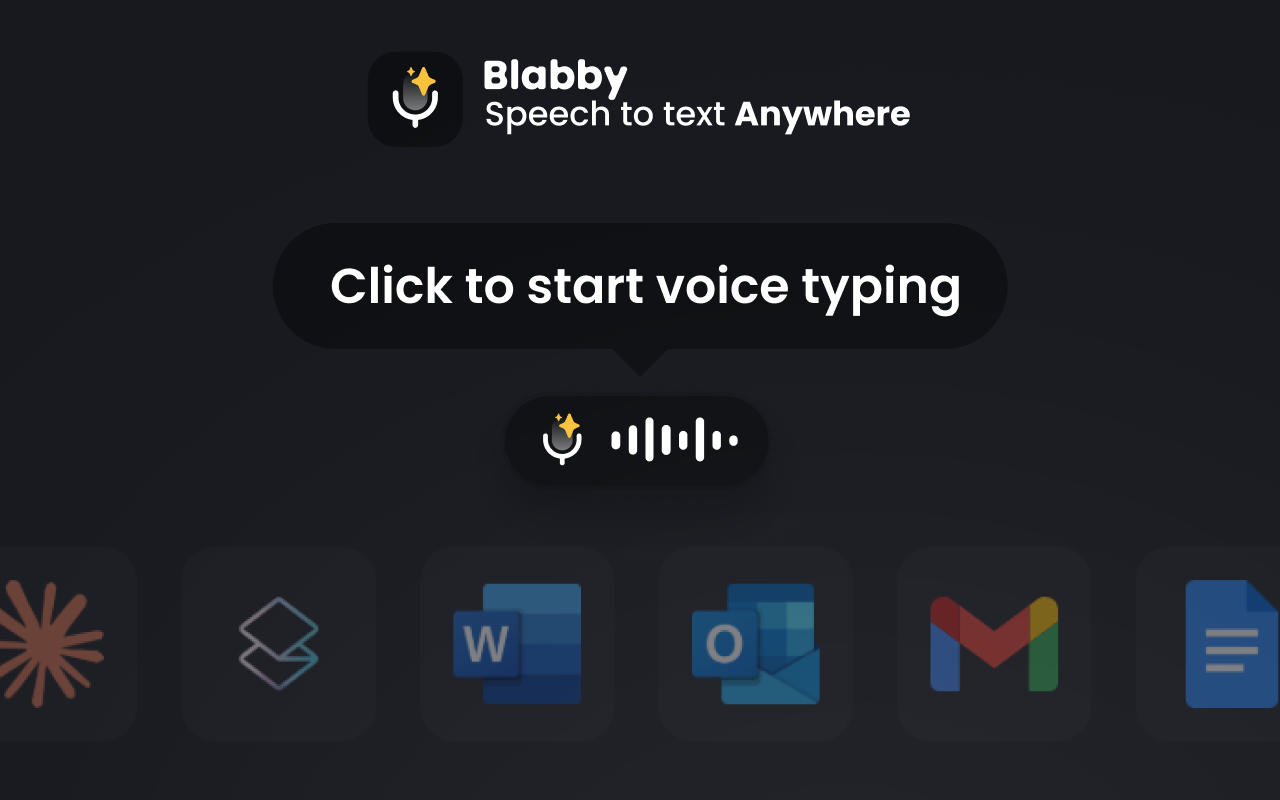
If you searched for Otter hoping to speak emails, documents, and messages into your apps, the category you want is dictation. BlabbyAI (ours, hence the disclosure) is a native Windows app: one Ctrl+Space shortcut types punctuated text into any focused field, with custom AI modes that can fix grammar, translate, or format as you go, free to start at 60 credits a week and $8.49/month for unlimited. The free built-ins cover lighter use: Win+H voice typing anywhere on Windows, and Word Dictate inside a Microsoft 365 subscription. Dragon remains the specialist option. The full comparison is in best dictation software for Windows and the cross-platform view in best dictation apps.
You need both
Plenty of people legitimately do: meetings need transcribing AND the follow-up emails need writing. The categories pair cleanly because they never touch the same moment of your day. A recorder handles the meeting; a dictation tool handles everything you write about it afterwards. There is no product that does both jobs well, which is worth knowing before believing any marketing page that implies otherwise, ours included.
Otter vs the dictation option, side by side
| Question | Otter.ai | BlabbyAI |
|---|---|---|
| Core job | Transcribe meetings and files | Type your speech into any app |
| Where text lands | Inside Otter (export/copy out) | At your cursor, in any Windows app |
| Multi-speaker audio | Yes, with speaker labels | No, single-speaker dictation |
| Joins Zoom/Meet/Teams calls | Yes (OtterPilot) | No |
| Cleans up speech into prose | No (verbatim + summaries) | Yes (AI modes: grammar, format, translate) |
| Free tier | ~300 min/month | 60 credits/week (~2,000 words) |
| Paid price | From ~$8.33/user/mo annual | $8.49/mo unlimited |
Disclosure again, because tables make things look like verdicts: we build BlabbyAI. This table is a category comparison, not a winner-loser ranking; for meeting transcription Otter beats us by default because we do not do it at all.
A realistic week with both categories
What this looks like in practice for someone who lives in meetings: OtterPilot (or an equivalent) sits in the calls and produces the record. Afterwards, the writing that meetings generate, the recap email, the task descriptions, the document edits, gets spoken rather than typed, into whatever app each item lives in. People speak at roughly 130 to 150 words per minute against a typing average around 40, so the after-meeting writing is where voice actually saves the workday minutes. The transcript is the memory; dictation is the output. Confusing the two tools costs you one of the halves.
Five questions before you subscribe
- Is my job transcription or dictation? If the sentence "I want to speak and have text appear where I am writing" describes you, stop here and buy from the other category.
- How many minutes do I actually record a month? Count a real month. Under the free cap, pay nothing. Wildly over it, compare per-minute math against the flat-rate transcription tools before defaulting to the famous name.
- Do my meetings allow a recording bot? Client calls, legal contexts, and some workplaces say no. A tool you cannot use in half your meetings is half a tool.
- Where is the transcript allowed to live? Cloud-only storage is a fact of the product; check it against your company's data policy before the first sensitive meeting, not after.
- Will I actually read the output? The honest question for every recording tool. A searchable archive you query beats a pile of transcripts nobody opens; if nobody will open them, skip the subscription and take notes on the two meetings a week that matter.
Frequently asked questions
Is Otter.ai free?
There is a free Basic plan, capped by monthly transcription minutes (around 300 per month, with a per-conversation limit). Paid plans start at roughly $8.33 per user per month billed annually and raise the caps substantially. For occasional meetings the free tier is genuinely usable; regular users hit the ceiling fast.
Is Otter.ai good for transcribing?
For meetings, interviews, and lectures, yes: real-time transcription, speaker labels, summaries, and file uploads make it one of the better-known tools for that job. Its own documentation cites accuracy generally reaching 85 to 90% on audio, which matches the reality that multi-speaker room audio is a harder problem than one person speaking into a close microphone.
Which is better, Otter.ai or ChatGPT?
They do different jobs. Otter records and transcribes audio into documents, then lets you query those transcripts. ChatGPT works with text you give it and has voice conversation features, but it is not a meeting recorder. If the task is "turn this meeting into notes", Otter. If the task is "help me write or think", ChatGPT. Neither one types into your applications as you speak; that job is dictation software.
How to use Otter.ai to transcribe audio to text?
Two paths. Live: start recording in the Otter app or let OtterPilot join your Zoom, Google Meet, or Teams call from your calendar, and the transcript builds in real time. Pre-recorded: upload an MP3, WAV, M4A, or MP4 and Otter returns the transcript. Either way the text lives in Otter, and you export or copy it to use it elsewhere.
Is Otter AI dictation software?
No, and this is the most common purchase mistake around it. Dictation software types your words into whatever application you are writing in, live, at the cursor. Otter records speech and produces a transcript document afterwards. If you want to speak an email into Gmail or a report into Word, you want a dictation tool such as BlabbyAI (we build it), Windows Voice Typing, or Dragon, not Otter.
Can Otter type into Word or Gmail?
Not directly. Otter produces transcripts inside its own app; getting that text into Word or an email is an export or copy-paste step. Dictation software takes the opposite approach and types into any focused text field as you speak, which is why the two categories complement rather than replace each other.
What is a good Otter AI alternative?
Depends on which half of Otter you need. For meeting transcription: tools covered in our AI transcription roundup, several of which run on Whisper-class engines. For speaking text into your apps: BlabbyAI on Windows ($8.49/mo, free weekly tier), Windows Voice Typing (free, built in), or Dragon for specialist vocabulary. For file-to-text conversion on a budget, see our free transcription software comparison.
Does Otter work with Zoom and Microsoft Teams?
Yes. OtterPilot connects to your calendar and joins Zoom, Google Meet, and Microsoft Teams meetings to record and transcribe them automatically. That auto-join workflow is one of the main reasons teams pick Otter over manual recording.
Does Otter AI work offline?
No. Otter is entirely cloud-based per its own documentation: audio goes to its servers for transcription, so no connection means no transcripts. If offline processing is a requirement, look at locally-processing tools like Dragon instead.
How do I get text from Otter into Word or Google Docs?
Export or copy. Otter transcripts can be exported (formats vary by plan) or copied out of the app into your document. There is no live path from Otter into another application, which is the practical difference between transcription and dictation: a dictation tool would have typed it there in the first place.
Came here to write by voice?
BlabbyAI types your speech into any Windows app. 2,000 words a week free, no card.
Sources
- Otter.ai, Convert Speech to Text (features, plans; retrieved 2026-08-16).
- Otter.ai, Convert Audio to Text (accuracy "generally reaching 85-90%"; retrieved 2026-08-16).
- Otter.ai, otter.ai/pricing (retrieved 2026-08-13).
- MLCommons speech accuracy benchmark results for Whisper, 2025 (word accuracy 97.93% on clean audio).