
Updated August 27, 2026 · By Sumbat.T
How to Dictate in Excel: Voice Typing Into Any Cell

The short answer
- Excel does not have a Dictate button on the ribbon the way Word and Outlook do. That is not a setting you are missing. It is the reason this question gets asked so often.
- What works instead: click the cell, press Win+H to open the Windows dictation bar, and speak. The text goes into the active cell. Nothing to install.
- The catch nobody warns you about: moving to the next cell takes Excel out of edit mode and the microphone stops. On a column of thirty rows that is thirty restarts, which is why most people try this once and stop.
- The way round it: a dictation tool with its own global shortcut, so restarting is one keypress rather than a trip to a floating toolbar. BlabbyAI is a Windows desktop app that types into any focused field, Excel included, on Ctrl+Space, and cleans up your speech on the way in. Free to start (60 credits weekly, no card), $8.49/month unlimited. It also comes as an Android app, free during the beta, and a Chrome extension.
Why Excel has no Dictate button, and what that means
If you have used dictation in Word, you know the pattern: Home tab, Dictate button, microphone icon, start talking. Open Excel expecting the same thing and it is usually not there. People assume they have the wrong Microsoft 365 plan, or that an update removed it, and go looking through settings for a toggle that does not exist.
The straightforward explanation is that Microsoft built the ribbon Dictate feature for applications where you write prose. Word and Outlook are documents and messages. Excel is a grid of discrete values, and dictating into a grid raises a question a document never does: when you stop speaking, where does the cursor go? Some Microsoft 365 builds do surface a Dictate control in Excel, so it is worth glancing at your Home tab, but it is not something to count on.
The useful reframe: stop looking for a feature inside Excel. Dictation on Windows is a system-level capability that types into whatever field has focus, and an Excel cell in edit mode is such a field. Once you think of it that way, the question is not "does Excel support dictation" but "which dictation tool handles moving between cells well".
The built-in method: Win+H, step by step
This works on Windows 10 and Windows 11 with any version of Excel, and there is nothing to install.
- Click the cell you want to fill. You can also press F2 to put the cell into edit mode explicitly, which makes the behaviour more predictable.
- Press Win+H. A small dictation bar appears near the top of the screen. The first time you use it, Windows may ask you to enable online speech recognition.
- Speak. The words are typed into the active cell. Say "comma", "period" or "question mark" aloud where you want punctuation.
- Press Enter to commit the cell and move down, or Tab to move across.
- Restart the microphone for the next cell. This is the part that bites, and the next section is about it.
If Win+H does nothing at all, the cause is nearly always that online speech recognition is switched off. Open Settings, go to Privacy & security, then Speech, and turn it on. Our voice typing not working guide covers the less obvious causes, including group policy on managed machines.
The cell-to-cell problem, and three ways around it
Here is the thing that makes dictating into a spreadsheet different from dictating into a document, and it is worth being blunt about it because most guides skip straight past it.
In Word you press the microphone once and talk for ten minutes. In Excel, every time you press Enter to move down a row, the cell leaves edit mode, the dictation bar loses its target, and listening stops. Fill a column of thirty rows and you have started the microphone thirty times. The recognition was never the problem; the rhythm is.
Three approaches actually work, in increasing order of how much they help.
Dictate into the formula bar
Click into the formula bar rather than the cell itself before starting dictation. Focus behaves a little more stably there, and for cells holding a long sentence it gives you a wider space to see what landed. It does not remove the restart, but it makes each entry less fiddly.
Batch it, then split it
This is the biggest single improvement available with free tools, and almost nobody suggests it. Do not dictate into Excel at all. Open Notepad, a Word document, or any long-form text box, start dictation once, and read the entire batch in one continuous go, saying a consistent separator such as "semicolon" between fields and starting a new line per row.
Then paste the block into Excel and use Data, Text to Columns with your separator. Thirty rows become one recording and one split operation. The microphone never stops, so you never fight it.
Use a tool with its own global shortcut
The restart is unavoidable, so make it cost nothing. BlabbyAI runs on a global Ctrl+Space: press it, speak, press it again, and the text is typed at your cursor. Moving to the next cell and pressing Ctrl+Space is one keystroke, not a hunt for a floating microphone button. Combined with cleanup on the way in, dictating a description column stops feeling like a fight.
Windows dictation






One shortcut, any cell, any app
BlabbyAI types into whatever field your cursor is in. Excel, Word, Outlook, Teams, your browser. Press Ctrl+Space, speak, done. Free to start, no card.
What is worth dictating in a spreadsheet, and what is not
Dictation is not faster than typing for everything in Excel, and pretending otherwise is how people end up disappointed. The split is fairly clean.
Worth dictating
- Long description or notes columns, where you are writing sentences rather than values
- Cell comments and review notes, which are prose by nature
- Addresses and contact details read off a physical document
- Free-text status or outcome columns in a tracker
- Qualitative research or feedback logs, where each row is a paragraph
Faster typed
- Formulas, which arrive as spoken words rather than syntax
- Long columns of pure numbers, where the keypad is simply faster
- Anything with heavy punctuation you would have to speak aloud
- Rapid cell-to-cell entry, because of the microphone interruption
The pattern: dictation wins wherever a cell contains a sentence and loses wherever a cell contains a value. If your spreadsheet is a tracker with a long notes column, or a research log where every row is a paragraph of observation, you are in the good half and the gains are real. If it is a financial model, you are not, and no tool changes that.
A word specifically on formulas, since it comes up constantly. Dictating "equals sum open bracket A1 colon A10 close bracket" almost never produces =SUM(A1:A10). Speech recognisers write the words they hear, and formula syntax is not natural language. Type the formulas. Dictate the prose.
Every way to dictate into Excel, compared
Prices and behaviour checked August 2026.
| Method | Where it works | Cost | The catch |
|---|---|---|---|
| Windows dictation (Win+H) | Desktop Excel on Windows | Free, built into Windows | Microphone drops every time you change cell |
| macOS dictation | Desktop Excel on Mac | Free, built into macOS | Same cell-to-cell interruption |
| Dictate button on the ribbon | Word and Outlook, not reliably Excel | Included with Microsoft 365 | Often simply absent in Excel |
| Batch into a text field, then split | Anywhere, then paste into Excel | Free | An extra step, but one continuous recording |
| BlabbyAI | Any Windows or Android app, plus Chrome for Excel on the web | Free tier (60 credits weekly), $8.49/mo unlimited | Cloud processing, so it needs a connection |
If you only ever dictate the occasional cell, Win+H is free and adequate and you should stop reading here. The case for anything else starts when dictating into Excel is a regular part of your week, or when the text you are entering needs to be tidy rather than literal.
Cleaning up what lands in the cell
The second problem with built-in dictation in a spreadsheet is the quality of what arrives. Windows dictation writes down what you said, exactly: the "um", the false start, the sentence you restarted halfway. In a Word document you edit that afterwards. In a cell it is uglier, because a notes column full of verbal debris is exactly the sort of thing that gets read in a review meeting.
BlabbyAI handles this with what it calls modes. A mode is a second pass over your speech before the text is typed, and the instruction is free-form and written by you, not picked from a vendor's list. You speak, the audio is transcribed, the transcript plus your instruction goes to an AI model, and the result lands in the cell.
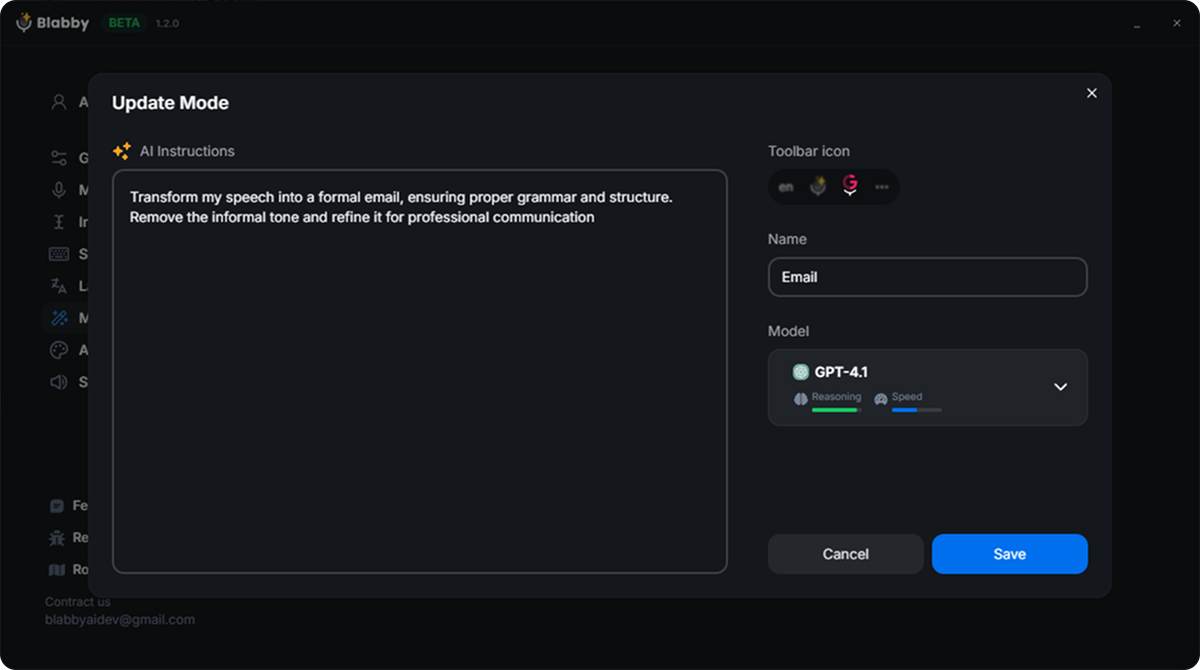
Modes that earn their place in a spreadsheet specifically:
Concise cell
"Rewrite what I said as a single short phrase suitable for a spreadsheet cell. No trailing period. Remove filler words. Keep every fact."
Stops a spoken sentence turning into a paragraph inside one cell.
No commas
"Rewrite what I said without using any commas, so the text is safe to split on a comma delimiter. Keep the meaning identical."
Solves the specific trap where dictated punctuation breaks a later Text to Columns split.
Title case label
"Convert what I said into Title Case with no punctuation, suitable for a column header or a category label."
Consistent labels without going back to fix capitalisation by hand.
The second one is worth dwelling on, because it fixes a bug in the workflow rather than a matter of taste. If you dictate a batch and plan to split it on commas, a spoken comma inside the text destroys the split. Telling the mode never to produce commas removes the problem at the source, which is not something you can do with a tool whose cleanup rules are fixed by the vendor.
What a mode is not: it rewrites what you said, it does not answer it. Saying "fill in last quarter's numbers" gets you that sentence reformatted, not the numbers. You speak the actual content and the mode shapes it. Blabby types text into the focused field and does not click buttons, run macros, or drive Excel for you.
Who actually dictates into spreadsheets
It is worth knowing which situations make this genuinely worthwhile, because they are more specific than "people who like talking" and they tend to share one feature: the person's hands or eyes are already busy with something that is not the keyboard.
Anyone reading off a physical document
Copying details from a paper form, an invoice, a delivery note or a printed report into a tracker. Your eyes are on the paper, so looking down at the keyboard is the slow part. Dictation removes the glance back and forth entirely, and this is the single clearest win for speaking into a spreadsheet.
Field and inspection work
Site checks, stock counts, property inspections, equipment logs. You are standing up, possibly holding something, and each row has a free-text observation attached. Speaking the observation while looking at the thing you are describing beats typing it from memory later.
Researchers and analysts with qualitative data
A coding sheet or interview log where every row holds a paragraph. This is the case where the batch method pays off most: read the whole set of notes in one continuous recording, then split into rows.
People for whom typing is painful
Repetitive strain, arthritis, a hand injury, or any condition that makes sustained typing costly. A long notes column is exactly the sort of task that hurts. Here the cleanup layer matters more than the speed, because fixing a messy transcript by hand is the part being avoided.
What unites them is that the spreadsheet is holding sentences, not sums. If you recognise yourself in one of those and have been fighting Win+H, the friction you are feeling is real and it is fixable. If your spreadsheets are mostly numbers, dictation is a niche tool for you and the keypad remains faster. Related reading if typing is the painful part: dictating when typing hurts.
Dictation is not the same as voice control
A distinction that saves a lot of wasted searching, because the two get mixed together constantly and they solve different problems.
Dictation
Turns speech into text and puts it in the field your cursor is in. That is the whole job. Win+H does this, and so does BlabbyAI. If what you want is to fill a cell faster, this is the category you want.
Voice control
Drives the interface: clicking ribbon buttons, switching sheets, selecting ranges, running commands. Windows Voice Access is the built-in tool. Slower for entering text, but it is the one that gives you hands-free operation of the application itself.
BlabbyAI is firmly in the first column. It writes text into the focused cell and does not click buttons, press Enter, run macros or navigate the sheet for you. That is a deliberate scope rather than a gap: it is what lets the same shortcut behave identically in Excel, in Word, in Outlook, in a browser form and in an editor, with nothing to configure per application. If you need genuine hands-free control of Excel rather than fast text entry, Voice Access is the tool to look at, and the two can be used together.
Excel for the web, and other machines
Everything above assumes desktop Excel on Windows. If you use Excel for the web in a browser tab, the desktop Dictate question is moot and you are back to system dictation or a browser extension. BlabbyAI ships a Chrome extension as well as the Windows app, so the same account covers a browser-based spreadsheet: it types into any text field the browser renders, which includes a cell in Excel for the web, a Google Sheets cell, and any web form on the same tab.
That matters more than it sounds if your work is split across machines. A locked-down work laptop, a Chromebook, or a machine you do not administer will often not let you install desktop software at all, and the extension is the route in. If you are mostly in a browser, our guide to voice to text Chrome extensions covers that side in depth.
For the wider Microsoft Office picture, dictating in Word behaves quite differently from Excel because the ribbon button genuinely exists there. We cover it in how to dictate in Word, and the shortcut for every platform is listed in voice typing shortcut keys. If you are still deciding on a tool generally, our dictation software overview is the place to start.
The setup that actually works, in order
Putting it together, this is what to do rather than what is possible.
- Try Win+H first. It is free and takes ten seconds. If you dictate into a cell twice a week, you are done.
- For a batch, do not dictate into Excel. Dictate the whole thing into one text field in a single continuous recording, then paste and use Text to Columns.
- If dictating into cells is a regular part of your week, move to a tool with a global shortcut so restarting costs one keypress, and with cleanup so the text is presentable when it lands.
- Write a mode for your specific column. Concise phrasing, no commas, consistent casing. This is where most of the time saving actually comes from, not from the speaking itself.
- Use a wired headset. On any dictation tool, the microphone makes more difference to accuracy than any software setting.
BlabbyAI covers steps three and four, and it is free to start with 60 credits a week and no card, so testing it against Win+H on your own spreadsheet costs nothing. The comparison worth running is not which one hears you better, because both are accurate. It is how a filled column looks after twenty rows, and how much of it you had to go back and fix.
Dictate into Excel without fighting the microphone
BlabbyAI types into any Windows text field on Ctrl+Space, cleans up your speech on the way in, and has a Chrome extension for Excel on the web. 60 free credits weekly, no card.
Frequently asked questions
Is there a Dictate button in Excel?
Not on the ribbon in the way Word and Outlook have one. Microsoft 365 puts a Dictate button on the Home tab in Word and in Outlook, but Excel does not get the same treatment, which is the single most common source of confusion on this topic. What works in Excel instead is the Windows system dictation, Win+H, which types into whichever cell is currently in edit mode. Some Microsoft 365 builds do expose a Dictate control in Excel, so it is worth checking your Home tab, but do not assume it is there.
How do I turn on voice typing in Excel?
Click the cell you want to fill, press Win+H to open the Windows dictation bar, and start speaking. Your words go into the active cell. Press Win+H again or say "stop listening" to close it. Nothing needs installing first: Win+H is part of Windows 10 and Windows 11. If it does nothing, online speech recognition is usually switched off in Settings under Privacy and security, Speech.
Why does dictation stop every time I move to a new cell?
Because moving the selection takes Excel out of cell edit mode, and the Windows dictation bar drops its focus when that happens. The practical result is that you dictate one cell, press Enter, and then have to restart the microphone for the next one. On a column of thirty entries that is thirty restarts. It is the main reason people give up on dictating into spreadsheets, and it is a workflow problem rather than an accuracy problem.
Can I dictate into Excel on a Mac?
Yes, using the macOS system dictation rather than anything built into Excel. Turn it on in System Settings under Keyboard, then use the shortcut you assigned there while a cell is in edit mode. The same cell-to-cell interruption applies. On a Mac, BlabbyAI runs through the Chrome extension, which types into cells in the web version of Excel.
Can I dictate a formula into Excel?
You can dictate the text of one, but it rarely survives. Dictation writes words and symbols as speech recognisers interpret them, so "equals sum open bracket A1 colon A10 close bracket" tends to arrive as literal words rather than =SUM(A1:A10). Formulas are faster typed. Dictation earns its keep on the text-heavy parts of a spreadsheet: descriptions, notes, comments, addresses, free-text status columns.
What is the fastest way to dictate a lot of text into a spreadsheet?
Do not dictate cell by cell. Dictate the whole batch into one long-form field, a Notepad window, a Word document or a text box, where the microphone stays open the entire time, then split it into cells afterwards with Text to Columns or by pasting a delimited block. You get one continuous recording instead of thirty restarts, and Excel handles the splitting in seconds.
Does dictation add punctuation in Excel automatically?
Windows dictation expects you to speak punctuation aloud, saying "comma" or "period" where you want the mark. In a spreadsheet that is particularly awkward, because a spoken "comma" inside a cell you later split by commas will break the split. A tool with an AI cleanup layer infers punctuation from the sense of the sentence instead, so you can speak normally. BlabbyAI does this and lets you write your own instruction for how the text should be shaped.
Is there a dictation tool that works in Excel and everywhere else?
Yes, and that is the more useful way to solve this. BlabbyAI is a Windows desktop app with a global shortcut, Ctrl+Space by default, that types into whatever text field has your cursor. Excel is one of those fields, and so is Word, Outlook, Teams, a browser form or an IDE. You learn one shortcut rather than a different method per application, and there is nothing to integrate because to Windows it is simply typing.
Can I use voice to control Excel, not just enter text?
That is a different feature and worth separating. Dictation puts text into a field. Voice control, such as Windows Voice Access, drives the interface: clicking buttons, switching sheets, running commands. BlabbyAI is a dictation tool, so it writes text into the focused cell and does not click ribbon buttons or run macros. If you need hands-free control of Excel itself rather than fast text entry, Voice Access is the Windows feature to look at.
How much does BlabbyAI cost?
Free to start, with 60 credits per week, roughly 2,000 words of transcription, and no card required. Unlimited use is $8.49 per month. Both the Windows desktop app and the Chrome extension are covered by the same account, so if you work in the desktop Excel app on one machine and Excel for the web on another, one subscription covers both. The Android app is free during the beta.