
Published August 28, 2026 · Updated August 28, 2026 · By Sumbat.T
Word Dictation Not Working? Why Dictate Is Greyed Out
Nearly every guide to this problem opens with the microphone. Check it is plugged in, check it is not muted, check the volume. That advice is fine and it is almost never the answer, because a broken microphone does not grey out a button. A greyed out Dictate button is Word telling you the feature is switched off, and there are only a handful of things that switch it off.

The short answer
If Dictate is greyed out, the cause is almost always that optional connected experiences are turned off in Word’s privacy settings. Dictation runs in Microsoft’s cloud rather than on your PC, so disabling that whole category of features disables the button with it. Go to File, Account, Account Privacy, Manage Settings, switch the connected experiences back on, and restart Word.
If there is no Dictate button anywhere, nothing is broken and no setting will bring it back. Dictate ships with Microsoft 365 subscriptions and Word for the web only. Word 2016, 2019, 2021 and 2024 have never included it.
Either way you are not stuck. Windows has free built-in dictation on Win + H that types into a Word document like any other text field, and a dedicated app removes the dependency altogether. BlabbyAI runs on Whisper large v3 turbo, uses a shortcut you choose yourself, and types into Word, Outlook, a browser or an IDE without caring which Office licence you hold. Free tier is 60 credits a week, roughly 2,000 words, no card. Unlimited is $8.49 a month.
Start here: match your symptom
The six failures below look similar from the outside and have different causes. Find the row that matches what you are seeing and go straight to that cause. You do not need to work through the whole page.
| What you see | Usually means | Go to |
|---|---|---|
| Dictate is visible but greyed out and will not click | Optional connected experiences are switched off | Cause 1 |
| There is no Dictate button on the Home tab at all | Your Word licence does not include it | Cause 2 |
| Dictate opens, the mic animates, no words appear | Windows is sending audio from the wrong input device | Cause 3 |
| A message saying dictation needs an internet connection | Blocked network path, often a corporate web filter | Cause 4 |
| Dictate worked yesterday and stopped after an update | Privacy settings reset, or an admin policy arrived | Cause 1 and Cause 6 |
| It works in Word but not in Outlook, or vice versa | Per-app microphone permission, not a Word fault | Cause 3 |
The thirty-second test that skips most of this page
Before changing a single setting, run one test. It tells you whether your microphone and your account are healthy, which eliminates the majority of the advice written about this problem.
On the Home tab, open the dropdown under Dictate and look for Transcribe. Start a recording with it. Transcribe uses the same microphone and the same Microsoft account as Dictate, but it is a different feature.
| Result | What it rules out | Where to go |
|---|---|---|
| Transcribe records fine, Dictate stays greyed out | Your microphone, permissions and licence are all working | Cause 1, then Cause 6 |
| Transcribe also fails to hear anything | Nothing. The fault is below Word, in Windows audio | Cause 3, then Cause 5 |
| There is no Transcribe or Dictate anywhere | Settings are irrelevant, this is the licence | Cause 2 |
The first row is the useful one, and it is the case most guides send down the wrong path. If Transcribe hears you perfectly while Dictate refuses to click, then every piece of microphone advice on the internet is irrelevant to your machine: the hardware is provably working. What is left is a setting or a policy, which is a completely different investigation and a much shorter one.
Cause 1: connected experiences are switched off
This is the one that catches most people, and it is the reason the usual microphone advice fails so often. Word’s Dictate does not transcribe anything on your computer. It records audio, sends it to a Microsoft speech service, and types back what comes home. Microsoft groups every feature that works this way under a privacy heading called connected experiences, and it can be turned off in a single click.
When it is off, Word does not hide Dictate or explain itself. The button simply sits there, greyed out, looking exactly like a bug. A reader who then spends an hour on microphone drivers is debugging the wrong machine entirely.
The fix, in order
- Open Word and go to File, then Account.
- Select Account Privacy, then Manage Settings. On a Mac the path is the app menu, then Preferences, then Privacy.
- Under Connected experiences, enable the experiences that analyse your content. That is the category Dictation belongs to.
- Click OK and fully restart Word. Closing the document is not enough, the process has to exit.
This is not a guess about how Word behaves, it is documented. Microsoft’s privacy documentation lists Dictation in its table of connected experiences that analyse your content, and states that if you turn off some types of connected experiences, either the ribbon or menu command for those connected experiences is grayed out. That sentence is the whole explanation for the symptom, and it is the reason microphone advice cannot fix it.
Two things worth knowing. An Office update can reset the choice, which is why dictation sometimes stops on a machine where nobody changed anything: if Dictate broke overnight, look here first rather than last. And if you are signed in with a work or school account, Microsoft states you will not see these choices at all, because the decision belongs to your administrator. That case is Cause 6.
The other documented cause of a greyed-out button
If the setting is greyed out too
Cause 2: your Word licence never had Dictate
If you have hunted the whole Home tab and there is no microphone icon at all, stop looking. This is the single most common reason a fix list wastes somebody’s afternoon: the feature is not disabled, it is not in the product you bought.
Dictate is a subscription feature. It comes with Microsoft 365 and with Word for the web, and it has never shipped in a one-time purchase version of Office. Somebody running Word 2021 can read every troubleshooting guide ever written and will not find the button, because there is nothing to find.
| Your version of Word | Has Dictate? | Detail |
|---|---|---|
| Microsoft 365 (subscription) | Yes | The only desktop licence with Dictate on the Home tab |
| Word for the web | Yes | Free with a Microsoft account, runs in the browser |
| Word 2021 / 2024 (one-time purchase) | No | Perpetual licences do not include the cloud speech feature |
| Word 2019 / 2016 | No | No Dictate button has ever shipped in these |
| Any Word, offline | No | Dictation is a cloud service, not local processing |
Not sure which you have? Open File, then Account. A subscription says Microsoft 365 and shows the account it belongs to. A one-time purchase names the year, for example Word 2021. That one screen usually ends the investigation.
Why you were right to be confused
So somebody with Word 2021 lands on an official Microsoft page that appears to say the feature applies to their version, then cannot find the button anywhere. When a user with Office 2024 asked about exactly this, a Microsoft moderator answered that dictation is only available with Office 365 and is not integrated in Office 2024. The documentation is inconsistent; the answer is not.
The useful part is that a missing Dictate button costs you nothing. Dictation into Word does not have to come from Word. Windows will do it for free, and a dedicated app will do it better, in every version of Word going back years and in every other program on the machine.
Works in every version of Word





Dictate into Word without a Microsoft 365 subscription
BlabbyAI types into the focused text field, so Word 2016, 2019, 2021 and 365 all behave the same. Whisper large v3 turbo, a shortcut you choose, 60 free credits a week and no card.
Cause 3: Word is listening to the wrong microphone
This is the case where the button works, the panel opens, the icon animates as though it is hearing you, and not one word lands in the document. Word is doing its job. It is being handed silence.
Word does not have a microphone picker of its own. It uses whatever Windows has set as the default input device, which is why plugging in a headset, joining a video call or docking a laptop can silently break dictation that worked ten minutes earlier. Windows quietly switches the default and nothing tells you.
Check the default input device
Settings, System, Sound. Under Input, confirm the device you are actually speaking into is selected, then speak and watch the level meter. If the bar does not move there, Word was never going to hear you.
Check the desktop app permission
Settings, Privacy and security, Microphone. There is a second toggle below the main one, for desktop apps, and it is the one that traps people. The master switch can be on while desktop apps, which includes Word, are still blocked.
Word has no microphone toggle of its own, and that is correct
Nothing is wrong. Word is a traditional desktop application rather than a Store app, so it does not get an individual toggle: its access is governed entirely by the single Let desktop apps access your microphone switch. A reader who goes looking for a Word entry, fails to find one and concludes permissions are fine has actually skipped the only switch that applies. And “previously accessed” is a status label, not a denial.
One more trick that costs nothing: toggle Let desktop apps access your microphone off and back on with every Office app fully closed. A Microsoft moderator recommends exactly this refresh for the case where the button looks active but does nothing, and it resolves a surprising number of machines where the setting was already correct.
Cause 4: the connection to the speech service is blocked
Because dictation is a cloud feature, everything between your microphone and Microsoft’s servers is part of the system. A working internet connection is not enough on its own: the specific path has to be open. Corporate firewalls, VPN tunnels that route all traffic through head office, and filtering proxies all break dictation while leaving the rest of Word entirely normal.
The signature is distinctive. Dictate starts and then fails, usually with a connection message rather than a microphone one, and it fails in exactly the same way every time. A quick test that settles it: try dictating while off the corporate network, on a phone hotspot. If it works there and not at your desk, the fault is in the network path and no setting inside Word will fix it.
Decoding the exact message you got
- To use Dictation, you need internet connection. Please make sure your connection is working. Misleading, because it appears on machines whose internet is perfectly fine. A documented case on Microsoft’s own Q&A traced it to a corporate web filter: removing the endpoint agent restored dictation, reinstalling it broke dictation again, with no Group Policy involved at all.
- Oops, there was a problem with Dictation. Something unexpected interrupted the audio stream. The session started and the audio feed stopped part way. Usually the input device changing underneath, a headset dropping, or another program seizing the microphone.
- There is a problem with your microphone or we can’t detect your microphone. These two are the only messages where the standard microphone advice is the right advice. Microsoft’s own troubleshooting page points them at the device settings.
- Dictation can’t hear you. The device is found but silent: check it is not muted, raise the input level, and move somewhere quieter.
- Authentication failed. Stale Office credentials. Sign out under File, Account, then clear the entries beginning MicrosoftOffice in Windows Credential Manager and sign back in.
One genuinely strange workaround came out of the same Microsoft thread and is worth knowing because it costs nothing: a user with an 80% failure rate found dictation failed on blank, unsaved documents and worked once the file was saved. If you are testing on an untitled document, save it first before concluding anything.
Cause 5: something else already holds the microphone
Only one application can hold an exclusive lock on a microphone at a time. If Teams, Zoom, Discord, OBS or a browser tab in a meeting got there first, Word’s request quietly loses. This is worth checking early because it is the fastest thing on this page to rule out and it has become far more common now that a video call runs in the background all day.
Close every other program that could plausibly want a microphone, including ones minimised to the system tray, then try Dictate again. If it works, you have found it. The permanent fix is usually to disable exclusive mode for the device: Sound settings, the input device’s properties, then the advanced tab.
Cause 6: an administrator disabled it for the whole company
On a work machine this is more likely than any hardware fault, and it is the case where the honest answer is that you cannot fix it yourself. Organisations disable optional connected experiences deliberately, because those features send content to a cloud service and that is exactly what some data policies forbid. Dictation is collateral damage in a decision that was never about dictation.
You can usually tell within seconds. Open the privacy settings from Cause 1: if the choices are missing entirely, that is the documented behaviour for a work or school account, and the decision sits with your administrator. Nothing you do locally will override it, including reinstalling Office, which is the single most wasted hour in this whole category of problem.
There is also a message that settles it outright. If clicking Dictate produces this command is not available, your organization’s administrator turned off the service required to use this feature, the investigation is over. That is not an error to troubleshoot, it is a policy telling you what it did.
For the administrator, or the reader who is their own IT
The equivalent registry value is usercontentdisabled under HKEY_CURRENT_USER\Software\Policies\Microsoft\office\16.0\common\privacy. Note the values are the opposite way round from what the name suggests: 1 means enabled and 2 means disabled. If that value reads 2, Dictate is off by policy and no amount of microphone troubleshooting will change it.
What still works on a locked-down machine is anything that does not route through the Office licence. Windows voice typing on Win + H is a Windows feature rather than an Office one, so an Office policy does not touch it. A separate dictation app is likewise outside the policy, subject to whatever rules your workplace has about installing software.
Cause 7: it works, but the transcription is poor
This is a different complaint from a broken button and it deserves a different answer. If Dictate runs and produces text that is wrong often enough to be useless, the cause may be that your language is not fully supported.
Microsoft splits dictation languages into two tiers. A short list is fully supported: English in its main variants, French, German, Italian, Spanish, Portuguese in Brazil, Chinese in China, Japanese and Hindi. Everything else, and it is a long list including Dutch, Polish, Swedish, Korean, Turkish, Russian, Arabic and Portuguese as spoken in Portugal, is marked preview.
Preview means what it sounds like. If you dictate in one of those languages and the accuracy is frustrating, you are not doing anything wrong and no microphone will fix it. This is also the clearest case for using a different engine: modern speech models are not organised into supported and preview tiers in the same way, and a tool built on one will usually handle a preview-tier language noticeably better.
If you would rather stop depending on Dictate
Every cause above traces back to the same design decision: Word’s dictation is a cloud feature attached to a subscription, gated behind a privacy setting, and reachable only over a network path somebody else controls. That is four separate things that can be switched off without your involvement, which is a lot of moving parts for a microphone button.
The alternatives split cleanly by what you are optimising for.
| Tool | Cost | Where it types | Works offline |
|---|---|---|---|
| Word Dictate | Included with Microsoft 365 ($99.99/yr) | Word, Outlook, PowerPoint, OneNote | No |
| BlabbyAI | Free tier, or $8.49/mo unlimited | Any app with a text field | No |
| Windows voice typing (Win+H) | Free, built into Windows | Any app with a text field | No |
| Dragon Professional | From $699 one-time | Desktop-wide, deep Word integration | Yes |
Windows voice typing: free, and already installed
Put the cursor in your Word document and press Win + H. A small toolbar appears and your speech goes into the document. It is not part of Office, so a missing Dictate button, a perpetual licence and an Office privacy policy are all irrelevant to it. For an occasional paragraph it is genuinely enough, and it costs nothing to try right now.
Its limits show up when you use it seriously. Accuracy trails the current generation of speech models, the shortcut is fixed, and it has its own dependency on an online speech setting that can be turned off in the same style as Word’s. If it does nothing when you press it, that is a separate and well-defined problem: we wrote eleven fixes for Windows voice typing for exactly that case.
BlabbyAI: one shortcut, every application
BlabbyAI is a Windows desktop app built for people who dictate all day rather than occasionally. It runs on Whisper large v3 turbo, which handles punctuation, casing and tone without you speaking the punctuation aloud, and it types into whatever field currently has your cursor. Word is one of those fields. So are Outlook, Slack, Notion, a browser address bar and a code editor.
The practical difference in the context of this page is that none of the six causes above apply to it. There is no Office licence check, because it is not an Office feature. There is no connected experiences toggle, because that setting governs Microsoft’s cloud features and not third-party software. And the shortcut is yours to set rather than a fixed key combination that another program may already have claimed.
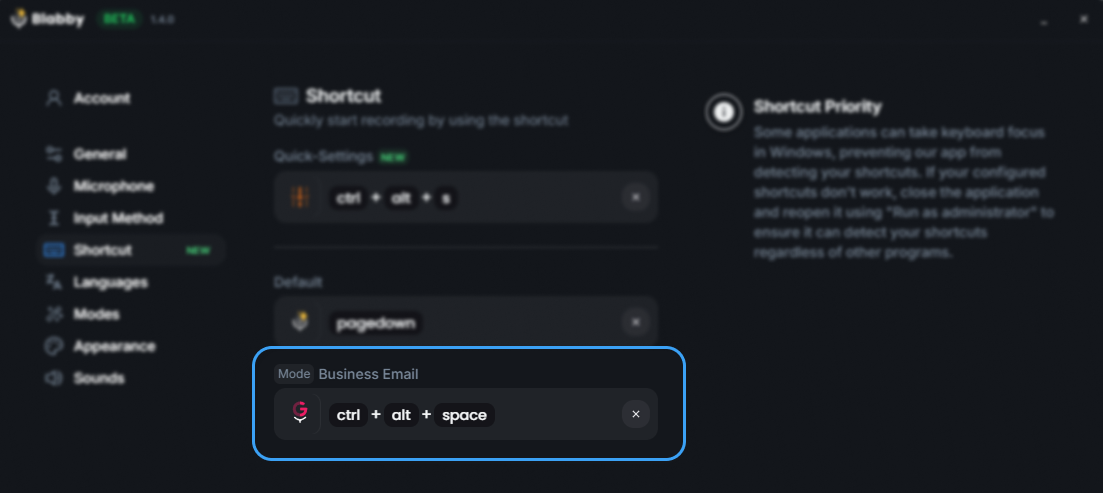
Shortcuts are assignable per mode, so a stuck Win+H or a conflicting hotkey is not a dead end.
The second difference is what happens to the words after they are transcribed. Word’s Dictate gives you a literal transcript of what you said. Blabby has modes, which are free-form instructions you write yourself and attach to a shortcut, so the same spoken sentence can arrive as a tidy paragraph, a formal email or cleaned-up notes depending on which one you used.
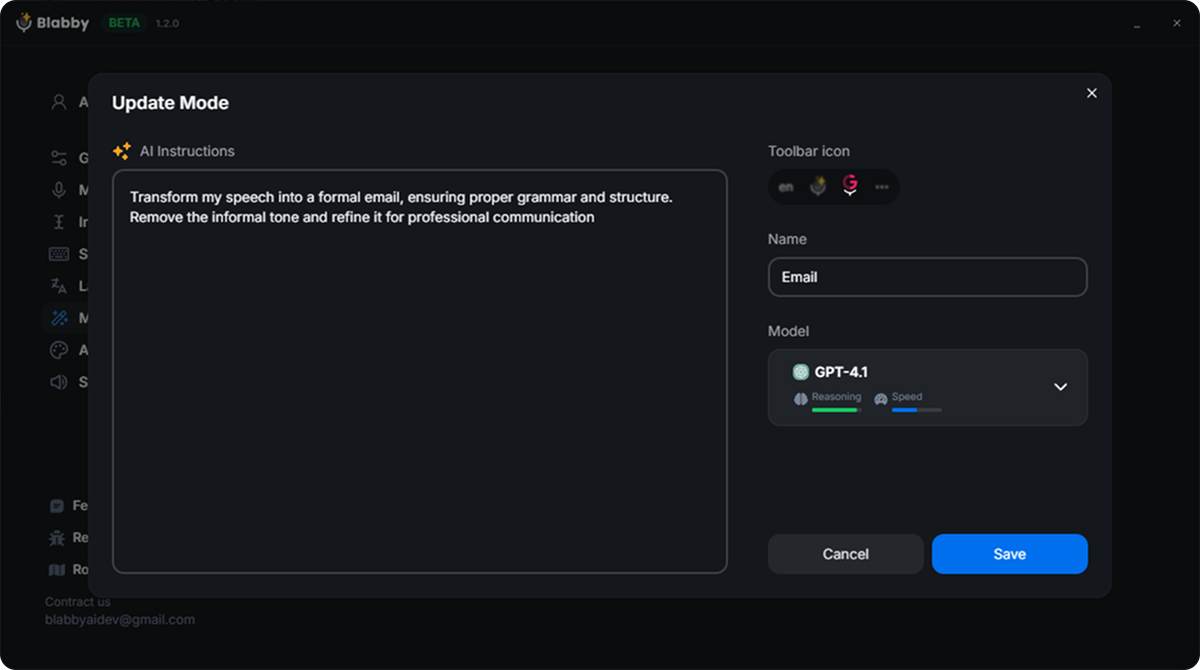
A mode is a plain instruction. This one turns spoken sentences into a formal email before they land in the document.
Pricing is a free tier of 60 credits a week, about 2,000 words, with no card required, and $8.49 a month for unlimited use. For the reader who arrived here because Dictate is greyed out on a work laptop and IT is not going to change the policy, that is the shape of the answer: stop trying to re-enable somebody else’s feature.
Not on Windows, or not allowed to install?
Keeping it working once you have fixed it
Dictation that broke once tends to break again, because the settings it depends on are ones that other processes are entitled to change. Three habits cover most repeat failures.
- Recheck privacy options after a big Office update. Feature updates can reset the connected experiences choice. If dictation dies the week an update landed, that is the first place to look rather than the last.
- Pin your input device. Set the microphone you actually use as the Windows default explicitly, so docking a laptop or joining a call does not silently reassign it.
- Keep a fallback that does not share the dependency. The reason a second dictation route is worth having is not redundancy for its own sake. It is that Word’s dictation can be switched off by a policy you never see, and when that happens there is no fix, only an alternative.
Frequently asked questions
Why is Dictate greyed out in Word?
Microsoft classifies Dictation as a connected experience that analyses your content, and its own documentation states that when you turn that category off, the ribbon command is greyed out. Turn it back on under File, Account, Account Privacy, Manage Settings, then restart Word. The second documented cause is a read-only document: Microsoft lists that separately, and it greys the button in exactly the same way. If the privacy setting is locked, an administrator has set it by policy and only they can change it.
Why is there no Dictate button in my Word at all?
Dictate ships only with Microsoft 365 subscriptions and Word for the web. One-time purchase versions, including Word 2016, 2019, 2021 and 2024, have never included it. If you bought Word once rather than subscribing, the button is not missing or broken: it was never part of that licence. Windows voice typing on Win+H, or a separate dictation app, works in those versions instead.
Does Word dictation work offline?
No. Word dictation is a cloud service: your audio is sent to Microsoft servers, transcribed there and returned. With no internet connection the button either fails to start or shows a connection error. This is also why it can break when a firewall, VPN or corporate proxy blocks the path to the speech service, even though everything on your PC looks correctly configured.
Dictate opens and the microphone animates but no text appears. Why?
Word is receiving silence, which almost always means Windows is routing a different input device than the one you are speaking into. Check the default input under Settings, System, Sound, and confirm the level meter moves when you talk. The second cause is the desktop app microphone permission, which is a separate toggle from the main microphone switch and blocks Office specifically.
How do I fix dictation in Word without a Microsoft 365 subscription?
You cannot enable the built-in Dictate button without a subscription, because it is a licensed feature rather than a setting. The working alternatives are Windows voice typing, which is free and opens with Win+H in any text field including a Word document, or a dedicated dictation app such as BlabbyAI, which types into Word the same way a keyboard does and does not depend on your Office licence at all.
Why does dictation work in Word but not in Outlook?
That pattern points at a per-application permission rather than at Word. Windows keeps a separate microphone toggle for desktop applications, and security software or an administrator can restrict individual Office apps. It can also happen when one app is signed in with a licensed work account and the other is running under a personal account without a subscription.
Related reading
- How to dictate in Word covers the setup and the voice commands once the button works.
- Voice typing not working on Windows is the equivalent page for Win + H rather than for Word.
- Microsoft Word dictation software compares the tools that dictate into Word, including without a 365 plan.
- Dictation software is the wider category page if you are choosing a tool rather than fixing one.
Sources
- Connected experiences in Microsoft 365 Apps, Microsoft Learn. Lists Dictation among connected experiences that analyse content, and states that disabling them greys out the ribbon command.
- Manage privacy controls for Microsoft 365 Apps, Microsoft Learn. The Group Policy path, the policy names and the registry values.
- Dictate your documents in Word, Microsoft Support. The subscriber requirement, the read-only cause, and the supported and preview language lists.
- If dictation in Office isn’t working, Microsoft Support. The official microphone error strings.
- Turn on app permissions for your microphone in Windows, Microsoft Support. The desktop app microphone toggle.
- Dictate in Word does not work, Microsoft Q&A. The desktop app permission refresh, and a user report of Word having no individual microphone toggle.
- To use Dictation, you need internet connection, Microsoft Q&A. The web filter case and the unsaved document workaround.
- Lack of dictation button in Office 2024, Microsoft Q&A. A Microsoft moderator confirming dictation is not included in Office 2024.
A dictation shortcut that no policy can switch off
BlabbyAI: Whisper large v3 turbo on Windows, on Android or in Chrome, typing into any text field including Word. 60 credits a week free, no card.