
Published July 29, 2026 · By Sumbat.T
The 10 Best Note-Taking Apps in 2026 (Free and Paid, Ranked by What They Are Actually Good At)
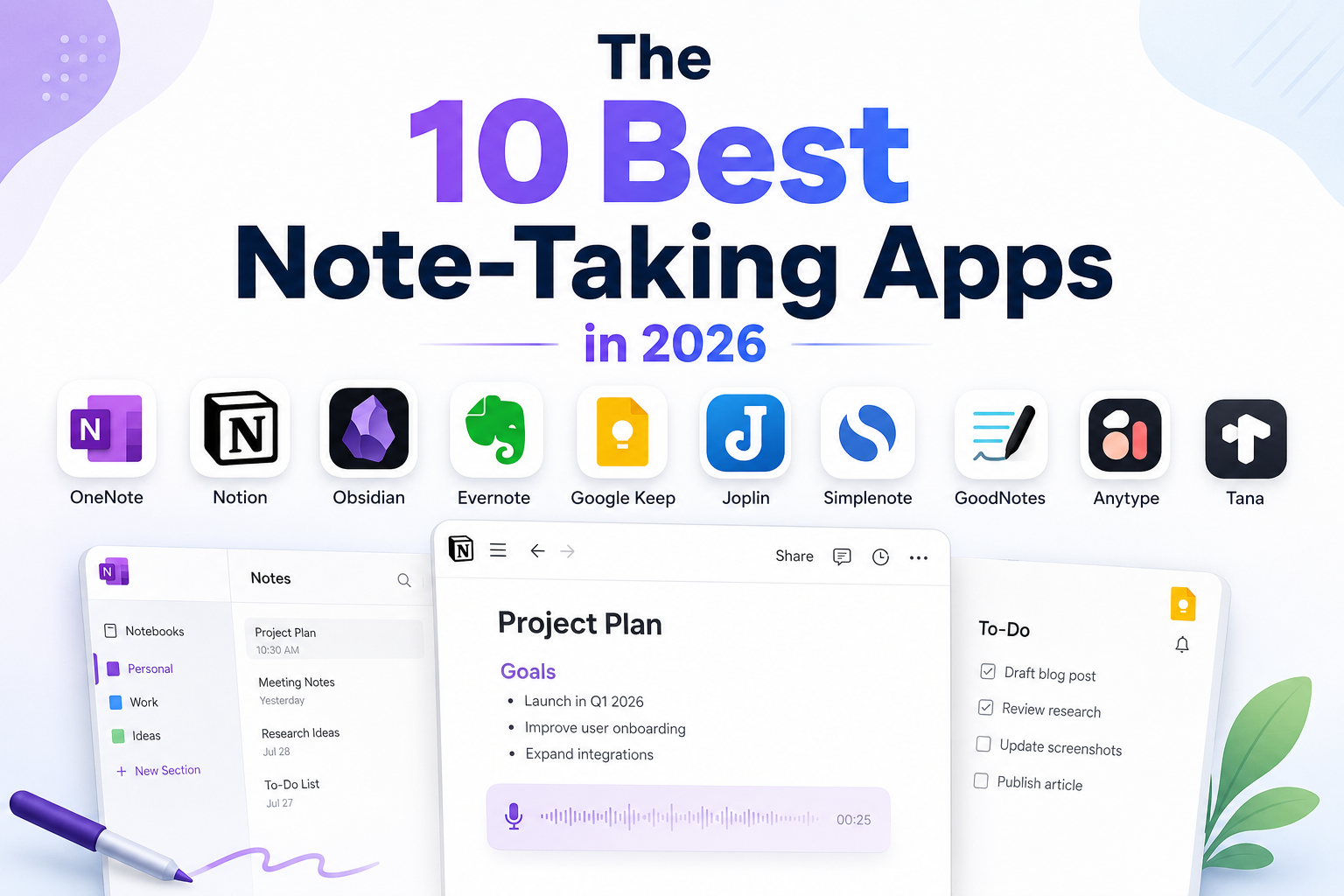
Most best-note-taking-app roundups rank twelve apps that all do the same thing and crown whichever one paid for placement. This one works differently: each of the ten apps below is the best at one specific job (free everyday notes, linked research, quick capture, privacy, meetings), so you can pick by the job instead of the hype. Every app either runs on Windows or is clearly flagged where it does not, and free-tier limits are stated honestly, including the ones vendors bury.
Step 0: Get Speech-to-Text Software
You speak at 150+ words per minute but type at about 40. That gap is why you lose your train of thought mid-note: while you are writing down one idea, the next one slips away. No note app on this list fixes that, because whichever app you pick, your thoughts still enter it at typing speed. A dictation tool closes the gap. You talk, it types clean, punctuated text into whatever app you already use, roughly 3x faster than typing (a Stanford-affiliated study measured 2.93x, with fewer errors).
We make one: BlabbyAI. Press Ctrl+Space anywhere on Windows, or tap the floating mic in the Android app, speak, and the text lands in Notion, OneNote, Obsidian, or Google Docs. The free tier covers about 2,000 words a week, no signup, so you can test voice capture in any app below.
Launch plan
Send the beta invite on Monday and book the demo room for Thursday.
The floating mic above is BlabbyAIThe toolbar above is BlabbyAI
Capture notes at the speed of speech
BlabbyAI turns your voice into clean, punctuated notes in any app on Windows, Android or Chrome. Free to start.
Key Takeaways
- Best free app: OneNote. Unlimited notes on a real Windows app, limited only by OneDrive storage. Simplenote is the fully-free minimal option.
- Best all-in-one: Notion. Notes, databases, and wikis in one workspace, with the most capable free personal plan of the structured tools.
- Best for owning your notes: Obsidian. Plain Markdown files on your own disk, free, with a plugin for everything.
- Watch the fine print. Evernote's free plan is capped at 50 notes, and Google Keep has no Windows desktop app.
- Capture speed beats app choice. Notes enter every app at typing speed (~40 wpm) unless you dictate them (150+ wpm). Fix input speed first, then pick the container.
How We Picked (and Why Capture Speed Is Criterion #1)
Three rules shaped this list. First, one winner per job: you will not see five interchangeable Markdown editors. Second, Windows support is stated plainly, because a surprising number of note-taking apps still treat the world's most common desktop OS as an afterthought. Third, free tiers are described by their limits, not their marketing: a 50-note cap is a trial, not a free plan.
One more thing before the list. Notes exist because memory fails on a schedule: a 2015 replication of Ebbinghaus' forgetting curve found retention drops to about 44% within an hour and roughly a quarter by the next day. So the app matters less than whether the idea got captured at all, and capture is bottlenecked by speed: you handwrite at 13 to 20 words per minute, type at about 40, and think much faster. That is why this guide starts with a dictation tool instead of app #1. If you want the full method side of this (Cornell, outlining, Zettelkasten), see our guide to note-taking methods.
Five Things That Matter More Than the Feature List
Note apps are famously easy to switch into and painful to switch out of, so judge them on the things that hurt later, not the demo:
- Where your notes live. Local files (Obsidian, Anytype, Joplin) survive any company's pivot or price hike. Cloud databases (Notion, Evernote) trade that for convenience. Ask: if this vendor tripled prices tomorrow, could I leave with my notes intact?
- Export quality. Related but not identical: some apps hold notes hostage with lossy or partial exports. OneNote and Notion are both weaker here than their polish suggests.
- Offline behavior. Notes are exactly the thing you need on a plane, in a basement meeting room, or when the Wi-Fi dies mid-lecture. Local-first apps do not have an offline mode; they have an online option.
- Capture friction. Count the seconds from "idea" to "cursor in a note." Every extra second is compounded by the forgetting curve above. This is where quick-capture apps and dictation beat feature-rich workspaces.
- The price of the tier you will actually need. Free plans differ wildly: OneNote's is effectively unlimited, Evernote's is 50 notes. Judge the plan you would land on after a year of real use, not the one on the signup page.
Quick Comparison
| App | Best for | Free tier | Windows app |
|---|---|---|---|
| OneNote | Free everyday notes | Yes (best free) | Yes, native |
| Notion | All-in-one workspace | Yes | Yes |
| Obsidian | Linked notes you own | Yes (fully free) | Yes |
| Evernote | Search and web clipping | 50-note cap | Yes |
| Google Keep | Quick capture | Yes (fully free) | Browser only |
| Joplin | Open-source Evernote replacement | Yes (app is free) | Yes |
| Simplenote | Minimal, zero-cost notes | Yes (everything free) | Yes |
| GoodNotes | Handwriting and stylus | 3 notebooks | Yes |
| Anytype | Local-first privacy | Yes | Yes |
| Tana | AI notes and meetings | Yes (AI caps) | Yes |
The 10 Best Note-Taking Apps for 2026
1. Microsoft OneNote · best free note-taking app
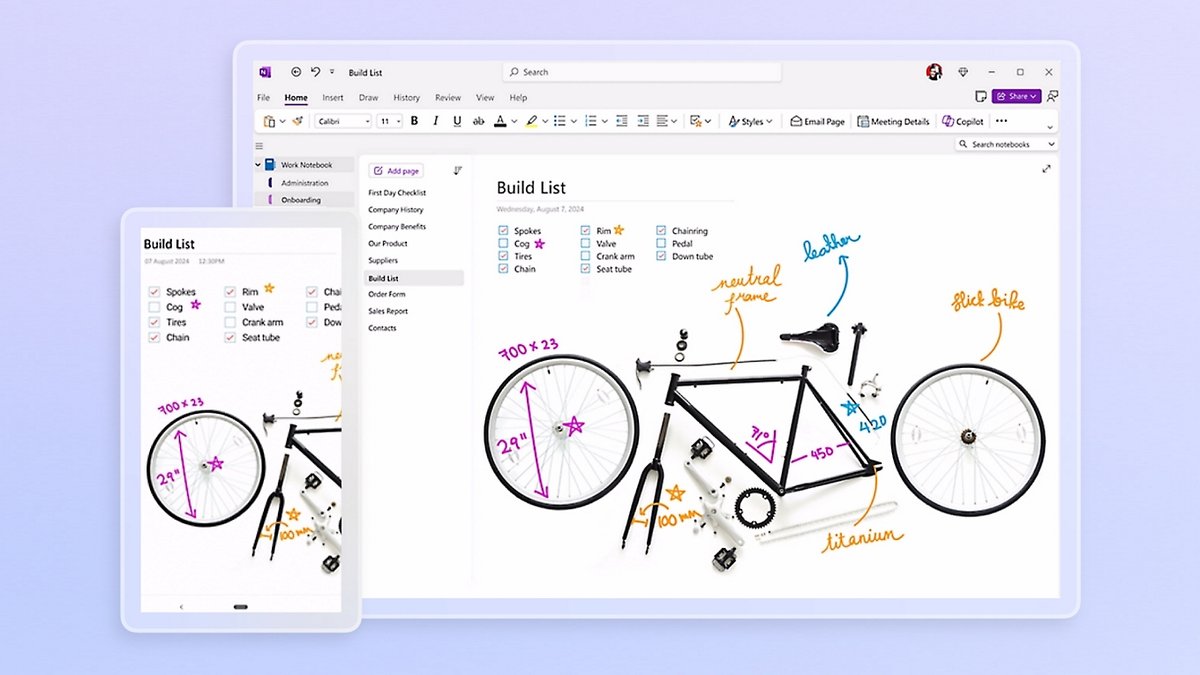
OneNote is the strongest truly-free tier in note-taking: unlimited notes and notebooks across unlimited devices, on a native Windows app that ships with the OS. Pages are freeform canvases, so typed text, ink, screenshots, and audio recordings can live side by side anywhere on the page, and the notebook, section, and page hierarchy maps naturally onto classes, clients, and projects. If you have a stylus or touchscreen, ink support is among the best on Windows, and screen clippings land in your notebook with one shortcut.
The economics are simple: the app is free, and storage counts against your OneDrive quota (5GB free). A Microsoft 365 Personal subscription ($9.99/month or $99.99/year) raises that to 1TB and adds Copilot AI inside OneNote, but plenty of people run years of notes without ever paying. The honest downsides are sync conflicts when you mix the different OneNote app versions, weak export options if you ever want to leave, and freeform pages that turn into junk drawers without some discipline.
Pros
- Genuinely free: no note caps, no device caps
- Ships with Windows and integrates with Office and Outlook
- Freeform canvas: text, ink, audio, and clippings on one page
- Best-in-class stylus and touchscreen support
Cons
- Sync conflicts between OneNote app versions are a long-running complaint
- Weak export options make switching away painful later
- Freeform pages get messy at scale without discipline
2. Notion · best all-in-one workspace
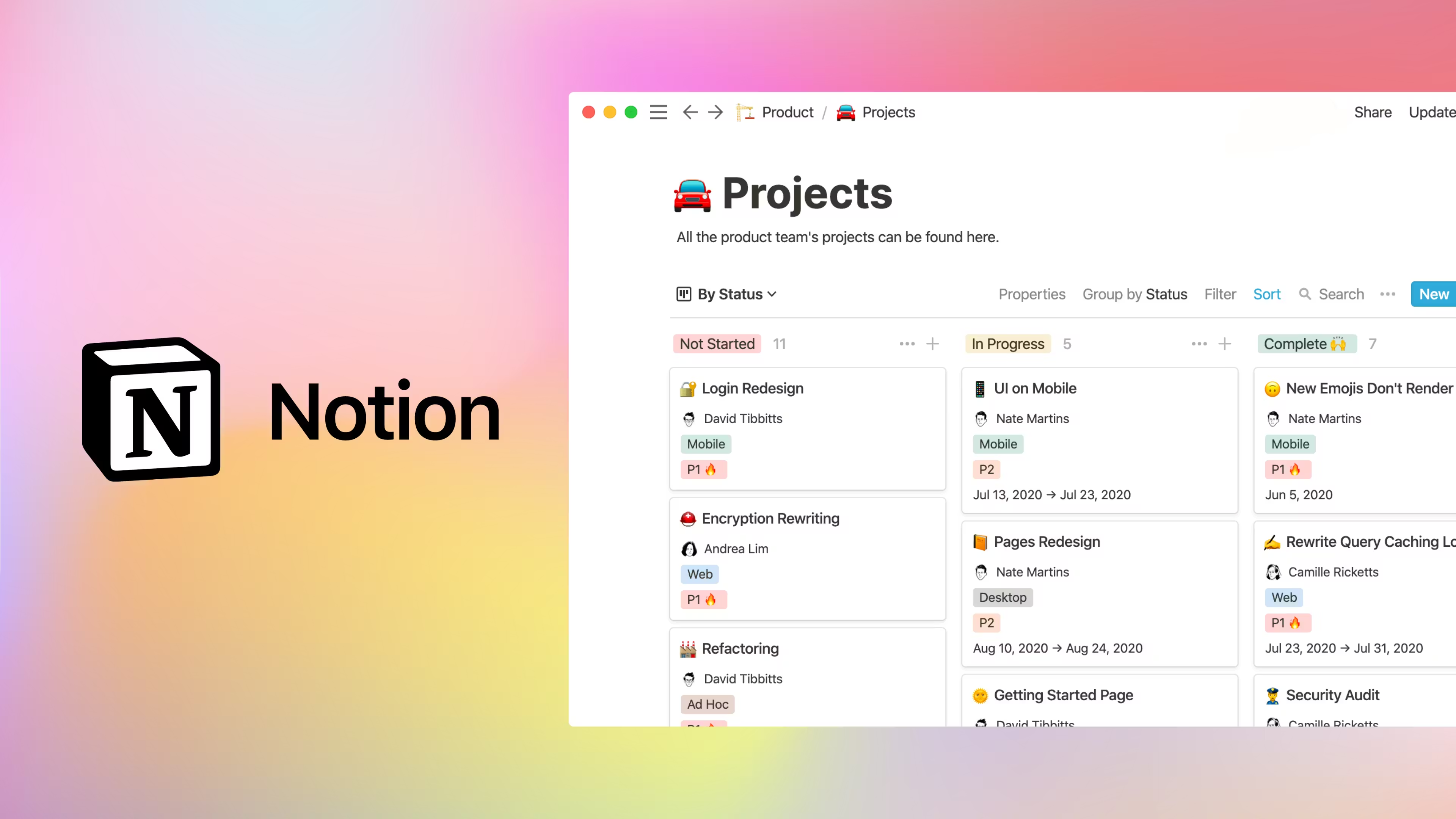
Notion is where notes stop being a pile and become a system: pages nest inside pages, any list can become a database with table, board, calendar, and gallery views, and the same workspace holds your notes, tasks, and wiki. That flexibility is why over 100 million people use it, and why the template ecosystem is enormous: whatever system you are trying to build, someone has already built and shared it.
The free plan is fully usable for personal work (the practical limits are 5MB file uploads and 7 days of page history). Plus is $8 per member per month billed annually ($10 monthly), and AI now runs on separate credit packs at $10 per 1,000 monthly credits rather than being bundled. The trade-off is overhead: an everything-app makes simple capture slower than a sticky-note app, new users lose their first weekend to workspace tinkering, and offline mode (finally added in August 2025) still requires free users to download pages for offline use one by one.
Pros
- Notes, databases, tasks, and wikis in one workspace
- Free plan is genuinely usable for personal work
- Huge template and community ecosystem
- Real Windows desktop app plus web and mobile
Cons
- Everything-app overhead makes quick capture slow
- Offline support is recent and clunky on the free plan
- AI is a separate credit-based cost, not included

3. Obsidian · best Markdown notes you own forever
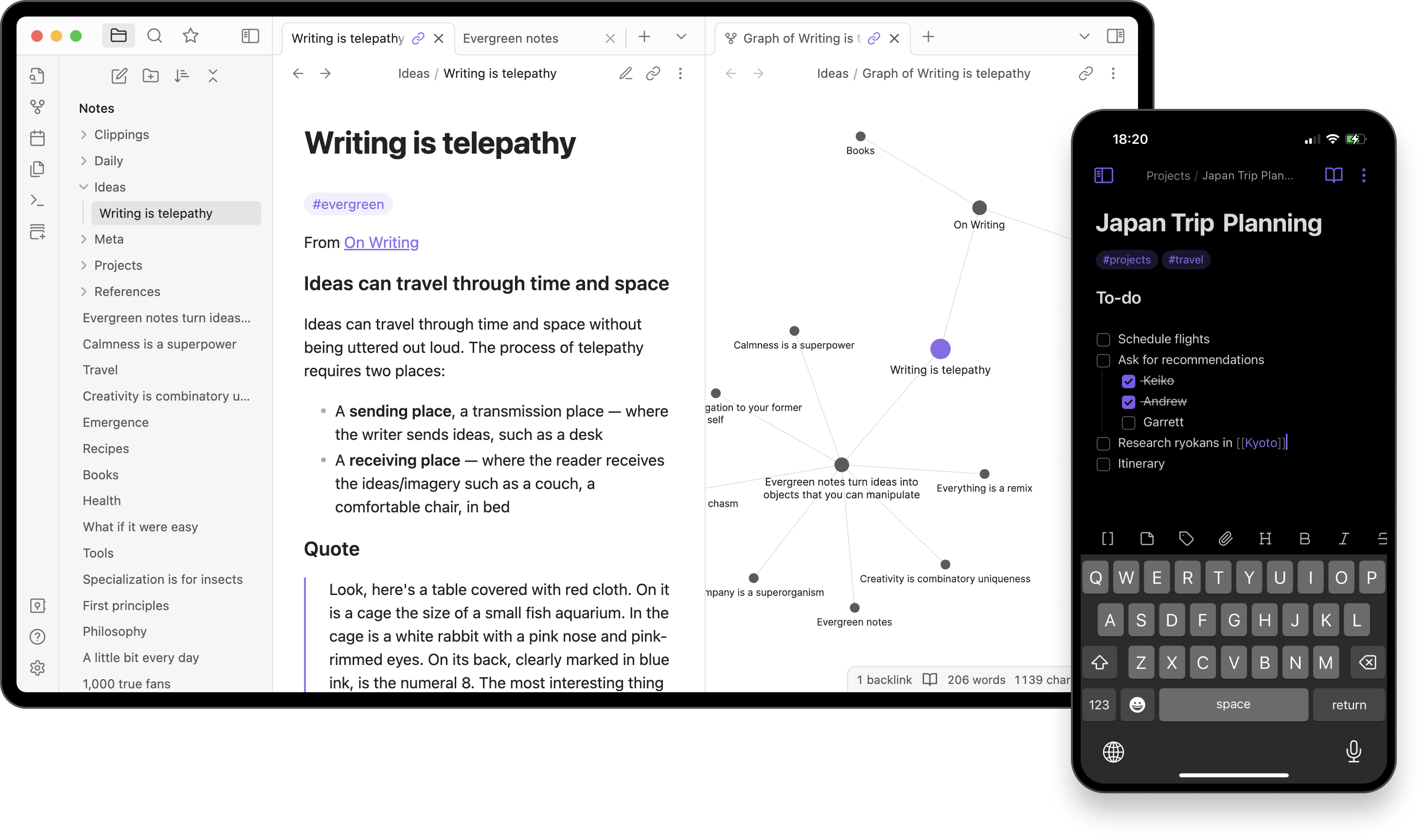
Obsidian stores every note as a plain Markdown file in a folder on your own disk, which means no lock-in, offline-first speed, and notes that will still open in 20 years in any text editor. On top of that sit wiki-style links between notes, backlinks, a graph view that shows how your ideas connect, and one of the largest plugin ecosystems in productivity software: calendars, spaced repetition, Kanban boards, and a few thousand more.
Pricing is unusually generous: the app is 100% free, including for commercial use (a commercial license exists but is optional). The official Sync service is $4 per user per month billed annually if you want end-to-end encrypted sync across devices, but because the vault is just a folder, many users sync it for free with OneDrive, Syncthing, or git. The costs are time, not money: linking and plugins take a while to click, and the plugin rabbit hole can quietly become its own hobby.
Pros
- Notes are local Markdown files: no lock-in, works fully offline
- Free even for commercial use
- Thousands of community plugins and themes
- Backlinks and graph view for connected, long-term notes
Cons
- Steeper learning curve than mainstream apps
- Multi-device sync costs extra or requires DIY setup
- Easy to spend more time configuring than writing
4. Evernote · best search and web clipping, with a catch
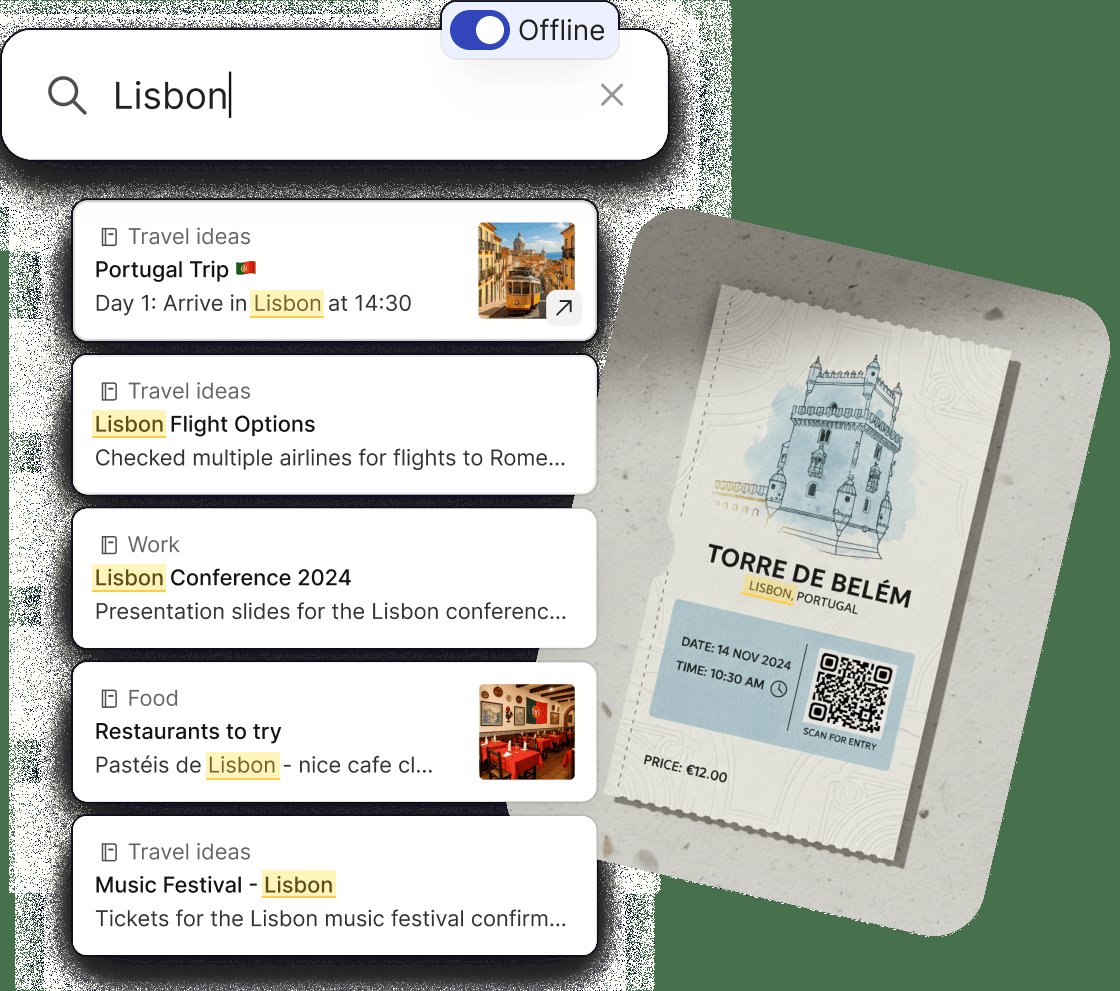
Evernote still has the best capture-and-find pipeline in the category: the web clipper saves full pages, simplified articles, or screenshots, and search reads text inside images, PDFs, and even handwriting. If your notes problem is really a documents problem (receipts, contracts, whiteboard photos, years of scanned paper), nothing else on this list retrieves it as reliably.
The catch is pricing. The free plan is capped at 50 notes, one notebook, and one device, which makes it a demo rather than a tier, and prices have climbed repeatedly since Bending Spoons acquired the company. The late-2025 restructure landed on Starter at about $99 a year (roughly $14.99 if billed month to month) and Advanced at about $250 a year. Existing users with a decade of notes inside often decide the search alone is worth it; new users have to want that search badly to pick it over the free options here.
Pros
- Best search in the category, including OCR inside PDFs, images, and handwriting
- The web clipper is still the benchmark
- Mature, polished apps on every platform including Windows
Cons
- Free plan is a demo: 50 notes, 1 notebook, 1 device
- Repeated price hikes since the Bending Spoons acquisition
- Trust: long-time users are vocal about feeling squeezed

5. Google Keep · best quick capture
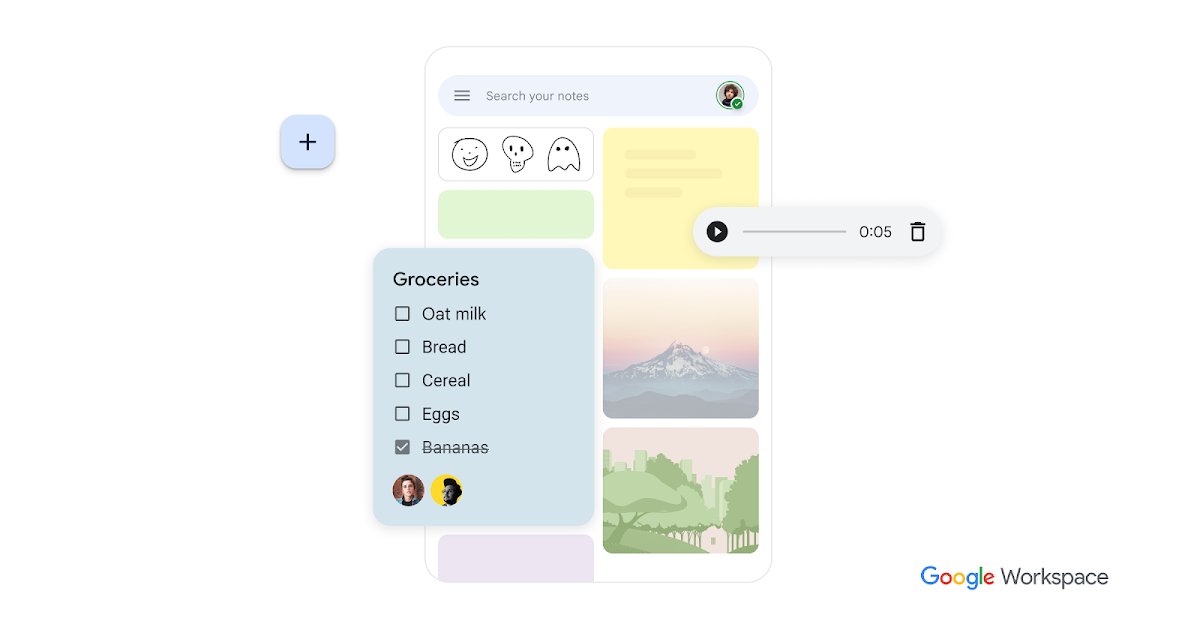
Keep is a wall of sticky notes: open, jot, done, synced to your Google account. Checklists, color coding, labels, reminders ( including location-based ones), and voice memos make it ideal for shopping lists, fleeting thoughts, and things you need back on your phone later, and it is completely free with no paid tier at all. Notes also flow into Google Docs when a quick jot grows into a real document.
The critical caveat for this site's readers: there is no Windows desktop app. You get the browser tab (installable as a web app) and mobile apps, so on a PC it works best as the capture layer next to a real desktop app rather than as your main notebook. And Keep collapses at scale: with labels instead of folders and almost no formatting, a few hundred notes become an unsearchable wall.
Pros
- Completely free, no paid tier
- Fastest capture of any app on this list
- Reminders, checklists, and location-based notes
- Syncs instantly across Google account and mobile
Cons
- No Windows desktop app, browser only
- Labels only: no folders, no real formatting
- Unmanageable once notes number in the hundreds
6. Joplin · best open-source Evernote replacement
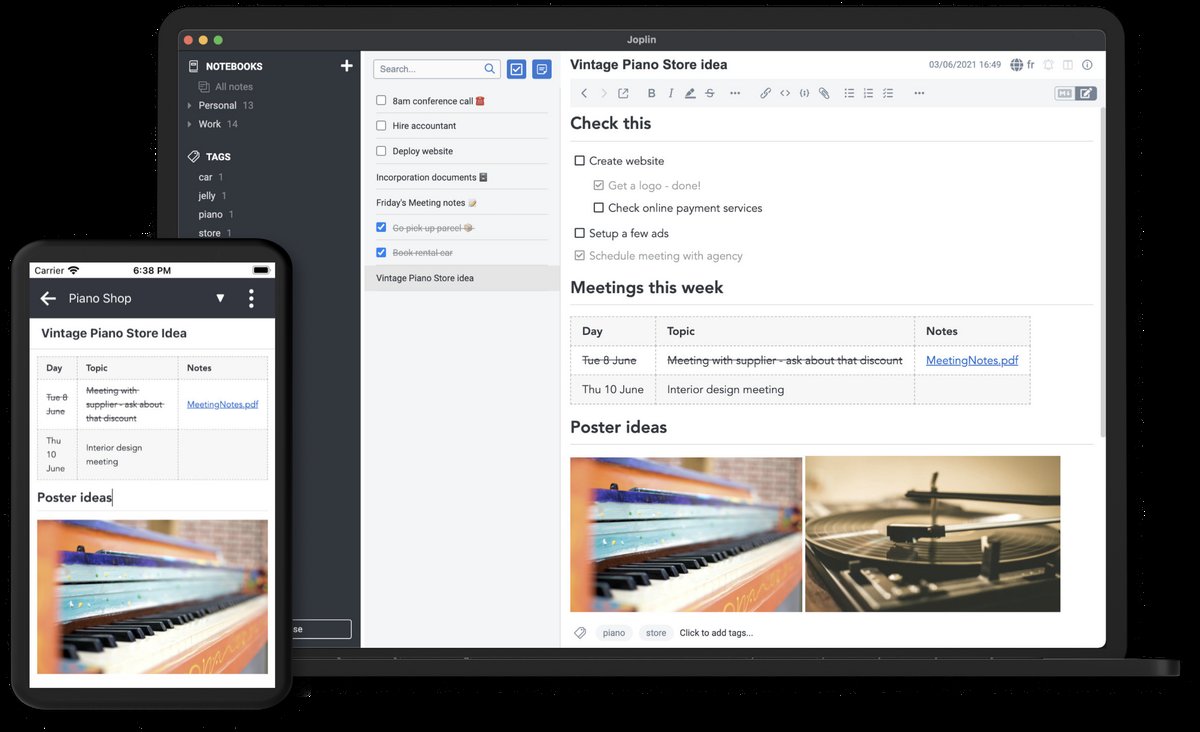
Joplin looks and works like classic Evernote (notebooks, tags, web clipper) but is free, open source, and syncs through a provider you choose: Dropbox, OneDrive, WebDAV, your own server, or the optional paid Joplin Cloud (Basic is EUR 2.99 a month). Notes are Markdown, end-to-end encryption is available for sync, and it imports Evernote export files directly, which is exactly how many of its users arrived after the 50-note cap landed.
It is the pick when you want Evernote's shape without Evernote's pricing or cloud: notebooks and tags for structure, a clipper for capture, and your data wherever you decide it lives, including fully self-hosted. The cost is polish. The interface is functional rather than pretty, and picking and configuring a sync target takes more clicks than any commercial app asks of you.
Pros
- Free and open source, with Windows, Mac, Linux, and mobile apps
- Sync through Dropbox, OneDrive, self-hosting, or Joplin Cloud
- End-to-end encryption available
- Imports Evernote exports directly
Cons
- Utilitarian interface compared with commercial rivals
- Sync setup is a project, not a toggle

7. Simplenote · best minimal free notes
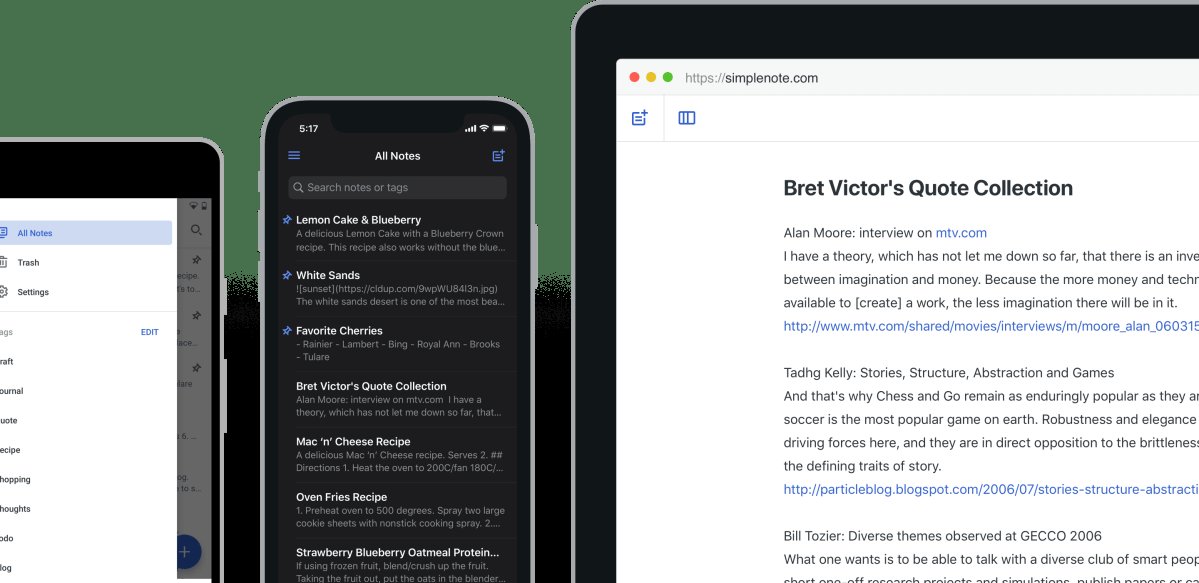
Simplenote is text, tags, search, and instant sync, and that is the whole app. Everything is free (it is maintained by Automattic, the WordPress company), there are apps for Windows and every other platform, and notes open instantly because there is nothing to load: no blocks, no databases, no toolbar. Version history lets you slide back through every save of a note, and publishing or sharing a note is built in.
It earns its slot as the app for people exhausted by apps. If your notes are words (drafts, journal entries, meeting scribbles, lists) and your reaction to the Notion section above was a headache, Simplenote is the antidote. The limitation is the same as the pitch: no images, no attachments, no rich formatting beyond Markdown, which is either the entire point or a dealbreaker.
Pros
- Entirely free, including sync, with no paid tier
- Fastest, lightest app on this list
- Version history on every note
- Windows, Mac, Linux, web, and mobile apps
Cons
- Text only: no images or attachments
- Tags only: no notebooks or folders
- Too spartan if notes are more than words

8. GoodNotes for Windows · best handwriting and stylus notes
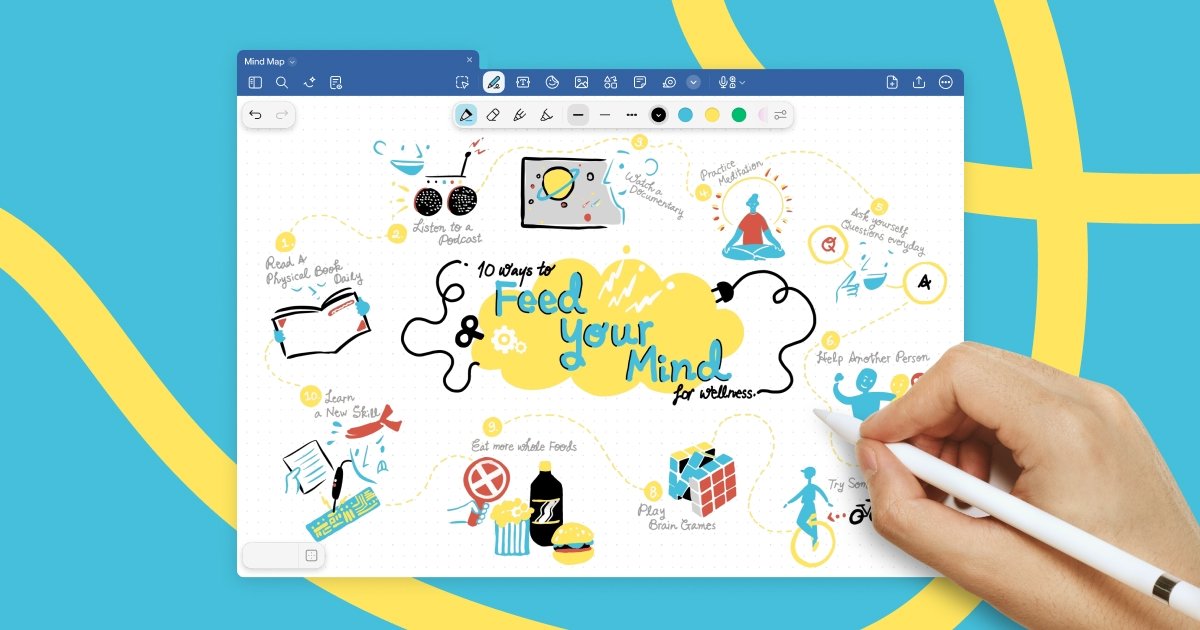
GoodNotes built its reputation on the iPad, but the Windows version from the Microsoft Store now makes it the stylus pick for touchscreen laptops and 2-in-1s: handwritten notes that feel like paper, PDF import and annotation for marking up readings and slides, and notebooks with proper covers and pages. For students who remember better when they write by hand (the research says there is something to that, though the effect is smaller than the famous 2014 study claimed), this is that workflow on hardware you already own.
Pricing is friendly: the free tier covers 3 notebooks so you can actually try it, Essential is $11.99 a year, and Pro, which adds cross-platform library sync, is $35.99 a year. Two honest caveats: the Windows app still trails the iPad version on features (GoodNotes' own support pages keep a list of what is missing), and handwriting is the slowest possible way to capture words, at 13 to 20 per minute, so it suits annotating and diagramming more than transcribing a fast lecture.
Pros
- Best handwriting and PDF annotation experience on Windows
- Cheap: Essential at $11.99/year, free tier to test
- Great on touchscreen laptops and 2-in-1s
Cons
- Windows version lags the iPad version on features
- Subscription-only on Windows, no one-time purchase
- Handwriting caps capture speed at 13 to 20 words per minute

9. Anytype · best local-first privacy pick
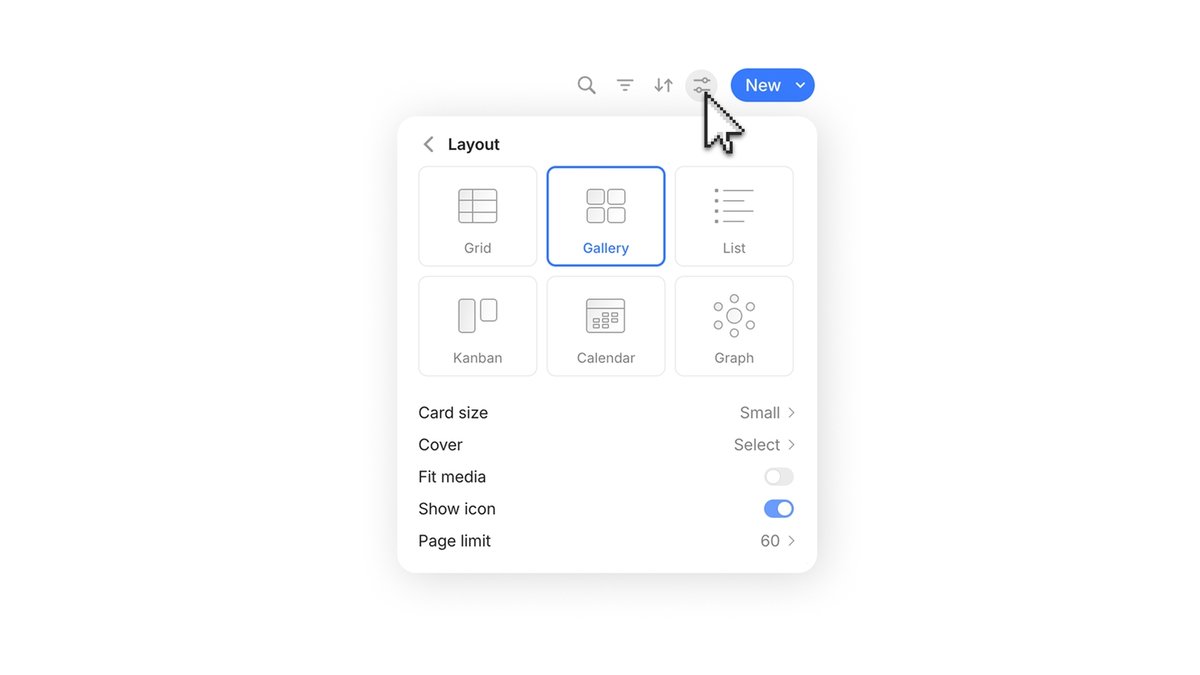
Anytype gives you Notion-style objects, relations, and databases, but everything is stored end-to-end encrypted on your device first, and it works fully offline. It does not even ask for an email: identity is a recovery phrase, like a crypto wallet, so there is no account to breach and no server that can read your notes. The core app is free on Windows, Mac, Linux, and mobile, with paid memberships mainly buying encrypted network storage and name registration.
For anyone who likes Notion's model but not the idea of every thought living on someone else's server, this is the closest match, and it is the most private serious note app in this list. The trade-offs are youth: the ecosystem and template library are small next to Notion's, collaboration arrived recently, sharing with people who do not use Anytype is clunky, and the paid plan structure has churned enough that we are not quoting prices here (check in the app).
Pros
- Local-first and end-to-end encrypted, works fully offline
- No email or account required
- Notion-style objects and databases, free core app
- Windows, Mac, Linux, and mobile
Cons
- Small ecosystem next to Notion
- Sharing with non-users and collaboration still maturing
- Paid plan structure keeps changing

10. Tana · best AI note-taking app for meetings and power users
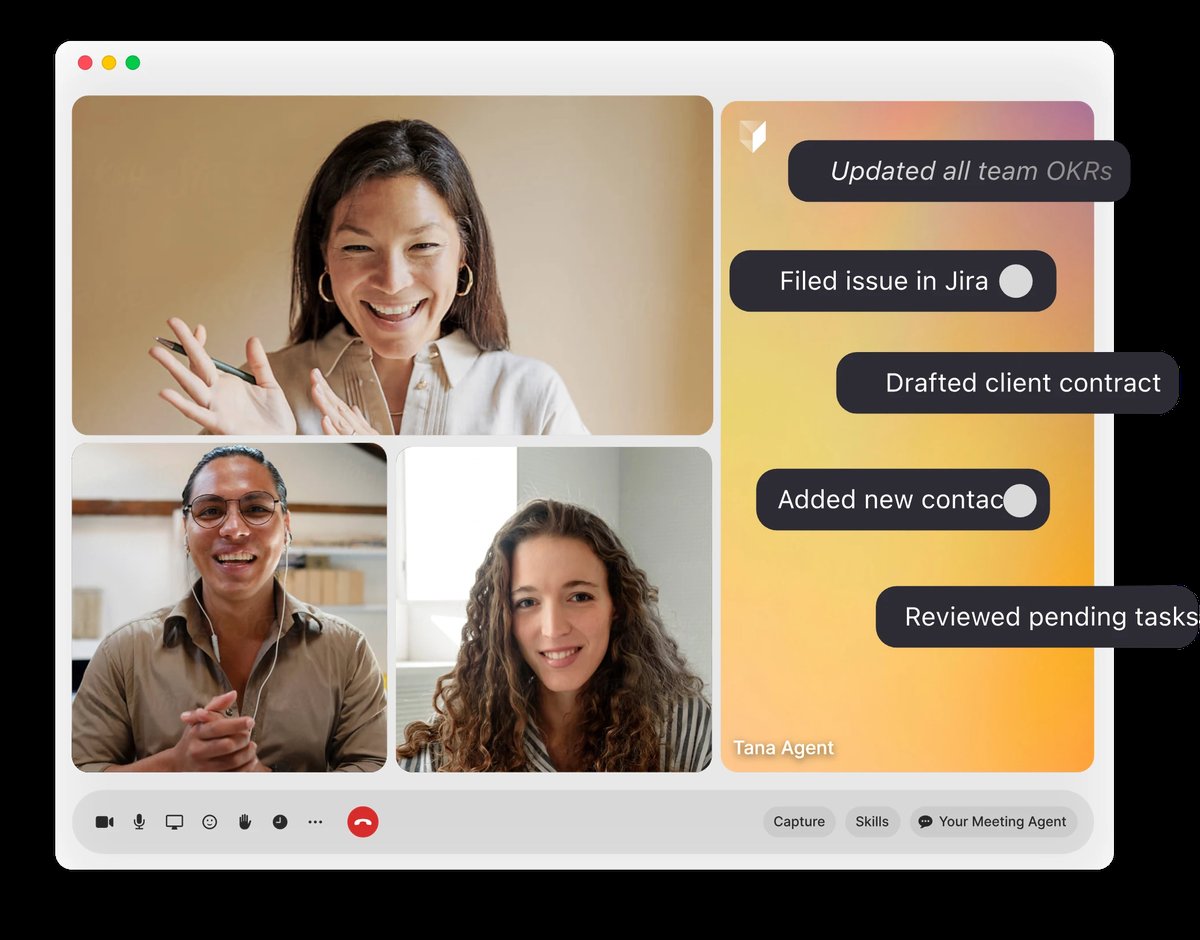
Tana is an AI-native outliner: tag any bullet with a supertag and it becomes structured data (a meeting, a person, a task) that queries and dashboards can use later. Tag a line #meeting and it gains date, attendees, and action-item fields automatically; ask for "every open action item from meetings with this client" and it is a saved live search, not a manual hunt. Its built-in meeting agent joins Zoom, Teams, or Meet calls and produces transcripts and structured notes, and there is a native Windows desktop app.
The free tier covers 5 hosted meetings a month, one connected calendar, and a small AI allowance; Pro is $20 a month at the current early-bird rate ($30 regular), which makes it the most expensive app on this list and the steepest to learn, overkill if you just want notes. For turning speech into notes outside meetings, in any app here, a system-wide dictation tool (see our voice to text software guide) is the simpler, cheaper fit.
Pros
- Supertags turn plain notes into queryable structured data
- Built-in AI meeting agent for Zoom, Teams, and Meet
- Native Windows desktop app plus mobile capture
Cons
- Most expensive app on this list
- Steep learning curve for casual note-takers
- Heavily AI-centric: free tier caps bite quickly
Worth a look but not in the ten: Capacities (promising object-based notes with a free core, on Windows), Mem (AI-first notes, now with a Windows app, but sign-in is Google-only), and Logseq (a great free outliner currently mid-transition: the new database version shipped in beta in July 2026 with the team's own data-loss warnings, so wait for it to stabilize). Apple Notes and Reflect are excellent but have no Windows app, so they are out of scope here. If your note-taking pain is really a focus or organization pain, our roundups of ADHD productivity apps and time management tools cover that side.
Which Note-Taking App Should You Pick?
Best free note-taking apps
OneNote for full-featured notes, Simplenote for pure text, Obsidian if you want Markdown files you own, Joplin if you want open source with sync options, Google Keep for capture (browser only on desktop). All of these are usable forever without paying. The free tier to avoid relying on is Evernote's 50-note cap.
Best note-taking app for students
OneNote, and it is not close for the price: notebooks per class, sections per topic, ink and slides on the same page, free. Notion is the upgrade when you also want assignment databases and semester dashboards. The real student problem is that lectures run at speaking speed while your fingers run at 40 wpm; our ADHD study tips guide covers capture strategies that survive a fast lecture.
Best AI note-taking app
Split the question by where the AI sits. AI on top of stored notes: Notion AI summarizes, rewrites, and answers questions across your workspace. AI for meetings: Tana's meeting agent joins calls and produces structured notes. AI at the point of capture: BlabbyAI dictation types your speech as clean text into any app and can reformat it on the fly with AI modes, which is the only one of the three that makes the note-taking itself faster.
Best note-taking app for meetings
If meetings are the problem, you have two workable shapes. Fully automatic: Tana's meeting agent joins the call and hands you a transcript and structured notes afterward, best when you are in back-to-back calls all day. Semi-automatic: keep OneNote or Obsidian open and dictate your own running notes with BlabbyAI during or right after the call, best when you only need your takeaways, not a full transcript, or when recording the call is not appropriate. The second option also works for in-person meetings, where bots cannot follow.
Best note-taking software for Windows
OneNote is the native default, and Notion, Obsidian, Evernote, Joplin, Simplenote, GoodNotes, Anytype, and Tana all ship real Windows desktop apps. Google Keep is browser-only on desktop, and a touchscreen or 2-in-1 laptop turns GoodNotes into a paper notebook replacement. For the rest of a Windows productivity setup around your notes, see our guide to the best Windows productivity apps.
Frequently Asked Questions
What is the best note-taking app?
For most people the honest answer is OneNote or Notion. OneNote is completely free, runs natively on Windows, and handles freeform notes, drawings, and clippings. Notion wins if your notes need structure: databases, wikis, and project docs in one place. If you want your notes as plain files you own forever, Obsidian is the pick.
What is the best free note-taking app?
OneNote has the most generous truly-free tier of any major note app: unlimited notes, notebooks, and devices, limited only by your OneDrive storage. Simplenote is entirely free with no paid tier at all. Obsidian is free even for commercial use, and Joplin is free open source. Evernote is the one to watch out for: its free plan is capped at 50 notes and one device.
What is the best AI note-taking app?
It depends what you want the AI to do. For summarizing and rewriting notes you already have, Notion AI is the most polished. For meetings, Tana joins your calls and turns them into structured notes automatically. For getting notes into any app 3x faster in the first place, a dictation tool like BlabbyAI turns speech into clean, punctuated text in whatever note app you already use.
What is the best note-taking app for students?
OneNote is the default recommendation for students: free, organized into notebooks and sections like real coursework, and it handles typed notes, drawings, and lecture slides on the same page. Notion is popular for organizing classes and assignments. If lectures move too fast to type, pair either app with a dictation tool so capture speed stops being the bottleneck.
What is the best note-taking software for Windows?
OneNote is the native choice and comes with Windows. Notion, Obsidian, Evernote, Joplin, Simplenote, GoodNotes, Anytype, and Tana all ship real Windows desktop apps. Google Keep is the notable gap: it has no Windows app, only the browser. Every pick in this list was chosen with Windows support as a hard requirement or clearly flagged.
Is OneNote or Notion better?
OneNote is better for freeform capture: class notes, meeting scribbles, drawings, screen clippings, all free. Notion is better for structured knowledge: databases, project trackers, team wikis, and linked docs. A common setup is both: OneNote as the fast messy inbox, Notion as the organized library.
Is Evernote still worth it in 2026?
Only if you live inside its search and web clipper. The free plan is capped at 50 notes, one notebook, and one device, which makes it a trial rather than a tier, and prices have risen repeatedly since the Bending Spoons acquisition (the Starter plan is about $99 a year). Long-time users with years of notes still get value from its search; new users usually start elsewhere.
Can I take notes with my voice in these apps?
Yes. A system-wide dictation tool like BlabbyAI types wherever your cursor is, so it works in OneNote, Notion, Obsidian, Evernote, Google Keep, and any other app on Windows. Press Ctrl+Space, speak, and punctuated text appears. On Android, the BlabbyAI app adds a small floating mic to any text field, so the same works in the note apps on your phone. Speaking is roughly 3x faster than typing, so it fixes the capture-speed problem that no note app solves on its own.
Whichever app you pick, fill it faster
BlabbyAI dictates clean, punctuated notes into OneNote, Notion, Obsidian, or any app on Windows, Android or Chrome. Free to start.
Sources
- Ruan, Wobbrock, Liou, Ng & Landay, "Comparing Speech and Keyboard Text Entry for Short Messages in Two Languages on Touchscreen Phones," 2016, arxiv.org, retrieved 2026-07-29.
- Murre & Dros, "Replication and Analysis of Ebbinghaus' Forgetting Curve," PLOS ONE, 2015, journals.plos.org, retrieved 2026-07-29.
- Mueller & Oppenheimer, "The Pen Is Mightier Than the Keyboard," Psychological Science, 2014, journals.sagepub.com; Morehead, Dunlosky & Rawson's 2019 replication found a smaller, less consistent effect, link.springer.com, both retrieved 2026-07-29.
- Notion, "100 million of you," September 2024, notion.com, retrieved 2026-07-29.
- Vendor pricing and plan pages, all retrieved 2026-07-29: OneNote, Notion, Obsidian, Evernote, Joplin, Simplenote, GoodNotes, Anytype, Tana.