
Published July 24, 2026 · By Sumbat.T
The Best Edge and Brave Extensions for Productivity in 2026
The Shortlist at a Glance
Tap any extension to jump to its full breakdown below. Every one works on both Edge and Brave.
| Extension | Best for | Why it saves time |
|---|---|---|
 1 OneTab | Tab overload | Collapse every tab into one list and reclaim memory instantly |
 2 BlabbyAI | Dictation | Talk instead of type into any text box, about 3x faster |
 3 Dark Reader | Eye comfort | Dark mode on any site, less eye strain on long sessions |
 GoFullPage | Screenshots | One-click full-page scrolling screenshots, no stitching |
 Grammarly | Writing | Real-time grammar and clarity fixes in any text field |
 1Password | Passwords | Autofills logins and generates strong passwords everywhere |
 Raindrop.io | Read later | Save and actually find articles later, the Pocket replacement |
 Notion Web Clipper | Web clipping | Save any page straight into your Notion in one click |
 Vimium | Keyboard nav | Browse and follow links without touching the mouse |
 Loom | Async video | Record screen plus webcam and share a link in seconds |
Key Takeaways
- Edge and Brave are both Chromium, so they run Chrome Web Store extensions. Edge also has its own Add-ons store. Anything here installs on both.
- Curation beats collecting. About 86% of store extensions have under 1,000 users, and most people install far more than they use. This is a tight, tested list.
- Two picks are dead, do not install them: Pocket (shut down July 2025) and The Great Suspender. We name live replacements.
- BlabbyAI is the one we would add first: voice dictation into any text box on Edge, Brave, system-wide on Windows, and on Android. It starts free.
Add BlabbyAI to Edge or Brave
Talk instead of type in any text box, or go system-wide on Windows.
The Chrome Web Store carries somewhere between 150,000 and 250,000 extensions depending on how you count (DebugBear, 2026), yet about 86% of them have fewer than 1,000 users, and most people install far more than they actually use. The point of this list is the opposite of hoarding: a small set of extensions that genuinely save time, all of which work on both Microsoft Edge and Brave because both are built on Chromium. Here they are, grouped by the job each one does.
Do Chrome Extensions Work on Edge and Brave?
Yes, and that is the whole reason this single list covers both browsers. Edge and Brave are both Chromium-based, so they install extensions straight from the Chrome Web Store. Brave's own documentation states that any extension in the Chrome Web Store will also work in Brave, and Edge installs those same extensions on top of having its own Edge Add-ons store.
There is one real caveat worth knowing: the move from Manifest V2 to Manifest V3. Legacy V2 extensions (most famously the full uBlock Origin) are being disabled, while V3 extensions behave identically across Chrome, Edge, and Brave. Every pick below is Manifest V3 safe, so you can install with confidence on either browser.
One rule before you install anything: add extensions one at a time, and only ones you will actually use. Every extension can read page content and costs a little memory, so a bloated toolbar is both a privacy and a performance tax. A short, trusted list beats a long, forgotten one.
Best for Writing Faster: Voice Dictation
The single biggest time sink in a browser is typing. Speaking runs about three times faster (Stanford, 2016), which is why a good dictation extension pays for itself in the first email.
BlabbyAI (our pick for writing faster)
Visit BlabbyAI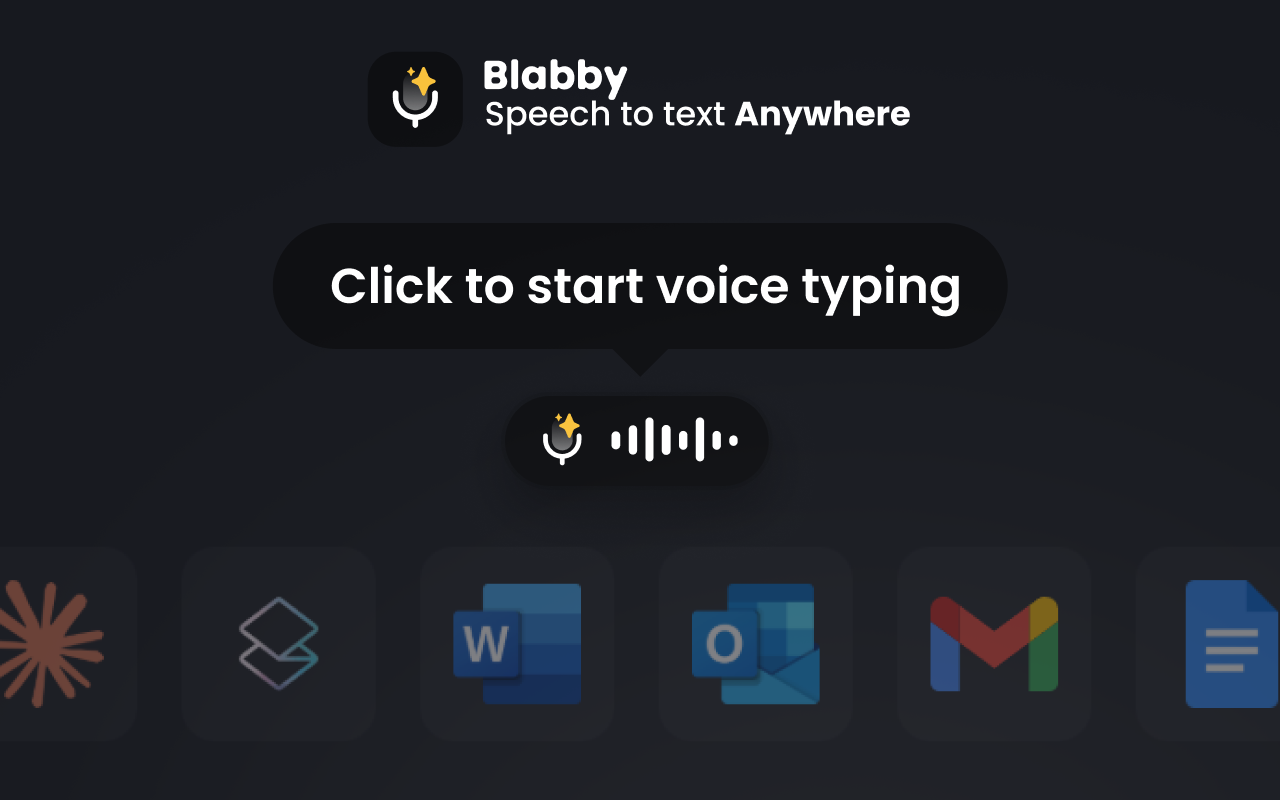
What it does: BlabbyAI adds a voice-dictation button to text fields across the web, so you speak and your words appear as clean text in Gmail, Docs, Slack, your CRM, or voice typing in Google Docs. On Windows it also runs as a native app for system-wide dictation in any program.
Why it saves time: speaking is roughly 3x faster than typing, and AI modes can clean up grammar or rewrite a ramble into a professional email inline, so you skip the editing pass entirely.
It runs on OpenAI's Whisper v3 Turbo, part of the Whisper large-v3 family that reached 97.93% word accuracy on clean audio in MLCommons' 2025 benchmark (MLCommons, September 2025), across 90+ languages.
Best for: anyone who writes a lot in the browser and would rather talk than type.
Pricing: free to start with no credit card, plus a paid unlimited plan.
One downside: cloud transcription needs a connection and an account, and heavy background noise can dent accuracy.
Works on: Edge, Brave, Chrome (extension) plus a native Windows app and an Android app.
For the wider field, see our guide to the best voice typing software in 2026.
Best for Tab Overload and Memory
OneTab (reclaim your RAM)
Visit OneTab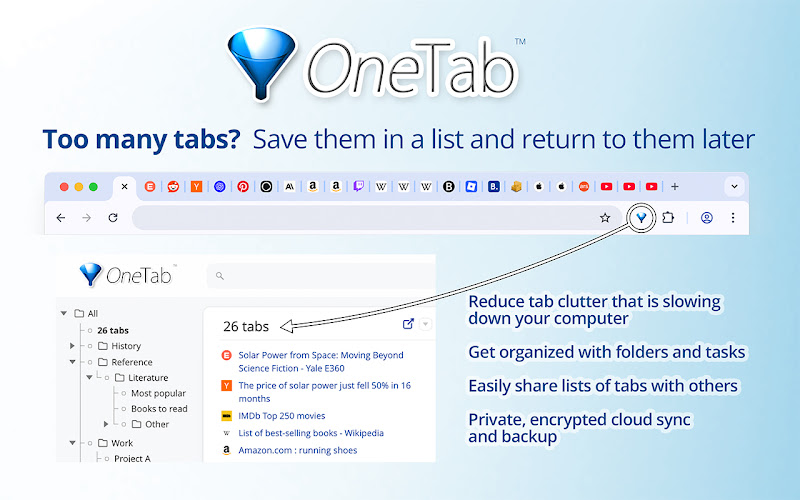
What it does: collapses every open tab into one clean list with a single click, then lets you restore them one at a time or all at once.
Why it saves time: a wall of tabs eats memory and attention. OneTab frees the RAM instantly and gives you a searchable list instead of 40 crammed tab slivers.
Best for: chronic tab hoarders and anyone whose browser is crawling by midday.
Pricing: free.
One downside: it is deliberately minimal: no tab groups, no cloud sync, just flat lists.
Works on: Edge, Brave, Chrome.
Best for Eye Comfort on Long Sessions
Dark Reader (dark mode everywhere)
Visit Dark Reader
What it does: generates a dark theme for any website on the fly, with per-site brightness, contrast, and sepia controls.
Why it saves time: no more hunting for a site's hidden dark toggle or squinting through a white page at night. It just works everywhere.
Best for: night owls and anyone with long reading or research sessions.
Pricing: free and open-source.
One downside: image-heavy or already-dark pages can occasionally mis-render and need a quick per-site tweak.
With 6 million users and a 4.7-star rating, it is one of the most trusted extensions on the store, and it was last updated in July 2026.
Works on: Edge, Brave, Chrome.
Best for Screenshots and Screen Recording
GoFullPage (full-page capture)
Visit GoFullPage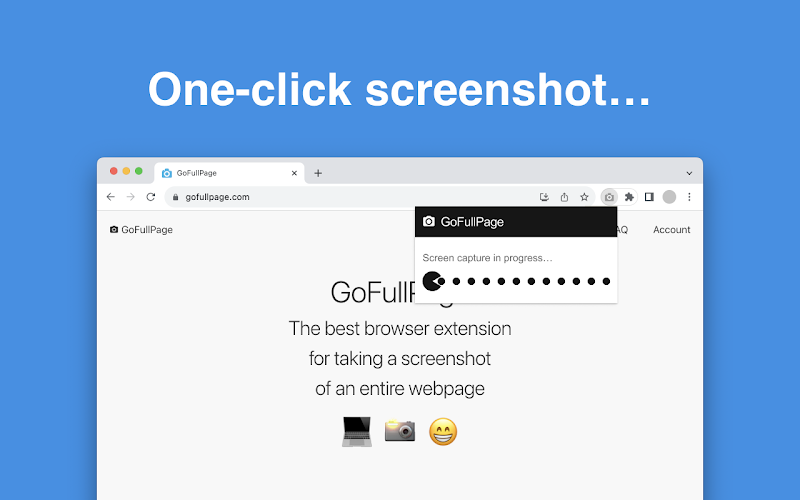
What it does: captures an entire scrolling page as one image with a single click, then exports to PNG, JPEG, or PDF.
Why it saves time: no more taking five screenshots and stitching them together. One click grabs the whole page, footer and all.
Best for: anyone who documents pages, files bug reports, or saves receipts and confirmations.
Pricing: free, with an optional paid editor and Pro features.
One downside: very long or lazy-loading pages can occasionally misfire, and advanced editing is paid.
It is a genuine heavyweight: 11 million users and a 4.9-star rating.
Works on: Edge, Brave, Chrome.
If you would rather record than screenshot, Loom is the pick, and it earns its own section below.
Best for Cleaner Writing
Grammarly (real-time proofreading)
Visit Grammarly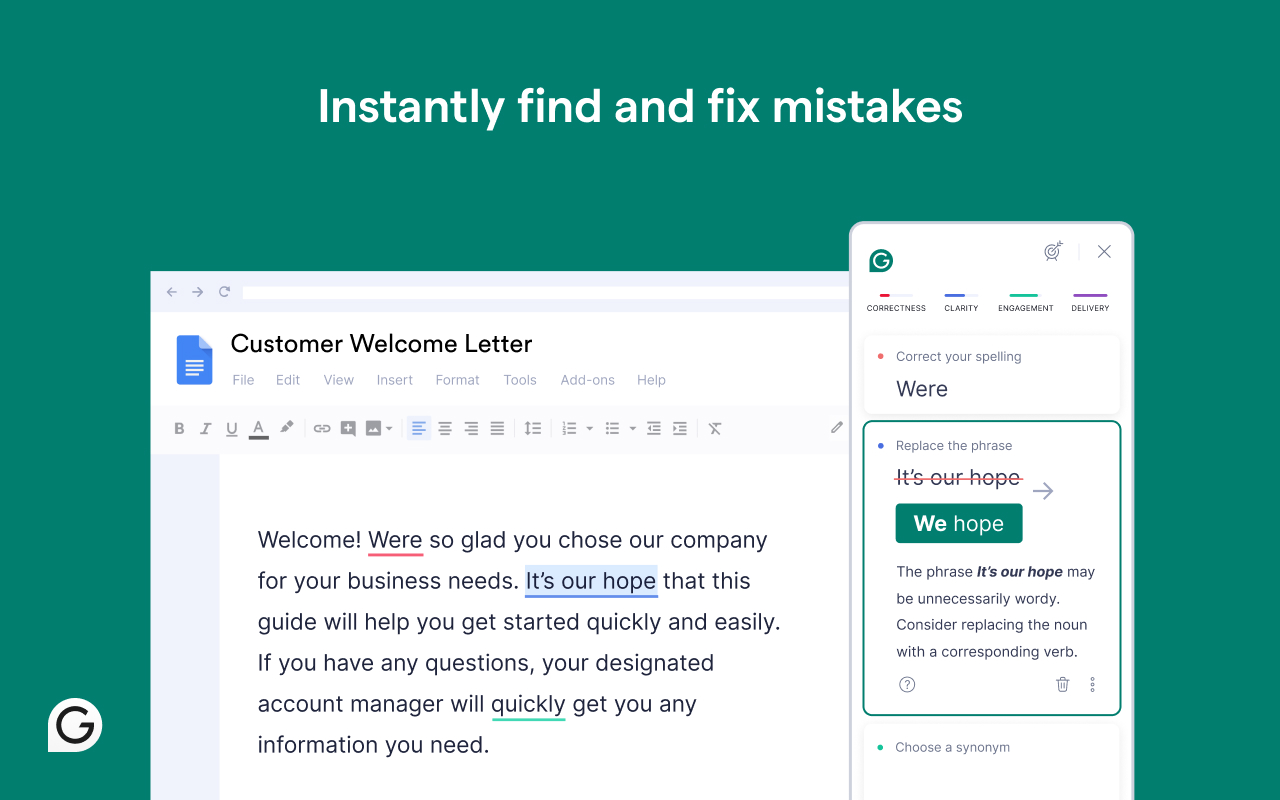
What it does: checks grammar, spelling, and clarity in real time inside almost any text field, from email to forms to docs.
Why it saves time: it catches mistakes as you type, so you spend fewer editing passes re-reading your own emails.
Best for: heavy writers, non-native speakers, and anyone who sends a lot of professional messages.
Pricing: a capable free plan for core grammar and spelling; Premium adds tone and clarity rewrites for a monthly fee.
One downside: Premium is pricey, and the always-on overlay reads your text, which privacy-conscious users may not want.
Works on: Edge (and Edge Add-ons), Brave, Chrome.
Pair it with voice dictation and you get the best of both: talk out a draft fast with BlabbyAI, then let Grammarly polish it.
Best for Passwords and Logins
1Password (autofill and vault)
Visit 1Password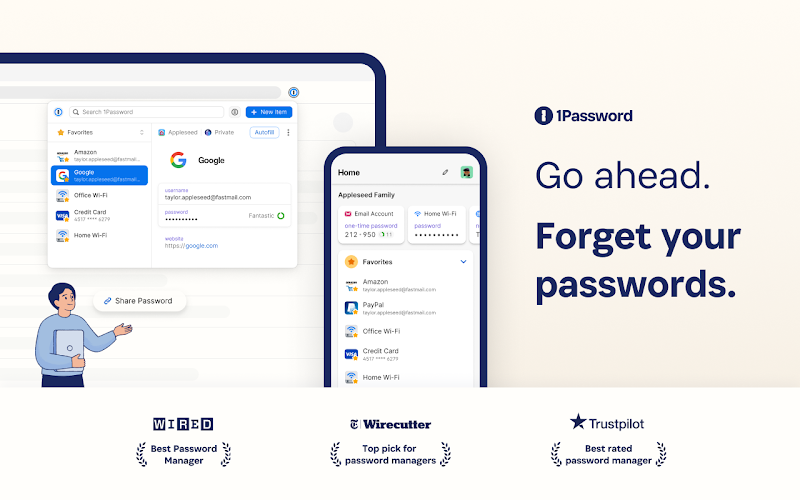
What it does: stores your logins in an encrypted vault and autofills them across sites, while generating strong unique passwords for each account.
Why it saves time: it kills the password-reset spiral. One click fills a login, and you never invent or remember another password.
Best for: anyone juggling dozens of accounts who wants both speed and real security.
Pricing: paid, with a free trial; family and team plans available. If you want a free option, Bitwarden is the open-source alternative.
One downside: there is no permanent free tier, so it is a subscription.
Works on: Edge, Brave, Chrome, plus desktop and mobile apps.
Best for Read-Later and Bookmarks
A quick note first: if you were a Pocket user, Pocket is gone. Mozilla shut it down in July 2025 and deleted user data in October 2025. The tool to switch to is Raindrop.io.
Raindrop.io (the Pocket replacement)
Visit Raindrop.io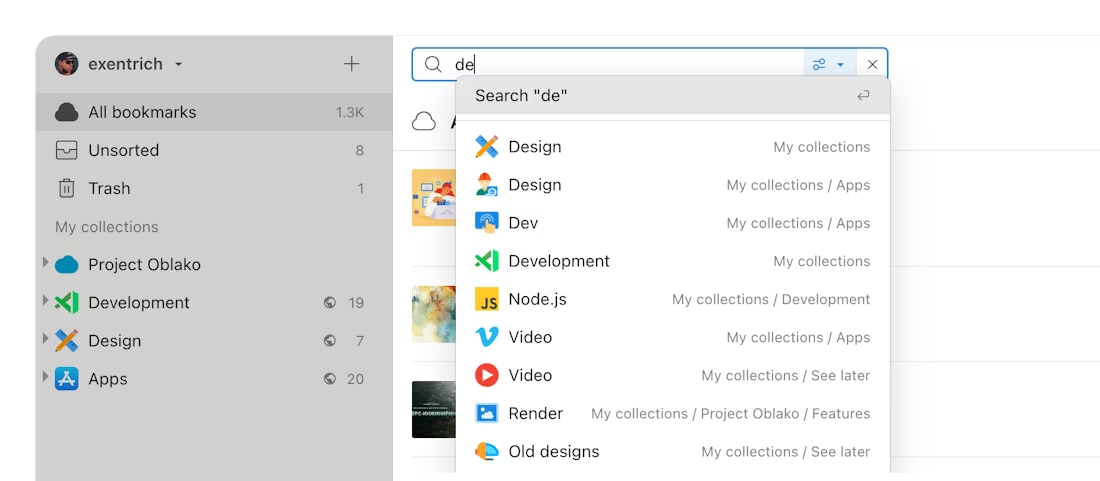
What it does: a visual bookmark and read-later manager with collections, tags, highlights, and search, so saved articles are actually findable later.
Why it saves time: one click saves a page, and full-text search plus tags mean you can find that article again in seconds instead of scrolling a dead bookmarks bar.
Best for: researchers, and any ex-Pocket user who needs a new home (it imports Pocket exports directly).
Pricing: free for unlimited bookmarks; Pro (about $3/month or $28/year) adds full-text search, permanent snapshots, and AI.
One downside: the most powerful features (full-text search, snapshots) are Pro-gated.
Works on: Edge, Brave, Chrome, and more.
Best for Saving to Your Notes
Notion Web Clipper (one-click capture)
Visit Notion Clipper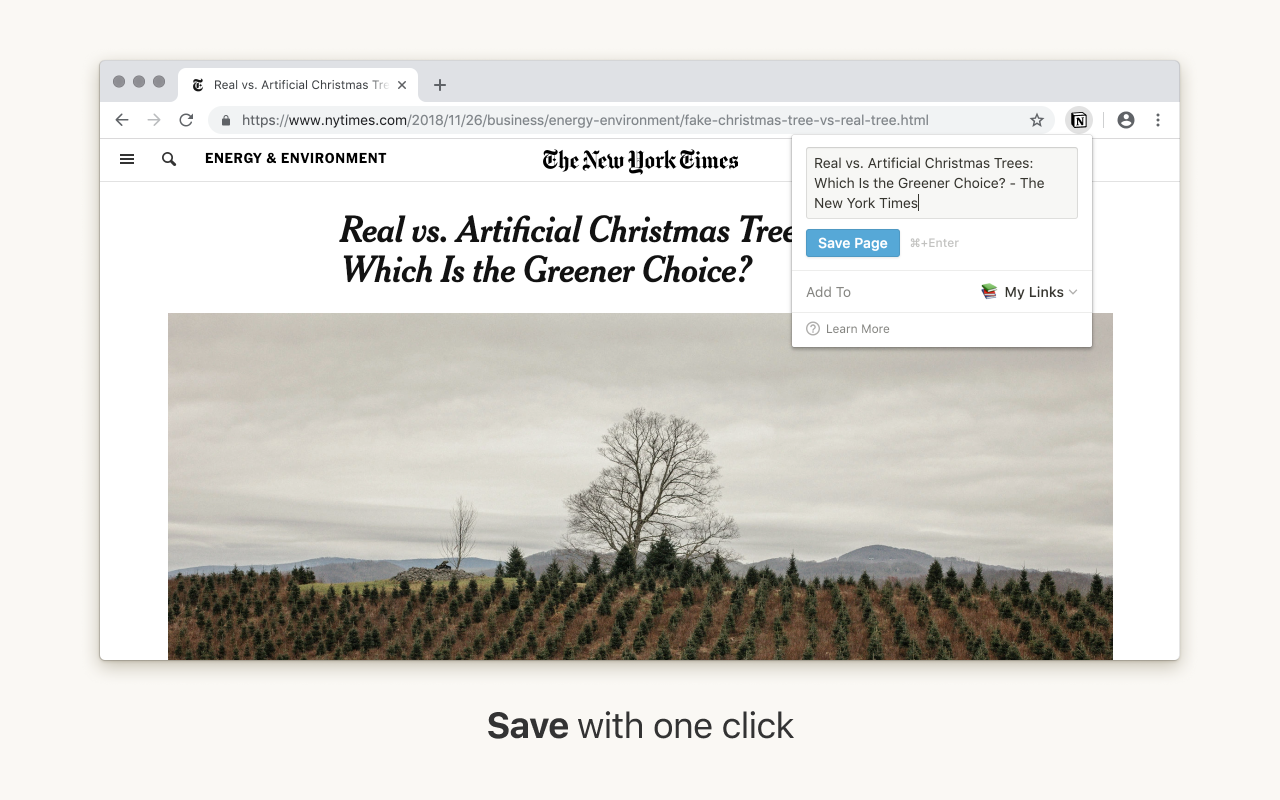
What it does: saves any page, its title, URL, and content, straight into a Notion database in one click.
Why it saves time: it skips the copy-paste-into-notes ritual entirely, so research lands where you already organize it.
Best for: Notion users building a knowledge base or research hub.
Pricing: free (needs a Notion account).
One downside: the official clipper cannot set database properties at clip time; for that, the Save to Notion extension is the power alternative.
Works on: Edge, Brave, Chrome.
Best for Keyboard Power Users
Vimium (browse without a mouse)
Visit Vimium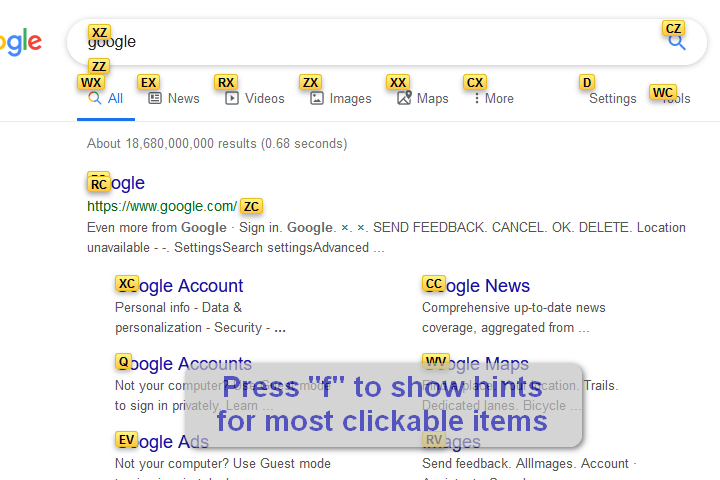
What it does: adds Vim-style keyboard shortcuts to the browser: follow links, jump between tabs, and scroll without ever touching the mouse.
Why it saves time: for repetitive navigation, typing a two-letter link hint is far faster than reaching for the mouse and aiming.
Best for: developers and keyboard-first power users.
Pricing: free, open-source, and runs entirely locally, which is a privacy plus.
One downside: a real learning curve, and it can hiccup on a few sites.
Works on: Edge, Brave, Chrome.
Best for Replacing Meetings with Video
Loom (async screen recording)
Visit Loom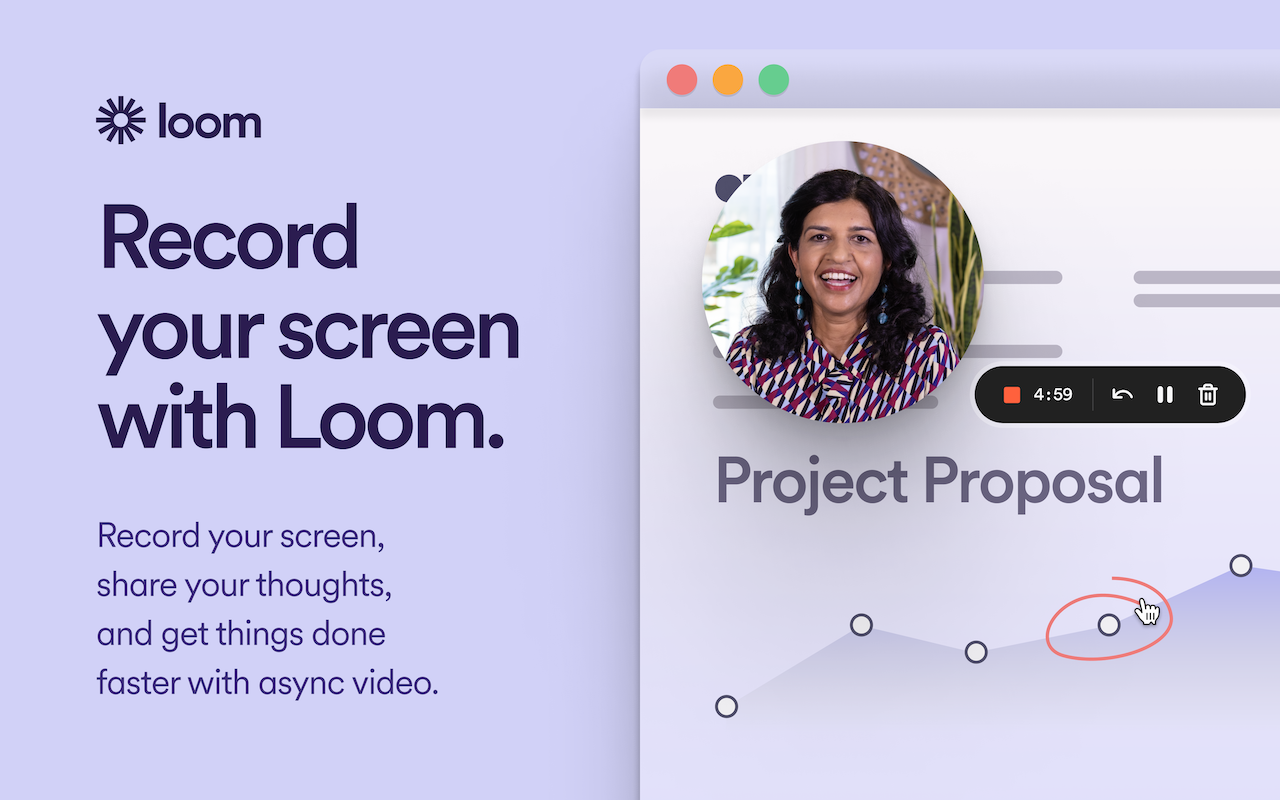
What it does: records your screen and webcam, then gives you an instant shareable link with an auto-generated transcript.
Why it saves time: a two-minute Loom often replaces a long written explanation or an entire meeting. Async beats scheduling.
Best for: remote teams, support, onboarding, and anyone explaining something visual.
Pricing: freemium: the free plan caps videos at 5 minutes and 25 clips; paid plans lift the limits and add AI.
One downside: the free tier's limits are tight, and you need an account before recording.
Works on: Edge, Brave, Chrome.
The One Extension to Add First
BlabbyAI lets you talk instead of type in any text box on Edge and Brave, on Whisper v3 Turbo. On Windows it goes system-wide. Start free with no credit card.
A Note on Ad Blocking (It Is Different on Each Browser)
Ad blocking is the one area where Edge and Brave genuinely differ. Brave has built-in ad and tracker blocking (Shields), so most Brave users do not need an ad-block extension at all. Edge does not block ads by default, so an ad blocker is worth adding there.
One catch: the classic full uBlock Origin runs on Manifest V2, which is being phased out. On Edge, install uBlock Origin Lite, the Manifest V3 version, from the Edge Add-ons store. On Brave, just leave Shields on and skip the extension.
Frequently Asked Questions
Do Chrome Web Store extensions work on Edge and Brave?
Yes. Both Microsoft Edge and Brave are built on Chromium, so they run extensions from the Chrome Web Store. Brave’s own documentation says any extension in the Chrome Web Store will also work in Brave, and Edge installs Chrome Web Store extensions in addition to having its own Edge Add-ons store. The one exception is legacy Manifest V2 extensions, which are being phased out. Every pick in this list is Manifest V3 and works on both browsers.
What happened to uBlock Origin, and do ad blockers still work in 2026?
The full Manifest V2 uBlock Origin no longer runs on Chrome, and Edge is winding down Manifest V2 support too. On Edge, use uBlock Origin Lite (the Manifest V3 version) from the Edge Add-ons store. On Brave you usually do not need an ad-block extension at all, because Brave Shields blocks ads and trackers natively. That is why an ad blocker is really an Edge concern more than a Brave one.
Is Pocket still a good read-later extension?
No. Mozilla shut Pocket down in July 2025 and deleted user data in October 2025, so it is no longer an option. Raindrop.io is the best replacement: it has a generous free tier, a clean visual bookmark manager, and a direct import path for former Pocket users.
Do browser extensions slow down Edge or Brave?
They can, especially if you run many always-on extensions or heavy tab managers. That is exactly why tools like OneTab help, since collapsing tabs frees memory. Most people install far more extensions than they actually use, so the fix is to keep only the handful you rely on and remove the rest.
Are browser extensions safe to install?
Mostly, if you stick to reputable, actively maintained extensions with large user bases and read the permission prompts before installing. Extensions can read page content, so avoid abandoned or low-install ones. Roughly 86% of Chrome Web Store extensions have fewer than 1,000 users, and the classic cautionary tale is The Great Suspender, a once-popular extension that turned malicious after it changed owners.
Does BlabbyAI work as an extension on Edge and Brave?
Yes. BlabbyAI ships a Chromium extension that adds voice dictation to text fields across the web, so it works in Edge and Brave just like Chrome. On Windows it also runs as a native desktop app for system-wide dictation in any program, on OpenAI’s Whisper v3 Turbo, from the large-v3 family that hit 97.93% word accuracy in MLCommons’ 2025 benchmark. On Android, its app adds a floating mic to any text field on your phone.
Conclusion
The best browser setup is not the one with the most extensions, it is the one with the right few. Because Edge and Brave both run Chromium, every pick here installs on either browser in a couple of clicks. Start with the friction that costs you the most time this week: if that is typing, add BlabbyAI and talk your way through your inbox; if it is tab chaos, start with OneTab. Add a second only once the first becomes a habit, and keep your toolbar short.
Sources
Extension features, pricing, and status were gathered from each tool's official site and store listing, plus the sources below, as of July 2026. Extensions change often; check each store listing for the latest.
- Brave, "Can I use Chrome extensions in Brave?," brave.com (retrieved 2026-07-24).
- Microsoft Learn, "Overview of Microsoft Edge extensions," learn.microsoft.com (retrieved 2026-07-24).
- DebugBear, "Counting Chrome Extensions," 2026, debugbear.com (retrieved 2026-07-24).
- Mozilla / Engadget, "Mozilla is shutting down Pocket," 2025, engadget.com (retrieved 2026-07-24).
- The Register, "Google ends Manifest V2 support," 2025, theregister.com (retrieved 2026-07-24).
- MLCommons, "Whisper: An MLPerf Inference Benchmark for ASR," September 2025, mlcommons.org (retrieved 2026-07-24).
- Stanford HCI, "Speech Is 3x Faster than Typing," 2016, hci.stanford.edu (retrieved 2026-07-24).