
Updated August 26, 2026 · By Sumbat.T
VoiceDash Alternative: BlabbyAI vs VoiceDash in 2026

Quick Verdict
- BlabbyAI is a Windows desktop app, not a browser-only tool. Press Ctrl+Space anywhere in Windows, speak, and the text is typed into whatever field your cursor is in: Word, Outlook, Slack, Teams, an IDE, or a browser tab. An Android app, a Chrome extension and a Linux app exist too, but the desktop app is the product.
- VoiceDash is an AI voice typing app that also covers Windows, Mac and Android. Both tools clean up speech rather than dumping raw transcription, so the headline features overlap and the decision comes down to control, history and price.
- The real difference is who writes the instruction. A BlabbyAI mode is a free-form prompt you author yourself, so you can strip filler words, translate as you speak, force a format, or define your own spoken commands like "new paragraph". You are not limited to a vendor's preset list.
- BlabbyAI is free to start (60 credits weekly, no card) and $8.49/month for unlimited use, with recordings saved locally on your own machine. Check voicedash.ai/pricing for its current figures.
How BlabbyAI works on Windows: system-wide, in any app
The first thing to know before comparing anything else is where each tool can actually type, because that decides which one fits your work.
BlabbyAI ships a Windows desktop application. It installs a global shortcut, Ctrl+Space by default, that works regardless of which application is focused. You press it, speak, press it again, and the transcribed text is typed into the field your cursor was already sitting in. Nothing about that path goes through a browser. It works in Microsoft Word, in Outlook, in Teams, in Notion's desktop client, in a terminal, in an IDE, or in a hospital EHR text field, because to Windows it is simply typing.
BlabbyAI also ships a Chrome extension, and it is a product in its own right rather than a lesser version of the desktop app. It types into any text field the browser renders, which covers Google Docs, Gmail, a CMS, or a web form, and it is the route in on a Chromebook or a managed work laptop where desktop installs are locked down. The same account and the same modes cover both, so if you work across a Windows machine and a browser-only one, you are not choosing.
Why this matters for the comparison: once system-wide typing is settled, the real comparison is about custom modes, local history and price. Those are the differences that change your day, and they are what the rest of this page is about.
Windows dictation



Dictate into any Windows app, not just the browser
Press Ctrl+Space anywhere in Windows, speak, and your words are typed at your cursor. Word, Outlook, Slack, Teams, your IDE. Free to start, no card.
BlabbyAI vs VoiceDash: side by side
Both products describe themselves as AI voice typing rather than plain transcription, and both cover Windows. Where a cell below says "not advertised", that means the feature is not claimed on VoiceDash's own public pages as of August 2026, not that it is impossible. Pricing on VoiceDash's site is rendered by JavaScript, so the current figures are best read on their pricing page directly.
| Feature | BlabbyAI | VoiceDash |
|---|---|---|
| Windows desktop app | Yes, the main product. Global Ctrl+Space, types at your cursor | Yes |
| Works in non-browser desktop apps | Yes, system-wide in any focused text field | Yes |
| Android app | Yes, a floating mic in any text field, free during the beta | Yes |
| Chrome extension | Yes, a full product: types into any text field in the browser | Not advertised on its download page |
| Custom AI instructions | Free-form: you write the instruction yourself | Cleanup and rewriting features, vendor-defined |
| User-defined spoken commands | Yes, via a mode instruction you author | Not advertised as user-authored |
| Local recording history | Yes, saved on your machine before transcription runs | Not advertised |
| Languages | 90+ with auto-detect | Multiple, including German, Chinese and Arabic tools |
| Free tier | 60 credits weekly, roughly 2,000 words, no card | See voicedash.ai/pricing |
| Paid price | $8.49/month unlimited | $15/month, or $12/month billed yearly |
Custom modes: you write the instruction, not the vendor
Most AI dictation tools apply cleanup you cannot see or change. The vendor decided what "polished" means, baked a prompt in behind the scenes, and you get whatever that prompt produces. It works until the day it does not match how you write.
A BlabbyAI mode inverts that. It is a free-form instruction field: you type what you want done to your speech, name it, pick a model (OpenAI, Google or Meta), and assign it a shortcut. From then on, that shortcut records, transcribes, and runs your instruction over the result before typing it out. Blabby ships Grammar Correction, Translate to English and Email as starting points, and then you write your own.
The mechanic people miss is that the AI receives your full literal transcript, including any words you said as commands. So spoken commands are not a fixed feature list you wait for a vendor to ship, they are something you define:
- "Whenever I say ‘new paragraph’, insert an actual paragraph break instead of writing those words."
- "When I say ‘bullet point’, start a new bulleted list item."
- "If I say ‘scratch that’, delete the sentence I just said."
- "Strip filler words, translate to English, and format the result as a short email." Chaining several jobs into one shortcut is where the time actually goes.
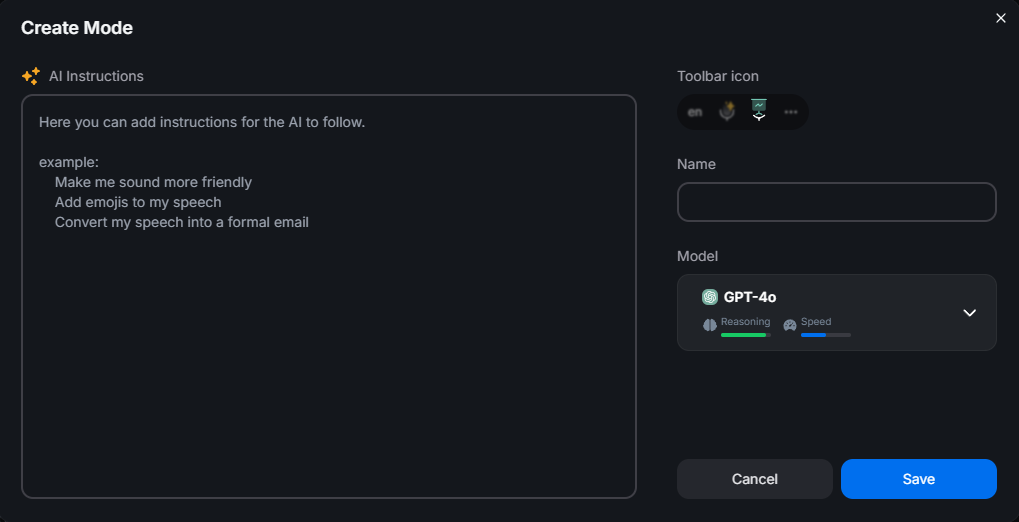
One honest limit, so you can plan around it: your speech is the input to a mode, not a prompt. A mode reshapes what you said, it does not answer it. If a mode is active and you say "write two paragraphs about the pricing change", you get that sentence reformatted, not an essay. To write about something, you speak your actual thoughts and the mode shapes them. Modes also process one recording at a time, after you stop speaking, and they have no memory between recordings.
Local History: the feature you only appreciate after something fails
History is a Windows desktop feature and it is the one most people overlook when comparing dictation tools, because it does nothing visible until the day it saves you. Here is the order of operations that matters: BlabbyAI writes your audio to disk the instant the recording stops, before transcription even begins. Not after a successful round trip. Before.
The consequence is that a dropped network, a server hiccup or a cancelled transcription cannot cost you the recording. You open History, play the audio back, and re-run it, optionally through a different mode or a different language. That last part turns History into a working tool rather than an insurance policy: a dictated note from last week can be pushed through a Grammar Correction mode you only wrote yesterday.
All of it stays on your machine. The default cap is 500 entries with the oldest evicted first, and it is configurable, including unlimited. Nothing about History touches a server. Transcription itself runs under a zero data retention policy.
Worth checking on any tool you compare: ask whether audio is written to disk before or after transcription, and whether it lives locally or on the vendor's servers. Those two answers tell you what actually happens on a bad network day, and they are rarely on the feature grid.
The shortcut, and why it decides whether you keep using dictation
More people abandon dictation over friction than over accuracy. If starting a recording takes a click into a separate window, you will use it for the long paragraph and type everything else. The shortcut is the whole product experience, so it is worth being concrete about how BlabbyAI handles it.
The default is Ctrl+Space: press to start, press again to stop. It is global, so it fires no matter which application has focus, and the app auto-launches at Windows startup by default so the shortcut is live after every boot. Closing the main window does not quit the app: it stays in the system tray so the hotkey keeps working. That combination is the difference between a tool you open and a tool that is simply always there.
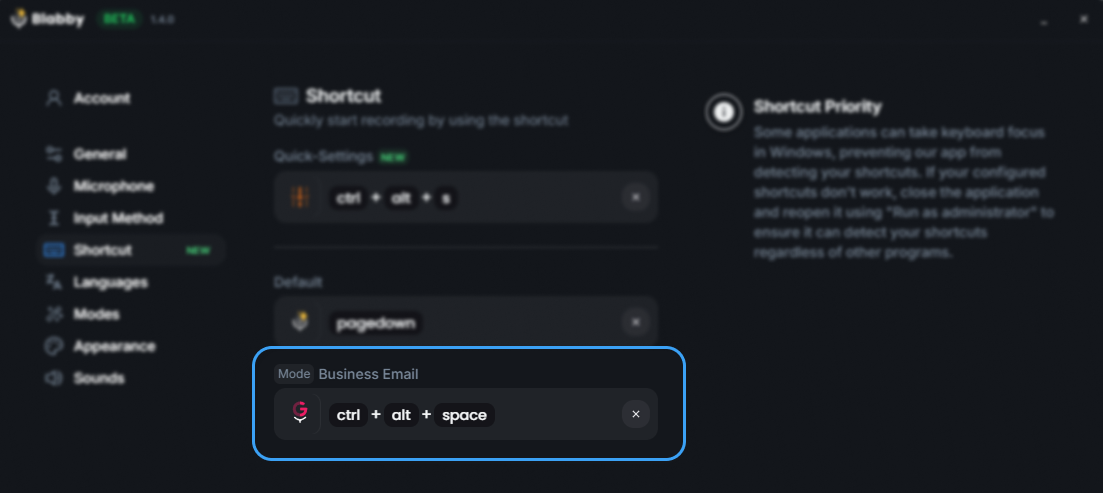
Each custom mode can take its own shortcut too, which is where this stops being a convenience and starts changing how you work. One shortcut for plain dictation, one that cleans grammar, one that translates into English as you speak, one that formats into an email. You are not selecting a mode from a menu before you talk, you are choosing it with the key you press.
There are two toolbar styles, and which you want depends on how much you like seeing your tools. The Standard toolbar sits at the bottom-centre of the screen with buttons for language, microphone and modes, and tucks itself behind the taskbar when idle with a sliver showing. The Minimal toolbar is invisible until you are recording and is shortcut-only. Both are shortcut-driven; Minimal simply gets out of the way.
Accuracy, and the part of it you can actually control
Every dictation vendor claims high accuracy, which makes the claim close to useless when comparing two of them. What is worth knowing is the model underneath and what you can do when it gets something wrong. BlabbyAI runs on OpenAI's Whisper large v3 turbo, and the model handles punctuation, casing and tone from context: a question gets a question mark without you saying "question mark".
The controllable part is vocabulary, and this is where most accuracy complaints actually live. General models are good at general English and bad at your colleague's surname, your product names and your field's jargon. BlabbyAI's custom spelling feature takes a term per language and the exact spelling you want, and the model matches it when transcribing in that language. Teach it once, and the word that got mangled every time stops being a problem.
Language coverage is 90+ languages with auto-detect, so switching languages does not mean switching a setting first. Custom spellings are stored per language, which matters if you work in two: the spelling rules you need in German are not the ones you need in English, and they do not collide.
A fair test of any dictation tool: dictate one paragraph of your real work, count only the corrections you had to make to proper nouns and jargon, and then check whether the tool lets you fix that class of error permanently. A tool that is 2% worse on general text but lets you teach it your vocabulary will beat a more accurate one that does not.
Pricing: BlabbyAI vs VoiceDash
BlabbyAI is straightforward: free to start with 60 credits per week, roughly 2,000 words of transcription, resetting weekly, with no card required. Unlimited use is $8.49/month. There is no per-minute metering and no per-seat enterprise quote to chase.
VoiceDash is $15/month, or $12/month billed yearly (verified 2026-08-26). That puts BlabbyAI below it on both plans: $8.49/month against $15 monthly, and against $12 even when VoiceDash is paid a year up front. Prices do change, so the source of truth is voicedash.ai/pricing. Third-party blogs quoting competitor prices copy each other and go stale, so check it there if you are reading this long after the date above.
| Plan | BlabbyAI | VoiceDash |
|---|---|---|
| Free tier | 60 credits weekly, roughly 2,000 words, no card | See voicedash.ai/pricing |
| Paid | $8.49/month, unlimited | $15/month, or $12/month billed yearly |
| Per-minute charges | None | See voicedash.ai/pricing |
How to decide in an afternoon
Comparison tables are a starting point, not an answer. Dictation is unusually personal: it depends on your accent, your vocabulary, your microphone and the specific applications you live in. The good news is that both tools have a free path, so the question is settled by an afternoon of real work rather than by reading.
1. Dictate where you actually work, not into a demo box
Open the three applications you type in most. If two of them are desktop applications rather than browser tabs, that alone rules out any browser-only tool and is the reason the desktop app question matters so much.
2. Say your worst sentence
Use your jargon, your colleagues' names, your product names. This is where custom spelling earns its place: BlabbyAI lets you teach exact spellings per language, so a name it mangles once should be right every time after.
3. Write one mode of your own
Pick the reformatting you do by hand every day, whether that is trimming filler words or forcing bullet points, and write it as an instruction. If a tool cannot express your particular habit, no amount of accuracy will save you from editing afterwards.
4. Break it on purpose
Turn off your wifi mid-recording. Whatever happens next tells you more about the product than its landing page does. On BlabbyAI the audio is already on disk, so it is waiting in History.
What switching actually involves
The reason people stay on a dictation tool they have stopped liking is that migrating sounds like an afternoon of configuration. It is worth being specific about what setup involves, because on Windows the answer is short and there is no account to create.
You install the .exe and the onboarding window asks you two things: pick a microphone (and grant Windows microphone access if it has not been granted), then run one practice transcription so you feel it work before it drops you into your normal workflow. That is the entire setup. There is no sign-in and no account setup in the Windows onboarding, and no shortcut configuration step, because the defaults cover it.
Everything else is optional and can wait until you hit a reason to want it:
Settings › Modes › Create Mode when you notice yourself making the same edit twice. Write the instruction, name it, pick a model, then assign a shortcut in the Shortcuts tab.
Settings › Languages › Add Custom Spelling the first time a name or a piece of jargon comes out wrong. Per language, exact spelling, done once.
Settings › General to turn off auto-launch at startup, or to switch the toolbar between Standard and Minimal.
History settings to raise the 500-entry cap, set it to unlimited, or replay and re-transcribe an old recording through a newer mode.
Because the free tier needs no card, there is no billing decision attached to trying it. 60 credits a week is roughly 2,000 words of transcription, which is enough to answer the only question that matters: does dictating into your own applications, in your own vocabulary, actually save you time. If it does, unlimited use is $8.49/month. If it does not, you have spent an afternoon and nothing else.
Frequently asked questions
Is BlabbyAI only a Chrome extension?
No. BlabbyAI ships a Windows desktop app that runs system-wide: you press Ctrl+Space anywhere in Windows, speak, and the text is typed into whatever field your cursor is in, whether that is Microsoft Word, Outlook, Slack, a code editor, or a browser tab. BlabbyAI also ships an Android app, which adds a floating mic to any text field on your phone, and a Chrome extension, which is a full product in its own right and types into any text field in the browser, plus a Linux app. The Windows app and the Chrome extension are both first-class, and one account covers both.
What is the main difference between BlabbyAI and VoiceDash?
Both turn speech into polished text rather than raw transcription, so the headline features overlap. The practical differences are control and scope. BlabbyAI custom modes are a free-form instruction you write yourself, so you decide exactly how your speech is rewritten and you can define your own spoken commands. BlabbyAI also keeps a local History of every recording on your machine, so a failed transcription is never a lost recording. On price, BlabbyAI is free to start and $8.49/month for unlimited use, against VoiceDash at $15/month or $12/month billed yearly.
Does BlabbyAI work system-wide on Windows, or only in the browser?
System-wide. The Windows desktop app installs a global shortcut, Ctrl+Space by default, that works no matter which application is focused. The transcribed text is typed into the focused text field. That means it works in desktop applications that have nothing to do with a browser: Word, Outlook, Teams, Notion desktop, an IDE, or an EHR text field. The Chrome extension covers the browser side with the same modes and the same account, and it is the route in on a Chromebook or a locked-down work laptop where you cannot install desktop software.
How much does BlabbyAI cost compared to VoiceDash?
BlabbyAI is free to start, with 60 credits per week (roughly 2,000 words of transcription) and no card required, then $8.49/month for unlimited use. VoiceDash is $15/month, or $12/month billed yearly (verified 2026-08-26), so BlabbyAI is cheaper on either plan. Prices change, so check voicedash.ai/pricing if you are reading this much later.
Can I write my own AI instructions in BlabbyAI?
Yes, and this is the feature worth understanding before you choose. A BlabbyAI mode is a free-form instruction you type yourself, not a preset you pick from a list. You can tell it to strip filler words, translate as you speak, format output as bullet points or a commit message, or follow your own spoken commands such as treating the words "new paragraph" as an actual line break. Blabby ships with Grammar Correction, Translate to English and Email as starting points, then you write your own.
Does BlabbyAI keep my recordings?
Transcription runs under a zero data retention policy, and the History feature stores audio locally on your own machine rather than uploading it. Audio is written to disk the moment a recording stops, before transcription even begins, so if the network drops or transcription fails the recording is still there and you can re-run it. The default cap is 500 entries and it is configurable. History is a Windows desktop feature and is not part of the Chrome extension.
Which one should I pick for dictating into desktop apps?
If most of your typing happens in Windows desktop applications rather than in browser tabs, BlabbyAI is built for exactly that: a global hotkey, text typed at your cursor in any focused field, local History, and modes you author yourself. It is free to start, so the low-risk approach is to install it, spend a day dictating into the apps you actually use, and judge it on your own work rather than on a comparison table.
Does BlabbyAI support languages other than English?
Yes. BlabbyAI supports 90+ languages with automatic detection, so you can speak in your own language without switching a setting first. Custom spelling is per-language, so you can teach it how to spell names, brand terms or jargon in each language you use. A mode can also translate as part of the same pass, so you can speak in one language and have polished text appear in another in a single shortcut.
Is there a free version of BlabbyAI?
Yes. Every account gets 60 free credits per week, roughly 2,000 words of transcription, and it resets weekly. No card is required to start. The Windows app also has no account setup during onboarding: you install the .exe, pick a microphone, run one practice transcription, and you are working.
Try BlabbyAI on Windows, free
60 credits every week, no card. Install the .exe, pick a microphone, and dictate into any app on your machine.