
Updated September 3, 2026 · By Sumbat.T
ChatGPT Dictation: Speak Your Prompts Instead of Typing Them

The short answer
- Press the microphone icon in the message box. ChatGPT records you, transcribes it, and puts the text in the prompt box to edit before you send. It is a different feature from ChatGPT Voice, which is a live spoken conversation and is metered by plan.
- Two things OpenAI documents and most guides skip. Its FAQ says dictation audio is kept as long as the chat is in your history, and that consumer audio may be used to train the models unless you turn off a separate toggle in data controls.
- It only works inside ChatGPT. For dictating into Gmail, Word, Slack or your editor as well, BlabbyAI types into any focused text field from a shortcut, keeps its Windows History audio on your own disk, and costs $8.49/month with a free tier of 60 credits a week.
Dictate into ChatGPT and everything else





One shortcut, every text field on your machine
BlabbyAI types your speech into whatever has your cursor: ChatGPT, Gmail, Word, Slack, your editor. The Windows app keeps every recording on your own disk. Start free on 60 credits a week, no card.
How to dictate to ChatGPT, step by step
The built-in dictation is deliberately plain. There is nothing to install and nothing to configure, which is its main advantage over every other option on this page.
Open a chat and find the microphone
In the ChatGPT app or at chatgpt.com, look at the right-hand end of the message box. There are two icons: a microphone for dictation, and a separate voice icon that starts a spoken conversation. You want the microphone.
Grant microphone access once
The browser or the app asks for permission the first time. If you dismissed that prompt at some point, the button will appear to do nothing, which is the most common cause of dictation not working.
Speak your prompt in one pass
Do not stop to correct yourself. Speech models handle punctuation and casing on their own, so you do not need to say the word comma. Say the content, not instructions about the content.
Stop, then read before you send
The transcript lands in the prompt box. Read it, fix anything the model misheard, and press send yourself. This review step is the whole point of dictation as opposed to voice mode, and it is also the step users have reported losing (see below).
One habit that improves every dictated prompt
Spoken prompts ramble, and a rambling prompt gets a rambling answer. Say the specific thing you want, then the constraints, then the format. Roughly ninety seconds of speech is about 200 words, which is a long, detailed prompt and would take several minutes to type. That asymmetry is the reason to dictate at all.
Dictation and ChatGPT Voice are not the same feature
People conflate these constantly, and the two behave differently enough that it changes which one you should use. OpenAI draws the line itself in its documentation.
"Use ChatGPT Voice for a live conversation with ChatGPT. Use voice dictation when you only want to turn speech into prompt text before sending it."
OpenAI, ChatGPT Voice documentation, learn.chatgpt.com
| Voice dictation | ChatGPT Voice | |
|---|---|---|
| What it produces | Text in the prompt box, which you then send | A spoken back-and-forth conversation |
| Can you edit before sending | Yes, the transcript lands in the box first | No, there is no text stage |
| Plan needed | No documented plan restriction | Allowance varies by plan, from Free to Enterprise |
| Usage limit | No published allowance | Metered in hours per rolling window, capped at 2 hours per conversation |
| Starting it mid-chat | Works in any chat at any point | The chat must begin in voice mode |
Two of those rows are worth reading twice, because they are documented by OpenAI and almost never mentioned in guides to this feature. Voice is metered in a way dictation is not: OpenAI publishes an allowance in hours per rolling window that varies from Free up to Enterprise, and a single conversation is capped at two hours. Dictation has no published allowance at all. And a conversation has to start in voice mode:
"A chat or task must begin in voice mode to use ChatGPT Voice. Chats or tasks that start in another mode offer voice dictation instead."
OpenAI, ChatGPT Voice documentation, learn.chatgpt.com
So if you are deep in a chat and want to start talking to it, you cannot. You get dictation, and you have to open a new chat to get Voice. That is worth knowing before you go hunting through settings for a switch that does not exist.
What happens to the audio, according to OpenAI
This is the part of ChatGPT dictation that is genuinely underdocumented in the wider write-ups, and it is all sitting in OpenAI's own help centre. Three facts, quoted directly.
"Audio from dictation will be retained for as long as the chat is part of your chat history. When you delete the chat, we'll also delete the associated audio clip within 30 days unless we need to keep it for security or legal reasons."
OpenAI Help Center, Voice Dictation FAQ
The recording itself is stored, not only the transcript. If you have been dictating prompts for a year, the audio of those prompts is sitting alongside the chats.
"If you are a consumer user and have chosen to share audio to improve our models, we may train on audio from dictation."
OpenAI Help Center, Voice Dictation FAQ
The control for that is not where most people would look. It is a dedicated toggle called "Include your audio recordings" on the data controls page in settings, distinct from the general model-improvement setting and distinct from chat history. OpenAI notes it covers all audio across dictation and voice chat together, so it is one switch for both. Business users are treated differently: OpenAI states it does not train on inputs or outputs from its products for business users by default.
Worth doing now if you dictate often
Open settings, go to data controls, and check whether "Include your audio recordings" is on. It is a separate control from the one most people have already turned off, so having disabled chat history or model improvement in the past does not mean this one is off.
The complaint that has never quite gone away
The reason to use dictation instead of voice mode is that you get to read the text before it is sent. A long-running thread on OpenAI's own developer community, opened on 1 April 2025, reports exactly that step disappearing. Its title is "Speech-to-text in ChatGPT app now skips text field", and users describe the transcript being submitted the instant they stop talking.
No review step
Users report the message being sent without the transcribed text being shown first, which removes the one advantage dictation has over a live voice conversation.
Lost recordings on error
One reported consequence: if the upload of the voice clip fails, the clip is gone, because nothing was written down locally before it was sent.
Fixed, then back again
A user reported the old behaviour restored two days later, and others reported the auto-send returning through the following week. It reads as intermittent rather than resolved.
No staff answer in the thread
The thread runs to 10 April 2025 with no official response in it, so there is no documented setting to restore the editable input.
Long recordings are the other weak point
A second pattern runs through OpenAI's community forum, and it is the more expensive one because you lose the content. Reports describe longer dictations failing at the moment you stop recording, with a network error and no recoverable audio. A thread from February 2025 puts the onset at around the three-minute mark, with a reply saying recordings over four minutes rarely transcribe properly. A separate report from July 2026 describes failures from about one minute in French, notes that retrying usually fails too, and adds that the original recording is not preserved anywhere for recovery.
The strongest evidence that this is real is not the complaints. It is that OpenAI shipped a workaround for it. From the ChatGPT release notes for iOS, dated 7 August 2026:
"If dictation fails because of a connection issue or timeout, ChatGPT automatically retries once."
OpenAI, ChatGPT release notes, 7 August 2026
An automatic retry is a sensible thing to build, and it concedes the premise: dictation fails on timeout often enough to warrant one. The retry also cannot help when the recording itself was never written down, which is what the forum reports keep describing.
The structural difference
Both problems, the premature send and the lost long recording, come from the same design: the audio goes straight to a server and the text comes back into a chat. Dictation that runs on your own machine inverts it. BlabbyAI writes the audio to your disk the instant you stop speaking, before transcription starts, then types the result into whichever field holds your cursor and stops there. Nothing is submitted until you press the key yourself, and a failed transcription leaves the recording sitting in History to run again.
That is not a claim that ChatGPT's dictation is bad. For a two-sentence prompt it is quick and it is right there. It is a claim about where the failure modes are, and they cluster around long recordings and the moment of sending.

Dictating into ChatGPT and every other app at once
The limit on ChatGPT's microphone is not accuracy, it is scope. It is a feature of one website. Most people who dictate a prompt also write the email that follows it, the ticket that follows that, and the Slack message explaining both. BlabbyAI works a level lower down: you press a shortcut, speak, and the text is typed into whichever field has the cursor. ChatGPT is simply one of those fields.
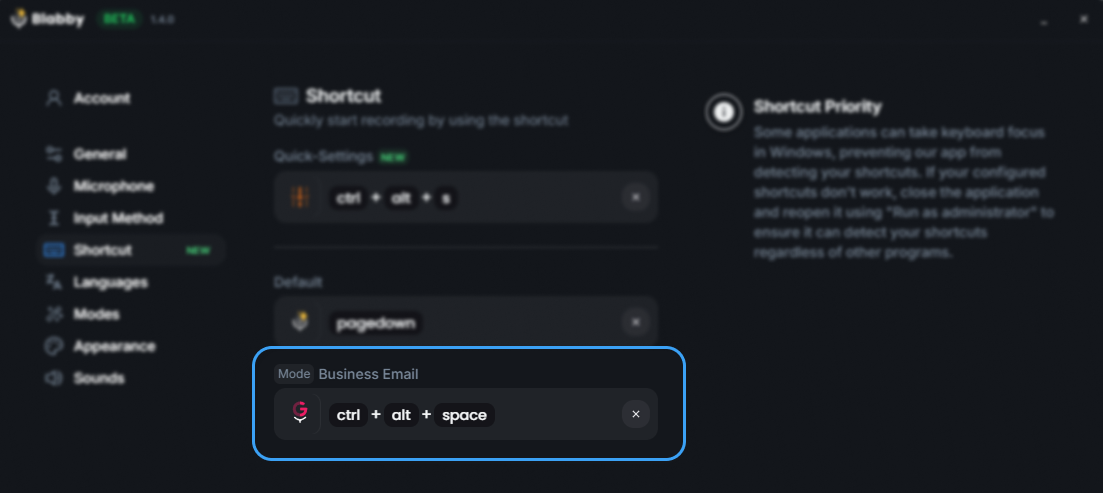
BlabbyAI on Windows. Press Ctrl+Space anywhere, speak, and the text is typed into the focused field. Source: BlabbyAI Windows app.
There are three products and they suit different devices. The Windows app runs system-wide on a global shortcut and adds History, which writes every recording to your own disk. The Android app puts a small floating mic in any text field on your phone, the ChatGPT app included, on top of the keyboard you already use. The Chrome extension needs no install beyond the browser and puts a small bubble next to any focused text field, which covers ChatGPT, Gmail, Google Docs and Notion on any operating system, Mac and ChromeOS included.
Where the recording actually lives
Since OpenAI's FAQ is explicit that dictation audio is retained alongside the chat, it is worth being equally explicit about the alternative. On Windows, BlabbyAI writes the audio to your machine the instant recording stops, before transcription even begins, and that file never leaves the disk. Transcription itself runs under zero data retention.
Saved before upload
The recording hits your disk the moment you stop speaking, so a dropped network or a failed transcription cannot lose it.
Re-runnable
Play back any past recording and transcribe it again, optionally through a different mode or language.
Stays local
History holds 500 entries by default and is configurable to unlimited. None of it reaches a server.
History is a Windows app feature. The Chrome extension does not have it, which is the honest trade for needing nothing installed.
Cleaning up a spoken prompt before it reaches the box
Dictated prompts are messier than typed ones. You backtrack, you say "um", you start a sentence twice. ChatGPT's dictation transcribes all of it and stops there. A BlabbyAI custom mode adds a processing step in between: you write one free-form instruction, and every recording goes through it before the text is typed.
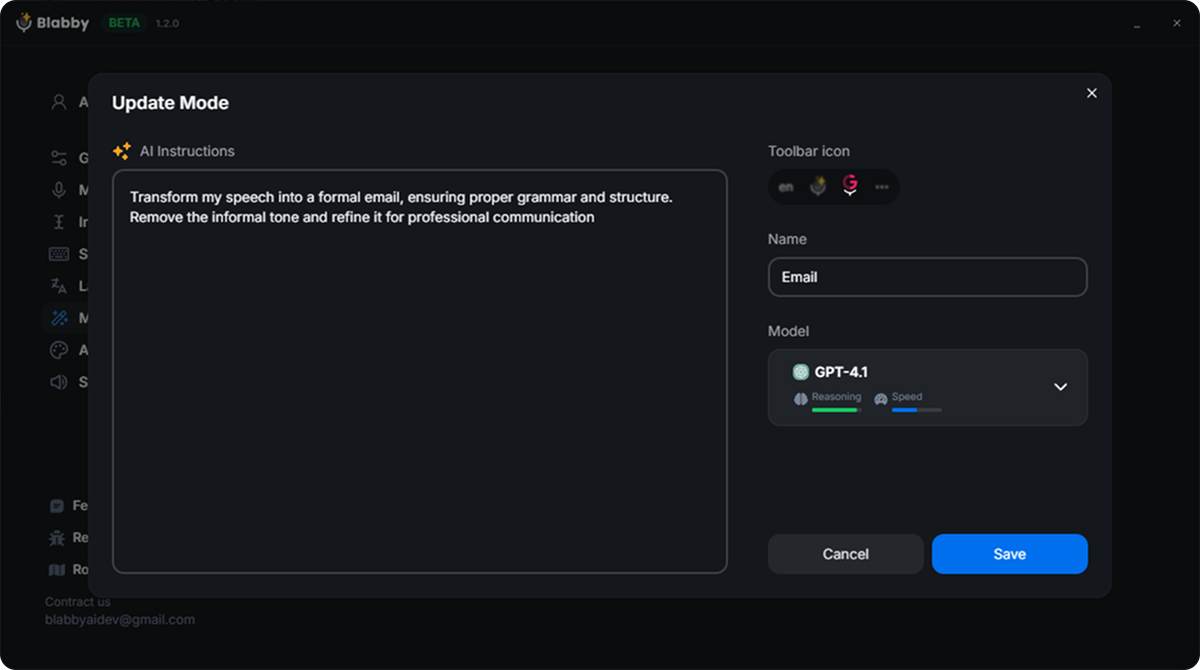
A mode is a plain instruction plus a model. Source: BlabbyAI mode editor.
Instructions that do real work on a prompt:
- "Remove filler words and false starts, and keep everything else exactly as I said it." The single most useful one for prompts.
- "Reorganise what I said into a short brief: goal, then constraints, then output format." Turns a ninety-second ramble into a structured prompt.
- "When I say 'new paragraph', insert a paragraph break instead of writing those words." You define your own spoken commands rather than learning a fixed list.
- "Format any list I speak as markdown bullets." Useful when the prompt is a set of requirements.
How modes actually work
A mode reshapes what you said, it does not answer it. Your speech is the input to the instruction, not a request to an assistant. So a mode runs on one recording at a time after you stop speaking, it has no memory of earlier recordings, and it types text into the field rather than pressing send for you.
Three ways to run it
Windows app, Android app or Chrome extension, same dictation
The Windows app adds a global shortcut and History that keeps recordings on your disk. The Android app puts a floating mic in any app on your phone, free during the beta. The extension types into any text field in the browser with nothing to install, on any operating system. Windows and Chrome start free at 60 credits a week.
How the options compare
The built-in microphone is in a different category from the rest of this table: it is free and it is already there, but it only ever types into ChatGPT. Everything else here types anywhere.
| Tool | Where it types | Where the recording lives | Training on your audio | Price |
|---|---|---|---|---|
 ChatGPT built-in ChatGPT built-in | Only inside ChatGPT | Kept as long as the chat exists | On for consumers unless you opt out | Free tier |
| BlabbyAI | Every app with a text field | Your own disk on Windows, never uploaded | Zero data retention on transcription | $8.49/mo |
 Wispr Flow Wispr Flow | Every app with a text field | Vendor servers if cloud storage is on | Opt-in, off by default | $15/mo |
 Willow Voice Willow Voice | Every app with a text field | Vendor servers | Opt-in | $15/mo |
 Spokenly Spokenly | Every app with a text field | Local models available | No | Free tier, paid from $9.99/mo |
When ChatGPT dictation is not working
Four causes account for most of it, in the order worth checking.
1. Microphone permission
The most common one by a distance. If you dismissed the browser prompt, the button looks live and does nothing. Reset the site permission and reload.
2. Wrong icon
The voice icon and the microphone icon sit next to each other. If ChatGPT started talking back at you, you pressed the one that starts a conversation.
3. Another app holds the mic
A call app that has grabbed the input device will make every other recorder fail silently. Quit it and try again.
4. A long recording that never returns
Several reports describe recordings past three or four minutes failing on stop, taking the audio with them. OpenAI added an automatic single retry on iOS in August 2026. Keep recordings short.
If you have been through all four and want dictation that does not depend on one site's implementation, running it locally sidesteps the whole class of problem.
Get BlabbyAI freeWhich one to use
If you only ever dictate into ChatGPT and you are comfortable with your audio sitting alongside your chat history, the built-in microphone is fine and costs nothing. Turn off the audio-sharing toggle in data controls and carry on.
If you type all day in more than one place, which is almost everyone, the scope limit is the thing that will bother you rather than the accuracy. Dictation that works everywhere means the prompt, the reply to your colleague about the reply, and the ticket you raise afterwards are all spoken. BlabbyAI in ChatGPT is the same shortcut you use in Gmail and Word, the recording stays on your disk on Windows, and custom modes clean up the ramble before it lands in the box. It is $8.49 a month, with 60 credits a week free and no card to start.
Frequently asked questions
Does ChatGPT have dictation?
Yes. ChatGPT has a microphone button in the message box that records what you say, transcribes it, and puts the text in the prompt box so you can read and edit it before sending. OpenAI calls this voice dictation, and it is separate from ChatGPT Voice, which is a live spoken conversation metered by plan. OpenAI publishes no plan restriction on dictation itself, and the speech-to-text model behind it was upgraded across all plans in June 2026. The important limit on the built-in dictation is scope rather than quality: it only types into ChatGPT. The moment you switch to Gmail, Word, Slack or your code editor, the microphone button is not there any more, because it is a feature of ChatGPT rather than a feature of your computer.
What is the difference between ChatGPT dictation and ChatGPT Voice?
Dictation turns speech into prompt text that you review and send yourself. Voice is a live two-way conversation where ChatGPT talks back. OpenAI states the distinction plainly in its own documentation: use voice dictation when you only want to turn speech into prompt text before sending it. Two practical differences follow. Voice is metered, with an allowance in hours per rolling window that varies from Free through to Enterprise and a two-hour cap on a single conversation, while dictation has no published allowance. And a chat has to begin in voice mode to use Voice, so you cannot switch a normal chat into it partway through, though that chat will still offer dictation.
Does ChatGPT keep my voice recordings?
Yes, and this is the part most guides leave out. OpenAI's own Voice Dictation FAQ says audio from dictation is retained for as long as the chat is part of your chat history. Deleting the chat deletes the associated audio clip within 30 days, unless OpenAI needs to keep it for security or legal reasons. The FAQ also says that if you are a consumer user and have chosen to share audio to improve the models, OpenAI may train on audio from dictation. That sharing is controlled by an Include your audio recordings toggle on the data controls page in ChatGPT settings, which is a different setting from the general chat history control, so turning off one does not turn off the other.
Can I use ChatGPT dictation in other apps?
No. The microphone button belongs to ChatGPT, so it types into the ChatGPT prompt box and nowhere else. If you want to speak into Gmail, Word, Notion, Slack, Jira or a code editor, you need dictation that runs at the level of the operating system or the browser instead of inside one website. BlabbyAI does that: on Windows you press a shortcut and the text is typed into whichever field has your cursor, on Android a floating mic types into any app on your phone, and the Chrome extension does the same for anything in the browser, including ChatGPT itself. That is the practical reason people end up using a separate dictation tool even though ChatGPT already has a microphone.
Why does ChatGPT send my dictation before I can edit it?
This is a real and long-running complaint rather than a setting you have got wrong. A thread on OpenAI's own developer community, opened on 1 April 2025 and titled Speech-to-text in ChatGPT app now skips text field, describes the transcript being sent the moment recording stops instead of appearing in the input box. Users in that thread report the behaviour returning after an apparent fix, and no OpenAI staff answer appears in it. One consequence they raise is worth knowing about: if the upload of the voice clip errors, the recording is simply lost. A dictation tool that writes text into the field and leaves sending to you avoids the problem entirely, because nothing is submitted until you press the key yourself.
What is the best way to dictate long prompts?
Speak the prompt in one pass without correcting yourself, then read it before sending. Long prompts are where dictation pays off most, because a 200-word prompt takes about ninety seconds to speak and several minutes to type. The trap is that spoken prompts ramble, and a rambling prompt gets a rambling answer. This is what BlabbyAI custom modes are for: a mode is a free-form instruction applied to whatever you just said, so you can have one that strips filler words and false starts and reorganises your speech into an ordered brief before it ever reaches the prompt box. Your speech is the input to the mode, not a request to it.
Is ChatGPT dictation accurate?
For clear speech in English it is good, and it handles punctuation and casing without you saying the words. Accuracy drops in the places every speech model struggles: strong accents, background noise, technical vocabulary, product names and people names. The gap that matters day to day is that the built-in dictation gives you no way to teach it a spelling. If your work is full of terms it mishears, you will retype the same corrections indefinitely. Dedicated dictation tools generally let you fix this once. BlabbyAI has custom spelling, where you add the exact spelling of a name, brand or technical term per language and transcription matches it after that.
Does ChatGPT dictation work on Windows?
Yes, dictation works in ChatGPT in a desktop browser and in the ChatGPT desktop app, so Windows users can speak their prompts. ChatGPT Voice, the separate live conversation feature, reached the Windows desktop app in July 2026, and its screen context capability is documented as macOS only. If your goal is speaking into everything on a Windows machine rather than into ChatGPT alone, a system-wide tool is the better fit. The BlabbyAI Windows app runs on a global shortcut, types into any focused field, and keeps a local History of every recording on your own disk.
Is there a free way to dictate ChatGPT prompts?
Three of them. ChatGPT's own microphone button has no documented plan restriction. Windows has built-in voice typing on the Windows key plus H, which works in ChatGPT in a browser as it does in any text field. And BlabbyAI has a free tier of 60 credits a week, roughly 2,000 words of transcription, with no card required, which works both in the Chrome extension and the Windows app, and the Android app is free during the beta. The differences show up in scope and in what happens to the audio rather than in the price at the entry level.
Can dictation clean up my prompt as I speak it?
Not while you are speaking, but immediately after, and this is the largest practical difference between dictation tools. ChatGPT dictation transcribes what you said and stops there. A BlabbyAI custom mode adds a processing step: you write a free-form instruction once, and every recording is passed through it before the text is typed. Instructions that work include stripping filler words, turning rambling speech into ordered bullets, enforcing a fixed template, and defining your own spoken commands, so saying new paragraph inserts a break instead of writing the words. A mode processes one recording at a time after you stop speaking, and it reshapes what you said rather than answering it.
Speak your next prompt, and everything after it
BlabbyAI types your voice into any text field on your machine, keeps Windows recordings on your own disk, and starts free at 60 credits a week. $8.49/month after that.