
March 7, 2025
Dictation AI: what changed, what to look for, and the best tools in 2026

Quick answer
Dictation AI uses neural models to transcribe speech and then runs a second pass, where a language model punctuates, removes filler words and formats what you said. The main differentiator between tools is not accuracy. It is what happens after you stop talking, and whether you get to decide what that second pass does.
If you do not want to read the whole guide, here are the picks:
- Best overall for Windows: BlabbyAI. BlabbyAI types cleaned-up text into any Windows program from one Ctrl+Space shortcut, and its custom modes let you write the formatting rule yourself instead of accepting a fixed one. Free tier of 60 credits a week, $8.49/month unlimited.
- Best for dictating in a browser: BlabbyAI Chrome extension. The BlabbyAI Chrome extension dictates into any text field in any tab, including Gmail, Google Docs, Notion and Jira, with nothing to install on the machine itself. It is the option that works on a locked-down work laptop.
- Best for cross-platform coverage: Wispr Flow. Wispr Flow runs on Mac, Windows, iPhone and Android and types wherever the cursor is, so one subscription covers a phone and a laptop. Pro is $15/user/month, or $12/user/month billed annually (checked 2026-09-08).
- Best free built-in option on Windows 11: Windows Voice Access. Windows Voice Access is free, ships inside Windows 11 version 22H2 and later, runs without an internet connection, and is the only built-in Windows option with a custom dictionary. Say "add to vocabulary" to teach it a word.
- Best free option on Windows 10: Windows voice typing (Win+H). Windows voice typing works on both Windows 10 and Windows 11 from the Win+H shortcut and types into any text field, but it has no custom dictionary, so names and jargon come out wrong every time.
- Best free option inside a document: Google Docs voice typing. Google Docs voice typing is free and needs no install, but it only works inside Google Docs and Slides, and Google supports it in the latest versions of Chrome, Edge and Safari only.
- Best for specialist medical and legal vocabulary: Dragon Professional v16. Dragon Professional v16 is the established choice where a deep specialist vocabulary and offline operation are contractual requirements. Nuance publishes no price on its own product page as of 2026-09-08, only a "Contact us" form.
Old dictation software made you talk like a robot. To get a period, you said "period." To get a comma, you said "comma." You had to train the software to recognize your voice before it would even attempt to understand you. Then you spent the next ten minutes correcting what it got wrong.
That is not how dictation AI works today. The shift from rule-based speech recognition to AI-powered transcription changed the whole experience. Accuracy is no longer the main differentiator. What separates good tools from average ones now is what happens to your words after the microphone stops listening.
This guide covers what dictation AI actually means, what the best tools in 2026 do differently, and how to pick the right option for your workflow. Whether you want something free and simple, or a tool that shapes the output to match what you actually need, the options are better than most people realize.
What "dictation AI" actually means
For most of dictation software's history, the technology was rule-based. The software matched phonemes to a large database of words and tried to assemble a likely sequence. It worked well for simple sentences in ideal conditions. Add background noise, a regional accent, or domain-specific vocabulary, and accuracy dropped quickly. Voice training was the workaround: you read scripted passages so the software could learn your specific voice patterns before it would work reliably.
Modern dictation AI replaced this with neural network models trained on massive amounts of speech data. These models understand language contextually, not just phonetically. They know that "their" fits this sentence and "there" fits that one. They recognize that a rising intonation probably ends in a question mark. They handle accents, background noise, and overlapping speech far better than their predecessors.
The result is that accuracy, which used to be the headline feature for any dictation product, is now a baseline expectation. Most AI dictation tools today reach 95-99% word accuracy in normal conditions. GPT-4o Transcribe achieves word error rates as low as 2.46% in benchmarks.
The two layers that actually matter
Accuracy is layer one. Layer two is what happens after transcription.
This is where most comparisons stop being useful. Two tools can both claim 97% accuracy, but their outputs can look completely different. One gives you a raw transcript. The other gives you cleaned-up prose ready to paste into an email.
The difference is post-processing: what the tool does to your words between when you stop speaking and when the text appears. Some tools do nothing. Some apply fixed AI rules you cannot change. And a few let you define the rules yourself. That last category is where the real distinction lives in 2026.
The post-transcription problem most tools ignore
This is the trap in judging a dictation tool by its accuracy score. Most people speak somewhere around 130 to 150 words per minute, well ahead of typing, and a modern engine will transcribe that almost perfectly. The problem is that spoken language is not written language. You backtrack mid-sentence, you use filler words, you start a thought and redirect it. A transcript can be word-perfect and still read like a rough recording rather than a usable document, because every one of those things was faithfully transcribed.
When that happens, the minutes you saved by not typing go straight back into the editing pass afterward. The tool is technically working and the workflow is not, which is why the second pass matters more than the last percentage point of accuracy.
This is the post-transcription problem. Most dictation AI articles focus almost entirely on accuracy and ignore it.
What post-processing actually does
Post-processing covers everything that happens to the transcript before you see it:
- Filler word removal: "um," "uh," and "like" get stripped before the text appears
- Grammar correction: false starts, informal phrasing, and tense errors get smoothed out
- Punctuation inference: sentence breaks, commas, and question marks get added based on context
- Output reformatting: casual speech gets transformed into the register you actually need
The question is not just whether a tool does post-processing. It is who controls it.
Fixed processing vs. user-defined processing
Most AI dictation tools apply post-processing through a fixed set of defaults you cannot see or change. The tool decides how to clean your speech. If the output does not match what you need, there is no way to adjust the rules.
BlabbyAI takes a different approach. After transcription, you can apply a Custom Mode: a set of AI instructions you write yourself. A grammar correction mode, an email formatting mode, a translation mode, a SOAP note mode for clinicians. You define the logic. The AI executes it. That means the output is predictable, because you are the one who set the rules.
This matters most for professionals whose output has specific requirements. A doctor dictating clinical notes needs different post-processing than a writer drafting a blog post. A fixed default cannot serve both well.
Want to see what user-defined AI output looks like in practice? Try BlabbyAI free (the Windows app takes about 30 seconds to install).
What to look for in a dictation AI tool
Accuracy in your domain
General accuracy benchmarks are a starting point, not a final answer. A tool that performs at 98% on everyday speech may drop significantly on medical terminology, legal language, or domain-specific jargon. If you work in a specialty field, look for custom vocabulary support or test the tool with a few paragraphs of your actual language before committing.
Post-processing: what it does and who controls it
This is the most important question most buyers do not ask. Find out:
- Does the tool do any post-processing at all, or is the output raw transcription?
- Is the processing fixed, or can you adjust the behavior?
- What modes or presets are available out of the box?
- Can you write your own instructions?
Platform coverage
Some tools are browser-only. Some are Mac-first with token Windows support. Match the tool to where you actually work:
- If you spend most of your time in Gmail, Google Docs, or browser-based apps, a Chrome extension is the most frictionless option
- If you work in Outlook, Word, or native Windows desktop apps, you need a Windows app, not just a browser extension
- If you use Linux, your options are narrower but they exist
Language support
If you work in more than one language, check coverage carefully. Many tools claim multilingual support but perform meaningfully worse outside English. BlabbyAI supports 90+ languages with automatic detection, which means you can switch languages mid-session without reconfiguring anything.
Pricing
The range is wide. Free tools exist but typically limit usage or features. Professional dictation AI tools run from around $6 to $15 per month for individuals. Enterprise tools like Dragon Medical One operate on annual contracts priced well above that. Look at what the paid tier actually unlocks versus what is available for free.
Best dictation AI tools in 2026
BlabbyAI: best for customizable AI output
Best for
BlabbyAI is best for people who want to decide what the AI pass does rather than accept a fixed one, because custom modes are a free-form instruction you write yourself. It types into any Windows program from one Ctrl+Space shortcut, and the Chrome extension covers any text field in any tab.
Watch out for
BlabbyAI runs on Windows and in Chrome. There is no native Mac desktop app, so Mac users work through the browser extension.
Price
Free tier of 60 credits a week, roughly 2,000 words, with no credit card. Unlimited dictation is $8.49/month or $84.90/year.
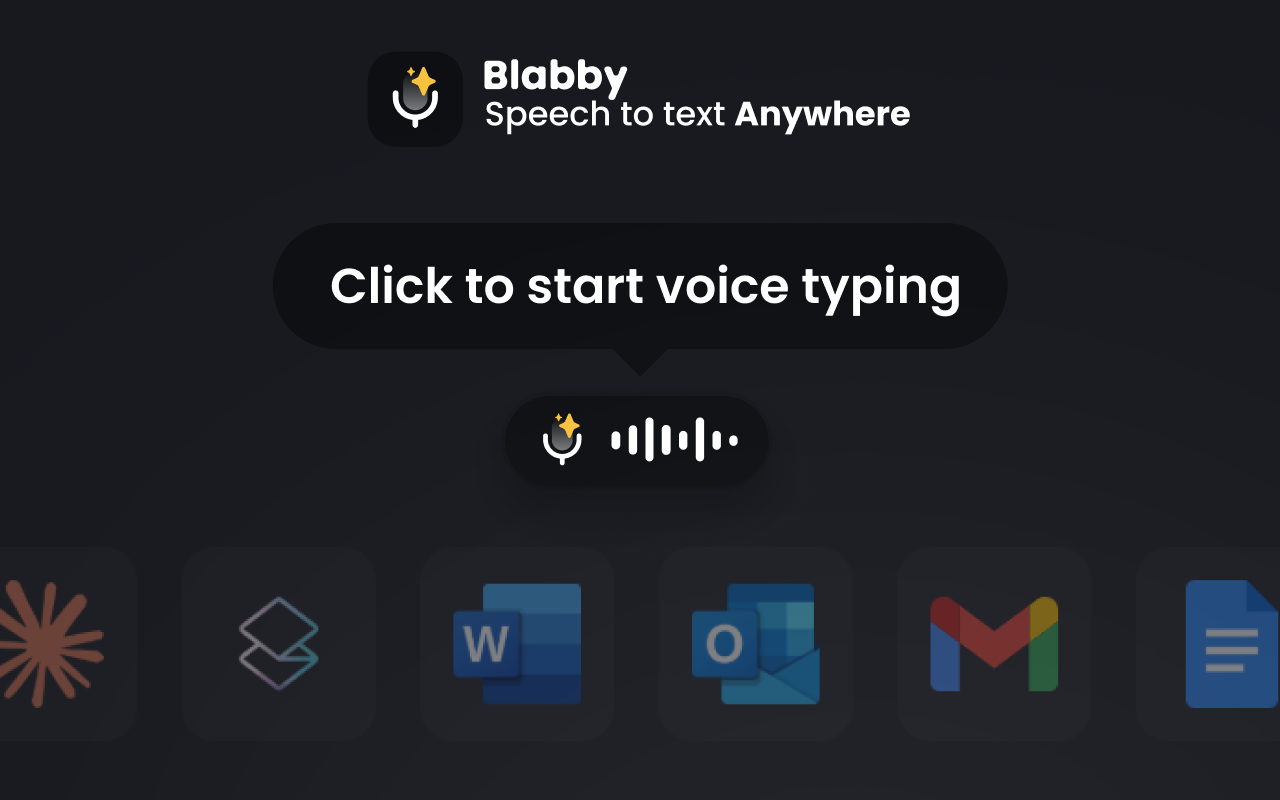
BlabbyAI is available as a Windows app, a Chrome extension, and a Linux app. The Windows app works across native desktop applications, including Outlook, Word, and anything else that accepts text input. The Chrome extension works in any browser text field.
The core differentiator is Custom Modes. After transcription, you can apply a mode you define: a grammar correction mode, a translate-to-English mode, an email rewrite mode. You write the instructions in plain language, and the AI follows them. There are also built-in modes for users who want to start without building anything.
- Auto punctuation based on context and tone
- 90+ languages with automatic language detection
- Custom spelling for names, jargon, and specialty terms
- Transcription history with search and replay (Windows app)
- 200-600ms processing speed after stopping speech
- Custom Modes: user-defined post-processing instructions
Pricing: free plan with 60 credits every week, no credit card. Unlimited dictation is $8.49/month or $84.90/year.
Wispr Flow: best for cross-platform coverage
Best for
Wispr Flow is best for people who dictate on a phone as well as a computer, because one subscription covers Mac, Windows, iPhone and Android and it types wherever the cursor is.
Watch out for
Wispr Flow's processing logic is fixed. You cannot rewrite the rules or define your own output behaviour, so when the result is not what you needed the only option is manual cleanup. Its Notetaker meeting feature is Mac only.
Price
Free tier of 2,000 words a week on desktop, 1,000 on iPhone and unlimited on Android. Pro is $15/user/month, or $12/user/month billed annually. Growth starts at $23/user/month, or $18 billed annually (wisprflow.ai/pricing, checked 2026-09-08).
Wispr Flow works on Mac, Windows, iOS, and Android. It removes filler words automatically, adapts tone based on context, and syncs your personal dictionary across all devices. The main limitation is that the processing logic is fixed. You cannot rewrite the rules or define custom behavior. If the output does not match what you need, the only option is manual cleanup.
Pricing: the free tier gives 2,000 words a week on desktop, 1,000 a week on iPhone and unlimited on Android. Pro is $15/user/month, or $12/user/month billed annually. Growth starts at $23/user/month, or $18 billed annually. Read on wisprflow.ai/pricing on 2026-09-08.
Dragon NaturallySpeaking: best for enterprise and specialty vocabulary
Best for
Dragon Professional v16 is best where a deep medical or legal vocabulary and fully offline operation are contractual requirements rather than preferences.
Watch out for
Dragon is Windows-only, is optimized for Windows 11 and backwards-compatible to Windows 10, and expects setup and profile management that consumer AI dictation tools do not.
Price
Nuance publishes no price on its own Dragon Professional page as of 2026-09-08: the page carries a Contact us form and no buy button, and the old shop.nuance.com product URL now redirects to that marketing page. Any figure quoted elsewhere comes from a reseller, so we quote none.

Dragon remains the established choice for healthcare, legal, and other fields with highly specialized vocabulary. Accuracy in domain-specific language is strong, and enterprise versions include EHR integrations. The tradeoffs are real: high cost, rigid workflows, and limited flexibility compared to modern AI tools. For professionals looking for a Dragon alternative, BlabbyAI addresses most Dragon pain points at a fraction of the price.
Google Docs Voice Typing: best free browser option
Best for
Google Docs voice typing is best for drafting a document inside Google Docs at no cost and with nothing to install.
Watch out for
Google Docs voice typing only runs inside Google Docs and Slides, and Google lists support for the latest versions of Chrome, Edge and Safari only. It cannot type into Gmail, Slack or any other tab.
Price
Free with a Google account.
Built into Google Docs at no cost. Supports 100+ languages and works reliably inside Docs. The limitations are significant: it does not work outside Google products, voice commands require English, and there is no post-processing. What you say is what you get. For basic drafting inside Docs it is hard to beat for free. See how BlabbyAI compares for voice typing in Google Docs.
Microsoft 365 Dictation: best built-in option for Office users
Best for
Microsoft 365 Dictation is best for people who write almost everything inside Word, Outlook and PowerPoint and do not want a second app running.
Watch out for
Microsoft 365 Dictation only works inside Microsoft applications. Switch to Slack, Notion or a browser tab and it is not there.
Price
Included with a Microsoft 365 subscription, so there is no separate dictation charge.
If you have a Microsoft 365 subscription, dictation is included in Word, Outlook, PowerPoint, and other Office apps. Auto-punctuation is supported, and Copilot+ PCs add real-time grammar correction and filler word removal through Fluid Dictation. The hard constraint is scope: it only works inside Microsoft applications. Switch to Slack, Notion, or a browser and it is not available.
Dictation AI on Windows: what built-in tools get wrong
Windows includes voice typing built into the operating system, accessible with Win+H. For light use, it works. For anything that requires consistent quality, it has real limitations.
Before that, there is a distinction almost every roundup gets wrong, and it decides whether a built-in Windows tool can spell your jargon. Windows ships two different dictation features, they are not the same thing, and only one of them has a dictionary.
Voice typing (Win+H)
- Works on Windows 10 and Windows 11
- Types into any text field, system-wide
- Over 40 languages
- No custom dictionary. Microsoft's support page documents no way to add a word
Voice Access
- Windows 11 version 22H2 and later only, not Windows 10
- Also controls the PC: open apps, browse, author email by voice
- Works without an internet connection
- Has a custom dictionary. Say "add to vocabulary" to teach it a word
Both facts are read from Microsoft's own support documentation on 2026-09-08. The practical consequence: if you are on Windows 10, the free built-in route has no way to learn a client name or a drug name, and it never will, because Voice Access is not available to you. Microsoft also notes that Windows Speech Recognition, the older feature, was replaced by Voice Access starting in September 2024, so guides written before then describe a tool that is no longer there.
Beyond the dictionary, the built-in tools share a set of limits that matter once you are dictating all day rather than trying it once.
- Inconsistent auto-punctuation: Win+H adds some punctuation automatically, but coverage is uneven and some apps still require verbal commands
- No post-processing: there is no way to apply grammar correction or reformatting after transcription
- App support is unpredictable: behavior varies across Windows versions and some productivity tools block it entirely
- No custom output rules: what you get is what the system produces, with no way to adjust
BlabbyAI for Windows runs as a native app and works across the same applications Win+H targets. The difference is the output layer: auto punctuation, grammar correction, Custom Modes, and transcription history with search and replay. The full comparison of Windows voice typing options covers this in more detail.
Ready to replace Win+H with something that actually finishes the job? Download BlabbyAI for Windows (free to start, no voice training required).
Comparison table
| Tool | Platforms | Post-processing | Custom output rules | Price |
|---|---|---|---|---|
| BlabbyAI | Chrome, Windows, Linux | Yes | Yes (Custom Modes) | Free / $8.49/mo |
| Wispr Flow | Mac, Windows, iOS, Android | Yes (fixed) | No | ~$15/mo |
| Google Docs Voice Typing | Browser (Google Docs only) | None | No | Free |
| Microsoft 365 Dictation | Office apps only | Limited | No | Included with M365 |
| Dragon NaturallySpeaking | Windows, Mac | Yes (fixed) | Limited | $15+/mo or enterprise |
FAQ
Which AI dictation tools allow custom vocabulary training so brand names are spelled correctly every time?
Two different mechanisms get sold under the same label. Older engines like Dragon use genuine vocabulary training: you add a term to a profile and the recognizer learns it. Modern AI tools mostly skip that and correct after the fact instead, which in practice works better for proper nouns because the model reads the whole sentence before deciding on a spelling.
In BlabbyAI the mechanism is a custom mode. You write an instruction naming the spellings you want enforced, for example that “blabby” is always BlabbyAI and a colleague’s name is Siobhan rather than Shevaun, and the mode applies it to every recording while that mode is active. There is no training session and no profile to rebuild if you switch machines. The tradeoff worth knowing: the instruction applies per recording, so a term you never listed can still come out phonetically the first time you say it.
Are there AI dictation tools designed to recognize heavy accents?
Accent handling improved because of how the models are trained, not because of a per-user setting. Whisper, the model family BlabbyAI runs on, was trained on 680,000 hours of multilingual and multitask audio spanning 98 languages, and its large-v3 model scored 97.93% word accuracy on clean English LibriSpeech audio in MLCommons’ 2025 benchmark, so there is no enrollment step and no accent to select from a menu. This is the clearest break from the older generation, where a strong accent meant reading training scripts and still getting degraded results.
What still matters is microphone quality and background noise. A headset microphone close to your mouth does more for a heavily accented recording than any software setting, because the model is working from the audio it is given.
Is dictation AI accurate enough for professional use?
Yes, for most use cases. Modern AI transcription tools reach 95-99% word accuracy in normal conditions. The more relevant question for professional use is whether the tool handles your specific vocabulary. Domain-specific terms, names, and jargon are where generic tools often fall short. Custom spelling support addresses this directly.
What is the difference between dictation AI and speech-to-text?
The terms are often used interchangeably, but there is a useful distinction. Speech-to-text usually refers to raw transcription: turning spoken audio into written words. Dictation AI typically implies a layer beyond that, including post-processing, AI-assisted cleanup, and context-aware formatting. The difference matters when you are evaluating output quality, not just transcription accuracy.
Can dictation AI handle medical or legal terms?
It depends on the tool. General-purpose AI dictation tools often struggle with specialty vocabulary without additional configuration. Tools that support custom spelling allow you to add domain-specific terms, which improves accuracy significantly. Medical dictation software has more detail on the healthcare workflow specifically.
Is dictation AI free?
Several tools offer free tiers. Google Docs Voice Typing is fully free. BlabbyAI has a free plan with limited usage. Most paid professional tools start around $6-12/month for individual plans. Enterprise tools like Dragon are priced on annual contracts and cost significantly more.
Does dictation AI work on Windows?
Yes. Most modern AI dictation tools have some Windows support. The quality varies. BlabbyAI has a dedicated Windows app for AI dictation that works across native desktop applications, not just browser fields. Google Docs Voice Typing works in the browser on Windows but not in desktop apps. Wispr Flow has a Windows client. Dragon's core product has always been Windows-native.
The bottom line
Dictation AI in 2026 is not a niche workaround. It is a practical workflow that works well enough for daily professional use. The accuracy problem that held older tools back is largely solved.
The problem worth paying attention to now is the post-transcription layer. Getting words on screen was never the hard part. Getting output that does not need a full editing pass is where most tools still fall short, and where the difference between tools becomes tangible.
If you want dictation AI that gives you control over that layer, try BlabbyAI. The Windows app covers native desktop applications. The Chrome extension covers browser workflows. Both are free to start.